
Reset or change your password
Get back in if you forgot your password, or set a new one while signed in.
This is for accounts that sign in with an email address and password. If you sign in with Google, Wikidoc has no password of its own. Manage it in your Google account instead. See below.
Forgot your password
Section titled “Forgot your password”-
On the sign-in screen, click Forgot password? under the password box.
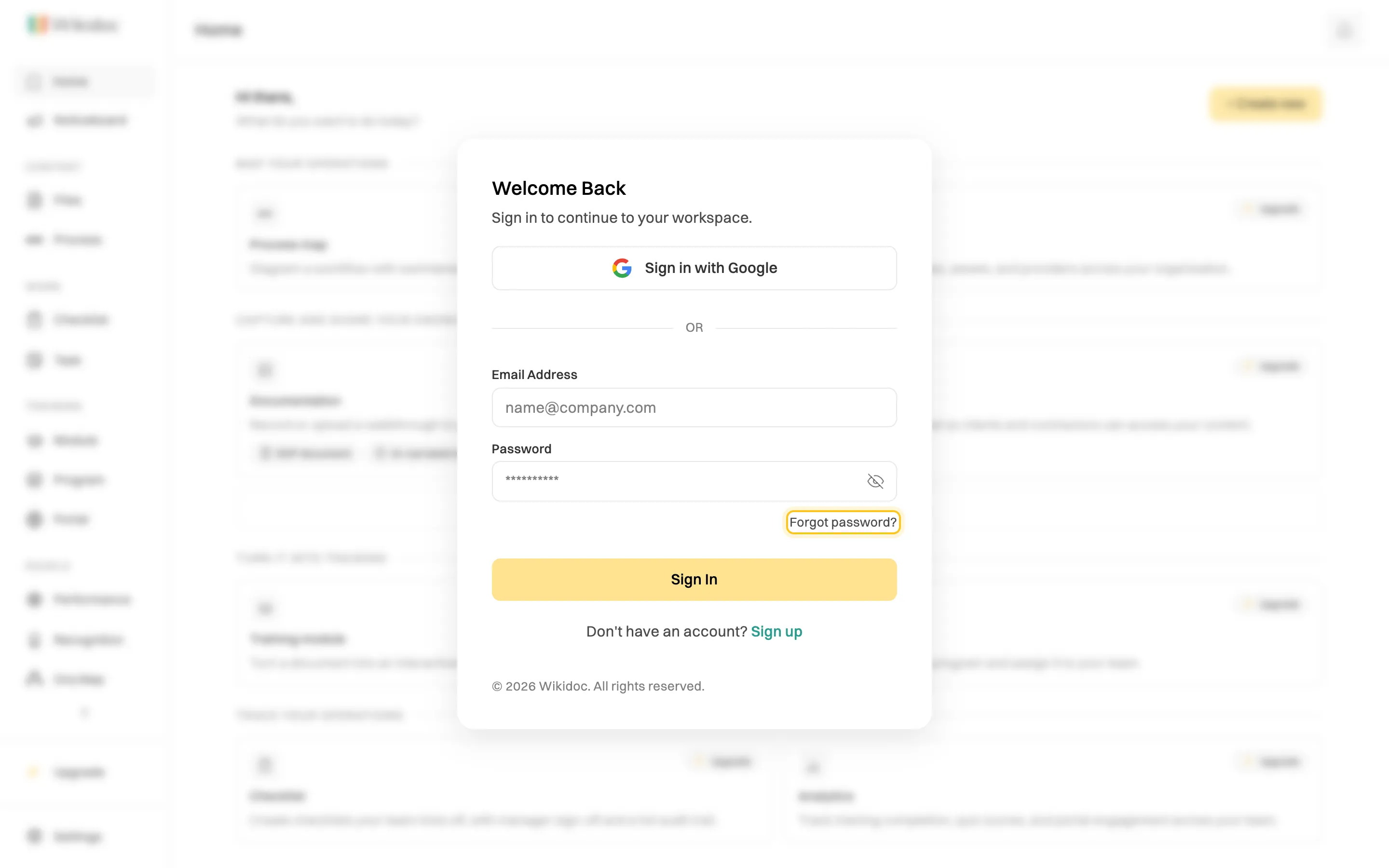
Forgot password? is under the password box. -
Enter the email address you use for Wikidoc, then click Send reset link.
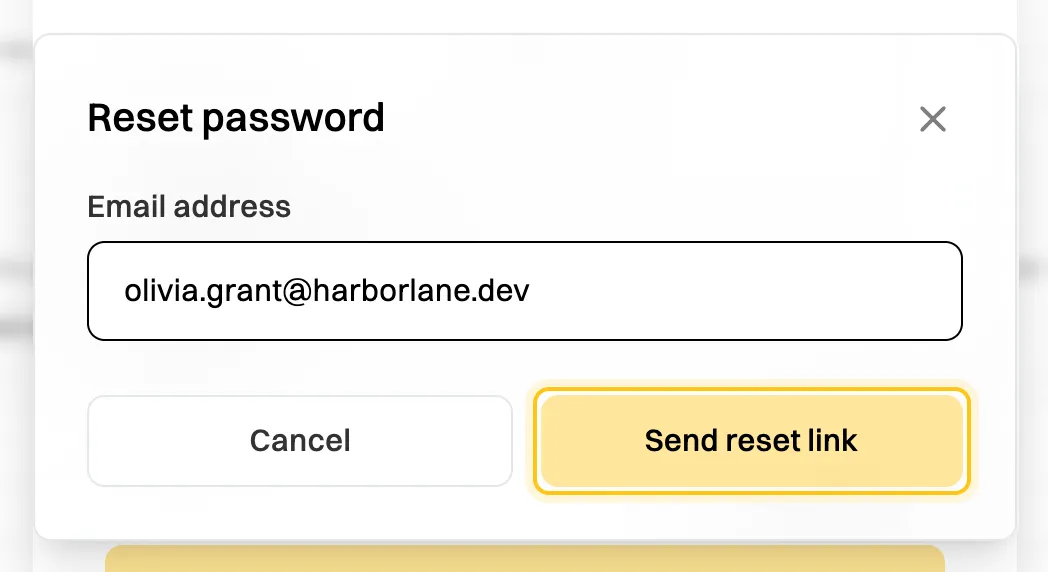
We email a reset link to that address. -
Open the email and follow the link to choose a new password. Then sign in with it.

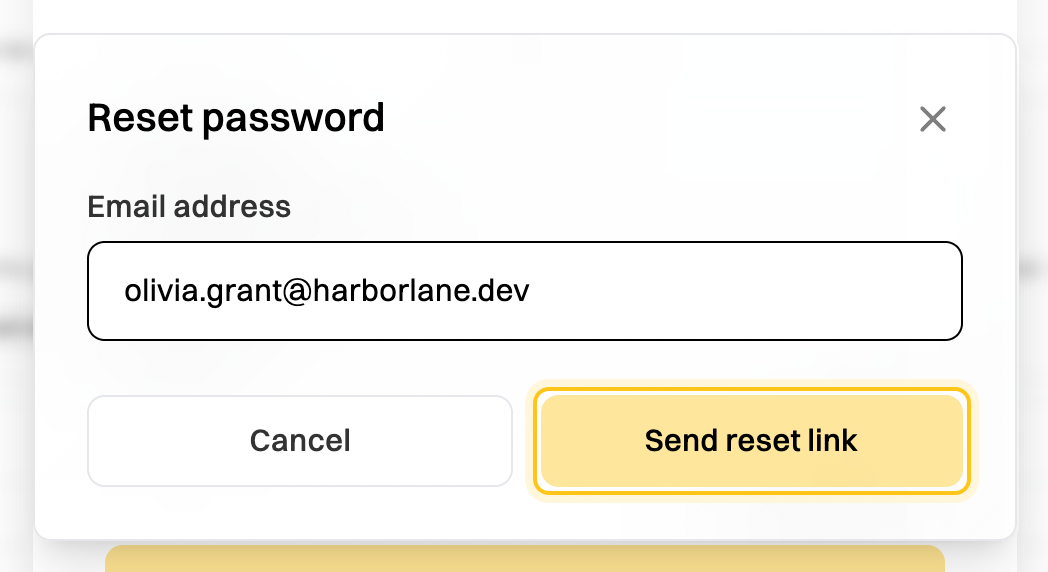
The link should arrive within a few minutes. For your security, we don’t say whether an account exists for the address you entered. If nothing arrives, check your spam folder and that you typed the address you signed up with, then try again. Still stuck? Contact support.
Change your password
Section titled “Change your password”When you’re signed in and know your current password:
- Go to Settings›Account and click Update password.
- Enter your Current password, then your New password twice. It needs 10 to 30 characters, with an uppercase letter, a lowercase letter and a number, and must be different from the current one.
- Click Change password.
Signed in with Google?
Section titled “Signed in with Google?”Your Account tab says Password change is only available for email/password accounts. Wikidoc uses your Google sign-in, so change your password, or recover your account, with Google.
