
Create a document from a recording or video
Record a task once, or upload a video of it, and Wikidoc writes the step-by-step guide.
Do a task once while Wikidoc records your screen, or upload a video of it. Wikidoc turns the recording into a step-by-step document: a written instruction for every step, with a screenshot taken at that moment. From the same recording it can also make a narrated video, a slide deck and a quiz.
Create the document
Section titled “Create the document”-
Click Files in the sidebar, then + New file.
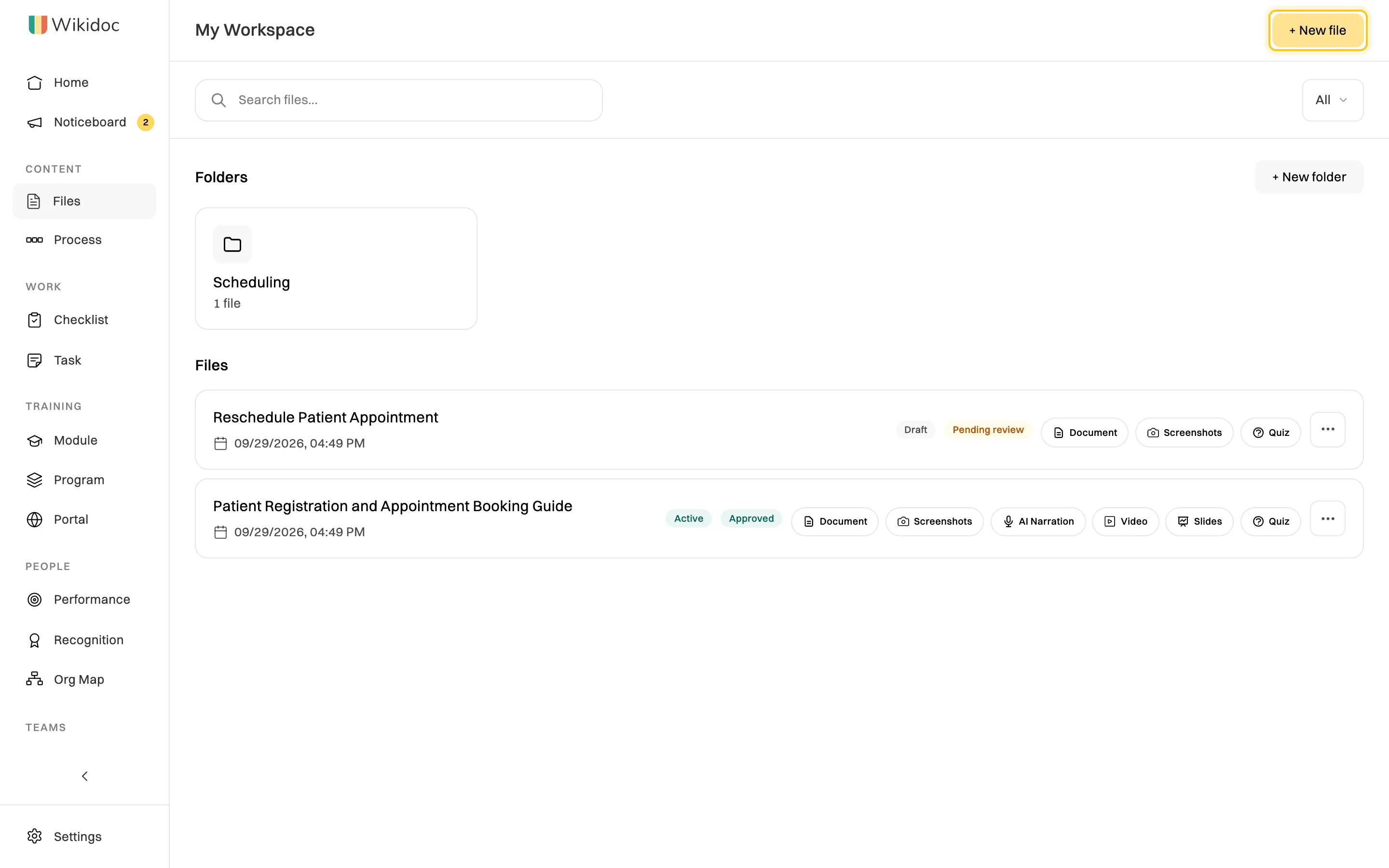
Your documents live in My Workspace. To create a document in a team workspace instead, open the team under Teams in the sidebar first. See Organize files: folders and team workspaces.
-
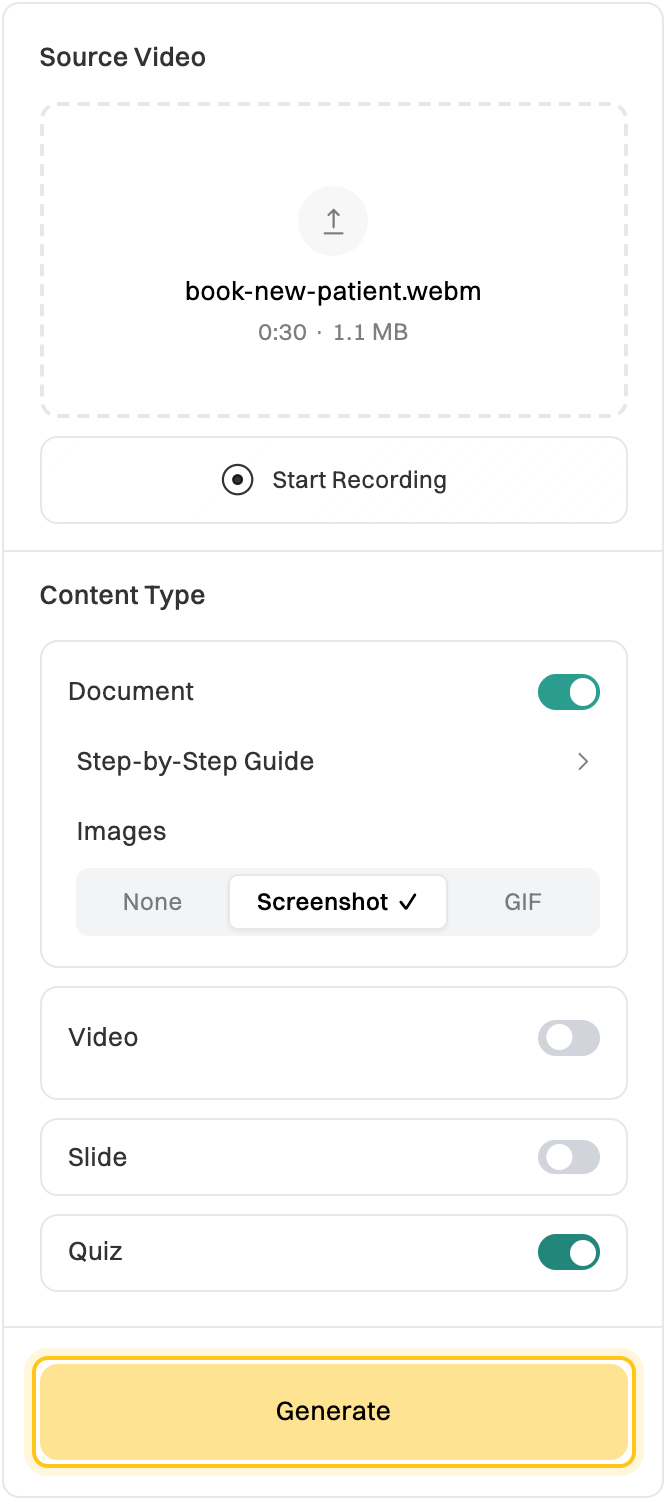
Under Source Video, add your recording:
- Upload a video: click the upload area and choose a video file, such as an MP4, MOV or WEBM.
- Record your screen: click Start Recording. Your browser asks to use your microphone, then which screen, window or tab to share. Do the task, then click Stop. You can Pause and Resume along the way.
Talk through what you’re doing if it helps. Wikidoc listens to your narration as well as watching what you click.
-
Under Content Type, choose what to make:
- Document: the step-by-step guide. Under Images, choose Screenshot for a picture of each step, GIF for a short animation of each step (Pro and Team, see Add GIFs to a document), or None for text only.
- Video: a narrated video of the recording. Choose a voice and a Narration language. Tick Auto zoom-in to zoom in on each click. See Create and edit an AI-narrated video.
- Slide: a slide deck, one slide per step.
- Quiz: multiple-choice questions about the steps.
Choose everything you want now. Once the document is created you can edit each part, but you can’t add a video, slides or a quiz to it.
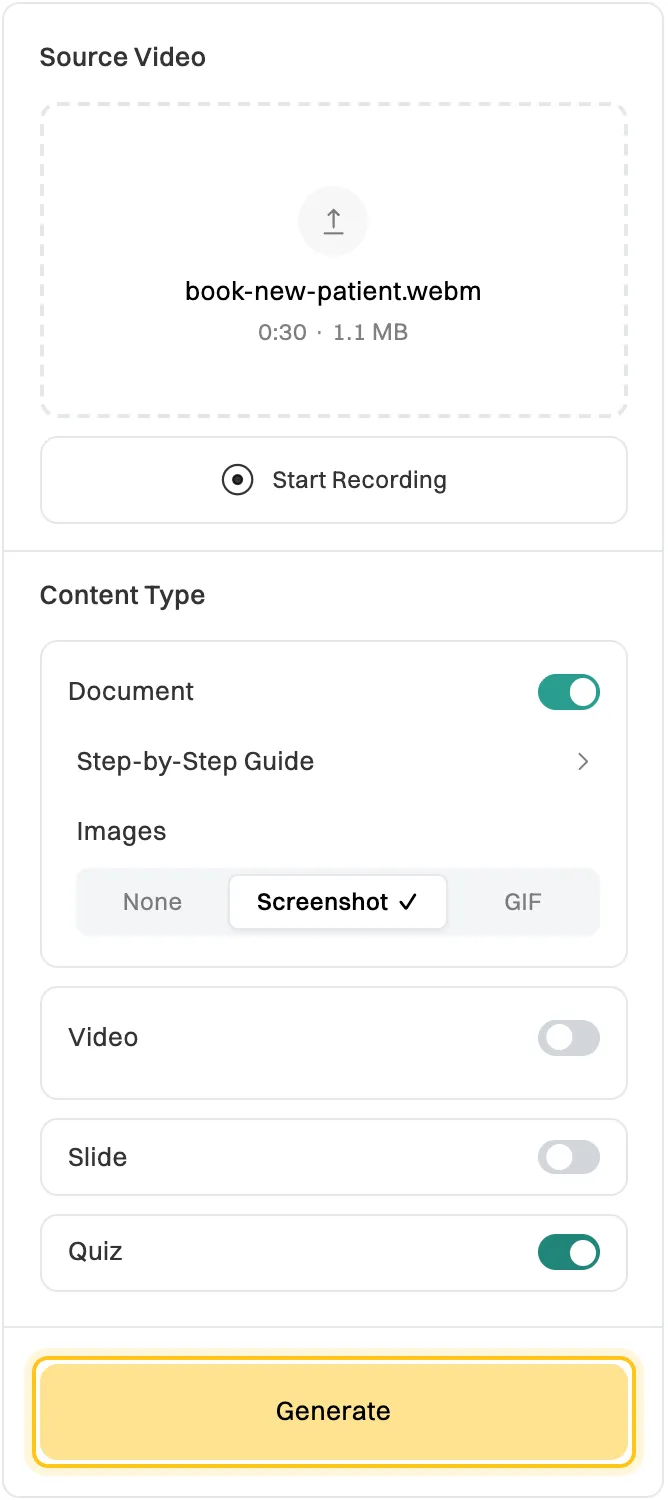
A document and a quiz from one 30-second recording. -
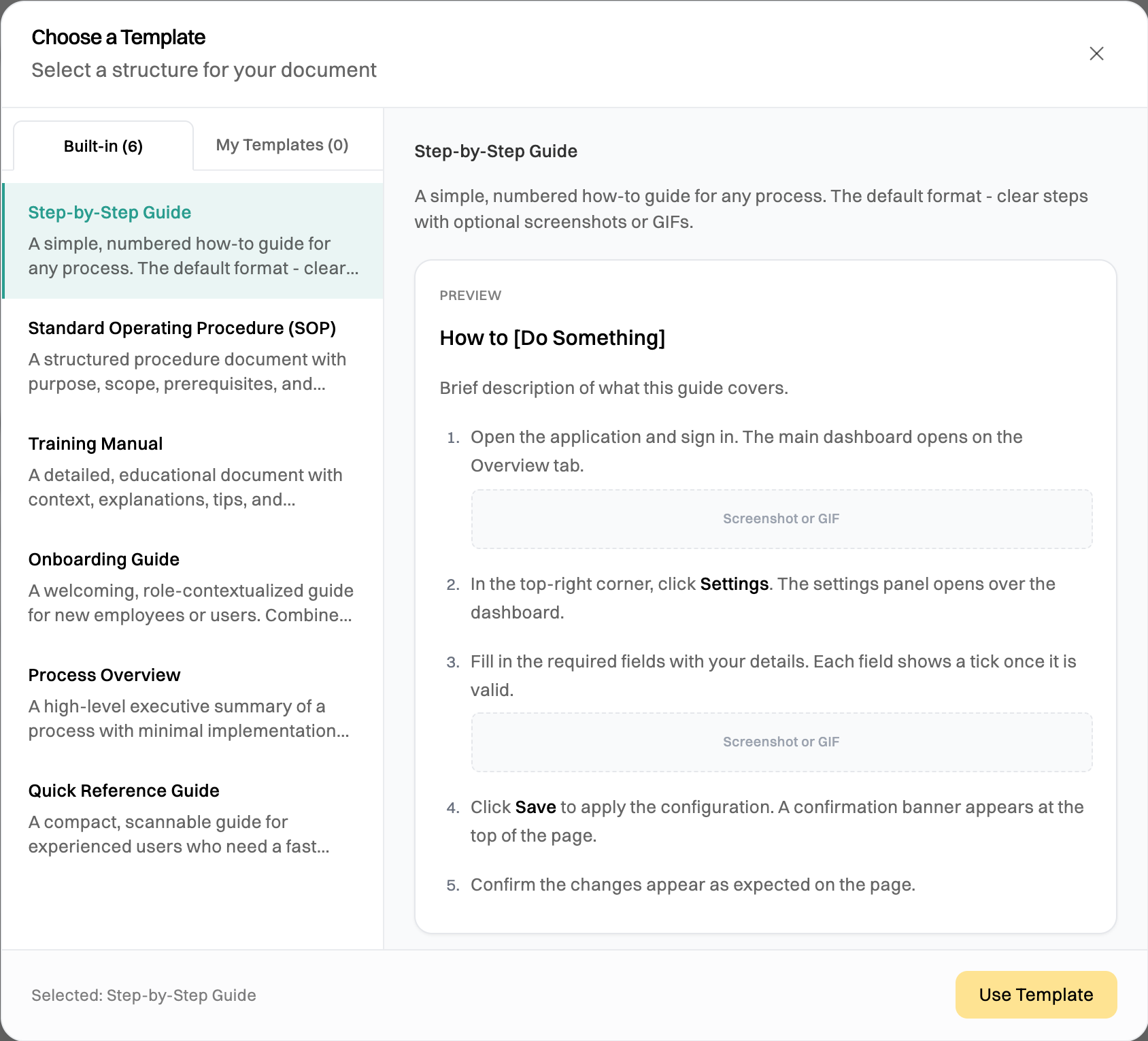
To change the document’s layout, click Step-by-Step Guide and pick another template, such as Standard Operating Procedure (SOP) or Quick Reference Guide. Click Use Template.
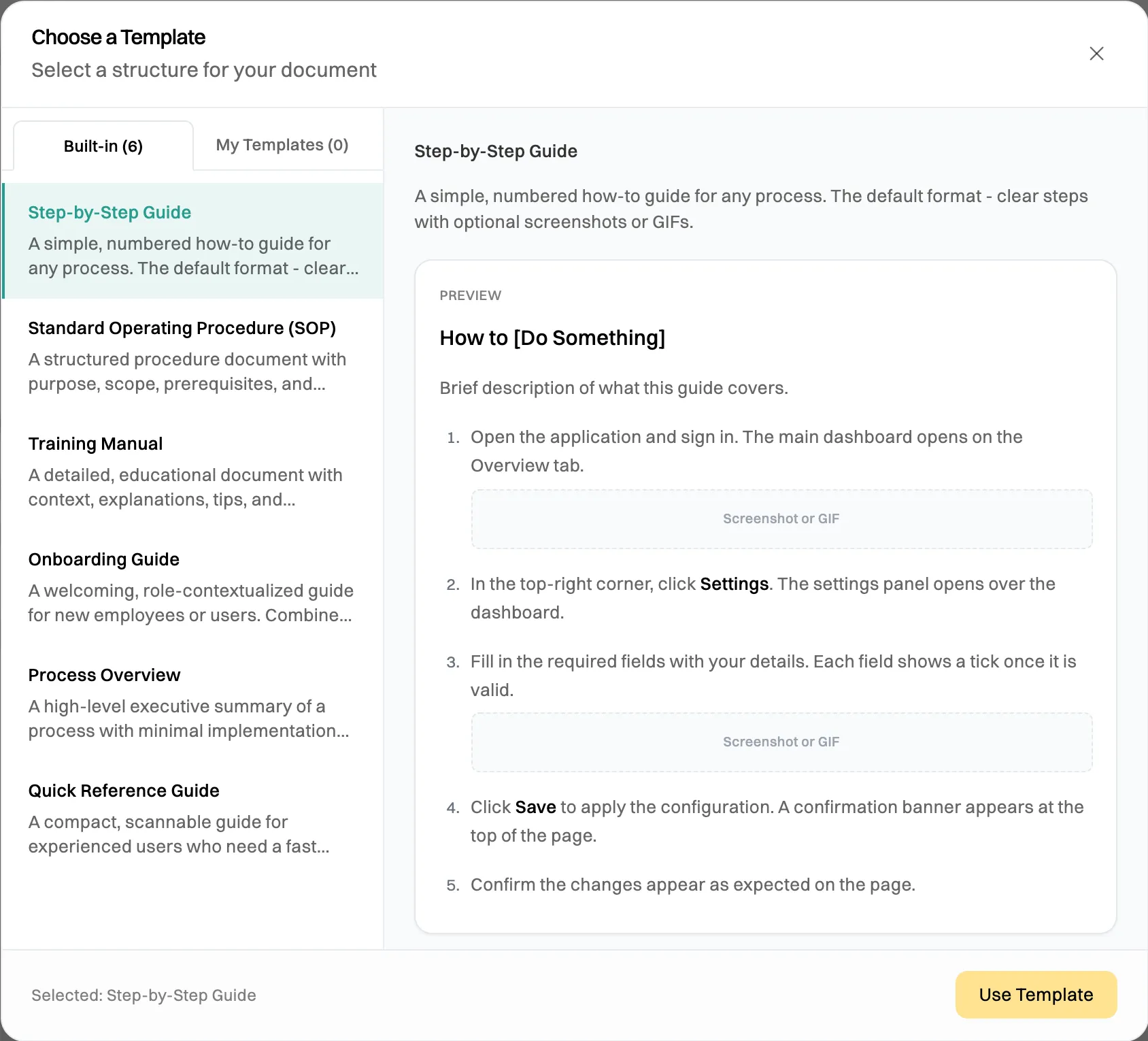
Hover over a template to preview its layout. -
Click Generate.
Wikidoc analyzes the recording and what you said, then writes the document. A short recording takes a minute or two, and longer when you also make a video.
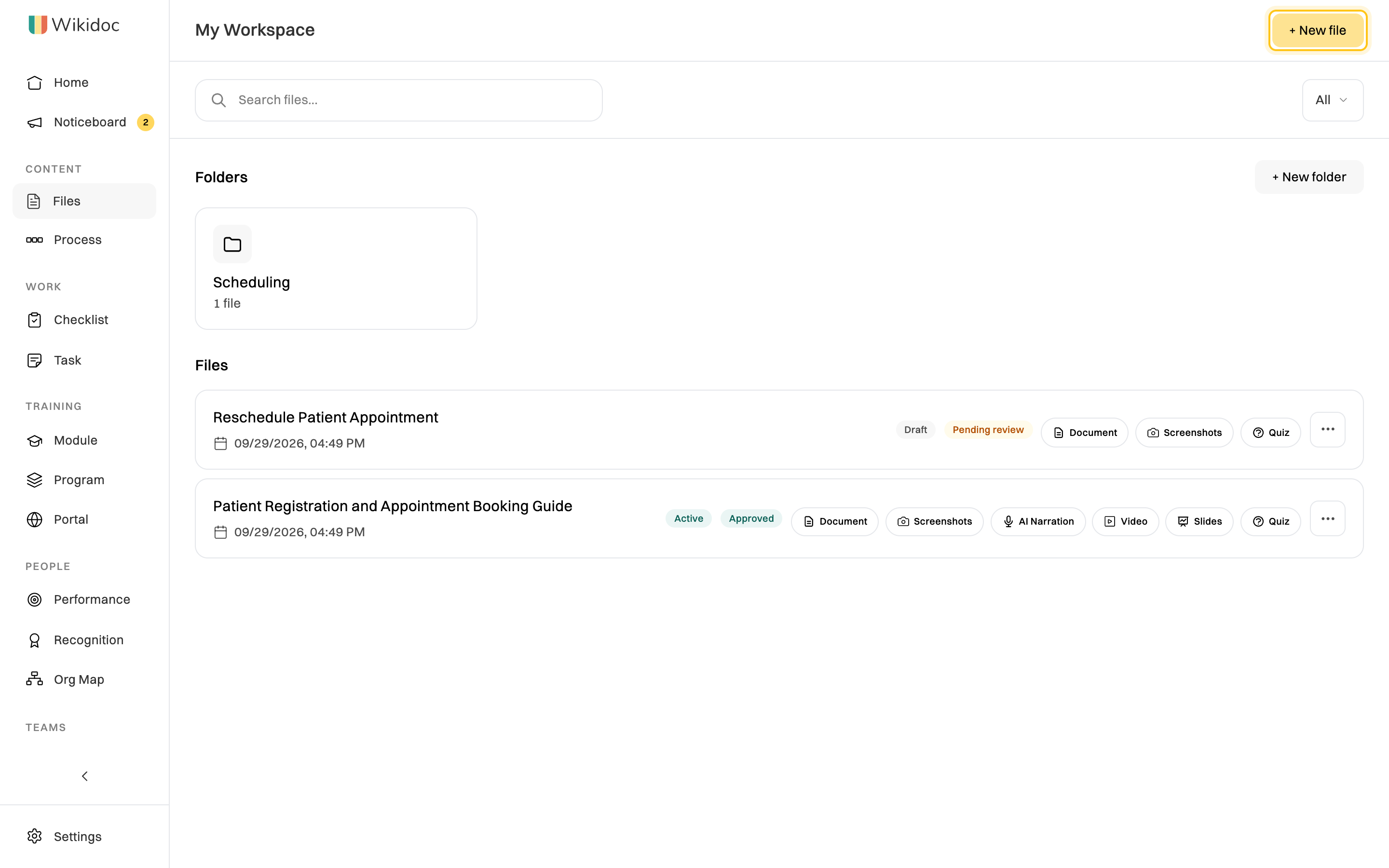
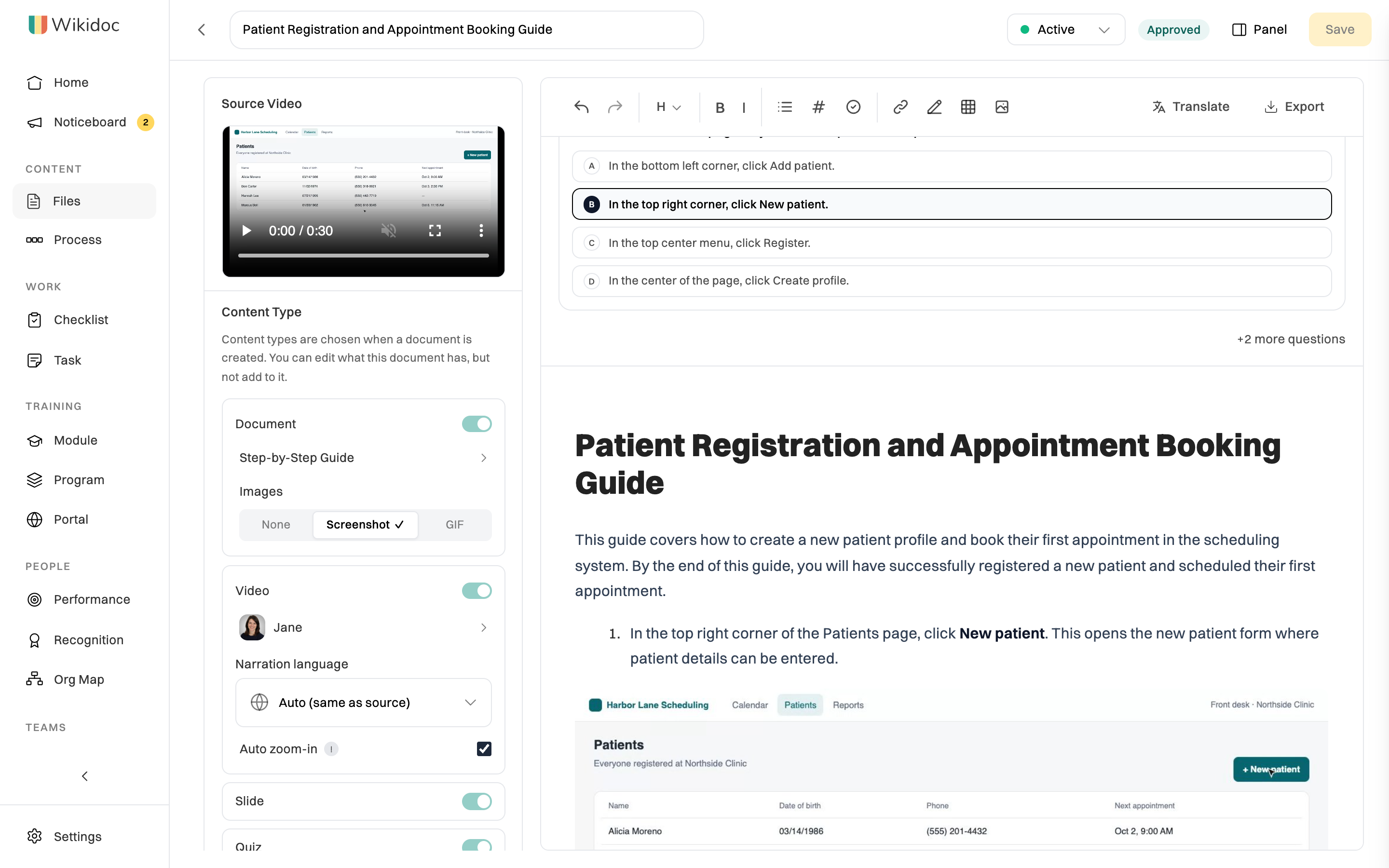
The document is saved as soon as it’s ready, as a Draft in your workspace. It opens in the editor, with the narrated video, slides and quiz above the document.
Get a better document
Section titled “Get a better document”- One task per recording. “Book a new patient” makes a better guide than “everything at the front desk”. Short guides are easier to follow and to keep up to date.
- Go at a steady pace. Pause briefly after each click, so each step has a clear screenshot.
- Say what you’re doing and why, especially at decisions: “If they have a referral, choose Physician referral.”
- Use test data where you can. Wikidoc removes passwords, API keys and access tokens from the text it writes, but screenshots show exactly what was on screen. Blur anything private before you share the document.
Plan limits
Section titled “Plan limits”On the Free plan you can create three documents, three narrated videos, three slide decks and three quizzes. Pro and Team have no limit on any of them. See Plans compared.
If something goes wrong
Section titled “If something goes wrong”“Video Too Long”. A video can be up to 10 minutes, or 5 minutes on the Free plan. Record just the part you need, or shorten the video and upload it again. See Video upload rejected?
“The video could not be decoded”. The video uses the HEVC (H.265) format, which many browsers can’t play. Export or convert it as an H.264 MP4 and upload it again.
“Editor role or above required”. Viewers can read documents but can’t create them. Ask an Admin for the Editor role. See Roles and permissions.
You’ve reached a limit. Free accounts see a message when they’ve used their three of a kind. Delete one you don’t need, or upgrade to Pro.