
Noticeboard: announcements and events
Post a notice or an event to your whole organization, reply to an event, and add the company calendar to your own.
The Noticeboard is where your organization’s official news goes: announcements everyone should read, and events on a shared company calendar. Everyone in the organization sees the same noticeboard.
Read the noticeboard
Section titled “Read the noticeboard”Click Noticeboard in the sidebar. The number next to it counts what’s new since you last looked.
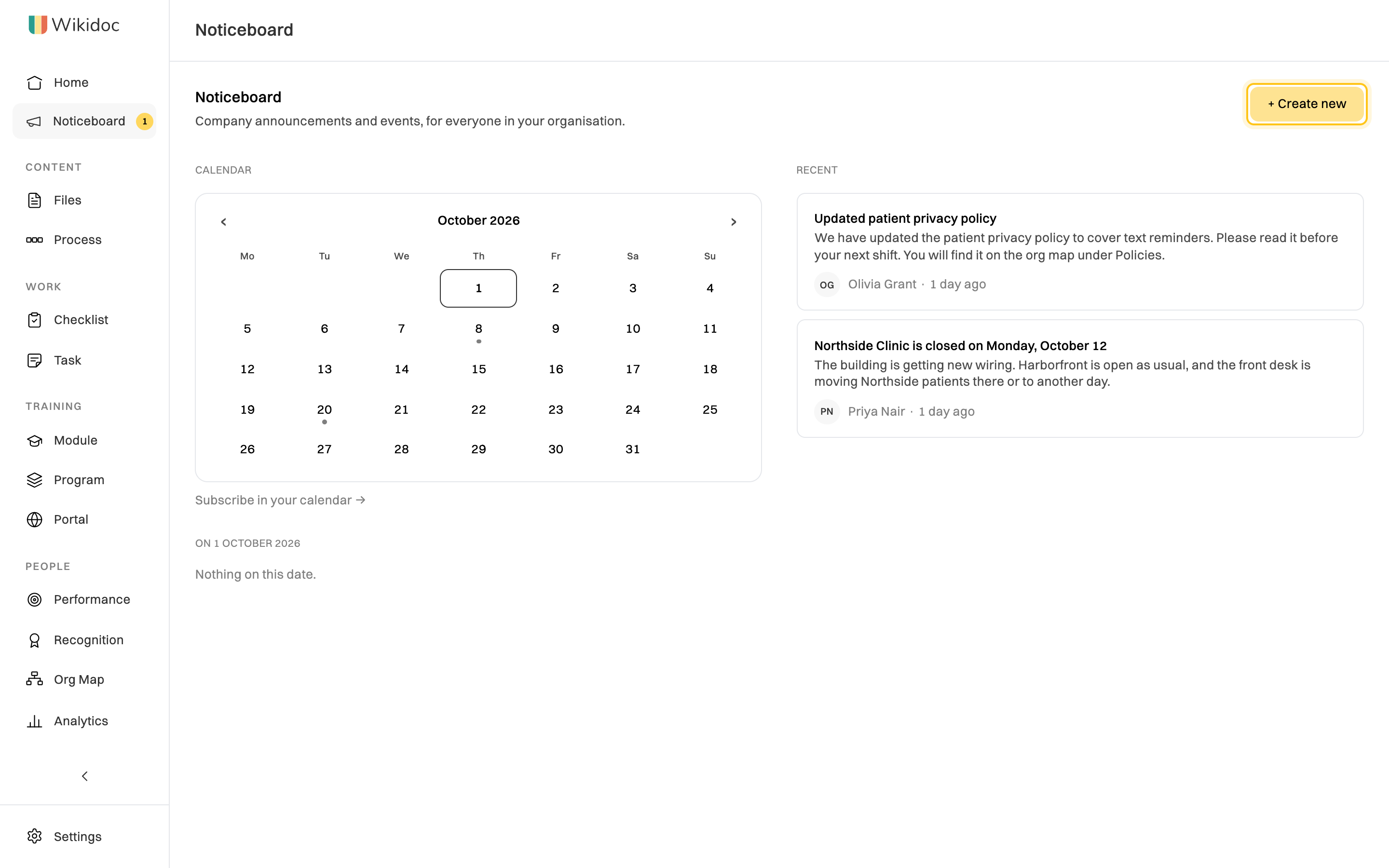
- Calendar: a dot marks each day with an event. Click a day to list its events, and click one to open it.
- Recent: the latest announcements. Click one to read it in full.
In an announcement or event you can react with an emoji, and comment or reply under it. Anyone can delete their own comment. The author and Admins can remove any comment on what they posted.
Reply to an event
Section titled “Reply to an event”Open the event. Under Can you make it?, choose Attend, Not sure or Decline, and add a note if you want to. Replies counts the answers so far. The person who posted the event, and Admins, can also see who replied and how.
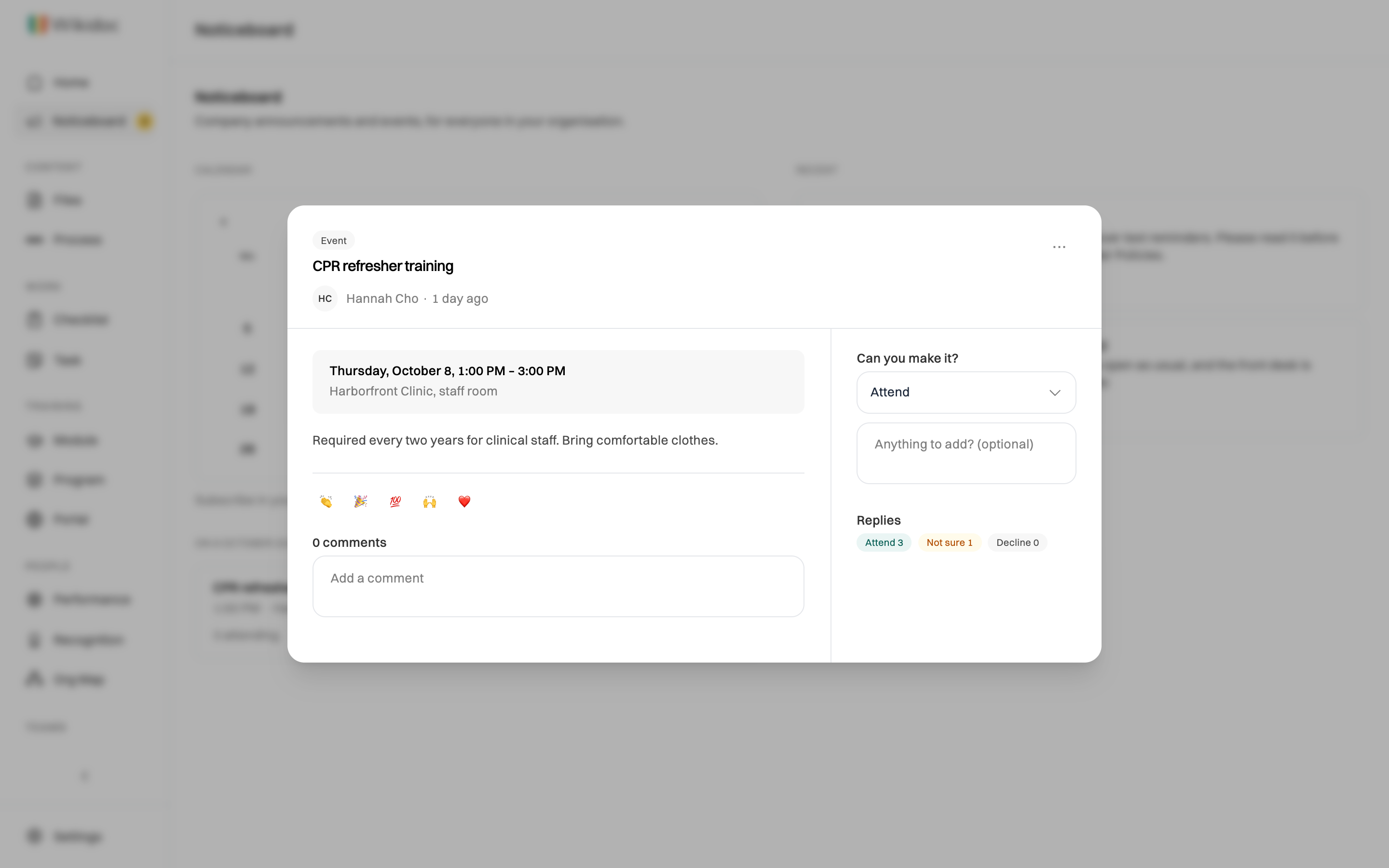
To put one event in your own calendar, click ⋯, then Add to calendar. It downloads a calendar file that Google Calendar, Outlook and Apple Calendar can open.
Add the company calendar to your own
Section titled “Add the company calendar to your own”Under the calendar, click Subscribe in your calendar. Wikidoc copies a link. In your calendar app, add a calendar from a URL (sometimes called “subscribe” or “from internet”) and paste the link. New events then appear there on their own.
The link is personal to you. Don’t share it.
Post an announcement or event
Section titled “Post an announcement or event”Only Managers and Admins can post.
-
On the Noticeboard, click + Create new.
-
Under What is this?, choose Announcement (a notice everyone reads) or Event (a date on the company calendar).
-
Give it a Title and the Details.
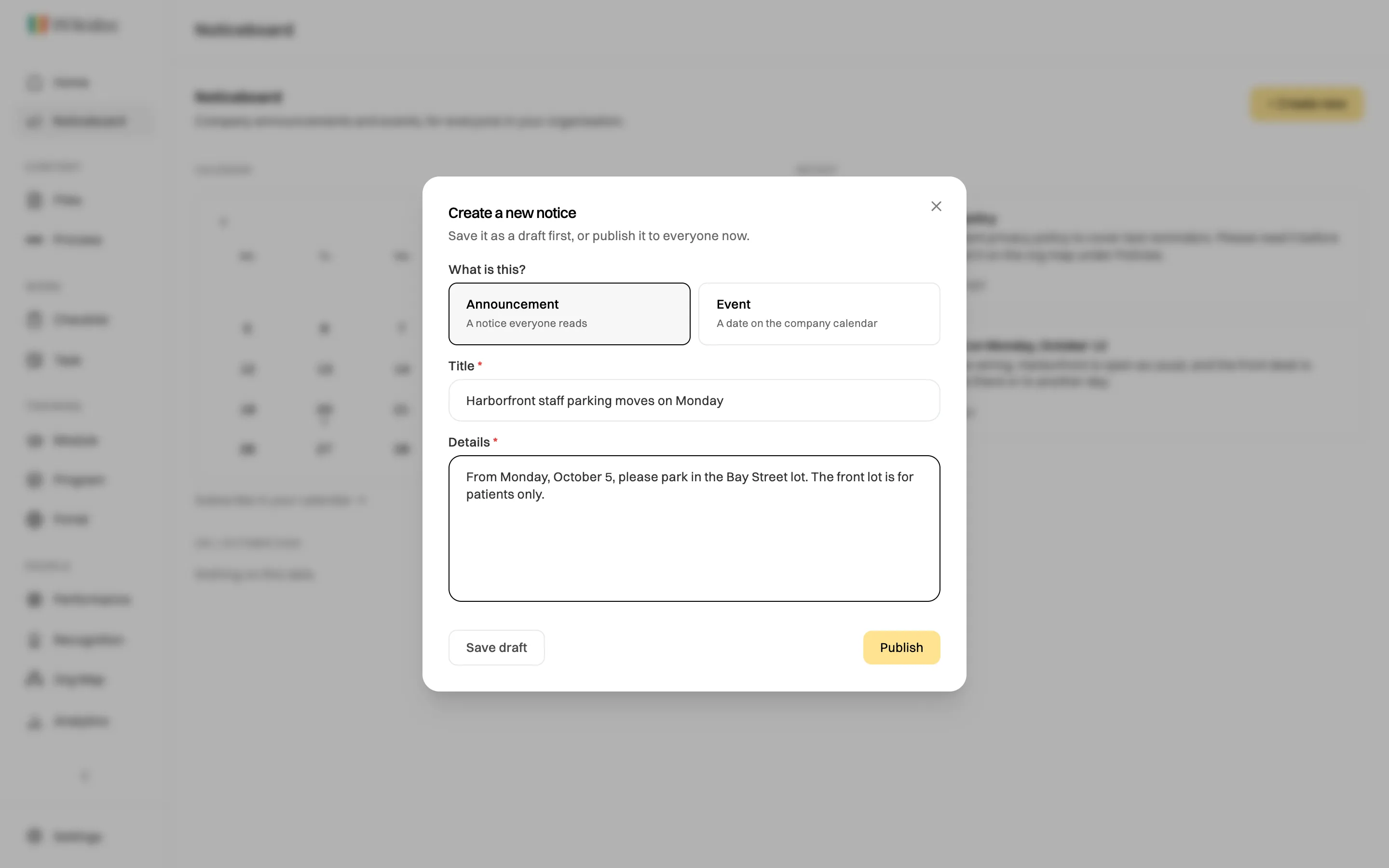
Save a draft to finish later, or publish it now. -
For an event, also set:
- Starts and Ends, and the times under From and To, or tick All day.
- Where, such as a room or a meeting link. This is optional.
- Ask people whether they can make it, to collect replies. It’s on unless you untick it.
- Repeat, for an event that happens every day, week or month, and Repeat until.
-
Click Publish, then confirm. Wikidoc tells you how many people will be emailed.
Everyone in your organization gets an email, unless they’ve turned off Company announcements & events in their notification settings. To finish later, click Save draft instead. Your drafts are listed under Your drafts on the Noticeboard, and only you and Admins can see them.
After you’ve posted
Section titled “After you’ve posted”Open what you posted and click ⋯:
- Edit: fix a mistake or change the details. Changes don’t send another email.
- Archive: take it off the noticeboard. You can restore it later.
- Delete: remove it for good.
- Copy link: a link to send people.
Viewed by, in what you posted, shows how many people have opened it. Click Show names to see who. Opening something isn’t the same as agreeing to it: it only means they’ve seen it.
Managers can change what they posted themselves. Admins can change anything on the noticeboard.