
How organizations, members and seats work
How people join your organization, what a seat is, and what the statuses on the Access tab mean.
Everyone at your company who uses Wikidoc belongs to one organization. Its members share files, process maps, checklists and training, and on the Team plan one subscription covers all of them. This page explains how people get into your organization, and what the Access tab is telling you.
Your organization is your email domain
Section titled “Your organization is your email domain”An organization is identified by an email domain. If your work address is olivia.grant@harborlane.dev, your organization is harborlane.dev.
- Anyone who signs up with an address at your domain joins your organization automatically. There’s nothing to set up.
- Personal addresses (Gmail, Outlook, iCloud and similar) don’t belong to an organization. On their own, they get a private space for documents, process maps and training modules. Someone with a personal address can ask to join yours, or an Admin can invite them.
- People at another domain, such as a contractor with their own company address, join the same two ways.
You can see your organization in Settings›Account, under Organisation. Once your organization is on the Team plan, the field is locked for everyone at your domain, because that domain owns the subscription.

Members and seats
Section titled “Members and seats”On the Team plan, your organization buys a number of seats, and each member uses one. The price is per seat; see Plans compared.
What uses a seat:
- every active member;
- every invited address that hasn’t signed up yet. The seat is held for them.
What doesn’t use a seat:
- a pending request, until an Admin approves it. Until then, that person can’t see your organization’s content;
- someone who was removed;
- a portal guest: someone outside your organization you’ve shared a portal with. See Members vs. portal guests.
On Free and Pro there are no seats. Everyone who signs up at your domain joins automatically, and Admins can still invite and remove members, for example to bring the team in before you upgrade. Pro is a plan for one person, so each Pro subscriber pays for their own account.
When you upgrade to Team, you choose how many seats to buy. If your organization has more members than that, the ones who don’t get a seat become Pending until you add seats or remove someone.
The Access tab
Section titled “The Access tab”Open Settings›Access to see everyone in your organization. Everyone can open this tab. Only Admins can invite, approve or remove members and change roles. Managers and Admins also manage teams there.
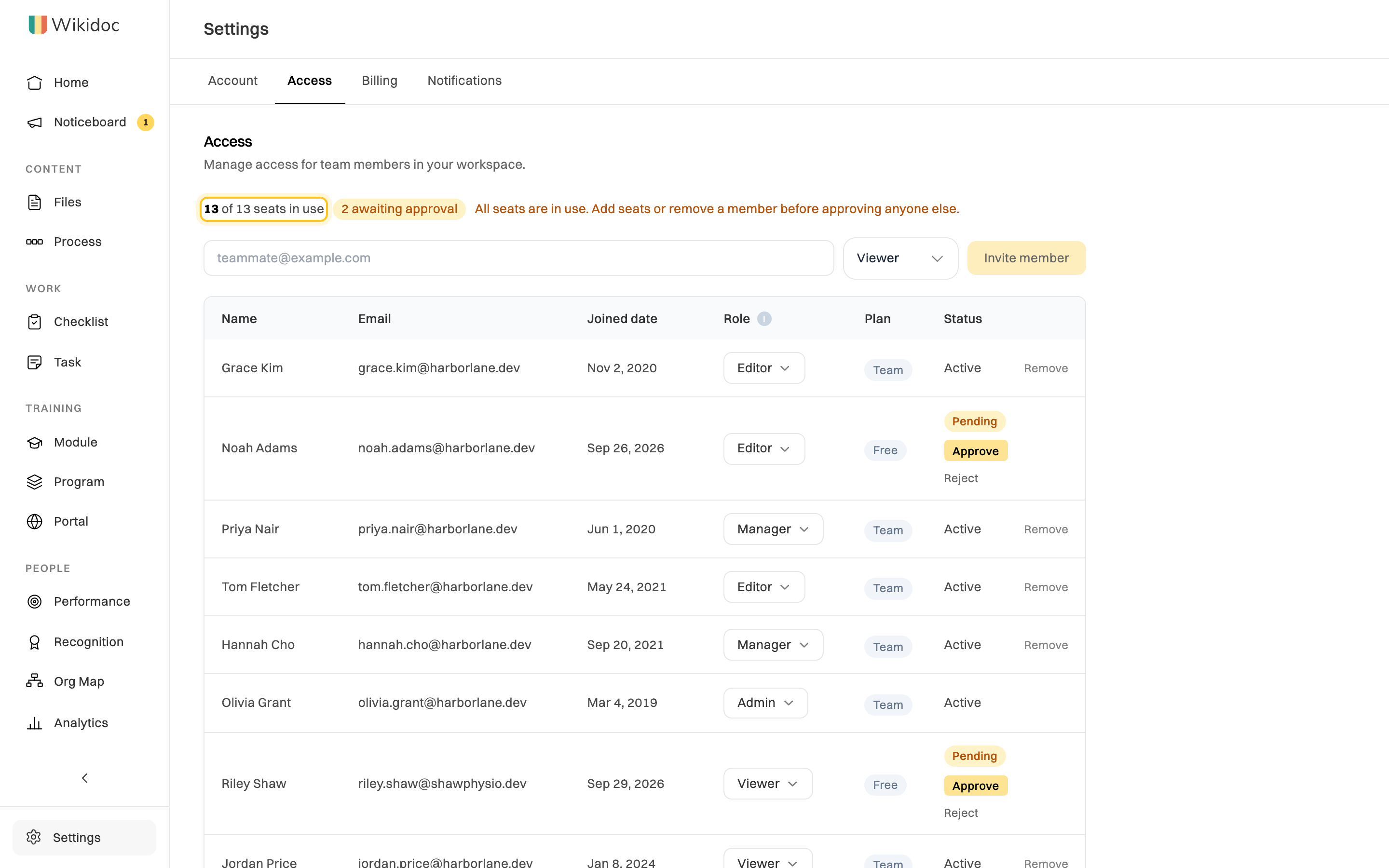
Each member has a status:
| Status | What it means |
|---|---|
| Active | A member with a seat. |
| Pending | Asked to join, or signed up after every seat was taken. Waits for an Admin to Approve or Reject. Doesn’t use a seat, and can’t see your organization’s content yet. |
| Invited | An Admin added this address, but the person hasn’t created a Wikidoc account yet. Holds a seat. |
When every seat is taken, the Access tab says All seats are in use. Add seats or remove a member before approving anyone else. New sign-ups from your domain then wait as Pending instead of joining straight away. To make room, add seats or remove a member.
Organization, teams and roles
Section titled “Organization, teams and roles”Three different things decide what someone can do:
- Organization membership decides whether they’re in at all, and whether they use a seat. Only Admins change it. Someone who is removed, or still pending, can’t see anything in your organization.
- Their role (Viewer, Editor, Manager or Admin) decides what they can do everywhere. See Roles and permissions.
- Teams decide which team workspaces they can see. Adding someone to a team doesn’t add them to the organization or use a seat. See Teams and team workspaces.