
Document governance: status, owners, versions and comments
Track a document's status and owners, go back to an earlier version, and discuss it in comments.
Every document carries governance details: whether it’s ready to use, who’s responsible for it, how it has changed, and what people have said about it. They matter most for documents your team relies on, such as the procedures an auditor might ask to see.
Open a document’s governance details
Section titled “Open a document’s governance details”- In Files, click ⋯ next to the document, then Governance.
- Or, with the document open, click Panel at the top right.
The details have three tabs: Overview, Versions and Comments.
What each plan includes
Section titled “What each plan includes”| Free | Pro | Team | |
|---|---|---|---|
| Status | ✓ | ✓ | ✓ |
| Version history | ✓ | ✓ | |
| Owners, team, approvals and comments | ✓ |
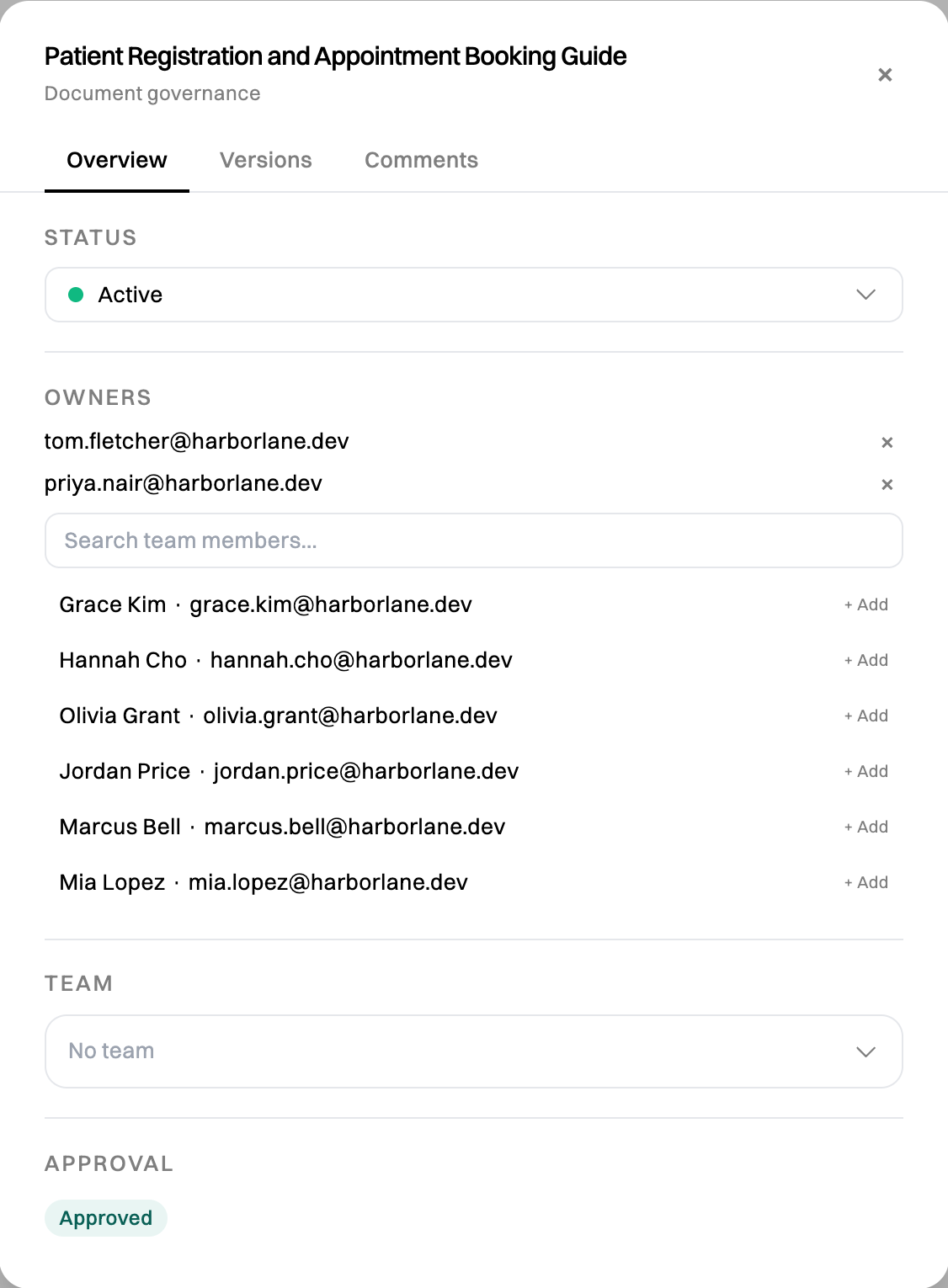
Status
Section titled “Status”A document is Draft or Active:
- Draft: still being written or checked. New documents start as drafts.
- Active: the version people should follow.
Change it with the Status menu on the Overview tab, or next to Panel at the top of the editor. The document’s creator, its owners and Admins can change it. The status shows next to the document in Files, where you can filter by it.
Owners
Section titled “Owners”Owners are the people responsible for keeping a document accurate. The person who creates a document is its first owner.
To add an owner, search for a colleague under Owners and click + Add. To remove one, click × next to their name. The creator, the owners and Admins can change owners.
Owners can change the document’s status and details, and are told when someone comments on it or makes an approval decision. Only the person who created the document can edit its content.
Team records which team a document belongs to, such as the clinic that uses it. It’s a label: it doesn’t move the document into that team’s workspace or change who can open it. See Organize files: folders and team workspaces.
Approval
Section titled “Approval”Approval shows whether the document has been approved: Not submitted, Pending review, Approved or Rejected. Admins choose each document’s approvers under Approvers. See Request and give approval on a document.
Go back to an earlier version
Section titled “Go back to an earlier version”Each time someone clicks Save on the document, its slides or its quiz, Wikidoc keeps a copy. The Versions tab lists them, newest first, with what changed and who saved it. The document’s approval history is at the top.
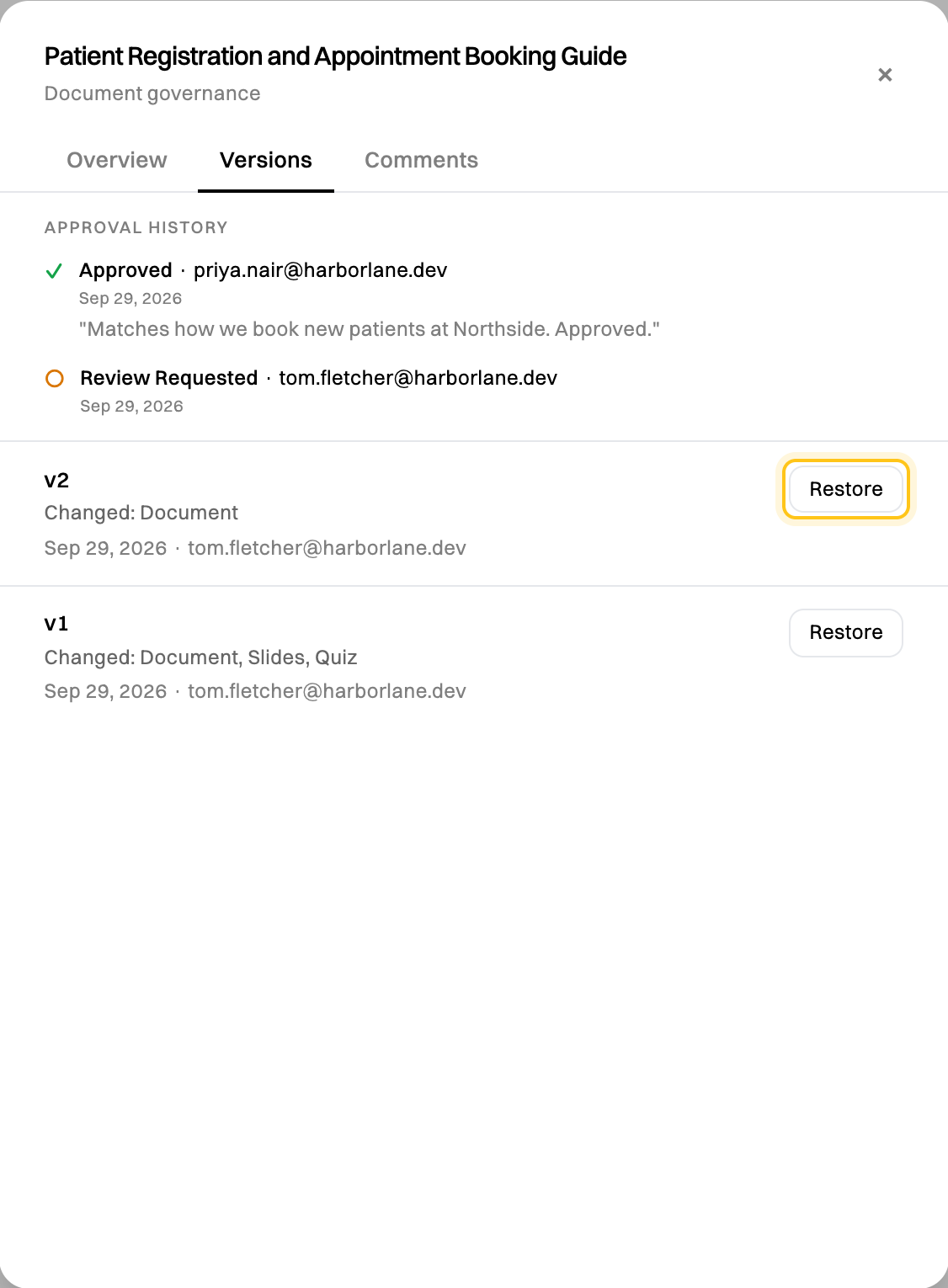
To go back, click Restore next to the version, and confirm. Wikidoc first keeps a copy of the document as it is now (Before restoring v2, for example), so you can undo the restore by restoring that copy. Restoring clears an approval, like any other change.
The person who created the document and Admins can restore versions.
Comments
Section titled “Comments”Use comments to suggest changes or ask questions without editing the document.
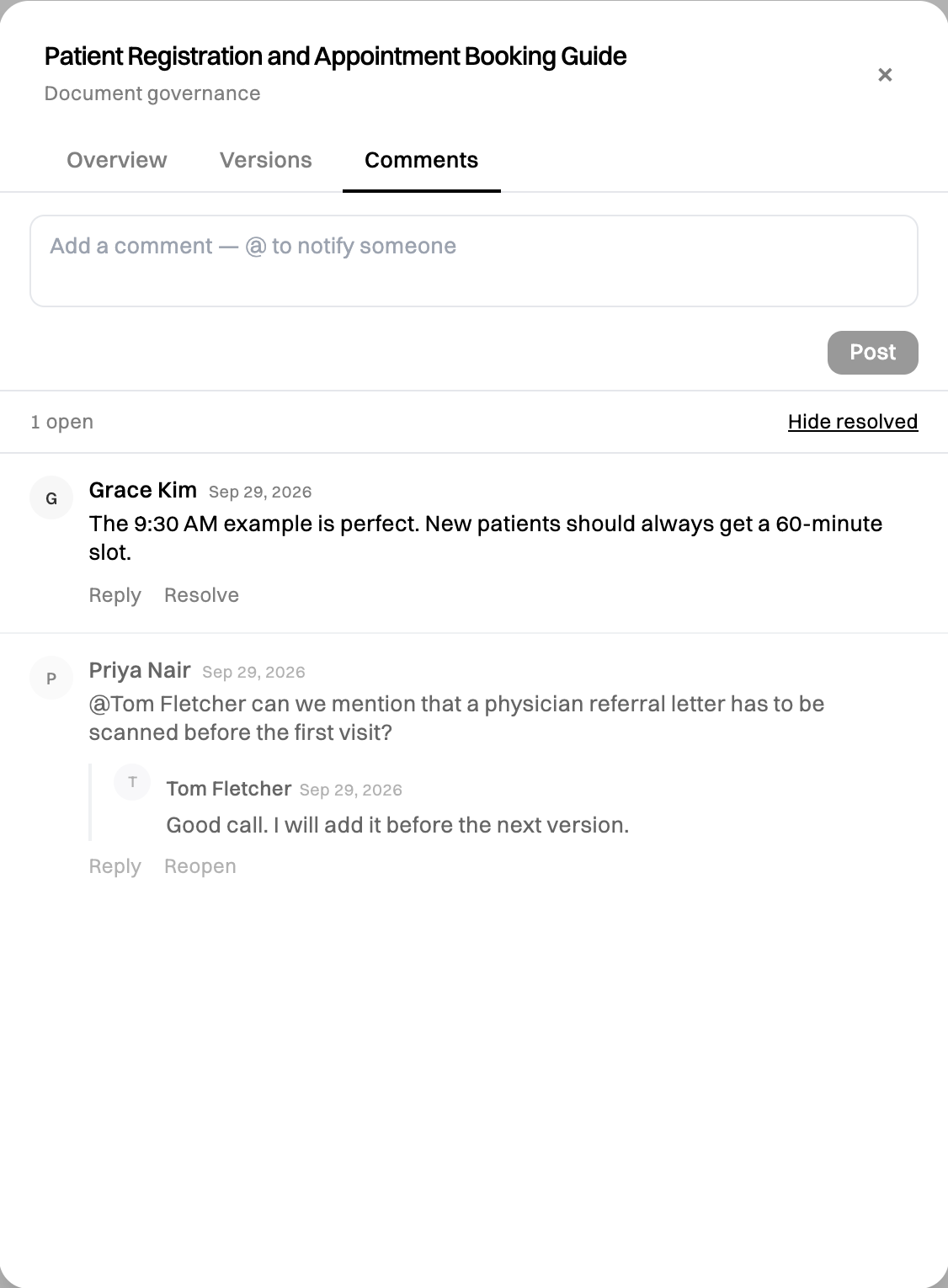
- Add a comment: type in the box on the Comments tab and click Post. Type @ and a name to notify a colleague.
- Reply: click Reply under a comment.
- Resolve: click Resolve when it’s dealt with. Resolved comments are hidden until you click Show resolved. Reopen brings one back.
- Delete: the person who wrote a comment, and Admins, can delete it.
The document’s creator and owners are emailed about new comments, and anyone you @mention is emailed too. See How notifications work.