
Browse and use the training library
Find a training module, see where you're up to, and keep the library tidy with folders.
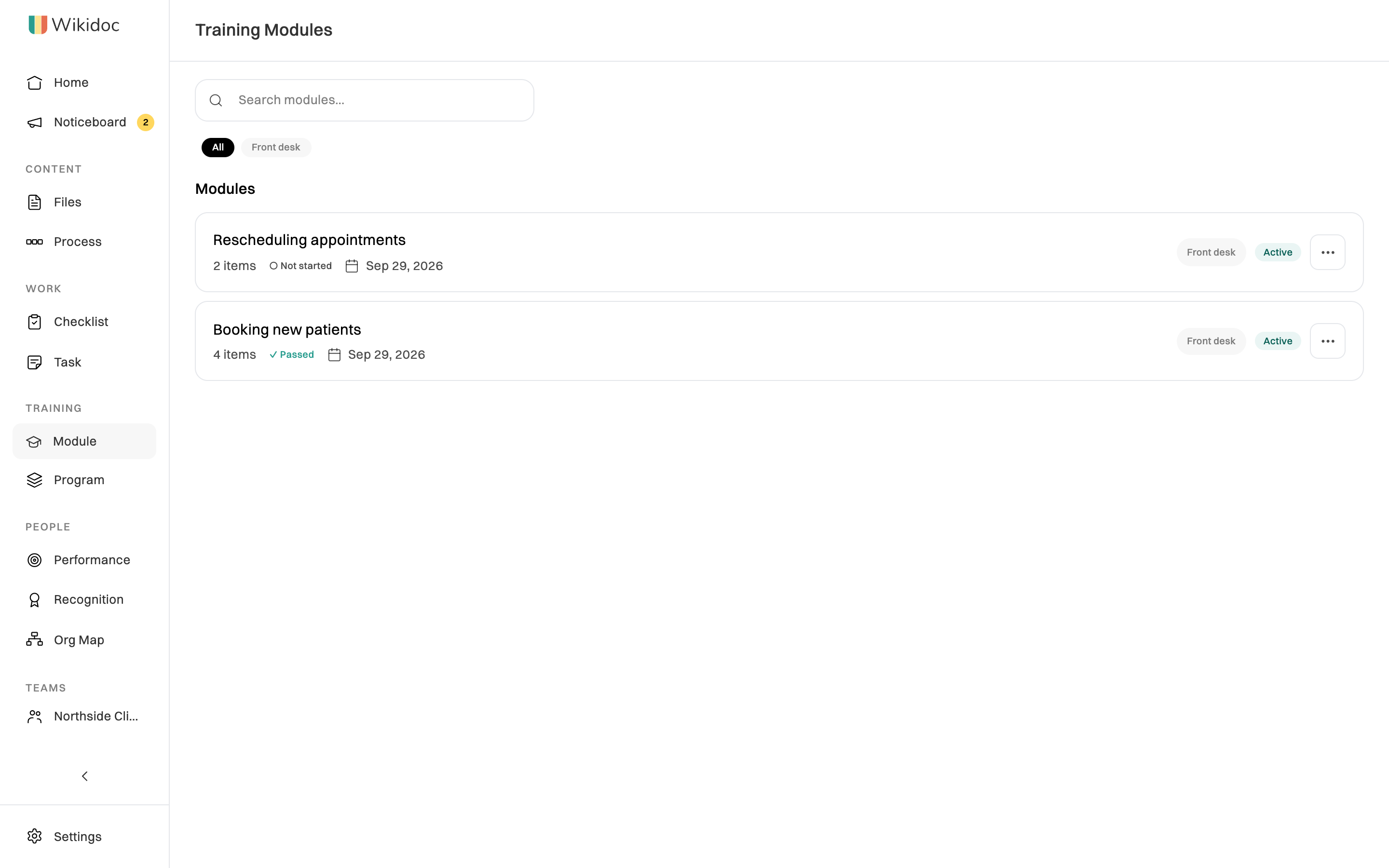
Every training module your organization has made is in one place: click Module in the sidebar. Anyone in the organization can open and take an active module, whether or not it’s been assigned to them.
Find a module
Section titled “Find a module”- Search: type in Search modules… to filter by title.
- Tags: click a tag under the search box, such as Front desk, to show only modules with it. Click All to see everything again.
- Folders: if your organization uses folders, they’re listed above the modules. Click one to open it.
Each module shows how many items it has and your progress: Not started, In progress, Passed or Failed. Failed means you finished it but didn’t reach the quiz’s passing score. Click a module to open it. See Take assigned training for how to work through one.
Draft modules are only listed for the person who made them and for Admins. Everyone else sees active modules only.
What you can do with a module
Section titled “What you can do with a module”Click ⋯ next to a module.
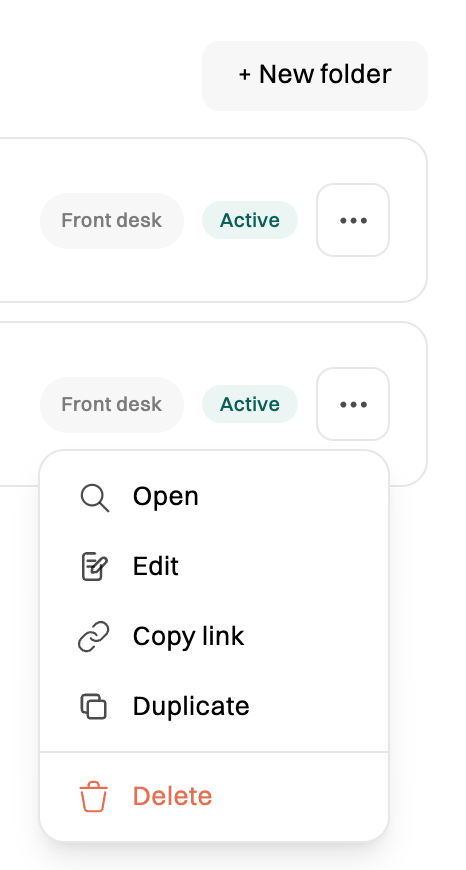
- Open: take the module.
- Edit: change it. Open to the person who made it, their manager and Admins.
- View completions: who has finished it, their scores and whether they passed. Managers and Admins only.
- Copy link: a link to the module, to send to a colleague.
- Duplicate: make your own copy to adapt. Open to the person who made it and Admins.
- Delete: remove it for everyone. Open to the person who made it and Admins.
Organize the library with folders
Section titled “Organize the library with folders”Folders are shared: everyone in your organization sees the same folders. Editors, Managers and Admins can make and fill them.
- Click + New folder, give it a name and save it.
- To file a module, click ⋯ next to it, then pick a folder under Move to folder.
To rename or delete a folder, click ⋯ on the folder. Deleting a folder doesn’t delete the modules in it: they go back to the main list.