
Build and publish a training program
Put modules in order, set a due date, and enroll people by hand or automatically by job title and department.
A training program is a course made of modules, in order, with a deadline. Assign it to people, or let Wikidoc enroll everyone with a matching job title and department, and follow each person’s progress. Use programs for onboarding, and for training people must complete, such as annual compliance refreshers.
Create the program
Section titled “Create the program”-
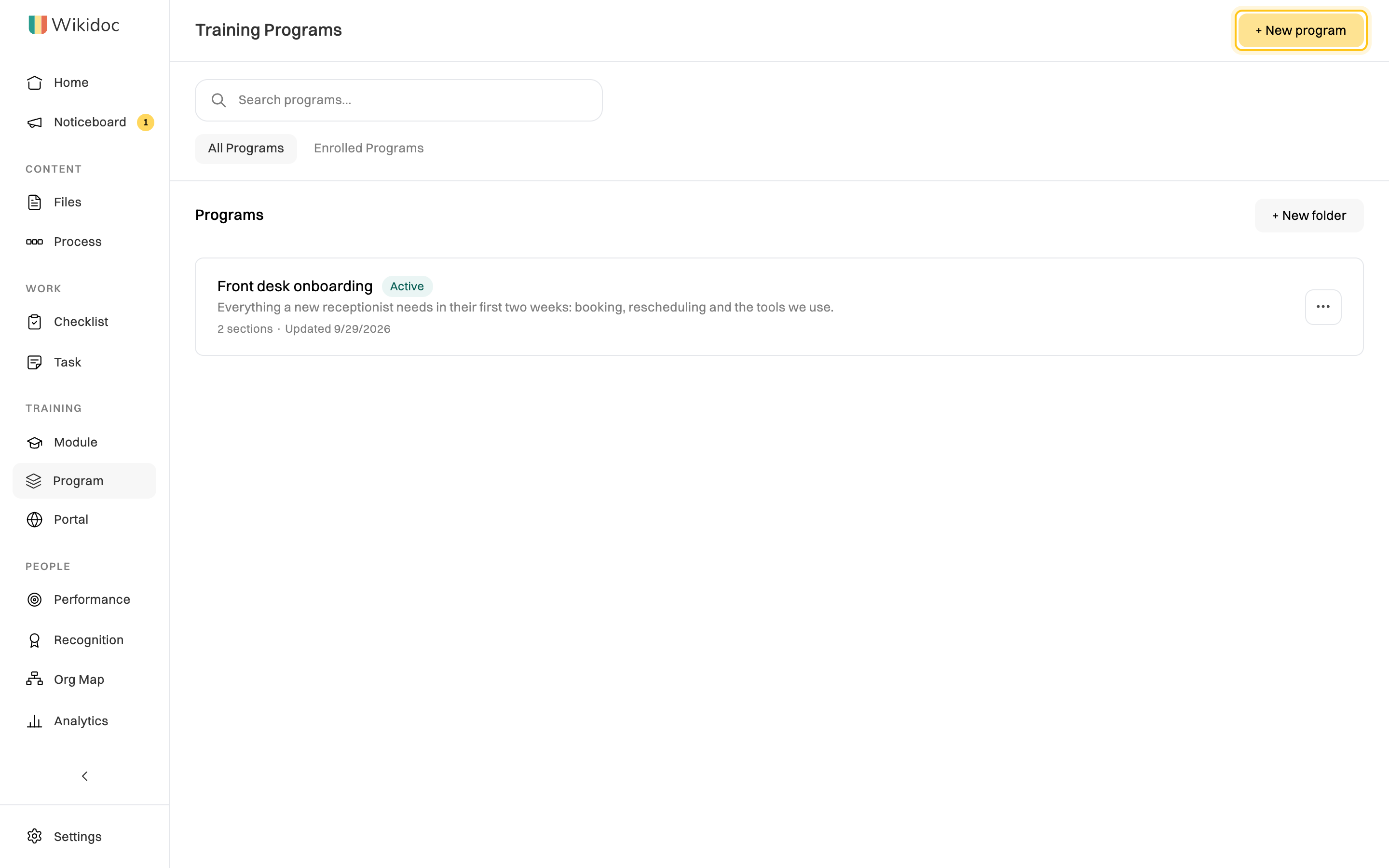
Click Program in the sidebar, then + New program.
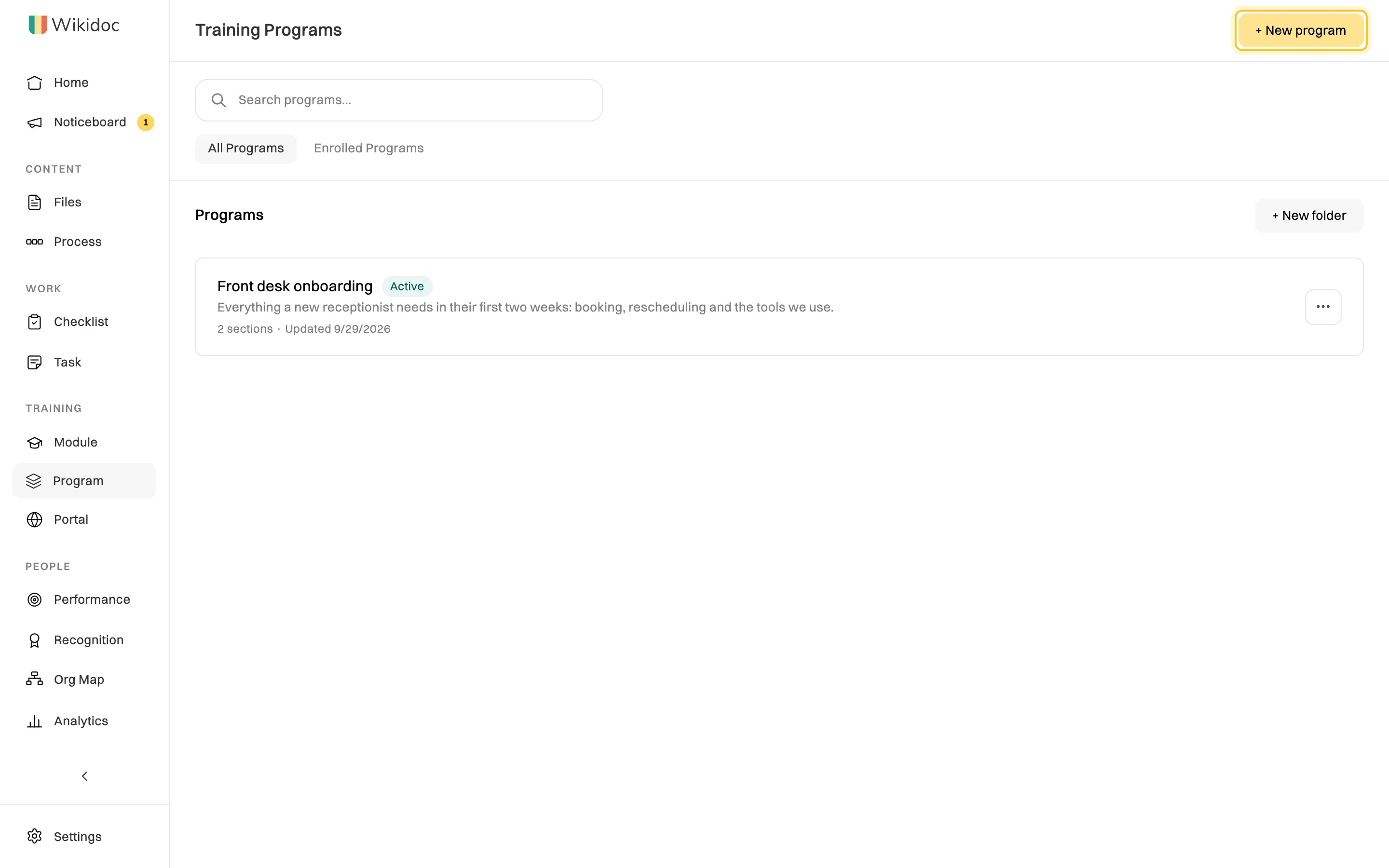
All Programs lists every program. Enrolled Programs lists yours. -
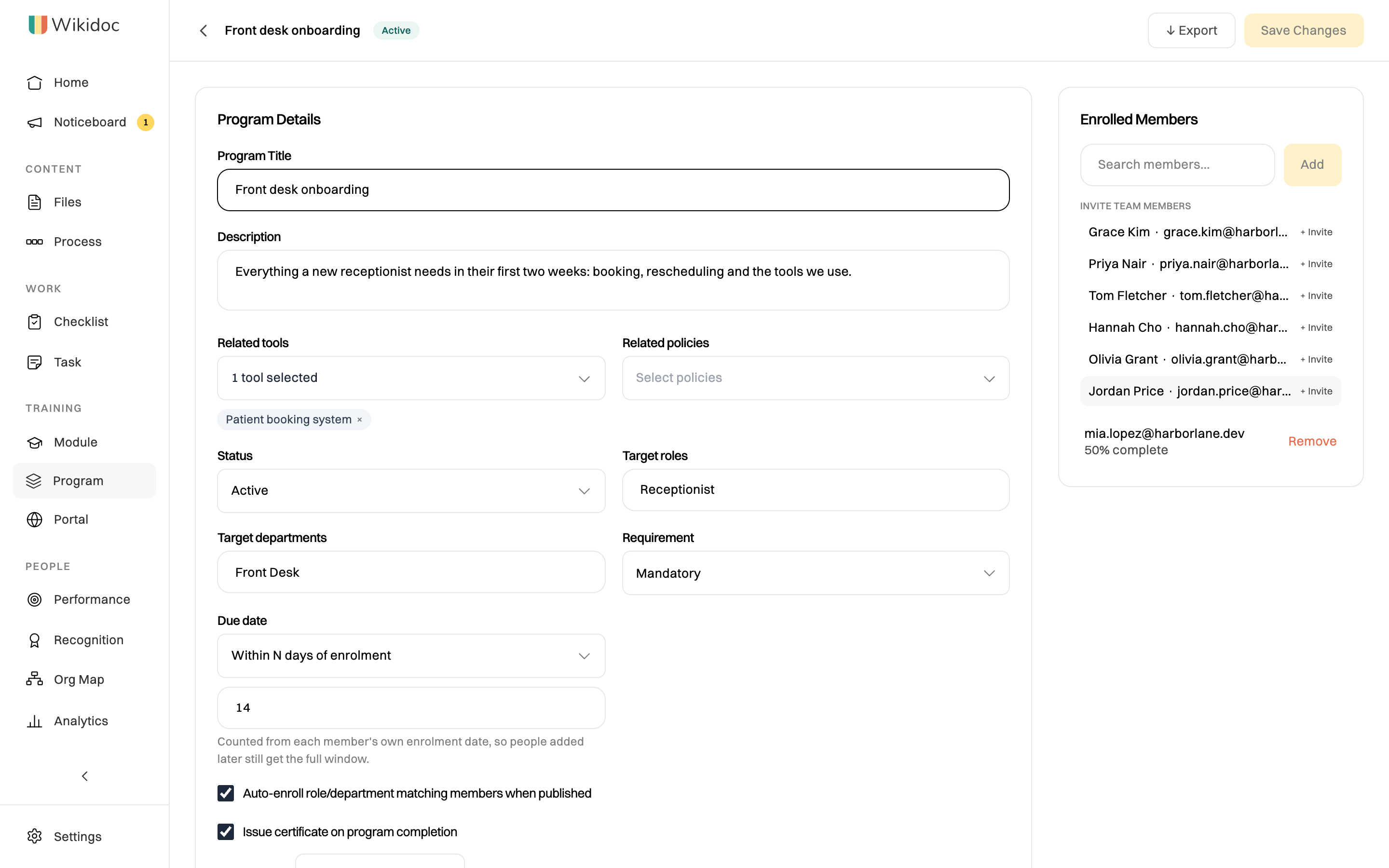
Fill in the Program Details:
- Program Title and Description.
- Related tools and Related policies: what the program trains people on, from your org map.
- Target roles: the job titles it’s for, separated by commas, such as
Receptionist. These are the titles on people’s profiles, not Wikidoc roles like Editor. - Target departments: the departments it’s for, such as
Front Desk. - Requirement: Mandatory or Optional.
- Due date: No due date, On a specific date, or Within N days of enrolment. A number of days counts from each person’s own enrollment, so people added later still get the full time.
- Issue certificate on program completion, and how long it’s Valid for.
-
Click Create Program. The program is saved as a draft.
Add the content
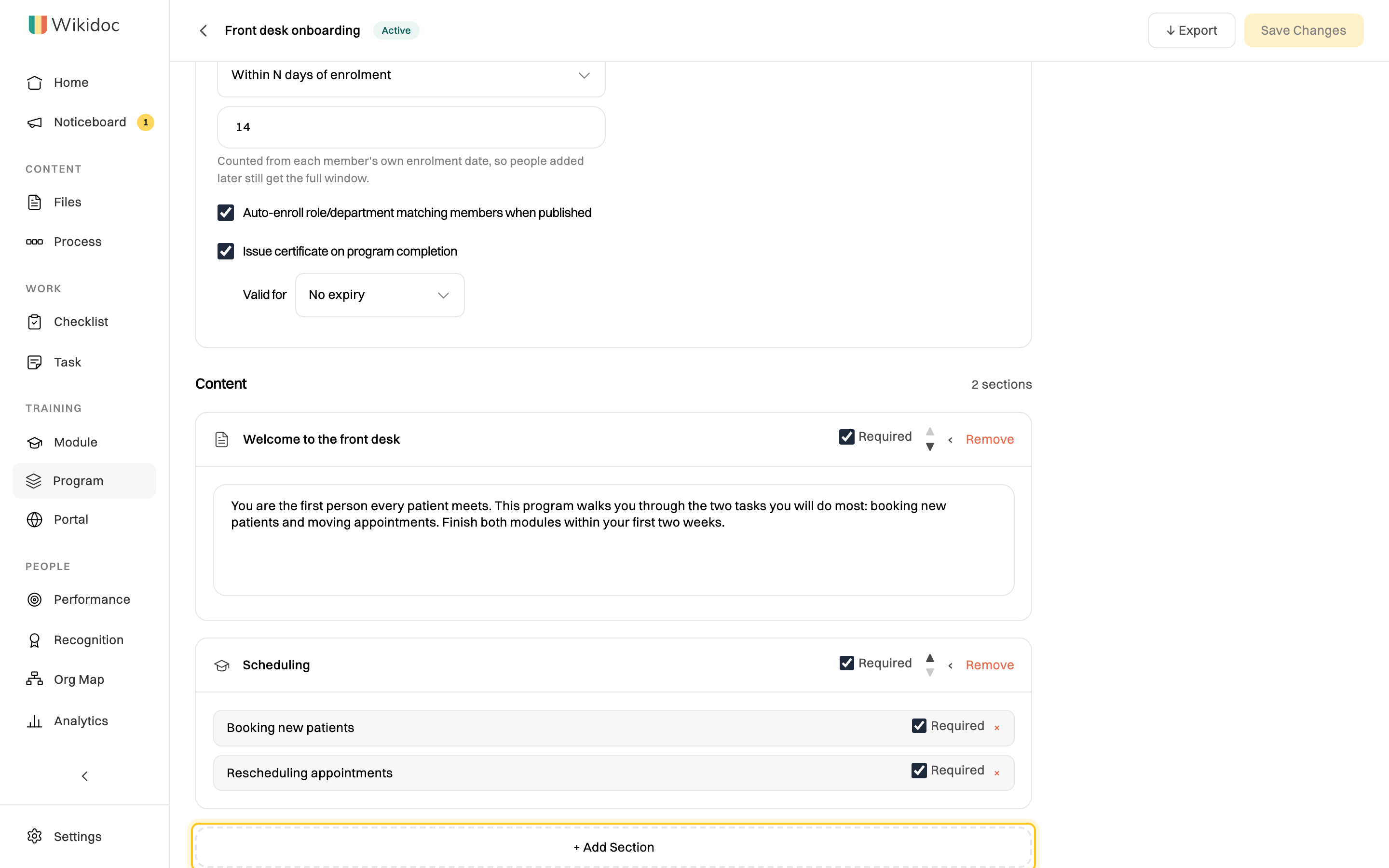
Section titled “Add the content”Under Content, click + Add Section and choose a type:
- Training Module: one or more modules. Learners open each one from the program.
- Text Block: instructions or a welcome message.
- Video: a link to a video, such as on YouTube or Vimeo, shown in the program.
- FAQ: questions and answers.
Give each section a title, and untick Required for anything optional. Use the arrows to put sections in order.
Click Save Changes when you’re done.
Publish it and enroll people
Section titled “Publish it and enroll people”-
To enroll matching people automatically, tick Auto-enroll role/department matching members when published. This option appears once you’ve set a target role or department.
-
Set Status to Active and click Save Changes.
With auto-enroll on, Wikidoc shows who will be enrolled. Check the list and click Publish & Enroll.
-
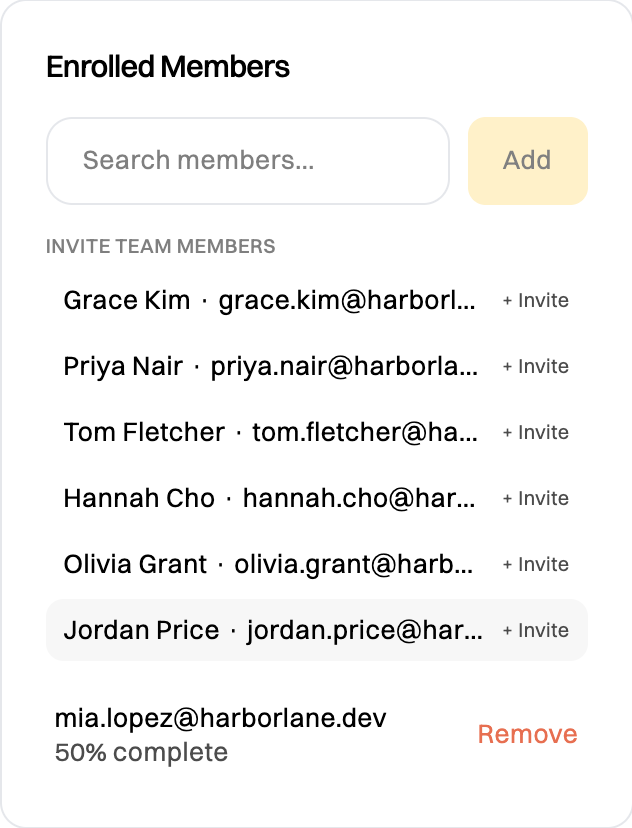
To enroll someone by hand, find them under Enrolled Members. Click + Invite next to their name, or search for them and click Add.
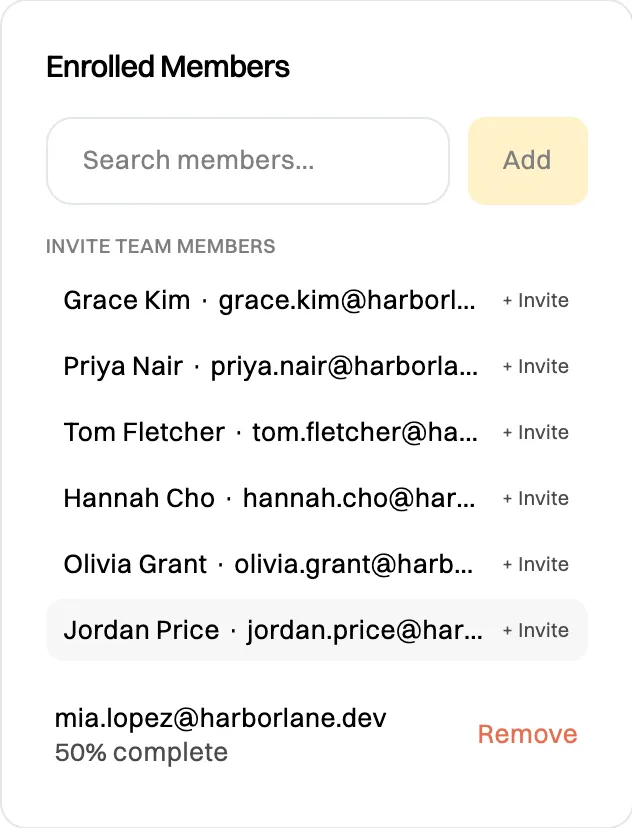
Everyone enrolled, with how far they've got.
Auto-enrollment keeps going after you publish. Anyone whose job title or department later changes to match is enrolled too, for example when a new receptionist sets their job title.
What learners see
Section titled “What learners see”The program appears on each learner’s Home, under Your training, and on the Program page. People you enroll by hand get an email. Everyone on a mandatory program with a due date is reminded 5, 3 and 1 days before it’s due. See Take assigned training.
Follow progress
Section titled “Follow progress”The Enrolled Members panel shows each person’s progress. A module counts toward it only once the person completes it and, if it has a quiz, passes. To take someone off the program, click Remove next to them. For completion across all your training, see Analytics.
Other things you can do
Section titled “Other things you can do”On the Program page, click ⋯ next to a program to Open, Edit, Export, Duplicate or Delete it. Export downloads the program as a template file, to reuse its structure.
Related
Section titled “Related”- Build a training module
- Take assigned training
- Set up your organization, where people set their job titles