
Create and edit an AI-narrated video
Turn your recording into a narrated video, then change its narration, voice and zooms, and export it.
Wikidoc can turn the recording behind a document into a narrated video. It writes a script from the steps, reads it in an AI voice, and can zoom in on each click so viewers see what’s happening. It’s a quick way to make a training video without recording your voice.
Make the video
Section titled “Make the video”The video is made with the document, from the same recording.
-
In Files, click + New file and add your recording. See Create a document from a recording or video.
-
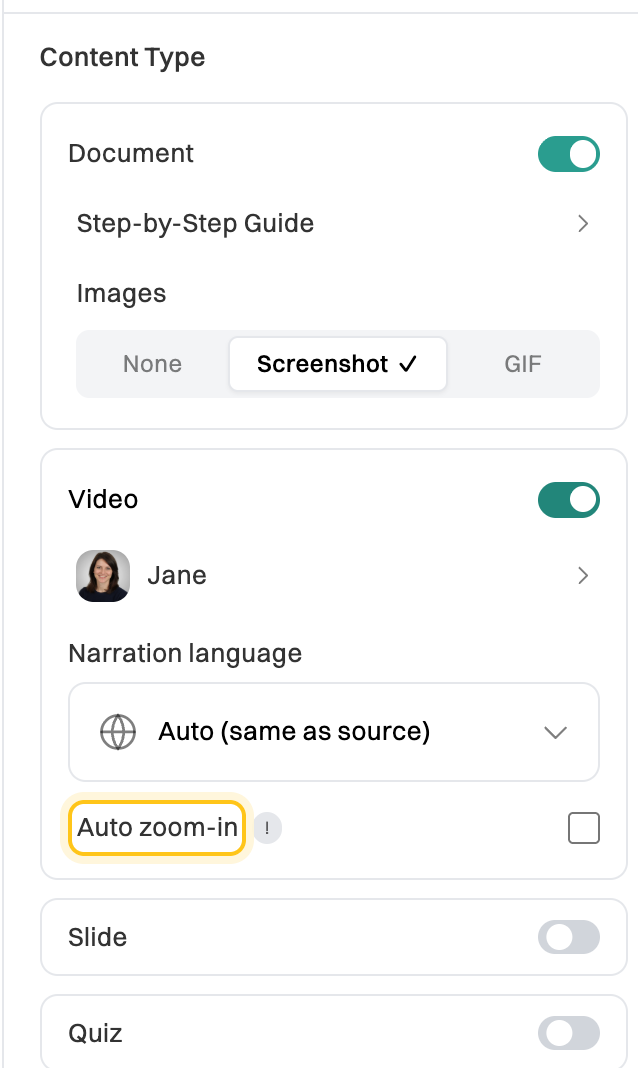
Under Content Type, switch on Video, then:
- Click the voice (Jane to start with) to choose who reads the narration.
- Leave Narration language on Auto (same as source), or choose a language for the narration.
- Tick Auto zoom-in to zoom in on each click.
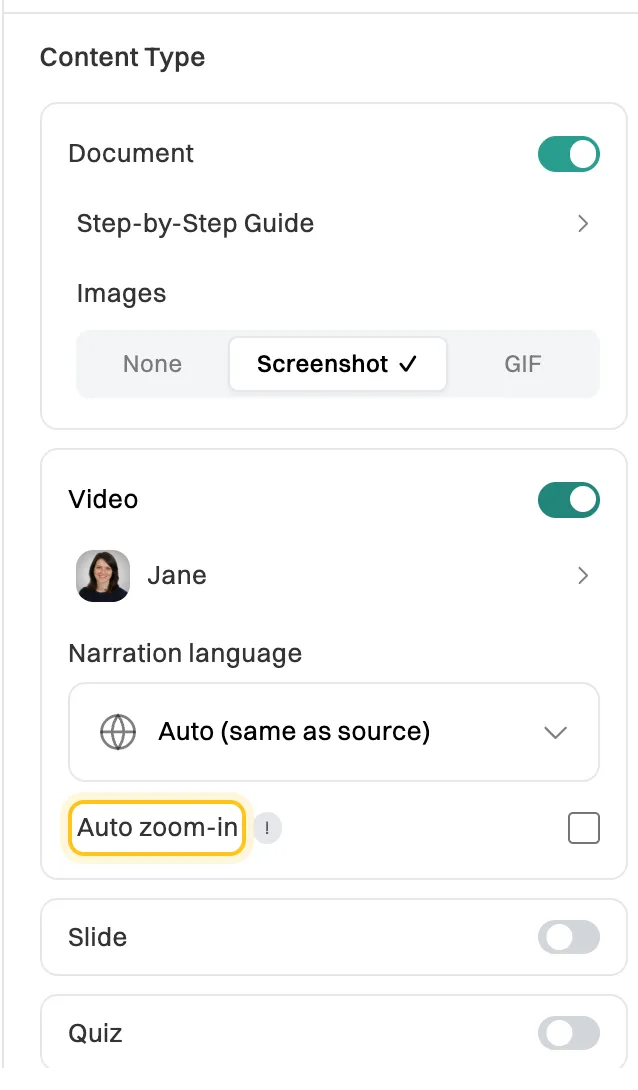
Video options appear when you switch Video on. -
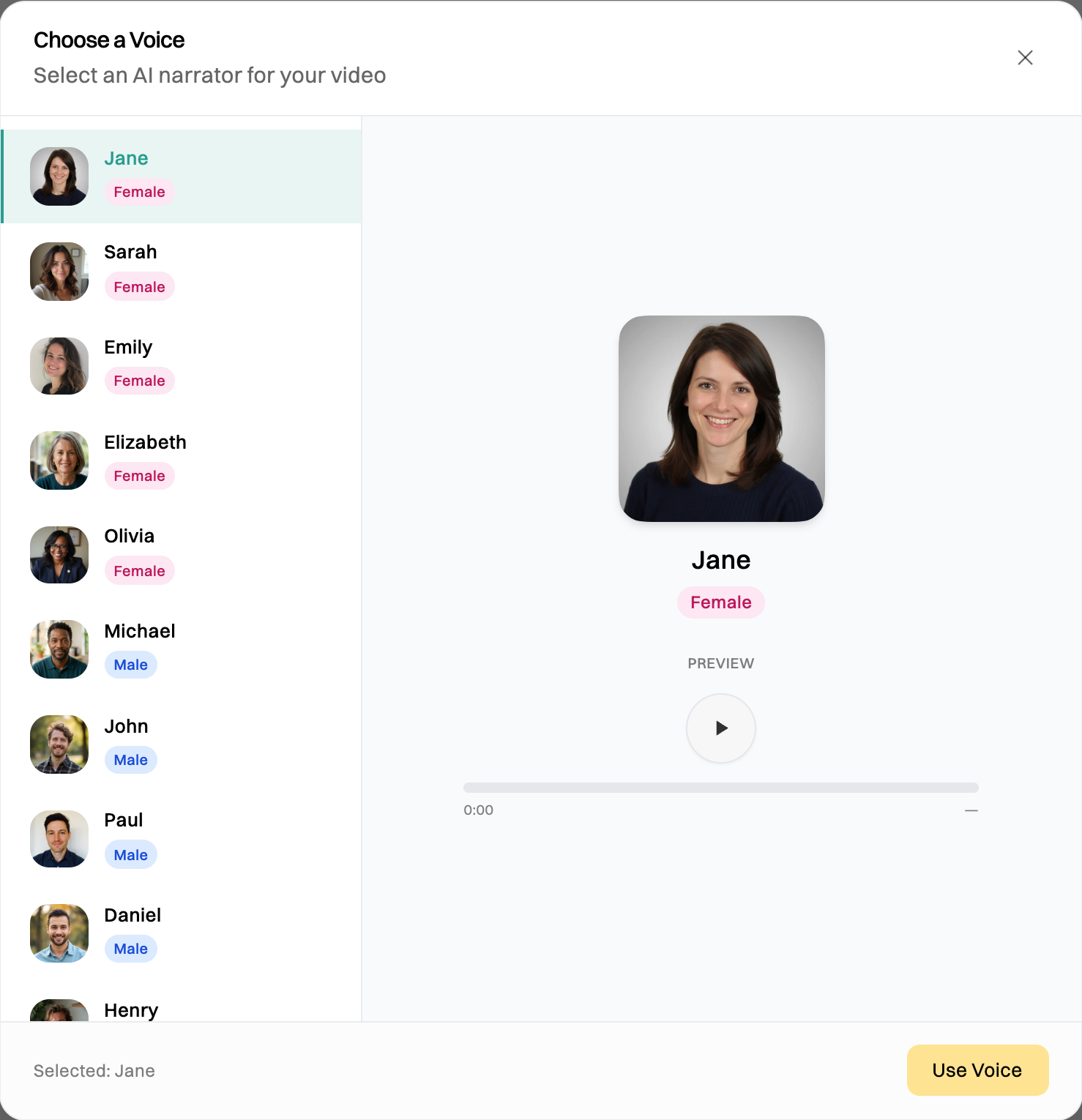
To hear the voices, click the voice. Choose one, listen to it with Preview, and click Use Voice.
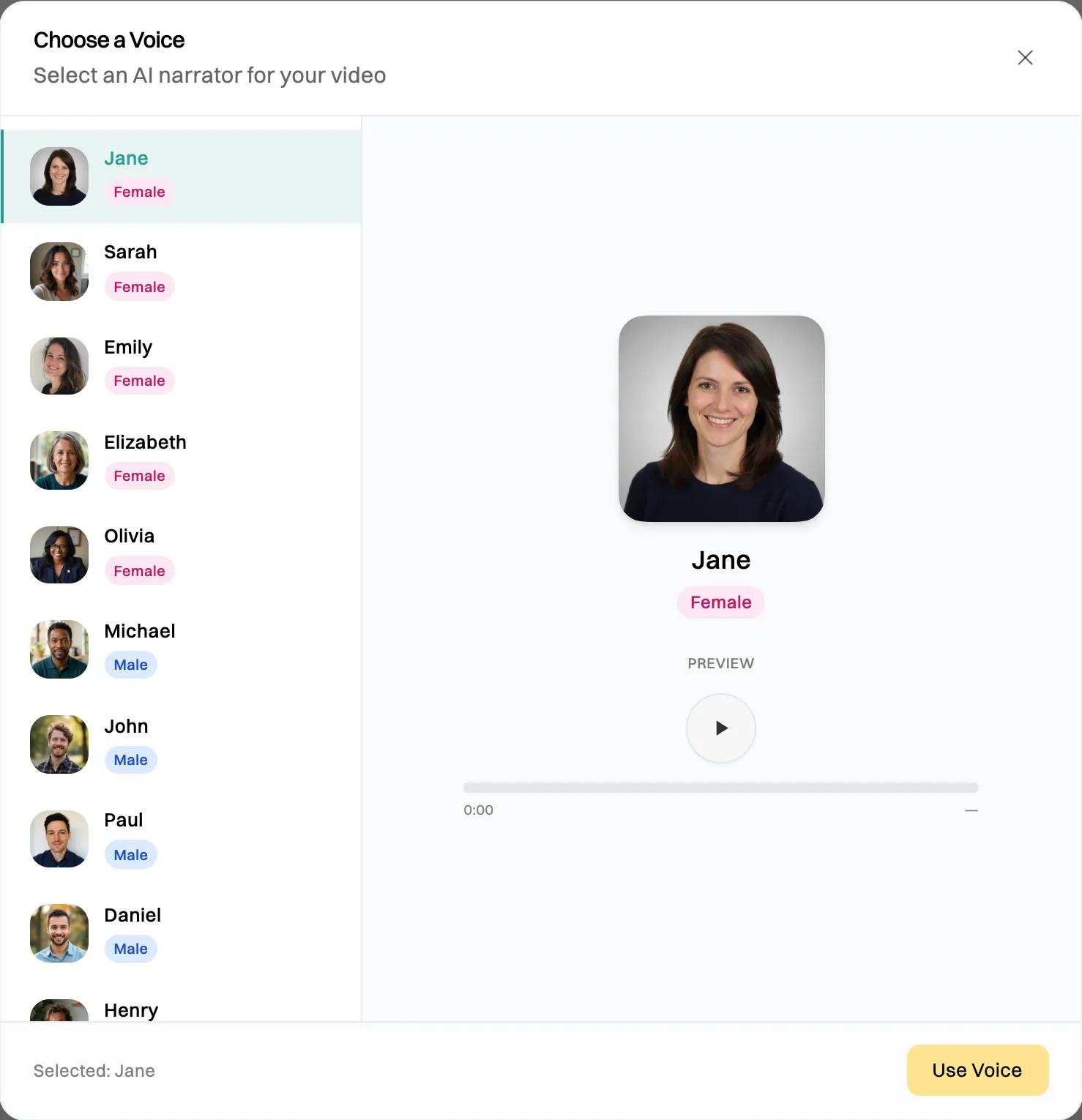
Free accounts can use Jane, Sarah and Michael. Pro and Team have all ten. -
Click Generate.
The video appears at the top of the document, under AI-narrated Video. Anyone who can open the document can play it there.
Edit the video
Section titled “Edit the video”Click Open Video Editor above the video. The editor shows the video, and below it a timeline with three tracks:
- Video: your recording. Wikidoc holds the first frame while the narration introduces the task, then plays the recording.
- Narration: the voiceover.
- Zoom: one clip for each zoom-in.
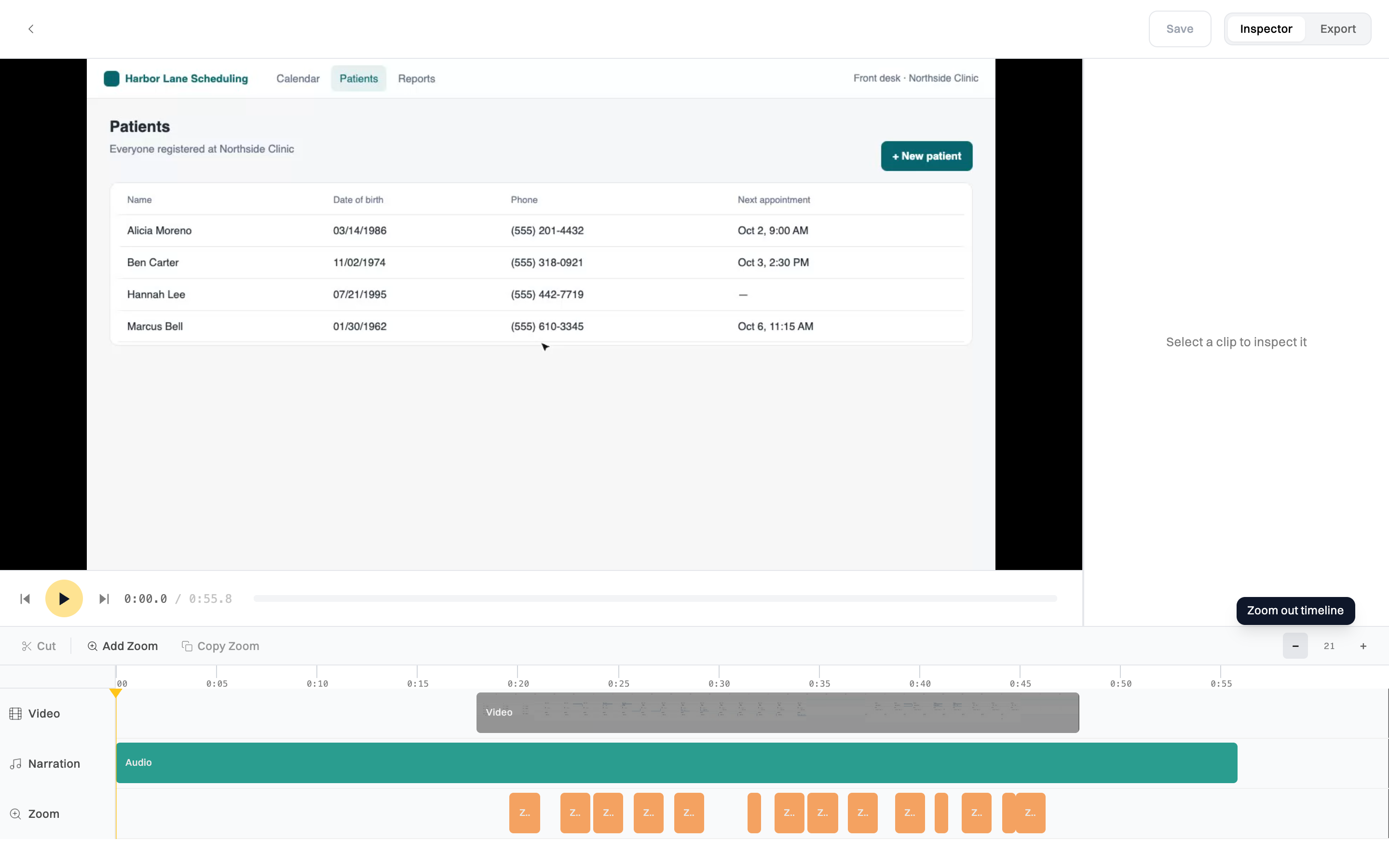
Press Space to play and pause. Click a clip to see its settings under Inspector.
Change the narration
Section titled “Change the narration”-
Click the Narration track.
-
Edit the words under Narration Script, or choose another Voice.
-
Click Regenerate. Wikidoc records the whole narration again.
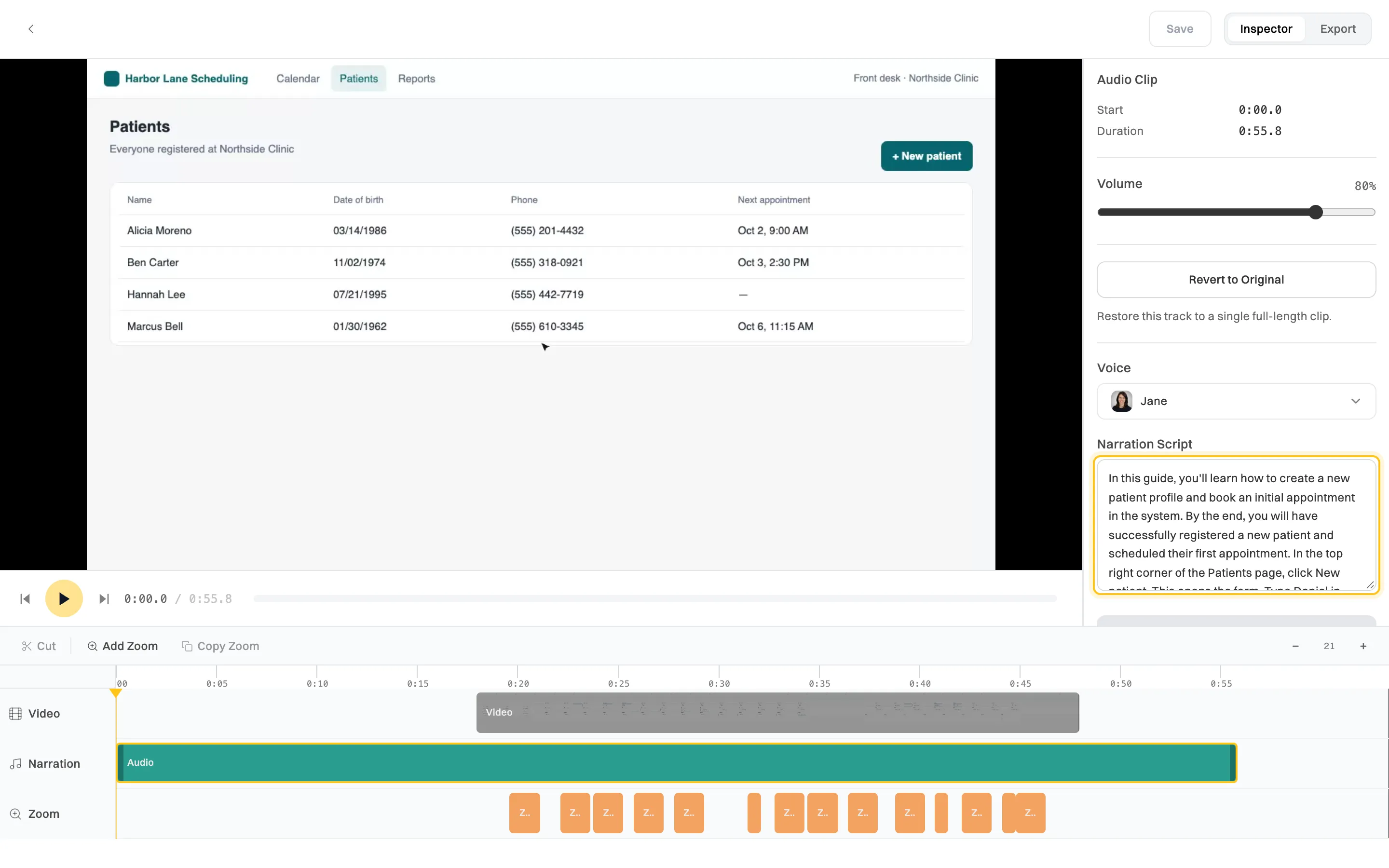
Edit the script, then Regenerate to hear it in the new voice.
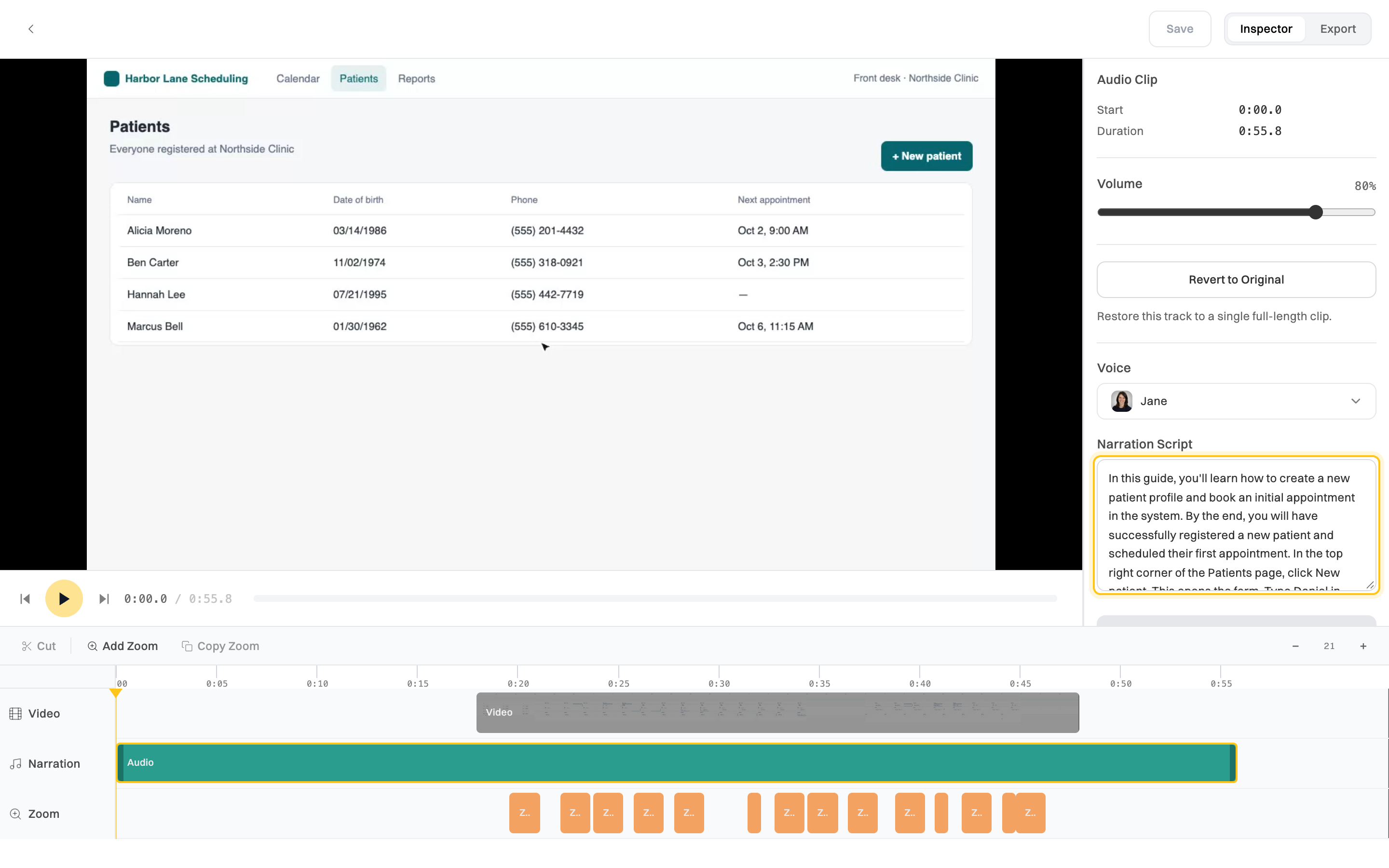
Volume sets how loud the narration is. Revert to Original puts the track back to the narration it was generated with. On the Free plan you can regenerate the narration three times.
Adjust zooms
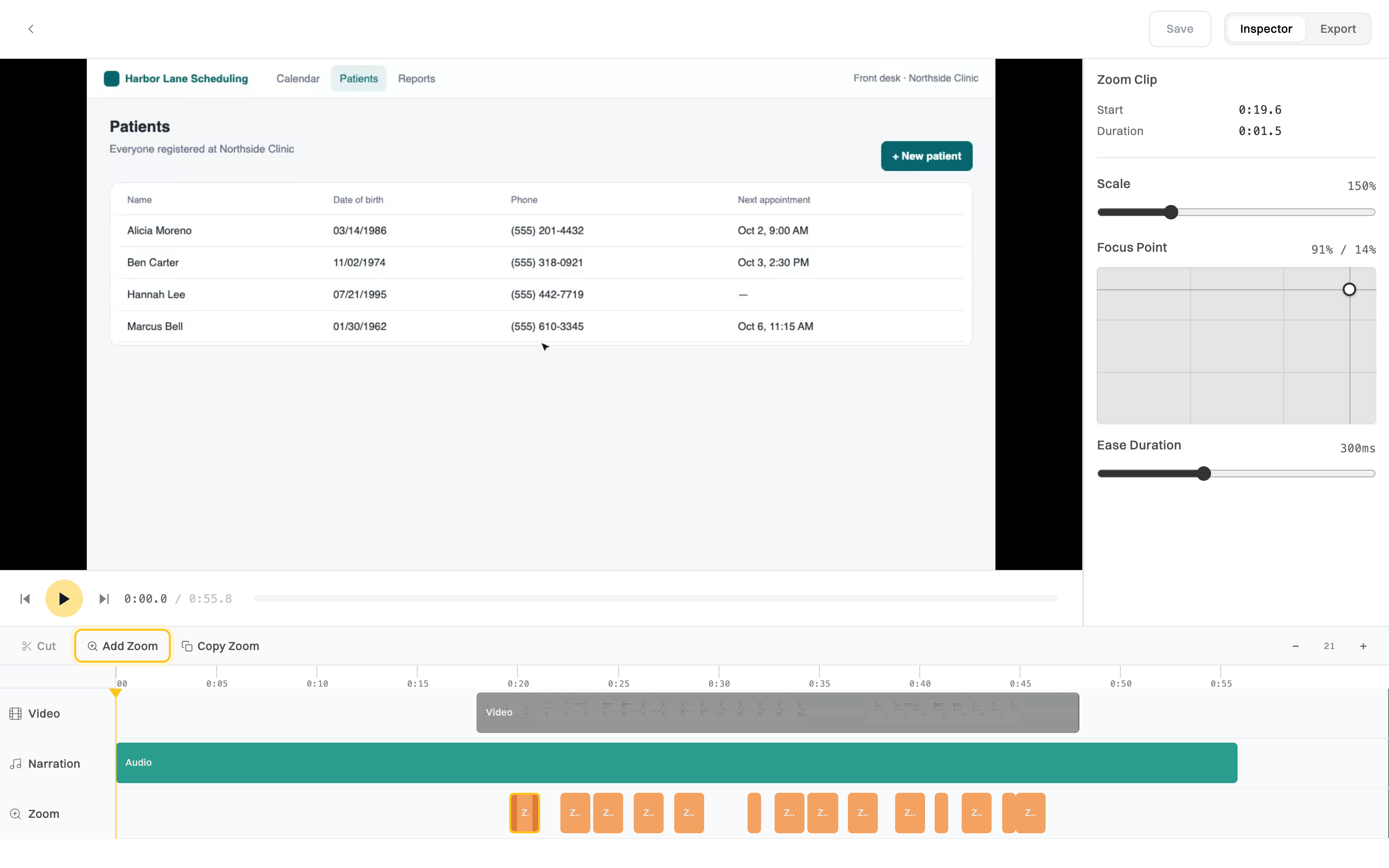
Section titled “Adjust zooms”Click a zoom clip to change it:
- Scale: how far it zooms in.
- Focus Point: where it zooms. Drag the circle to the part of the screen that matters.
- Ease Duration: how smoothly it zooms in and out.
To add a zoom, move the playhead to the moment you want and click Add Zoom. Copy Zoom repeats the selected zoom. To remove a zoom, select it and press Delete. Adding and copying zooms need Pro or Team.
Cut out a part
Section titled “Cut out a part”Select the video clip, move the playhead to where you want to cut, and click Cut (or press S). Select the part you don’t want and press Delete.
Click Save at the top right (⌘S, or Ctrl+S on Windows). Wikidoc builds the finished video, which can take a minute for a longer one. Regenerated narration is kept only when you save.
Download the video
Section titled “Download the video”-
In the video editor, click Export at the top right.
-
Choose a Format (MP4 or MOV) and a Quality.
-
Click the export button, for example Export MP4 1080p. The video downloads to your computer.
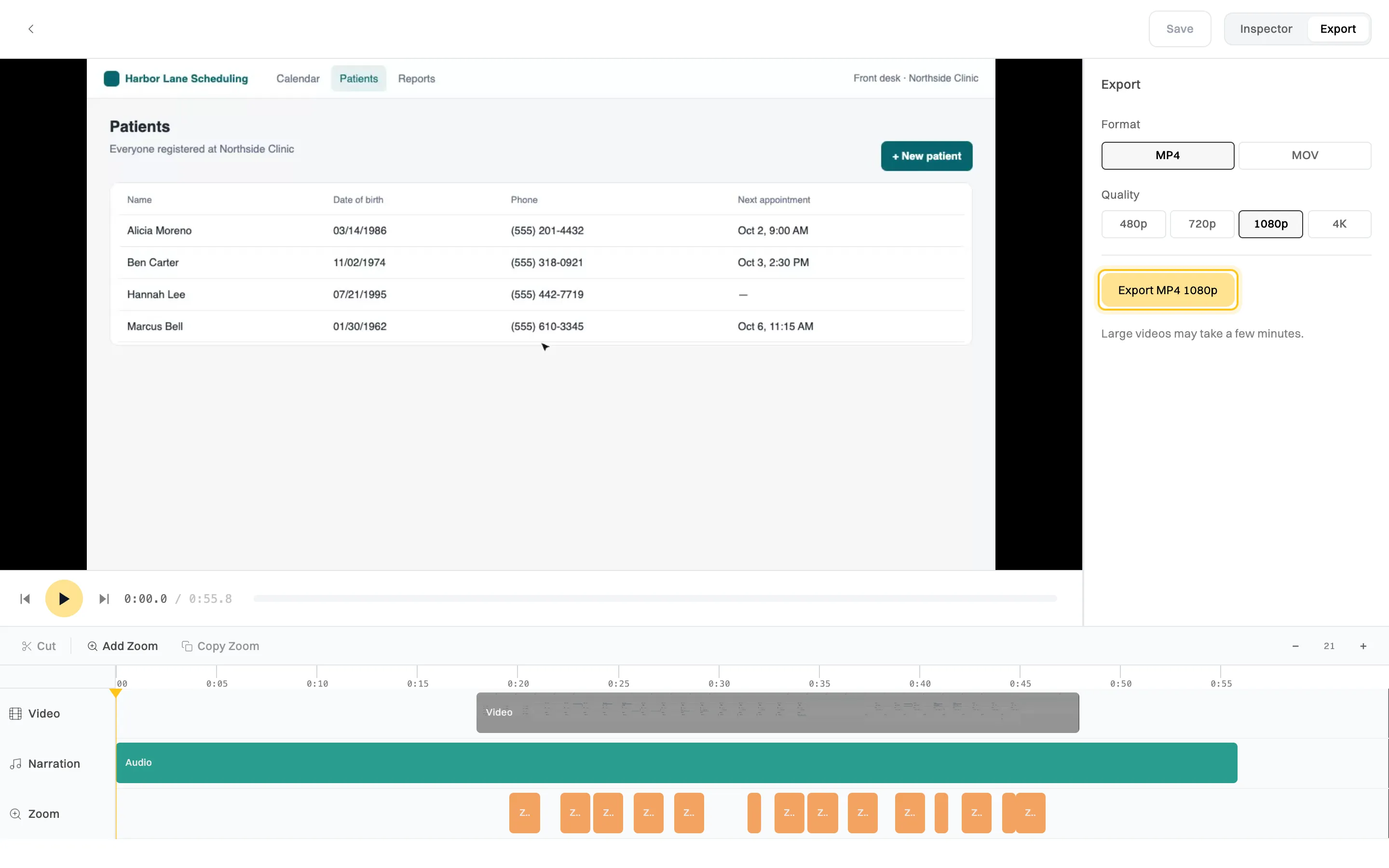
Large videos may take a few minutes to export.
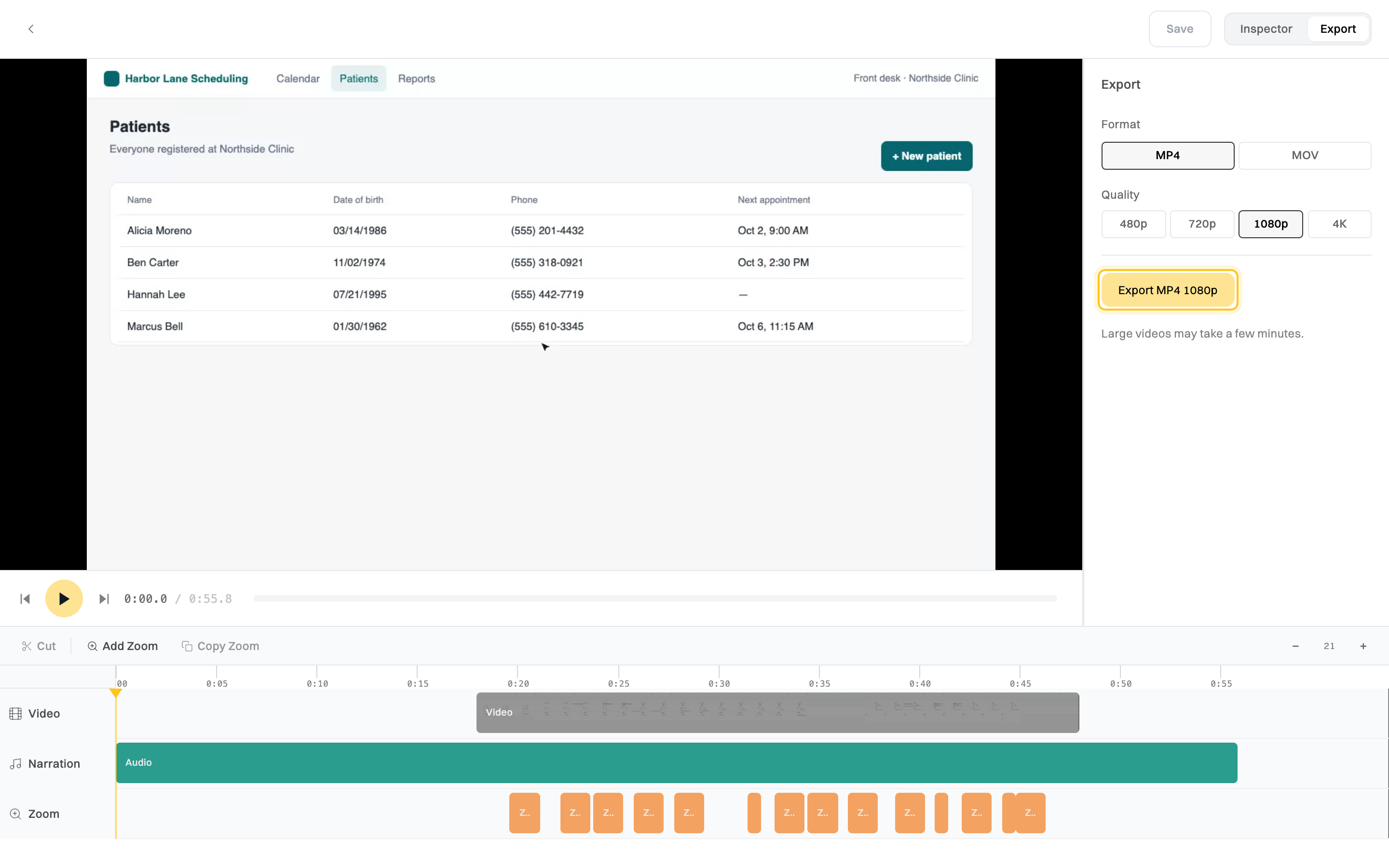
On the Free plan you can export at 480p or 720p. 1080p and 4K need Pro or Team.
Related
Section titled “Related”- Create a document from a recording or video
- Build a training module, which can include the video
- Plans compared