
Build a training module
Combine a document, its video, slides and quiz into one lesson with a pass mark.
A training module is one lesson: a document to read, and whichever of its narrated video, slides and quiz you add. Learners work through it in order, and pass when they reach the passing score on the quiz. Modules are built from documents you’ve already made, so create the document first. See Create a document from a recording or video.
The quick way: convert a document
Section titled “The quick way: convert a document”If a document has a quiz, you can turn it into a module in one step.
-
In Files, click ⋯ next to the document, then Convert to Training Module.
-
Check the Module Title. Add a Description, or click Auto-generate to have Wikidoc write one.
-
Choose a Status, a Passing score (%), and whether to Issue certificate on pass. Under Content that will be included you can see which parts of the document go into the module.
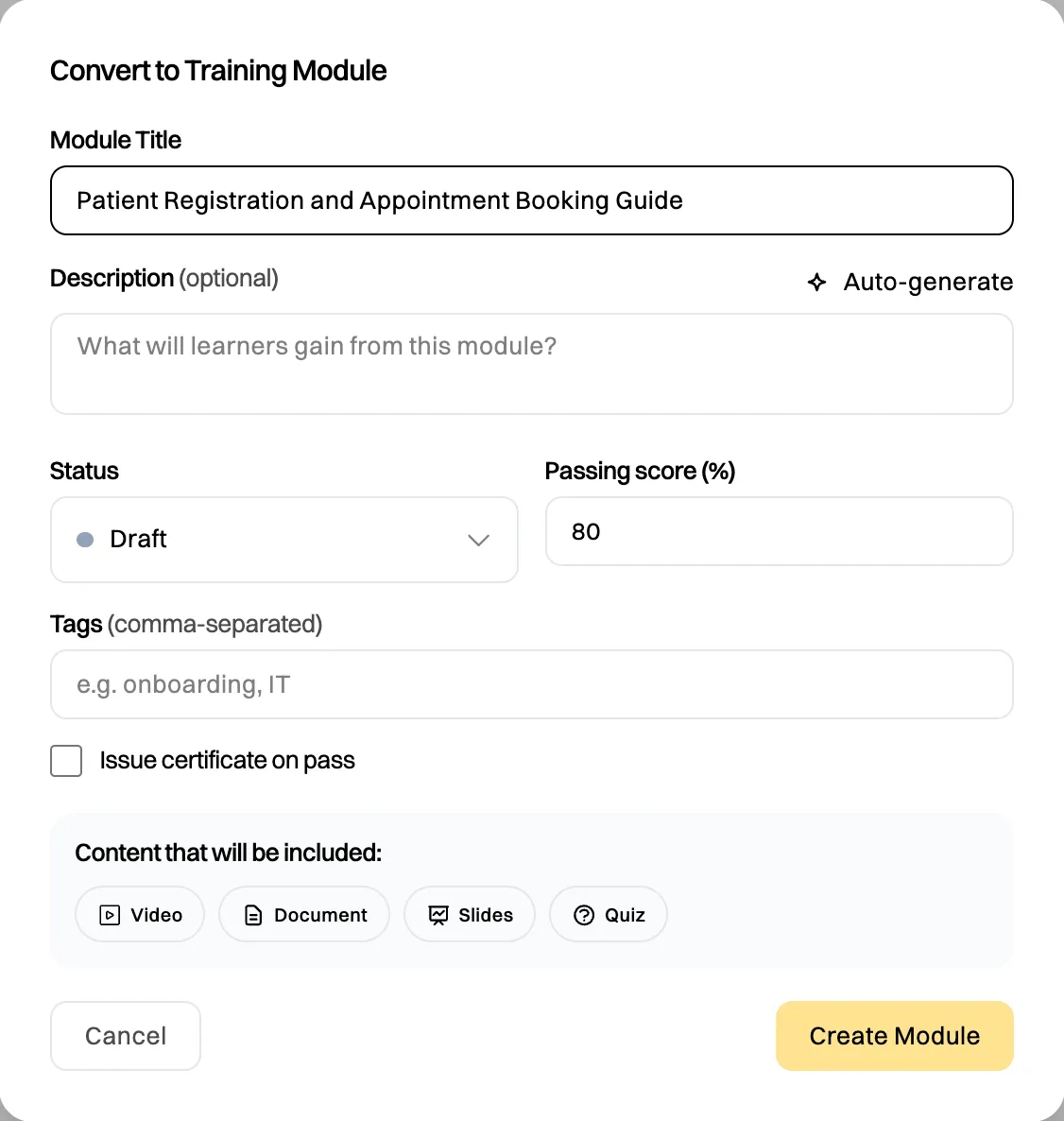
Everything the document has goes into the module: video, document, process map, slides and quiz. -
Click Create Module.
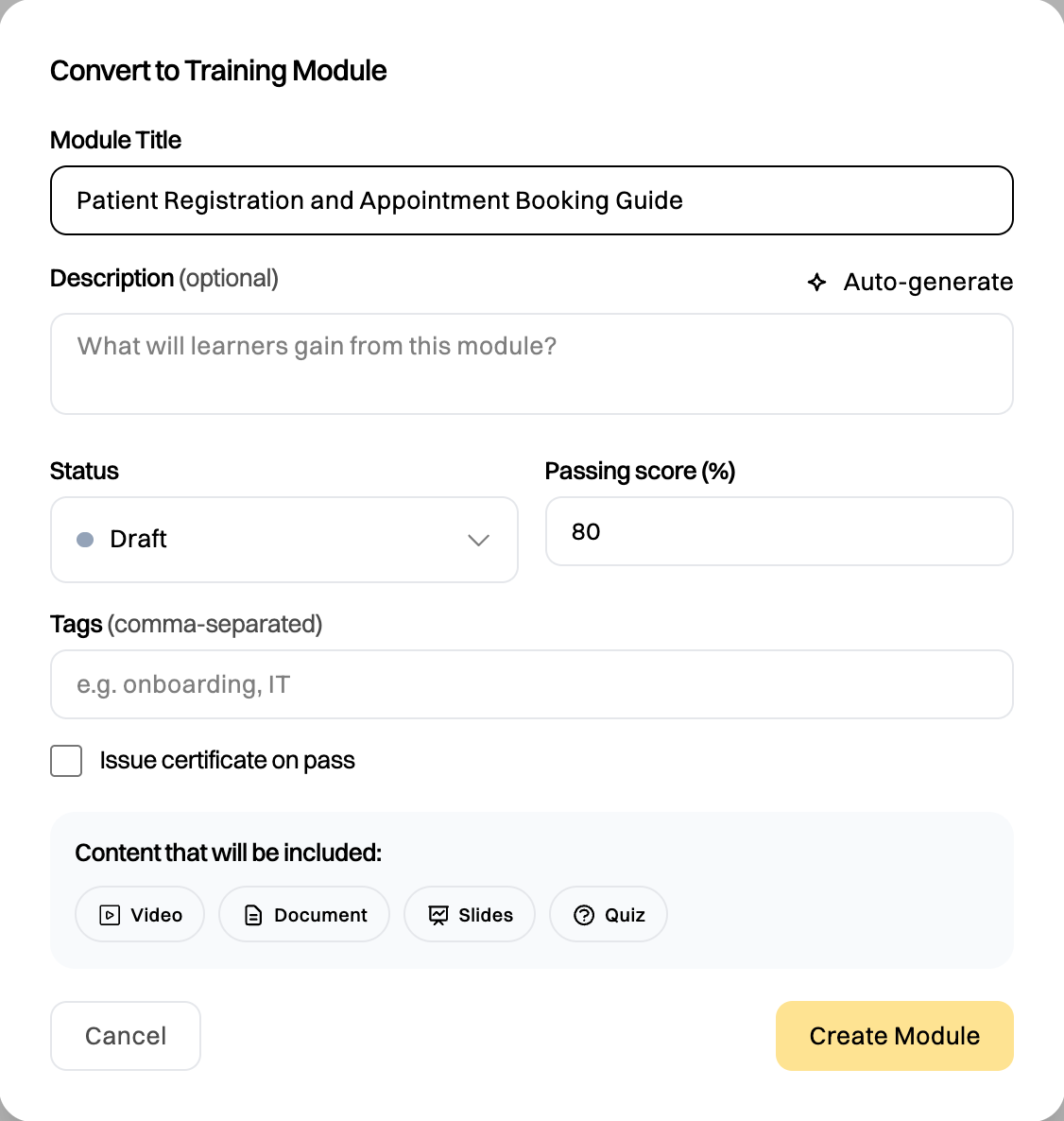
The module opens on the Module page. Converted modules start as Draft, so only you and Admins can see them until you set them to Active.
Build a module step by step
Section titled “Build a module step by step”-
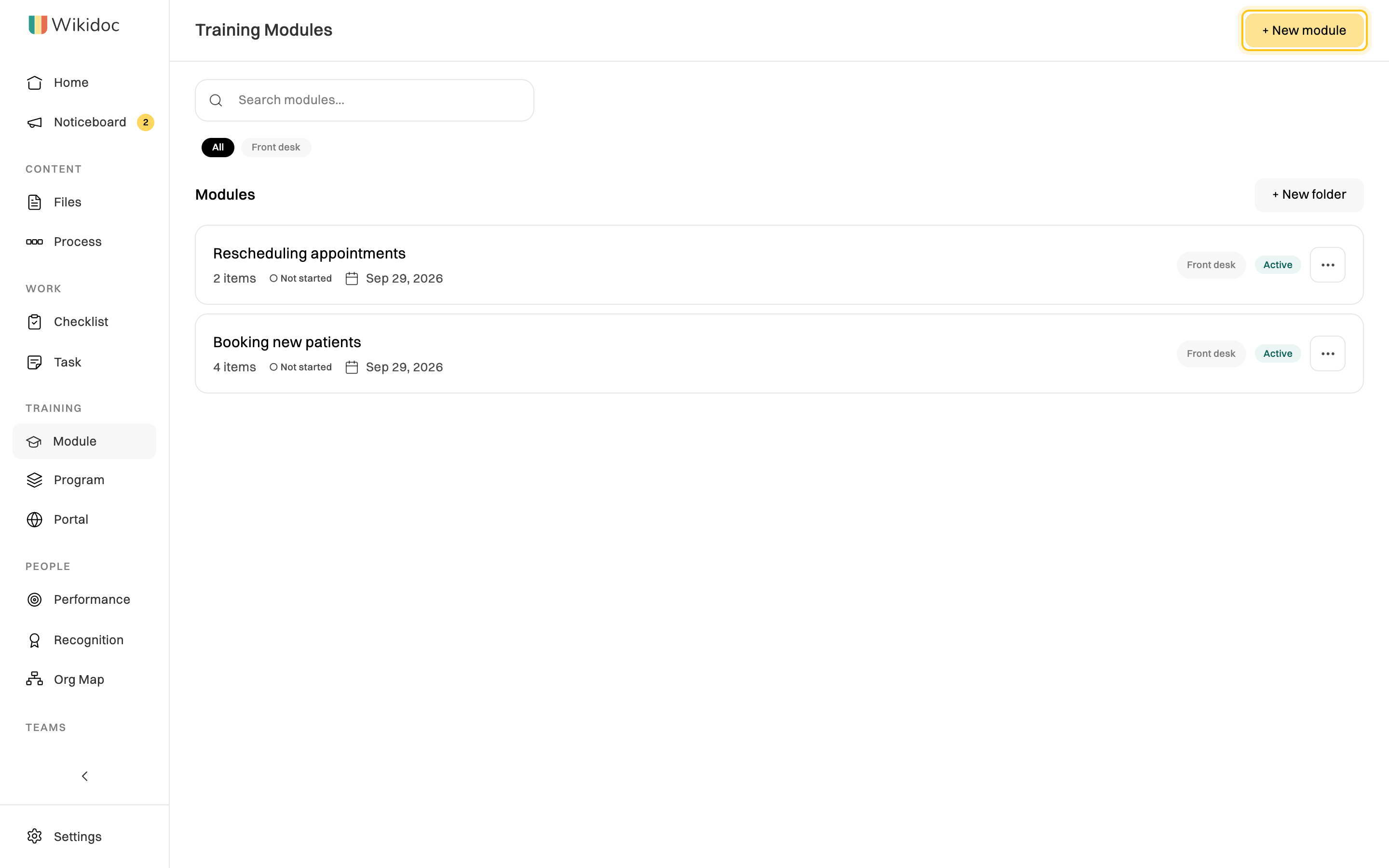
Click Module in the sidebar, then + New module.
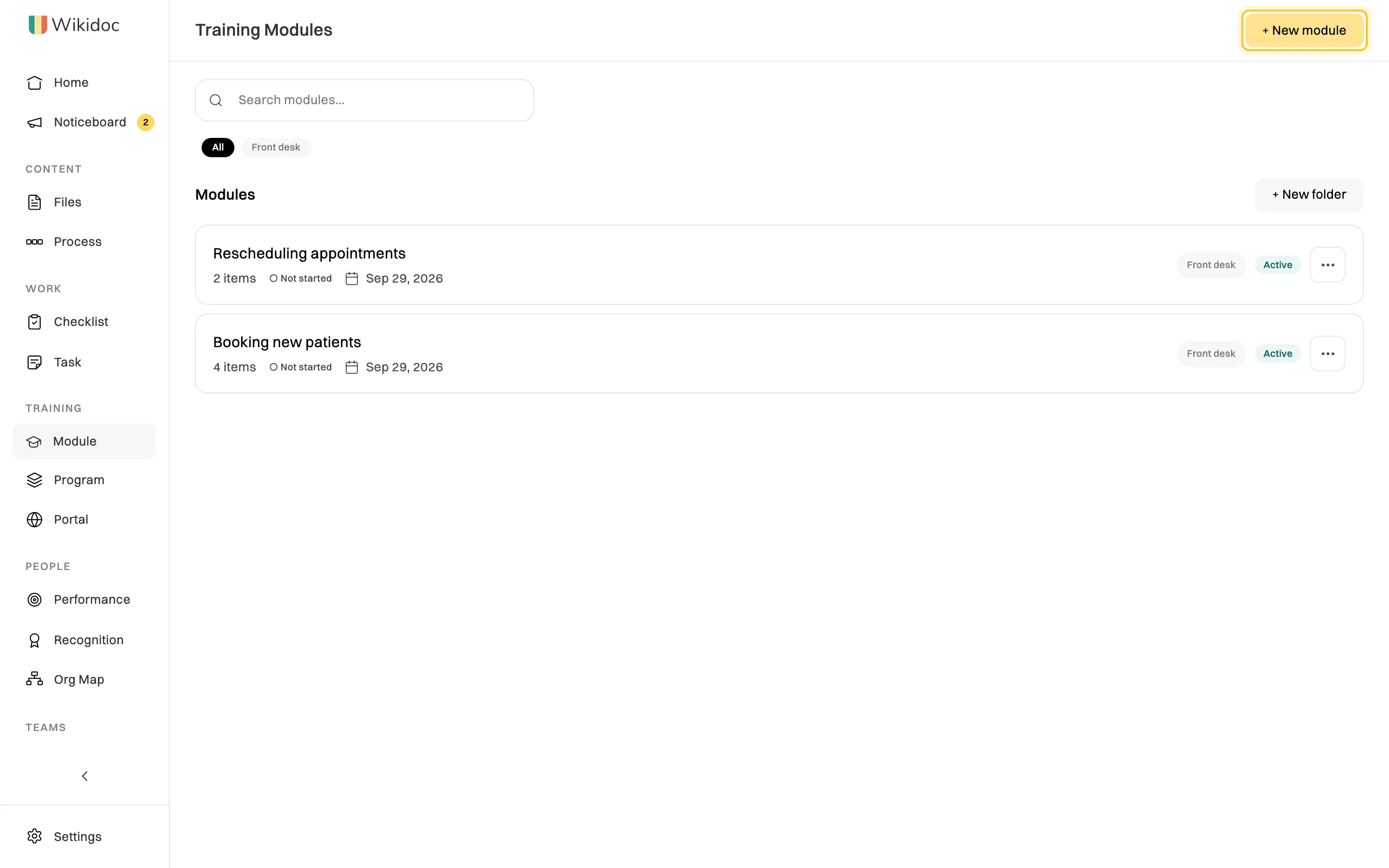
Every module in your organization, with its status and category. -
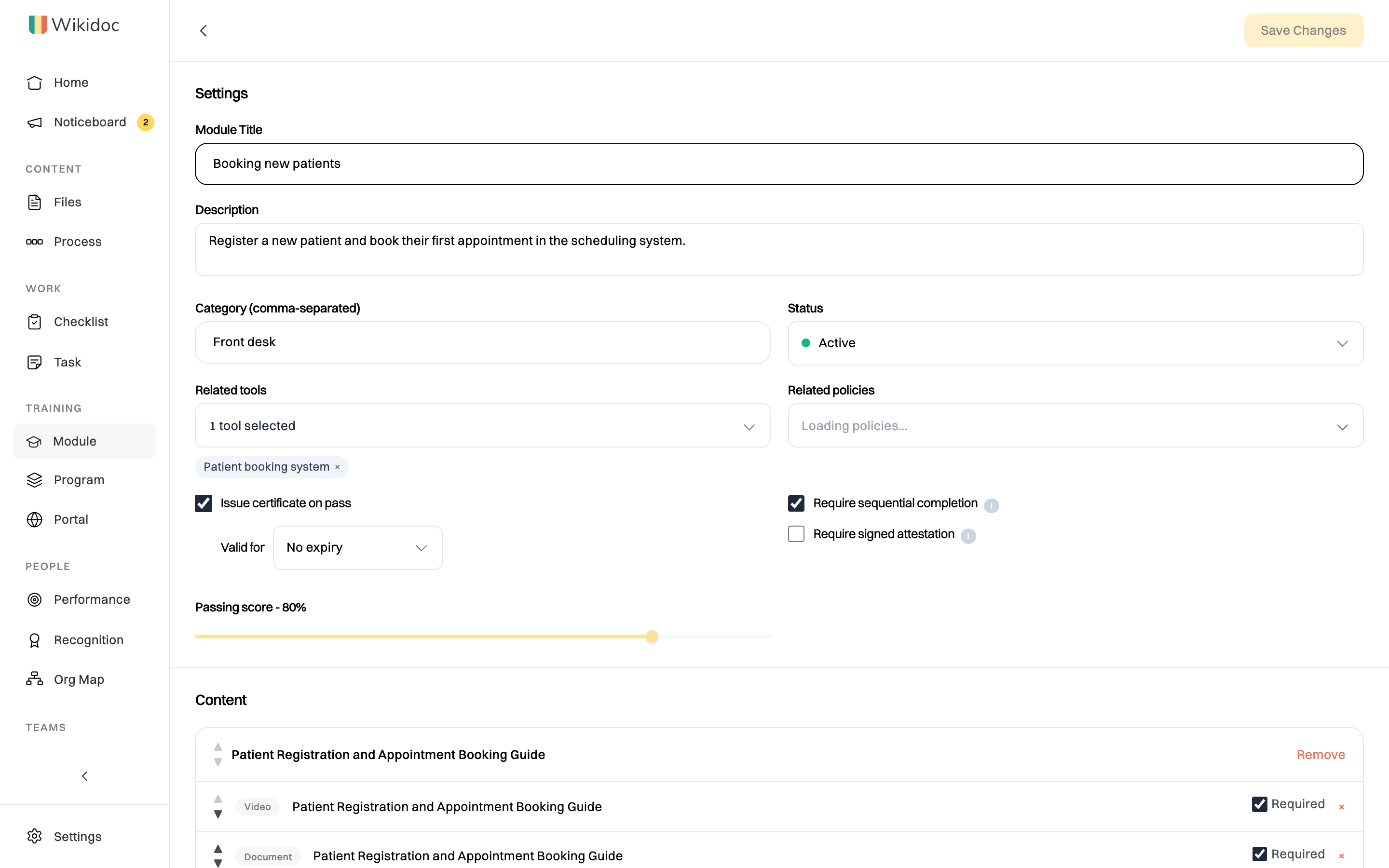
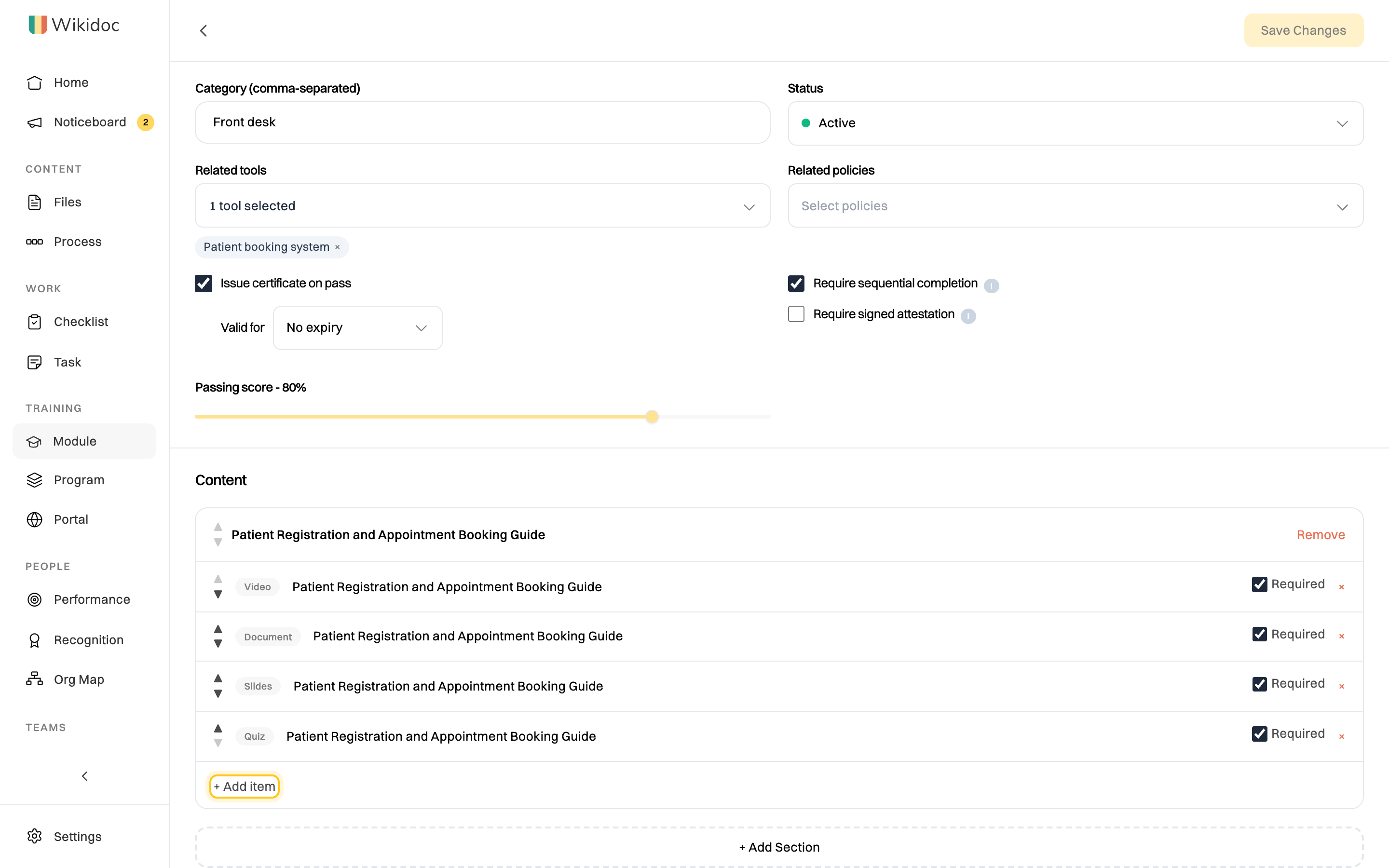
Fill in the settings:
- Module Title and Description: what learners see first.
- Category: words to filter modules by, separated by commas, such as
Front desk. - Status: Active to publish it, or Draft while you work on it.
- Related tools and Related policies: the tools and policies from your org map that the module trains people on.
- Issue certificate on pass: learners who pass get a certificate. Under Valid for, choose how long it lasts: No expiry, 6, 12 or 24 months.
- Require sequential completion: each item unlocks when the required ones before it are done. On by default.
- Require signed attestation: learners sign their name to confirm they read and understood the module. Signatures are kept permanently.
- Passing score: the quiz score learners need to pass, 80% by default.
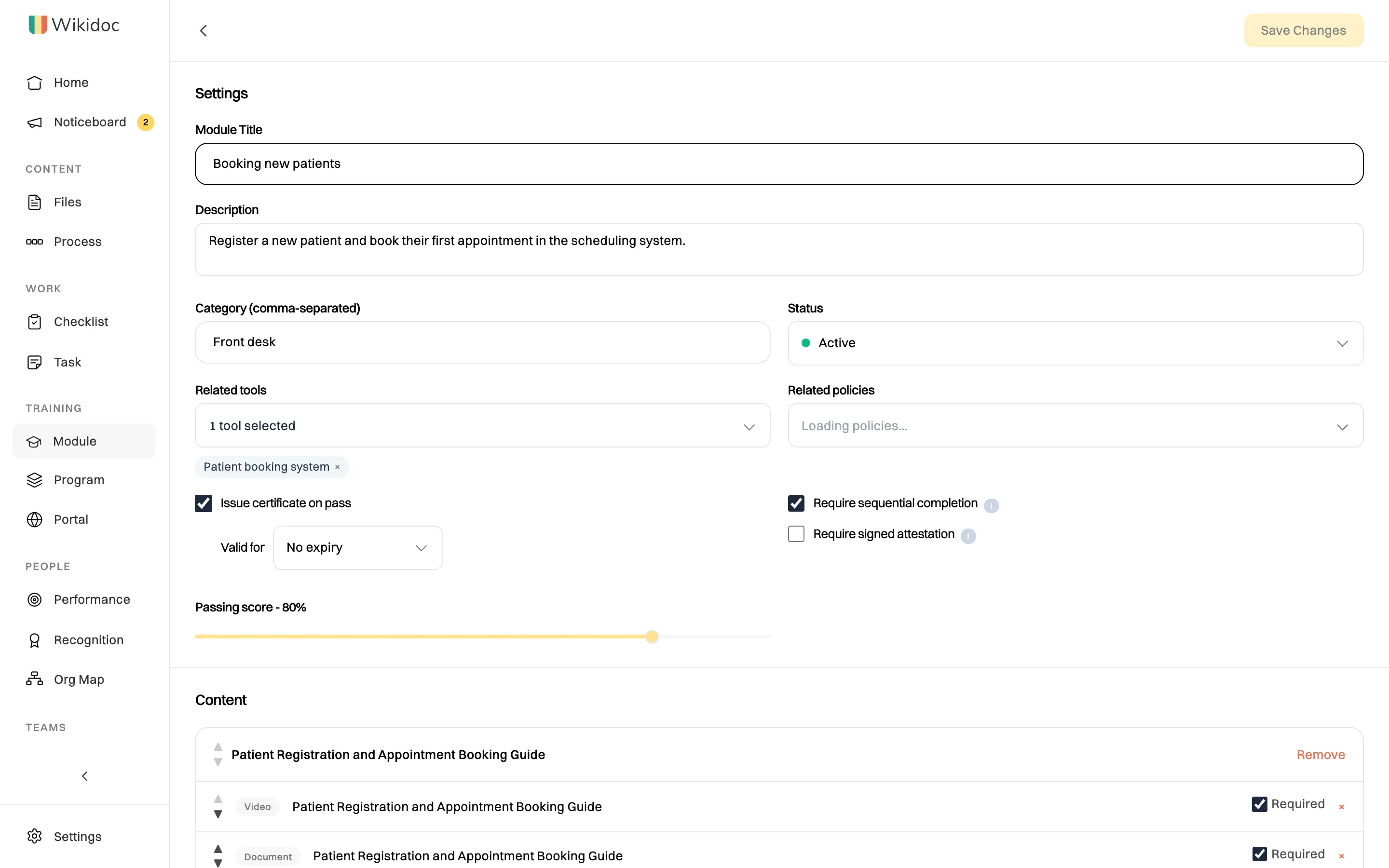
A module's settings decide how it's taken and passed. -
Under Content, click + Add Section, and give the section a title.
-
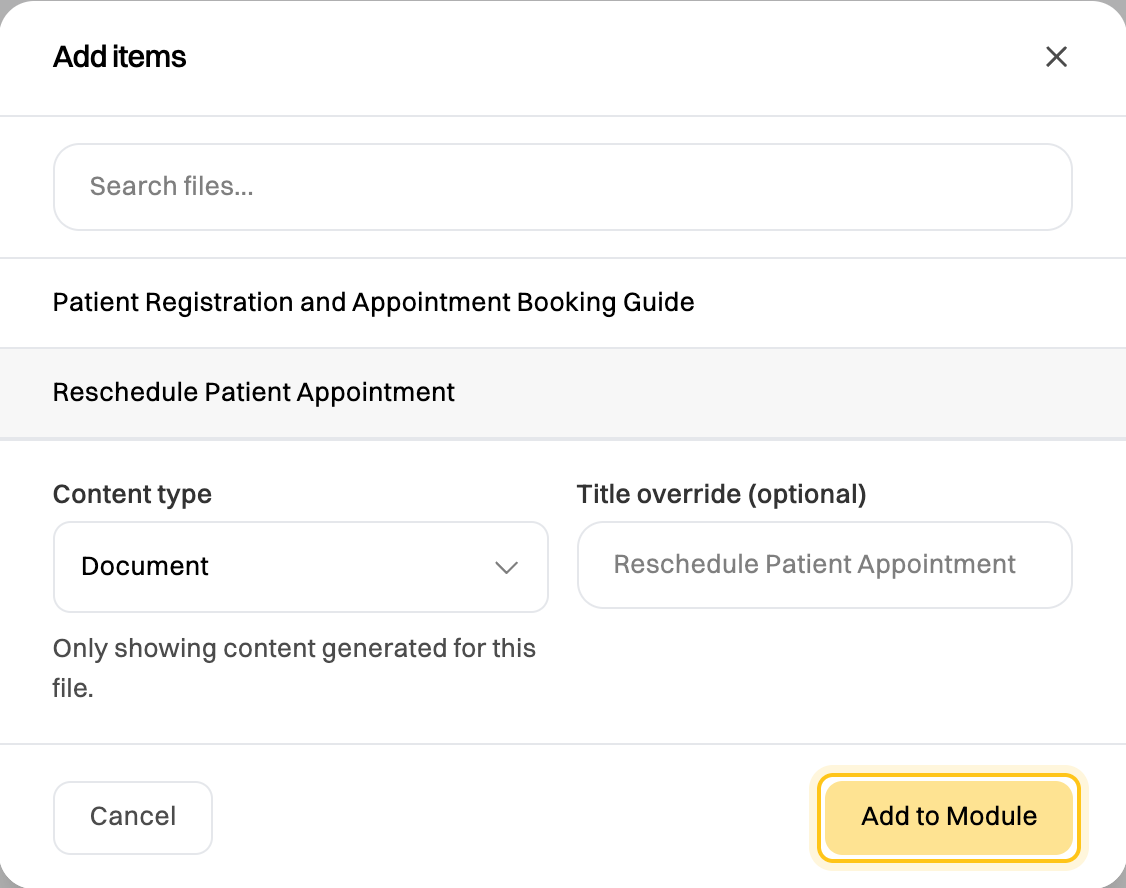
Click + Add item, pick one of your files, and choose a Content type: Document, Video, Slides, Quiz or Flowchart (a process map). Only the types that file has are offered. Change the title if you like, then click Add to Module.
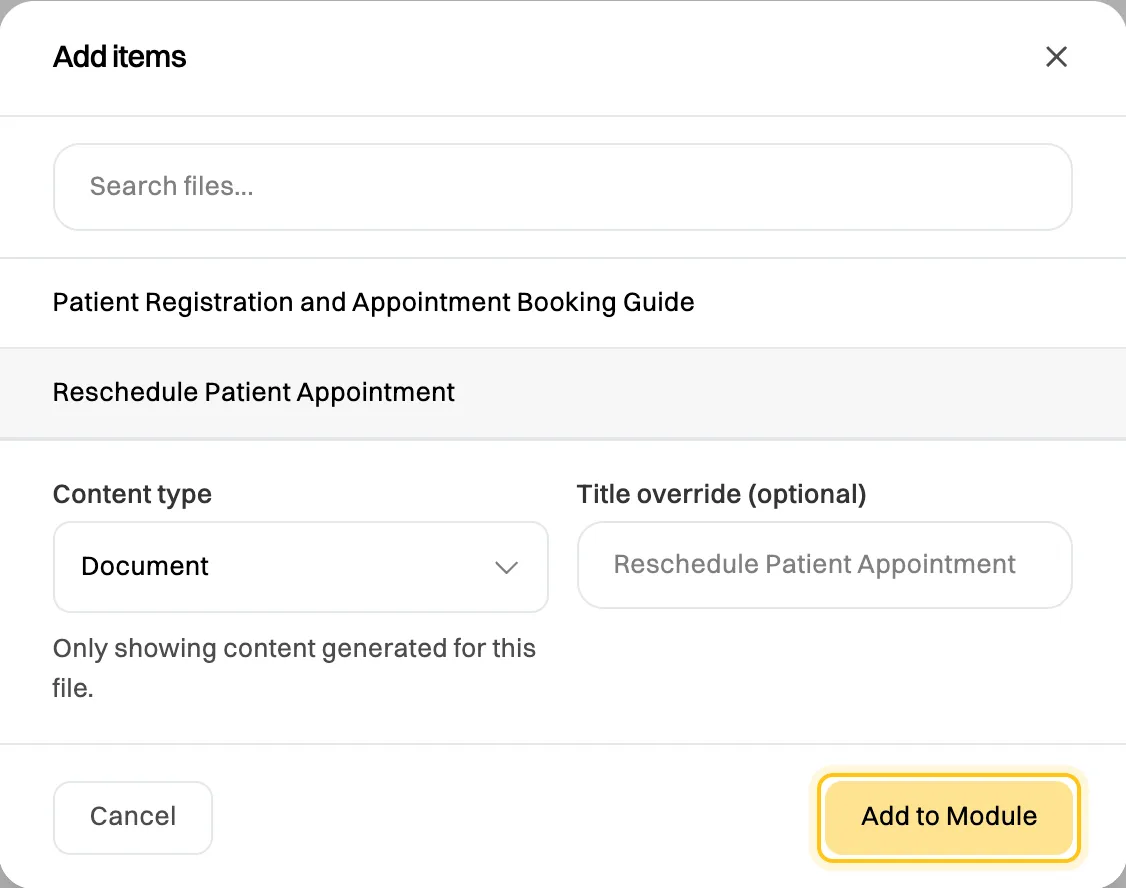
Add each part of a document as its own item. The list shows the files in your own workspace.
-
Repeat for each item. Use the arrows to change their order, untick Required for anything optional, and click × to remove an item.
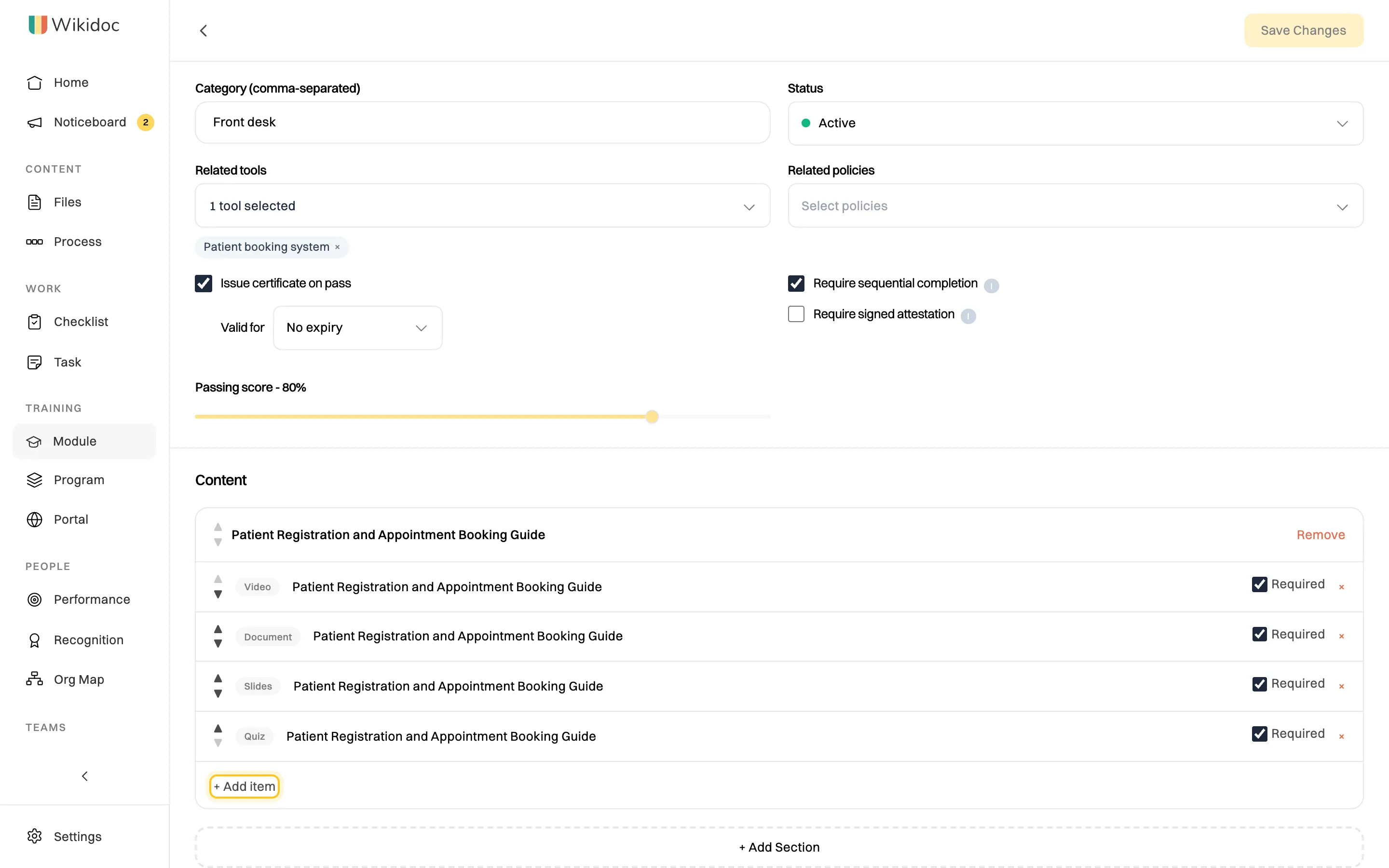
Learners see the items in this order. -
Click + Create Module at the top right.
Who sees a module
Section titled “Who sees a module”- Active modules are open to everyone in your organization on the Module page, Viewers included.
- Draft modules are visible only to the person who made them and to Admins.
To give people a deadline and track who has finished, add the module to a program. See Build and publish a training program.
Change or remove a module
Section titled “Change or remove a module”On the Module page, click ⋯ next to the module:
- Edit: change its settings or content, then click Save Changes. The person who made the module, their manager and Admins can edit it.
- View completions: see who has finished it, their scores and whether they passed. Admins and Managers only. Making a module doesn’t let you see its completions.
- Copy link, Duplicate or Delete.