
Video upload rejected? Formats and length limits
Why a video might not turn into a document, and how to fix it: length limits, video formats, plan limits and storage.
Wikidoc makes documents from MP4, MOV and WEBM videos that your browser can play, up to 10 minutes long, or 5 minutes on the Free plan. Find the message you saw below.
“Video Too Long” when you choose the file
Section titled ““Video Too Long” when you choose the file”The video is longer than 10 minutes, the limit on every plan. Record just the part of the task you need, or shorten the video in another app and upload it again. For a long process, record each part separately and make a document for each.
“Video Too Long” when you click Generate
Section titled ““Video Too Long” when you click Generate”On the Free plan, a video can be up to 5 minutes. A longer one uploads, but stops when you click Generate.
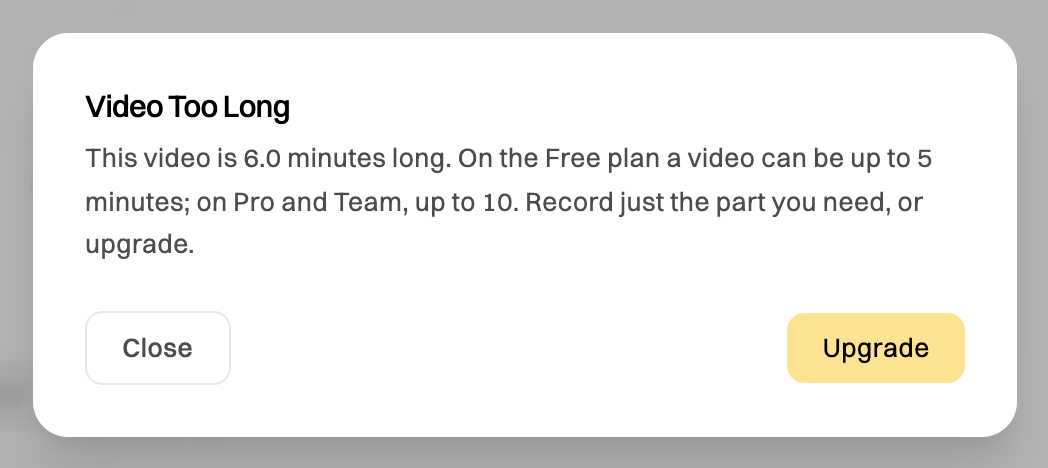
Record a shorter video, or click Upgrade. Pro and Team take videos up to 10 minutes. See Upgrade to Pro.
“Unsupported Video Codec”
Section titled ““Unsupported Video Codec””The video is in HEVC (H.265), the “High Efficiency” format iPhones and some cameras record in by default. Many browsers can’t play it, so Wikidoc can’t read it.
- On an iPhone: before recording, go to Settings → Camera → Formats and choose Most Compatible.
- For a video you already have: convert it to an H.264 MP4 with a video converter, such as HandBrake or CloudConvert, then upload the new file.
“Couldn’t detect the steps”
Section titled ““Couldn’t detect the steps””Wikidoc found nothing it could turn into steps. The message under the heading says which case it is:
- “The recording could not be analysed…” This is usually temporary. Click Try again. If it keeps happening, check the video plays all the way through in your browser.
- “No actions were found in this recording…” Wikidoc writes a step for each click, entry and page change it sees. A recording of a screen that barely changes, or of a slide presentation, has nothing to write up. Record yourself doing the task in the software.
- “The steps were found, but no frame could be captured…” The video couldn’t be read all the way through. Export it again as an H.264 MP4 and upload that.
“Free plan limit reached”
Section titled ““Free plan limit reached””On the Free plan you can make three AI-narrated videos, three slide decks and three quizzes. When you’ve used one of these up, switch it off under Content Type to make the document without it, or click Upgrade. Pro and Team have no limits. See Plans compared.
If you’ve made three documents, Wikidoc says you’ve reached the document limit instead. Delete a document you don’t need, or upgrade.
“Storage full”
Section titled ““Storage full””The video won’t fit in the storage you have left: 3 GB on Free, 30 GB on Pro, and 30 GB per member on Team. Delete documents you no longer need from Files, including ones with long videos, then try again. On the Free plan you can also click Upgrade.
“Couldn’t start” or “Couldn’t generate the document”
Section titled ““Couldn’t start” or “Couldn’t generate the document””Something went wrong on our side. Wait a moment and try again. If it keeps happening, contact support and include the message shown under the heading.