
Teams and team workspaces
Create teams, add or remove people, and control who sees a team's files.
A team is a group of people in your organization who share a team workspace, a place for files only they can open. Use teams for groups that keep their own procedures, such as each clinic, site or department.
Each team appears in the sidebar under Teams, and opens that team’s workspace. You only see the teams you belong to. Admins see every team.
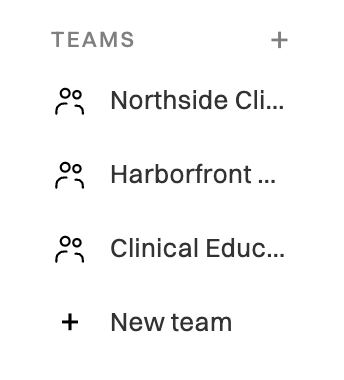
Who sees a team’s files
Section titled “Who sees a team’s files”- Files created in a team workspace open only for that team’s members and for Admins. Anyone else in your organization can’t open them.
- Everything else, such as files in your own workspace, is open to everyone in your organization, as described in Roles and permissions.
- Admins can open every team’s files, whether or not they’re members.
A team only decides who can see its files. Adding someone to a team doesn’t add them to your organization or use a seat, and removing them from a team doesn’t remove them from the organization. For that, see Remove a member from your organization.
Create a team
Section titled “Create a team”-
Go to Settings›Access and scroll down to Teams.
You can also click + New team at the bottom of the sidebar.
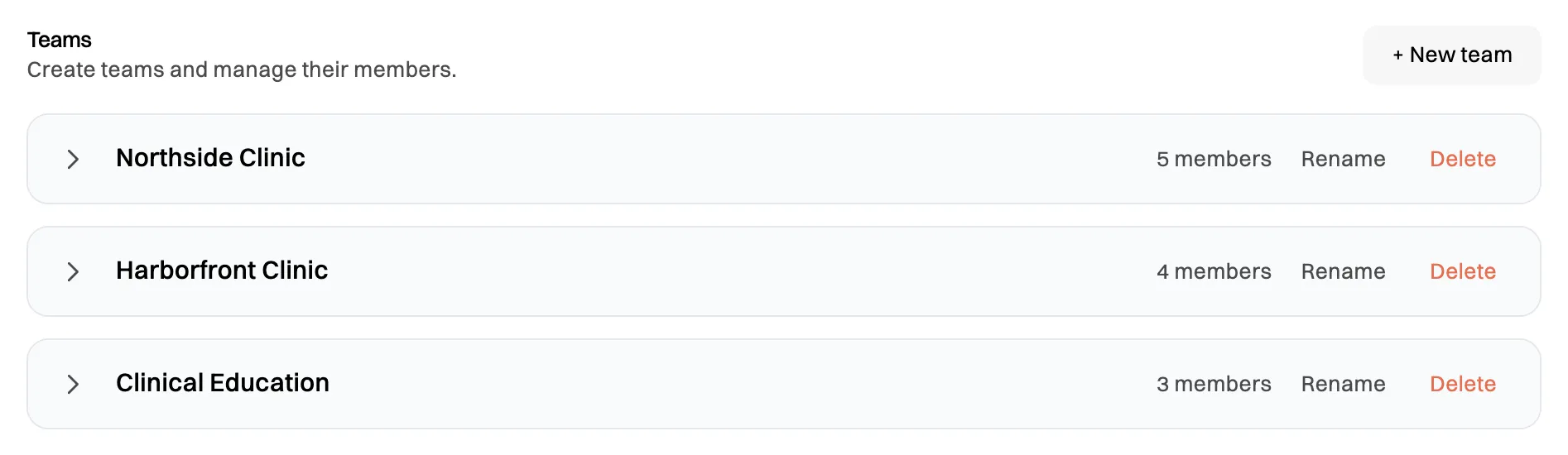
Every team, with its member count. -
Click + New team.
-
Enter a name of up to 60 characters, then click Create.
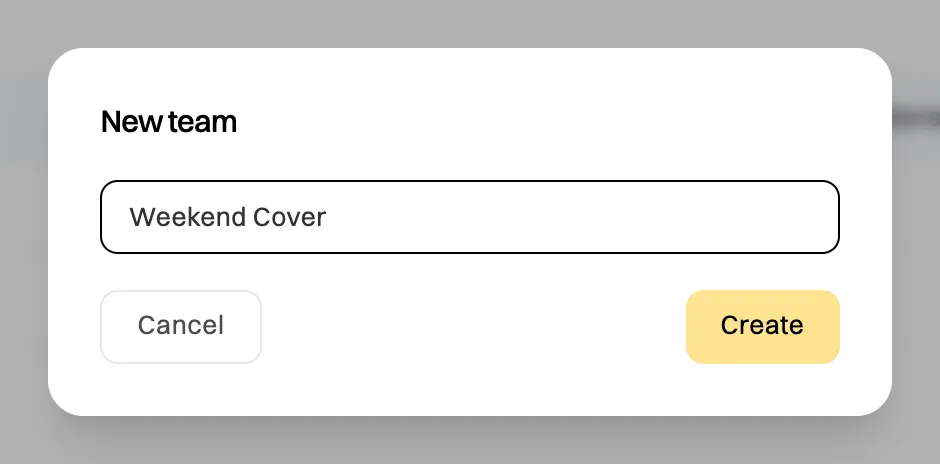
Name the team, then click Create.
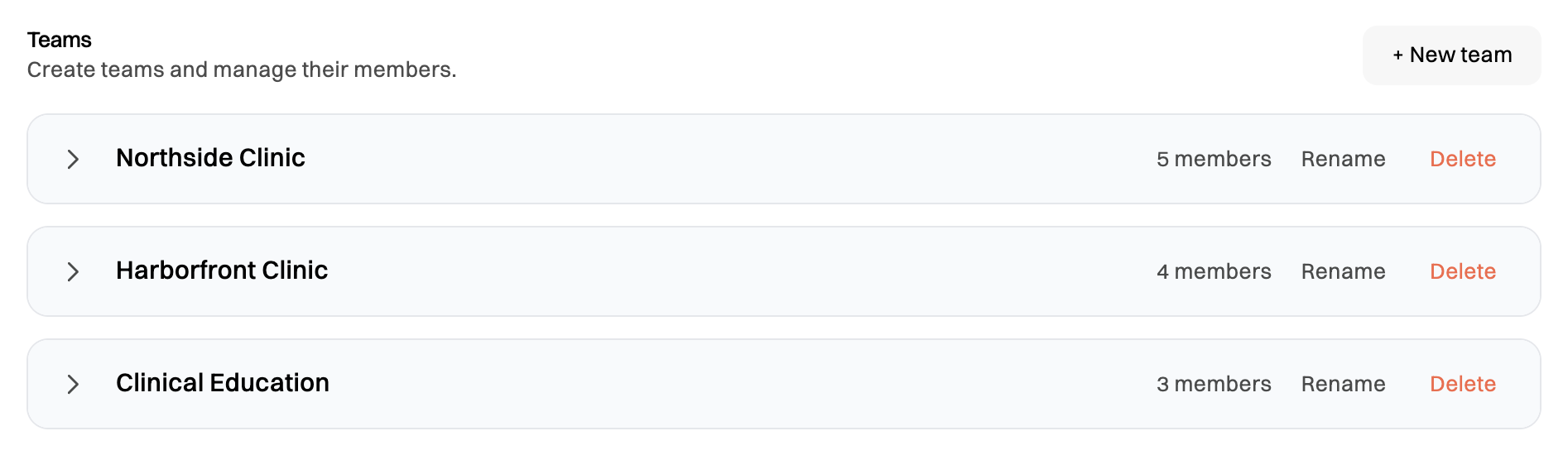
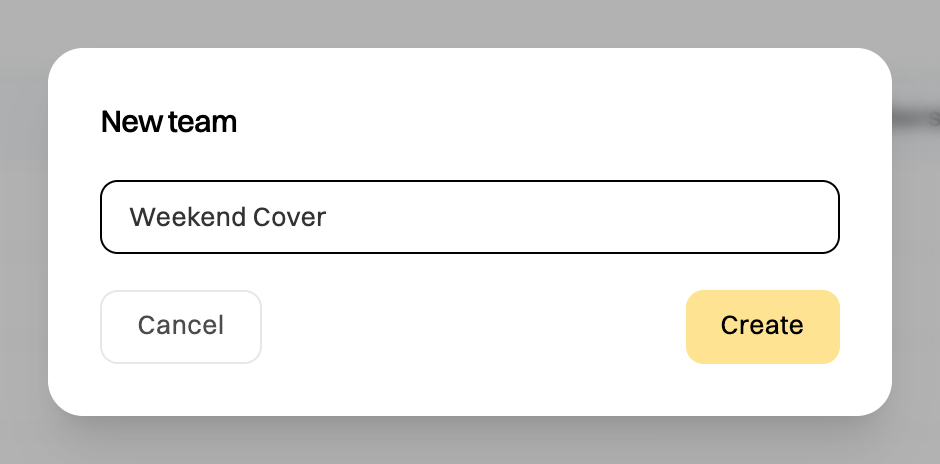
The team appears in the list and in the sidebar. Next, add its members.
Add people to a team
Section titled “Add people to a team”-
In Settings›Access›Teams, click the team’s name to open it.
-
Type the email address of someone in your organization in Add member email.
-
Click Add, or press Enter.
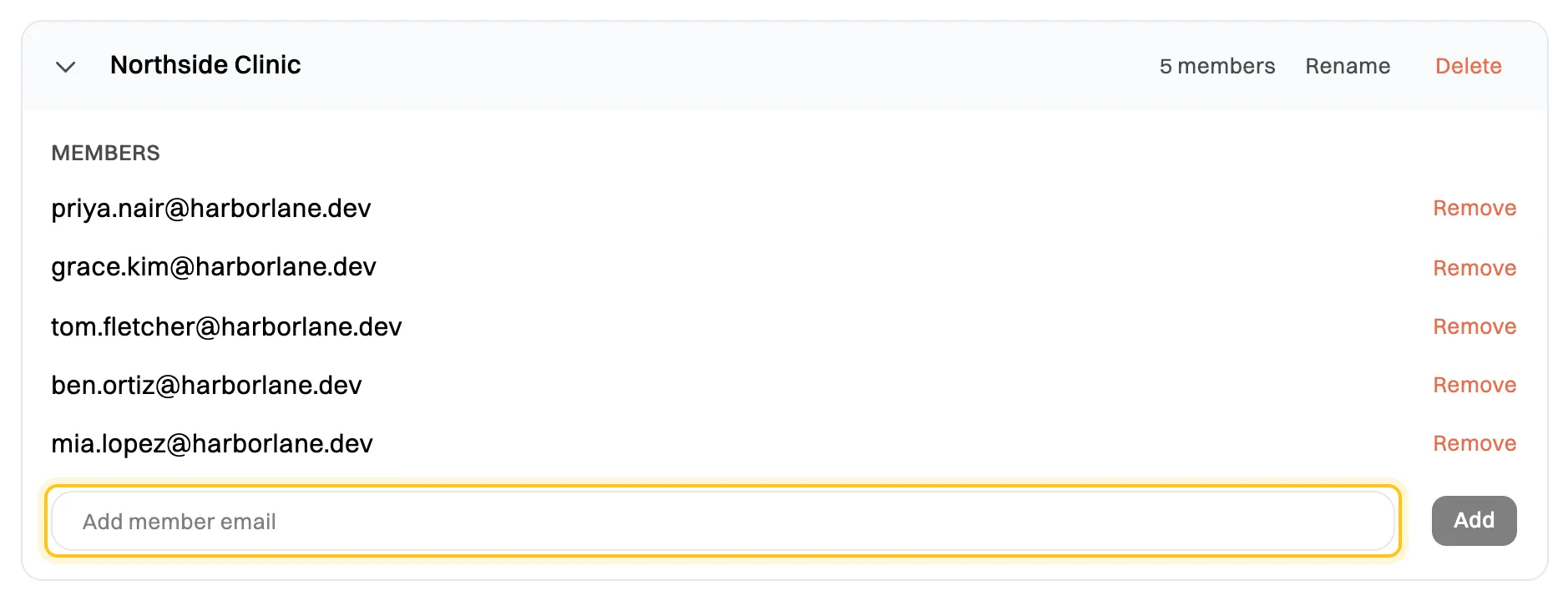
Add people by email address. Each one has a Remove button.
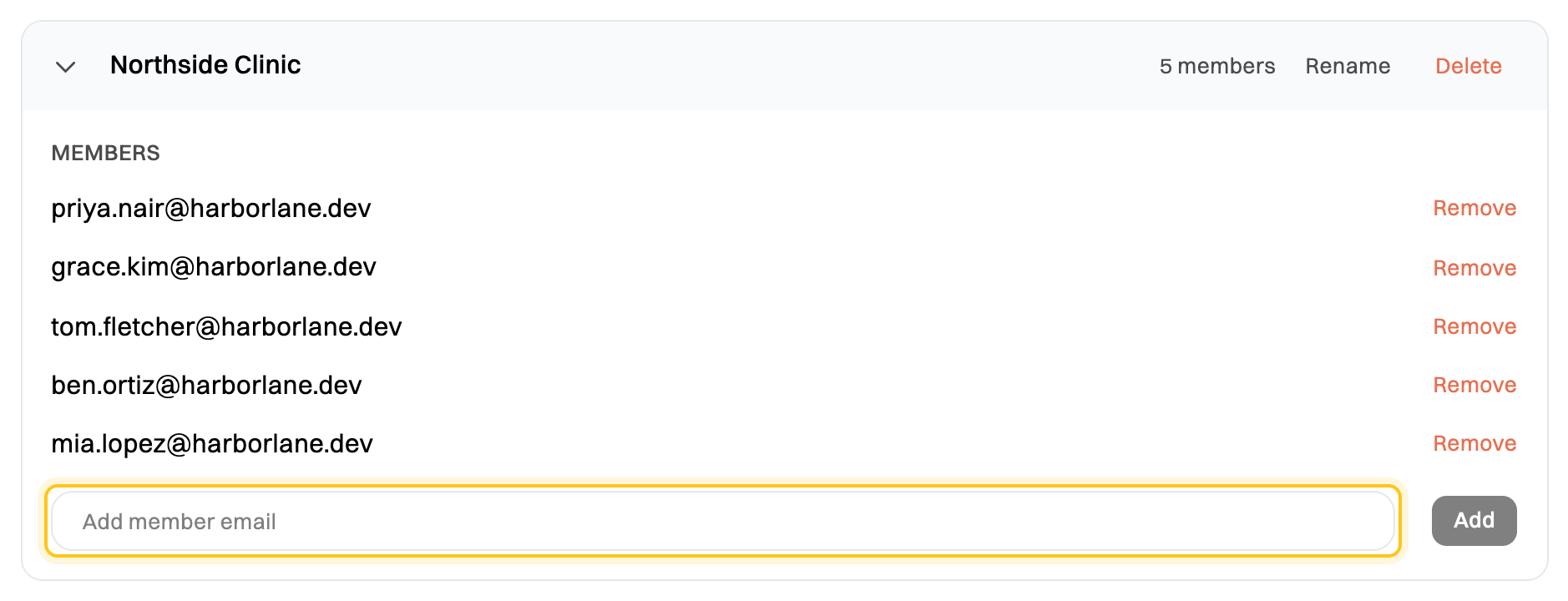
We email each person you add to tell them they’ve joined the team. The team then appears in their sidebar.
Remove someone from a team
Section titled “Remove someone from a team”Open the team in Settings›Access›Teams and click Remove next to their email address. They stop seeing that team’s workspace straight away. They stay in your organization, keep their seat and keep their other teams. We don’t email them.
Rename or delete a team
Section titled “Rename or delete a team”- Rename: click Rename on the team, type the new name, then press Enter. Press Esc to cancel.
- Delete: click Delete, then confirm. Deleting a team removes it and its folders for everyone, and it can’t be undone. The team’s files aren’t deleted: each one goes back to the Files of the person who made it, and anyone in your organization can then open it. If some should stay private, ask the people who made them to delete them before you delete the team.