
Take assigned training
Find the training assigned to you, work through its modules and quizzes, and keep track of your due dates.
When a manager assigns you a training program, it’s a list of modules to complete by a due date. Each module is a short lesson, usually a step-by-step guide with a video, slides and a quiz. This article is for learners; anyone in your organization can take training, whatever their role.
Find your training
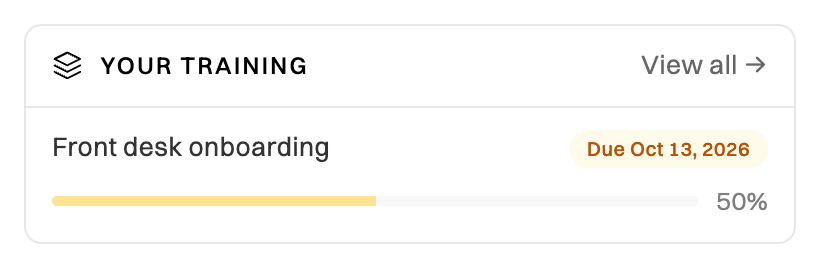
Section titled “Find your training”Your programs are on your Home, under Your training, with how far you’ve got and when each is due.
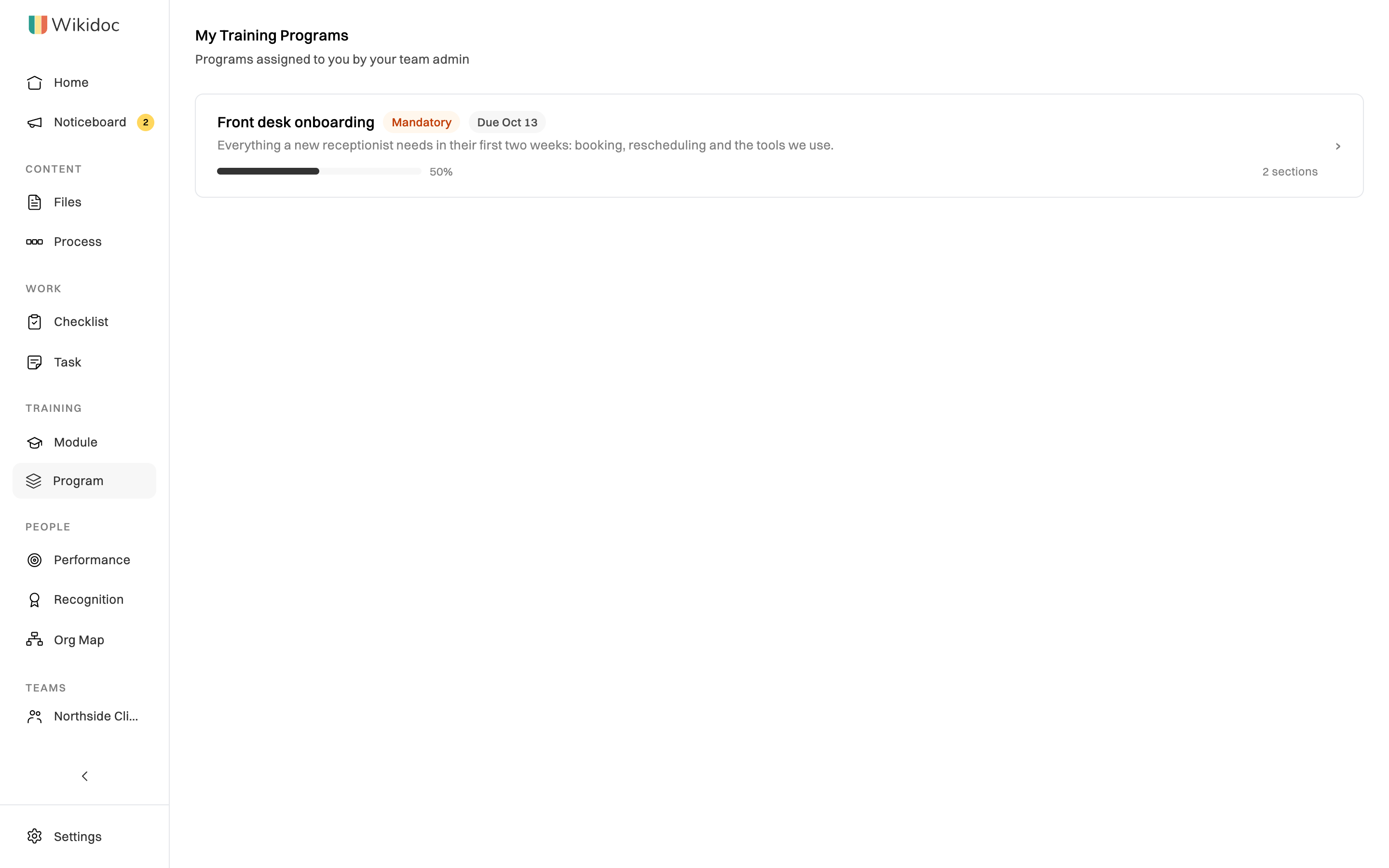
You can also click Program in the sidebar. Viewers see My Training Programs. Everyone else clicks the Enrolled Programs tab.
Work through a program
Section titled “Work through a program”-
Click the program. Its sections are listed on the left, with a tick next to each one you’ve finished.
-
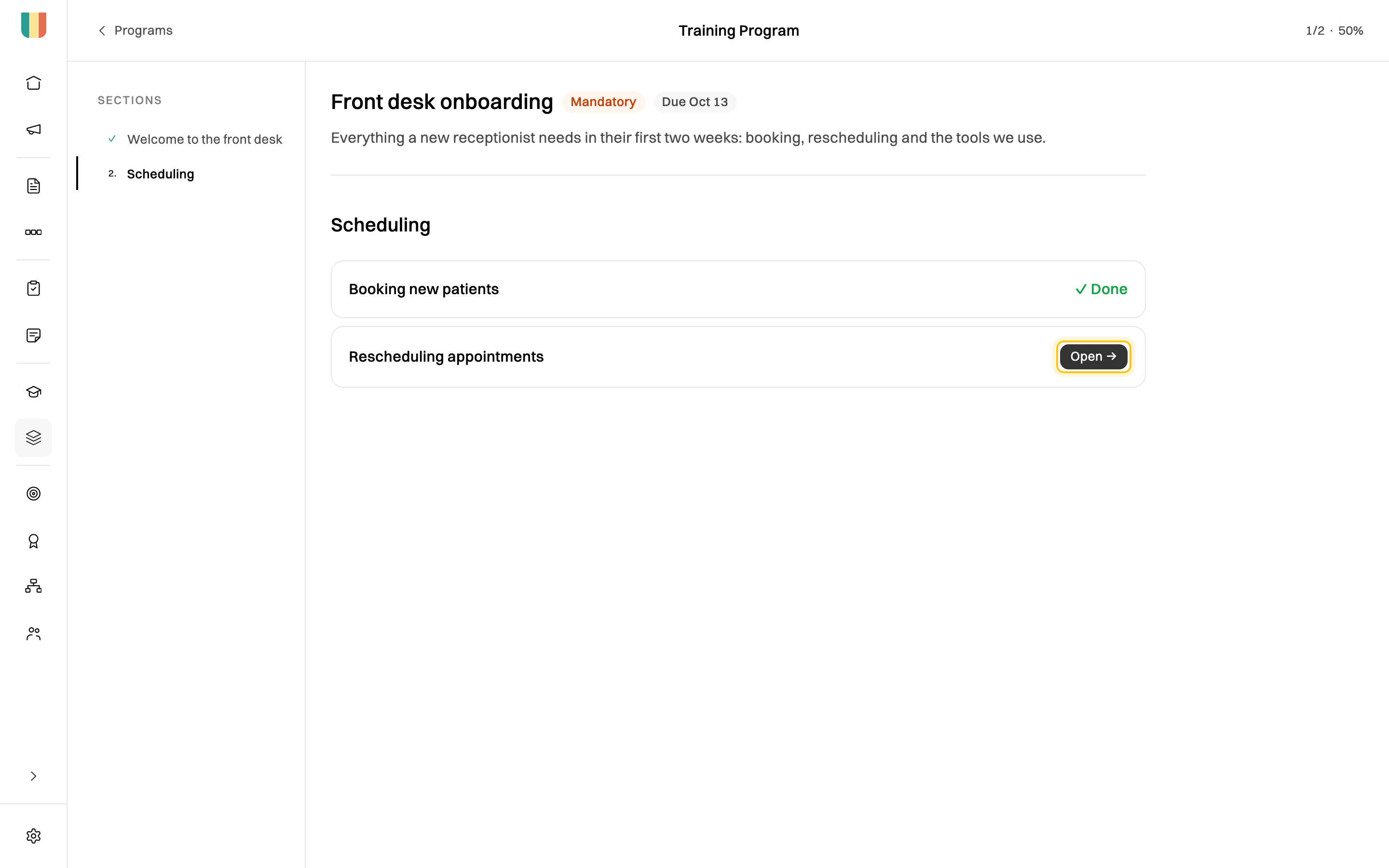
Click a section. For a text section, read it and click Mark as read. For a section of modules, click Open → next to a module.
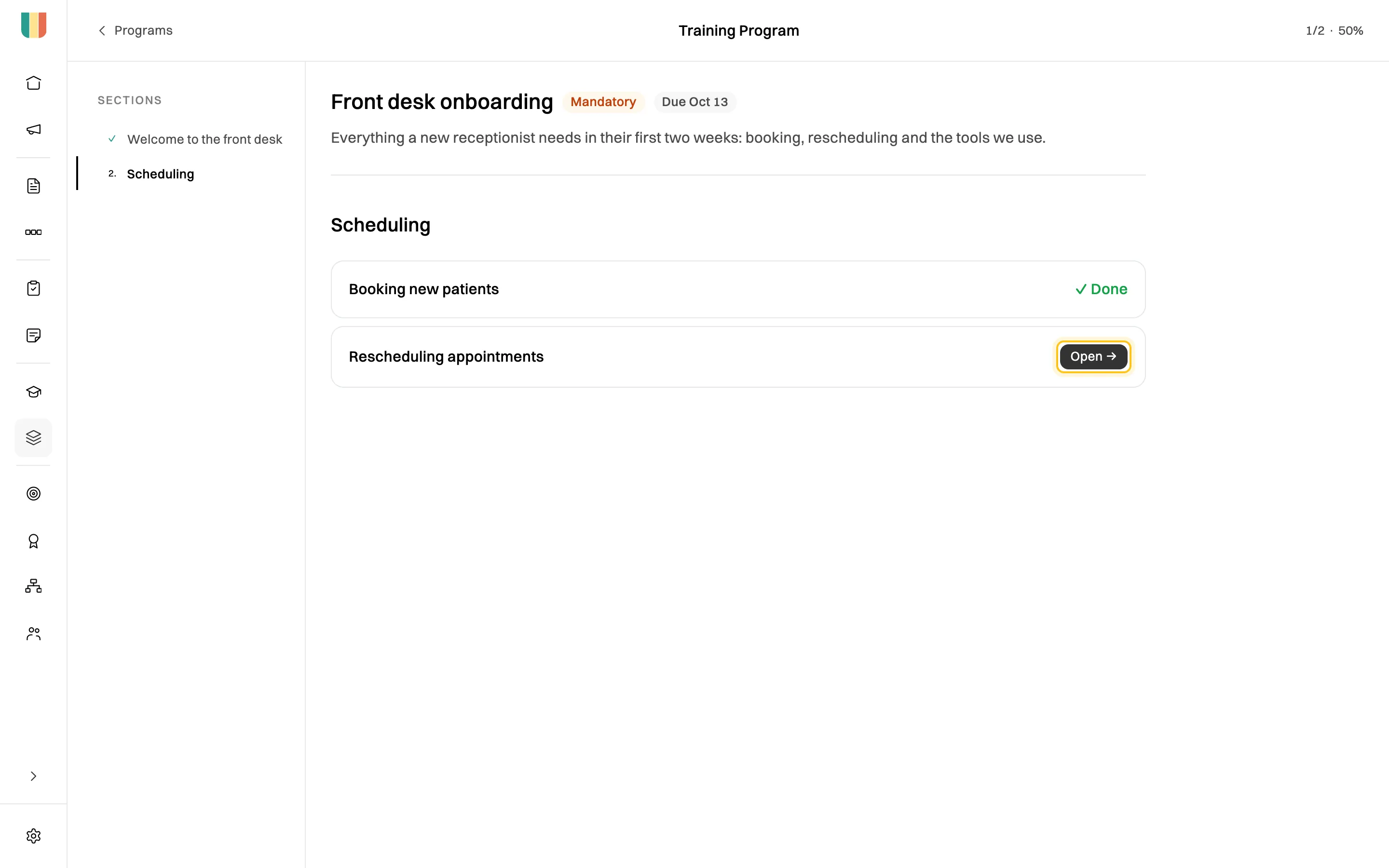
Your progress through the program is at the top right. -
Work through the module, then close it. The program ticks off the module once you’ve completed it and, if it has a quiz, passed. If you didn’t pass, the module shows Not passed yet: click Retake → to try again.
Complete a module
Section titled “Complete a module”The module’s items are listed on the left under Table of contents. Work through them in order.
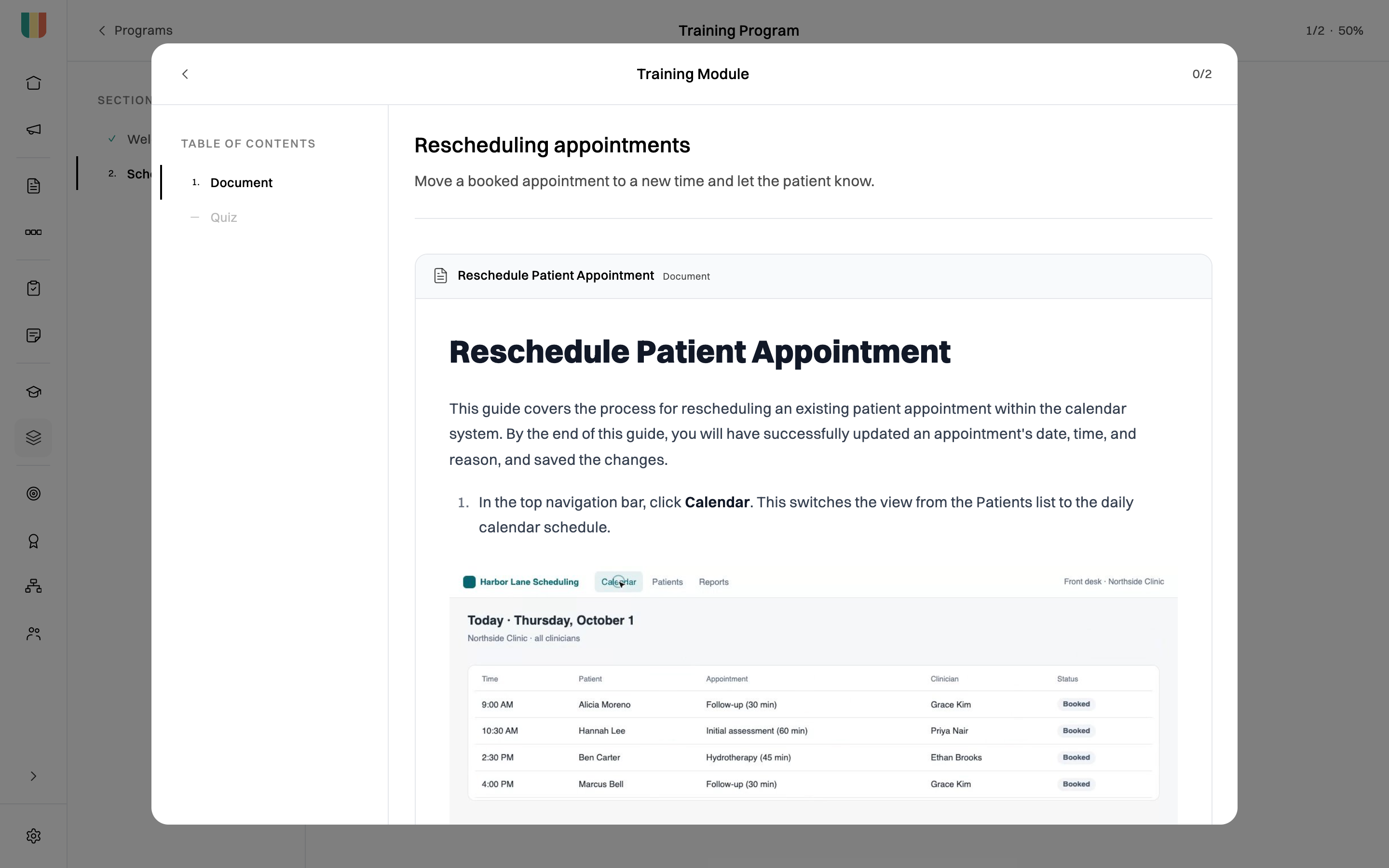
- Document, slides or video: read or watch it, then click Mark complete at the end.
- Quiz: answer every question, click Review & Submit, check your answers, then click Submit Quiz. Passed! means you reached the passing score. If you see Not quite, click Retake Quiz to try again.
If an item says Complete prior items to unlock, finish the ones before it first.
Some modules ask you to sign when you finish. Type your full legal name and click Sign & complete module to confirm you’ve read and understood it.
When everything’s done, you see Module Complete! with your score and whether you passed. Click Retake to go through it again.
Certificates
Section titled “Certificates”If the module or program issues a certificate and you pass, click View Certificate. Add your name if it’s missing, then download it. Each certificate has a link anyone can use to check it’s genuine. See Certificates and how to verify one.
Due dates and reminders
Section titled “Due dates and reminders”- Mandatory programs must be completed. Optional ones are for your own development.
- A due date shows next to each program. If you were given a number of days, your due date counts from the day you were enrolled.
- For mandatory programs, Wikidoc emails you 5, 3 and 1 days before the due date, until you’ve finished.
You can turn training emails on or off in your notification settings. See How notifications work.
Take other training
Section titled “Take other training”Click Module in the sidebar to see every active module in your organization. You can open and take any of them, even if it isn’t part of a program assigned to you.
If something goes wrong
Section titled “If something goes wrong”I don’t see a program my manager mentioned. It may not be published yet, or you may not be enrolled. Ask your manager to enroll you. Programs that enroll by job title only find you if your profile has the right Job title. See Set up your organization.
I finished a module but the program didn’t tick it off. You probably didn’t reach the quiz’s passing score. Open the module from the program again, retake the quiz, and close the module once you see Passed!
An item won’t open. If it says Content could not be loaded, tell the person who made the module. The file it uses may have been deleted.