
Edit your profile and photo
Change your name, photo, job title and the other details your colleagues see.
Your profile is how colleagues know you in Wikidoc: your name and photo appear on everything you write, comment on or are assigned. Everything here is in Settings›Account.
Change your photo
Section titled “Change your photo”-
Click Settings at the bottom of the sidebar. Account opens.
-
Under Profile photo, click Upload a photo and choose a PNG, JPG or WebP image up to 5 MB.
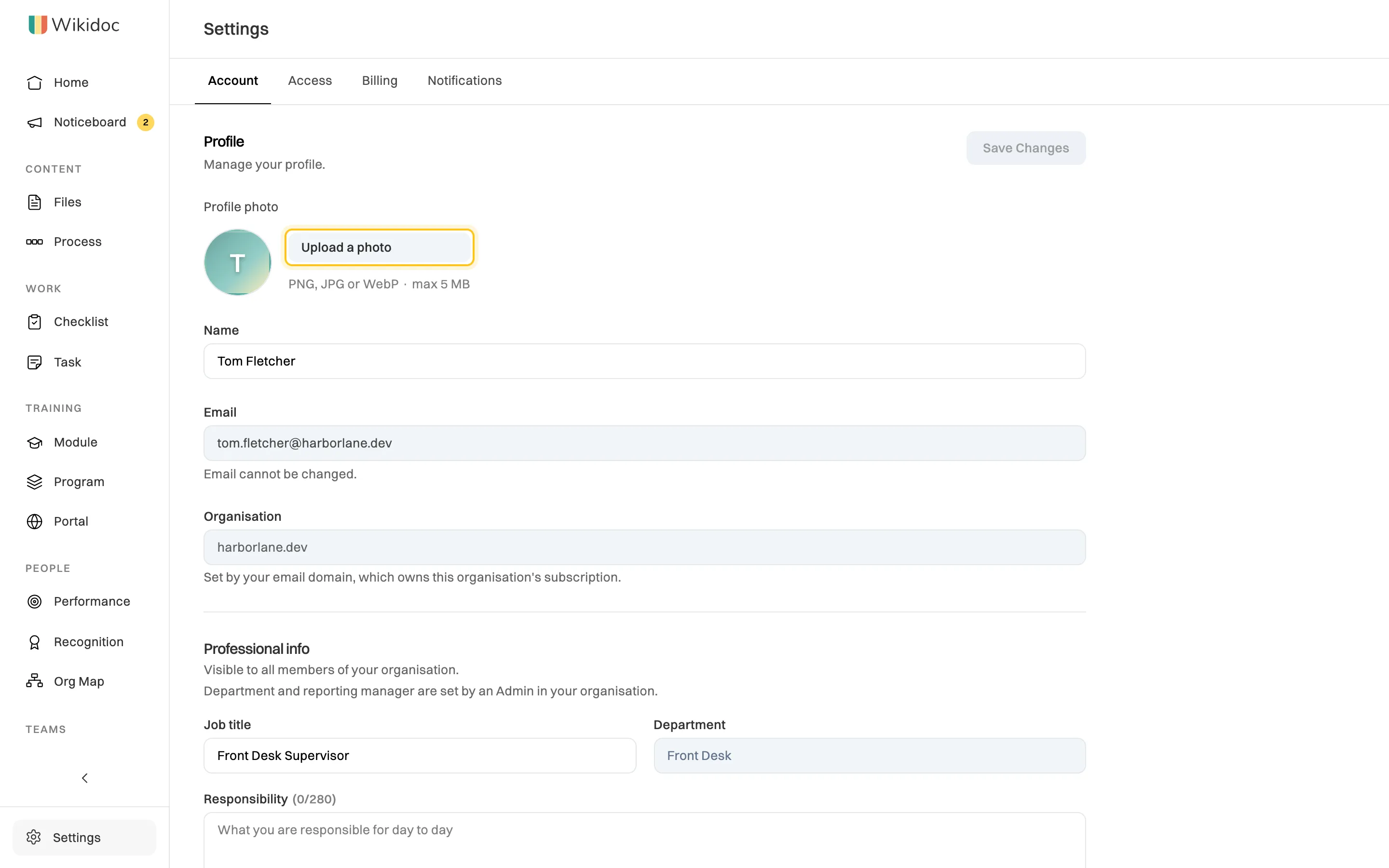
Upload a photo, or change your name, at the top of the Account tab. -
Drag the photo to position it and use the slider to zoom, then click Apply. It’s saved straight away.
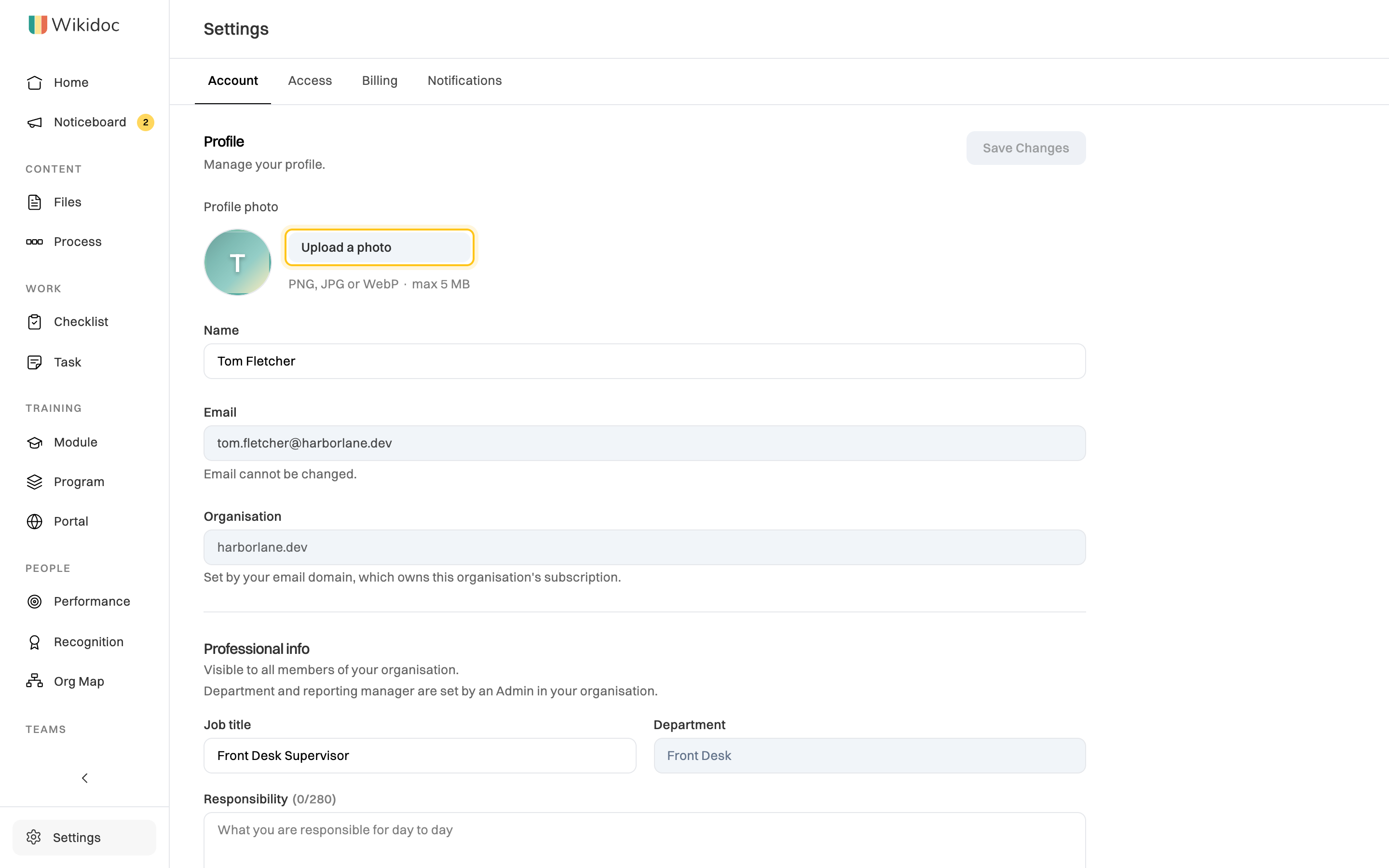
To take your photo down, click Remove photo under it. Your initials show instead.
Change your name and details
Section titled “Change your name and details”-
In Settings›Account, change your Name.
-
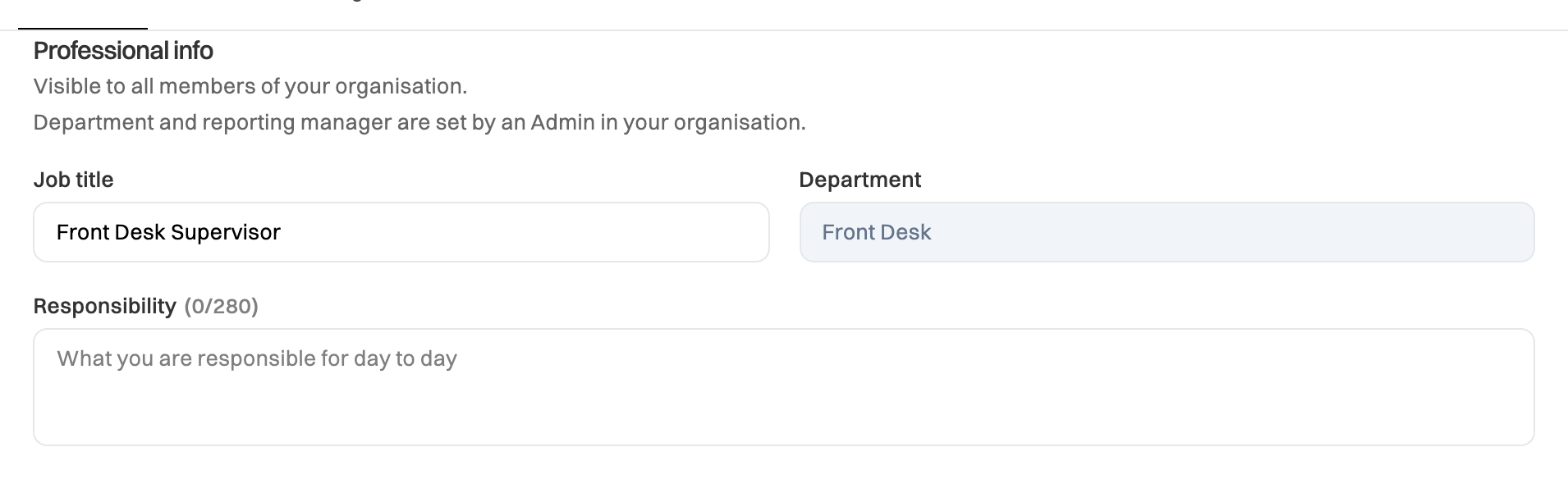
Under Professional info, fill in what you’d like colleagues to know. Everyone in your organization can see it.
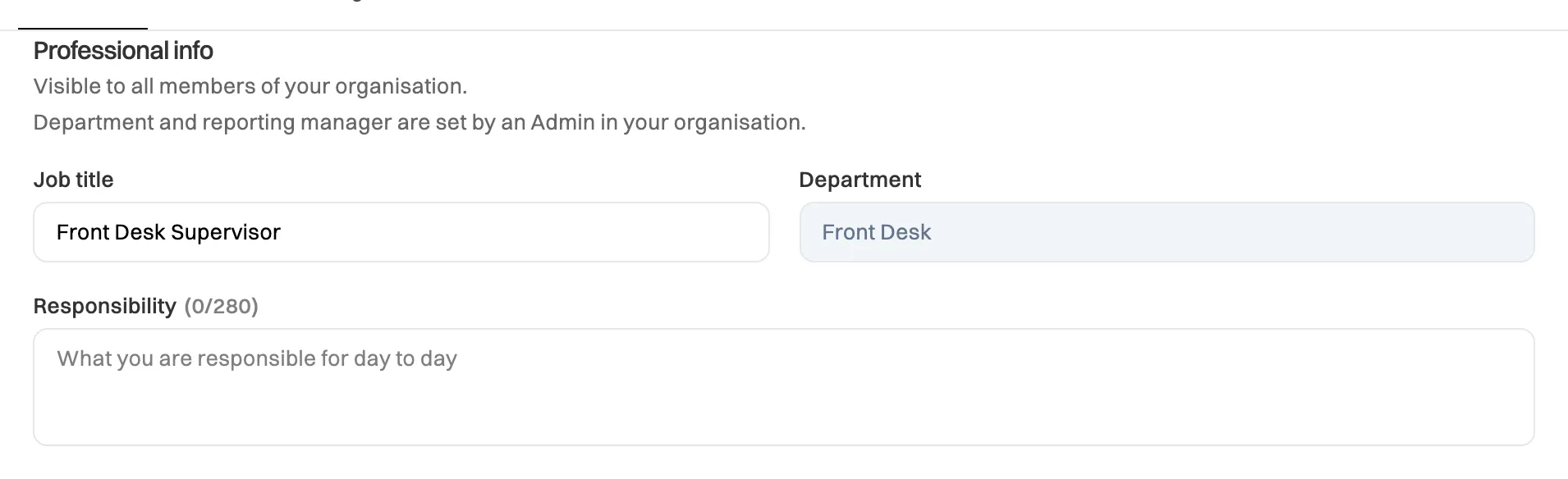
Grayed-out fields are set by an Admin. - Job title: training programs can enroll people by job title, so keep it accurate.
- Responsibility: what you do day to day, in up to 280 characters.
- Location, Date joined organisation, LinkedIn URL and Phone number.
- Birthday: the month and day only, never the year.
- Skills: type a skill and press Enter. Add as many as you like.
- Working hours: Standard (Monday to Friday, 9:00 to 17:00), Custom or Not set.
-
Click Save Changes at the top.
What you can’t change yourself
Section titled “What you can’t change yourself”- Department and Reports to are set by an Admin, from your card on the org map. Reports to also decides who reviews your performance. Ask an Admin if either is wrong.
- Email can’t be changed in the app. See Change your email address.
- Organisation comes from your email address’s domain. See How organizations, members and seats work.