
Organize files: folders and team workspaces
Group your files in folders, and keep a team's files in its own workspace.
Files lives in two kinds of place:
- My Workspace: the files you create. Group them in folders to find them faster.
- Team workspaces: one for each team you belong to, holding files only that team (and Admins) can open.
Folders
Section titled “Folders”Folders keep your own workspace tidy. They’re yours: nobody else sees your folders.
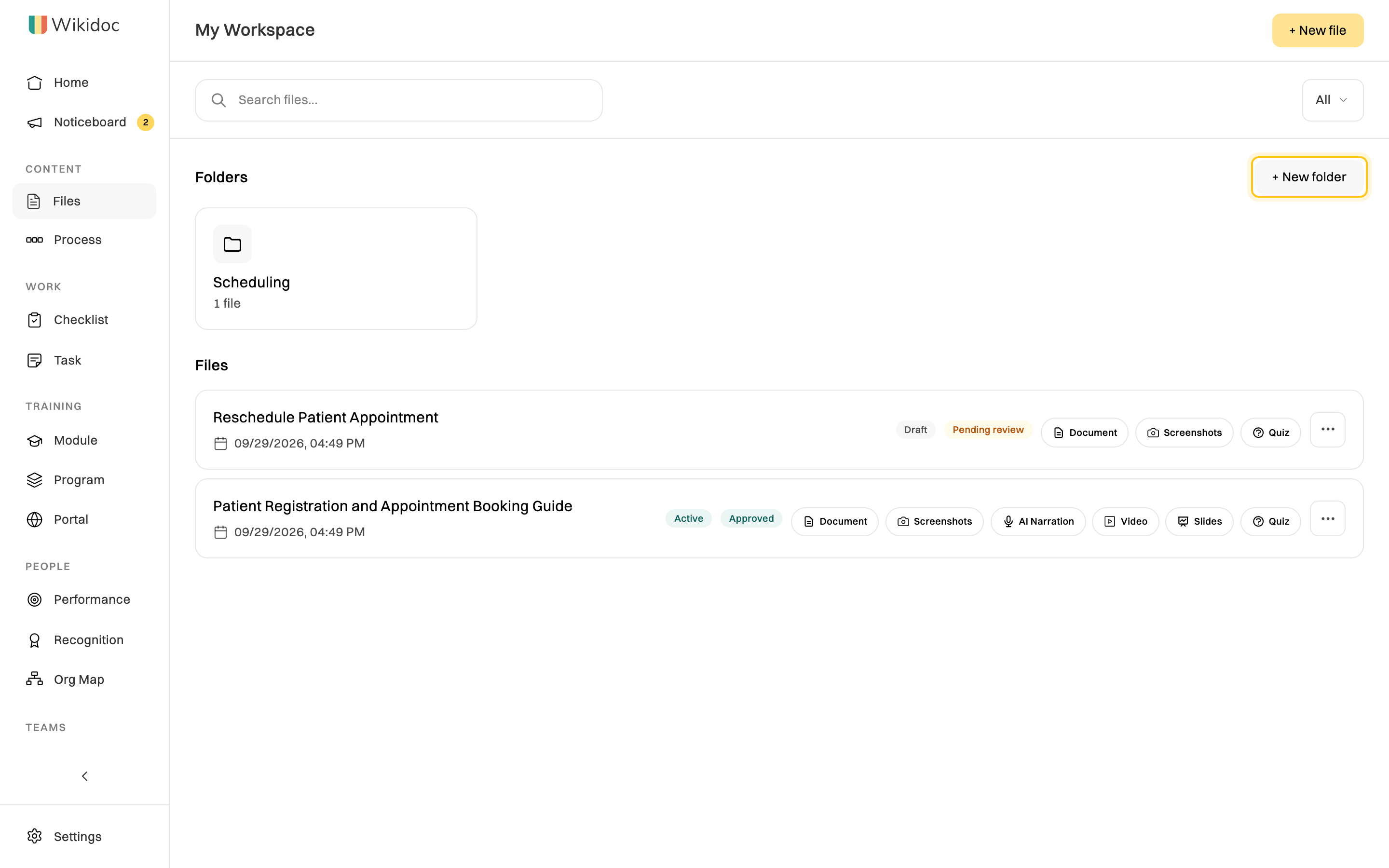
Create a folder
Section titled “Create a folder”-
In Files, click + New folder.
-
Type a name of up to 60 characters, then click Create.
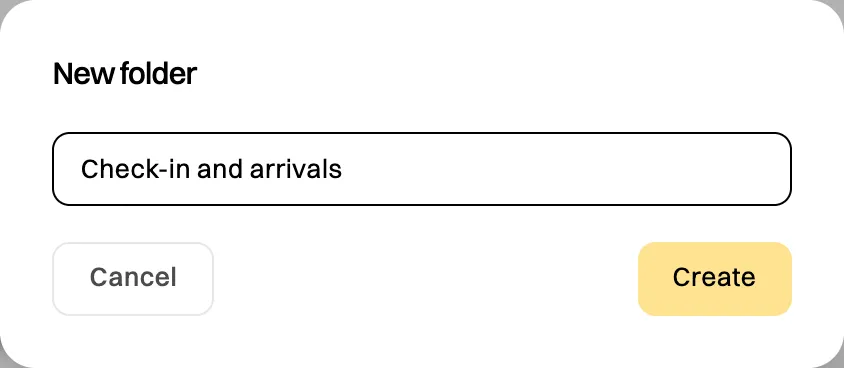
Name the folder, then click Create.
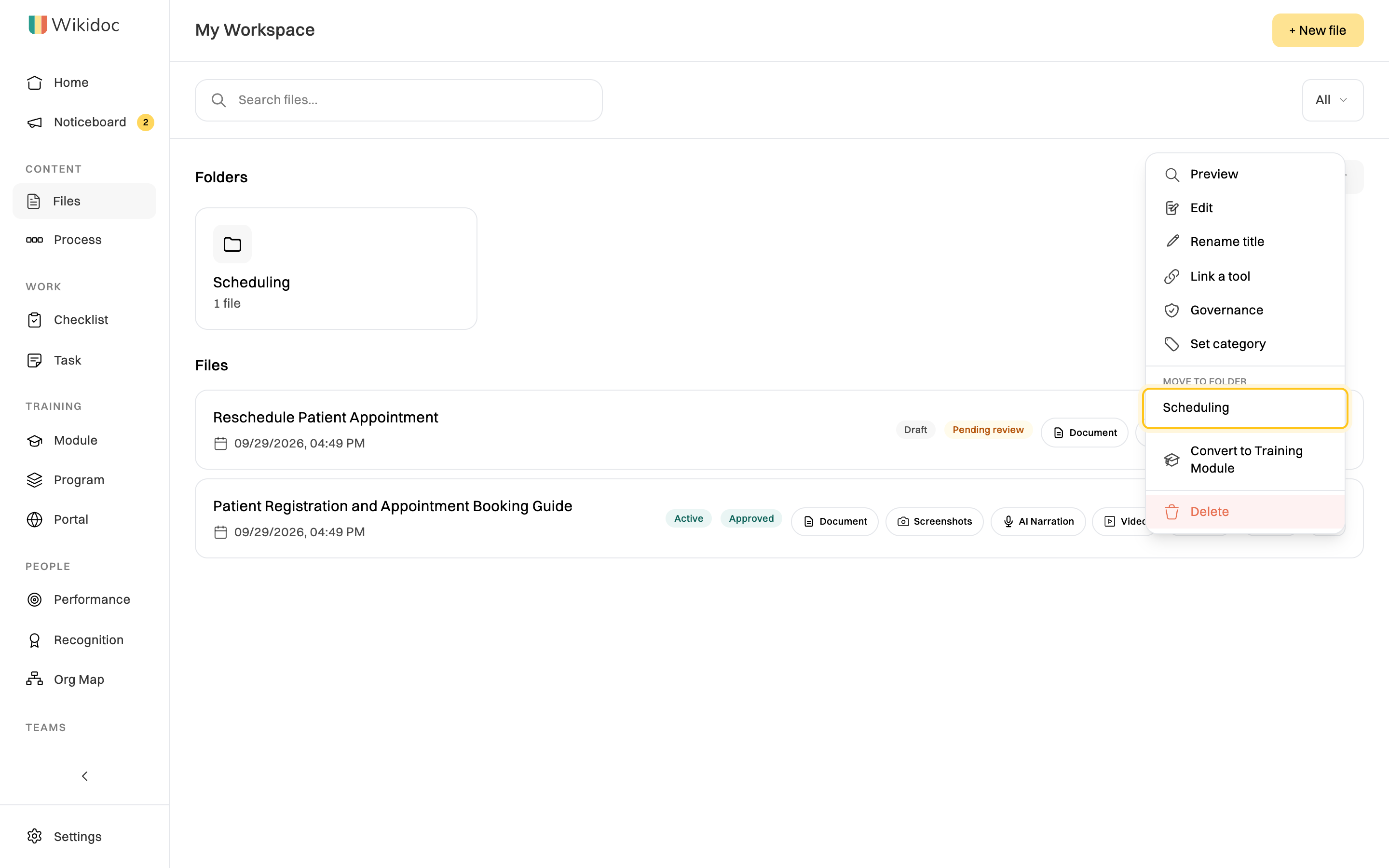
Put a file in a folder
Section titled “Put a file in a folder”In Files, click ⋯ next to the file. Under Move to folder, click the folder.
To see what’s in a folder, click it. Everything is also listed under Files below your folders, so you can always search all your files at once.
To take a file out of a folder, click ⋯ next to it, then Remove from folder.
Rename or delete a folder
Section titled “Rename or delete a folder”Click ⋯ on the folder, then Rename or Delete. Deleting a folder doesn’t delete the files in it: they stay in your workspace.
Team workspaces
Section titled “Team workspaces”A team workspace is where a team keeps its shared procedures, such as each clinic’s front-desk guides. Its files open only for the team’s members and for Admins.
Your teams are listed at the bottom of the sidebar, under Teams. Click one to open its workspace.
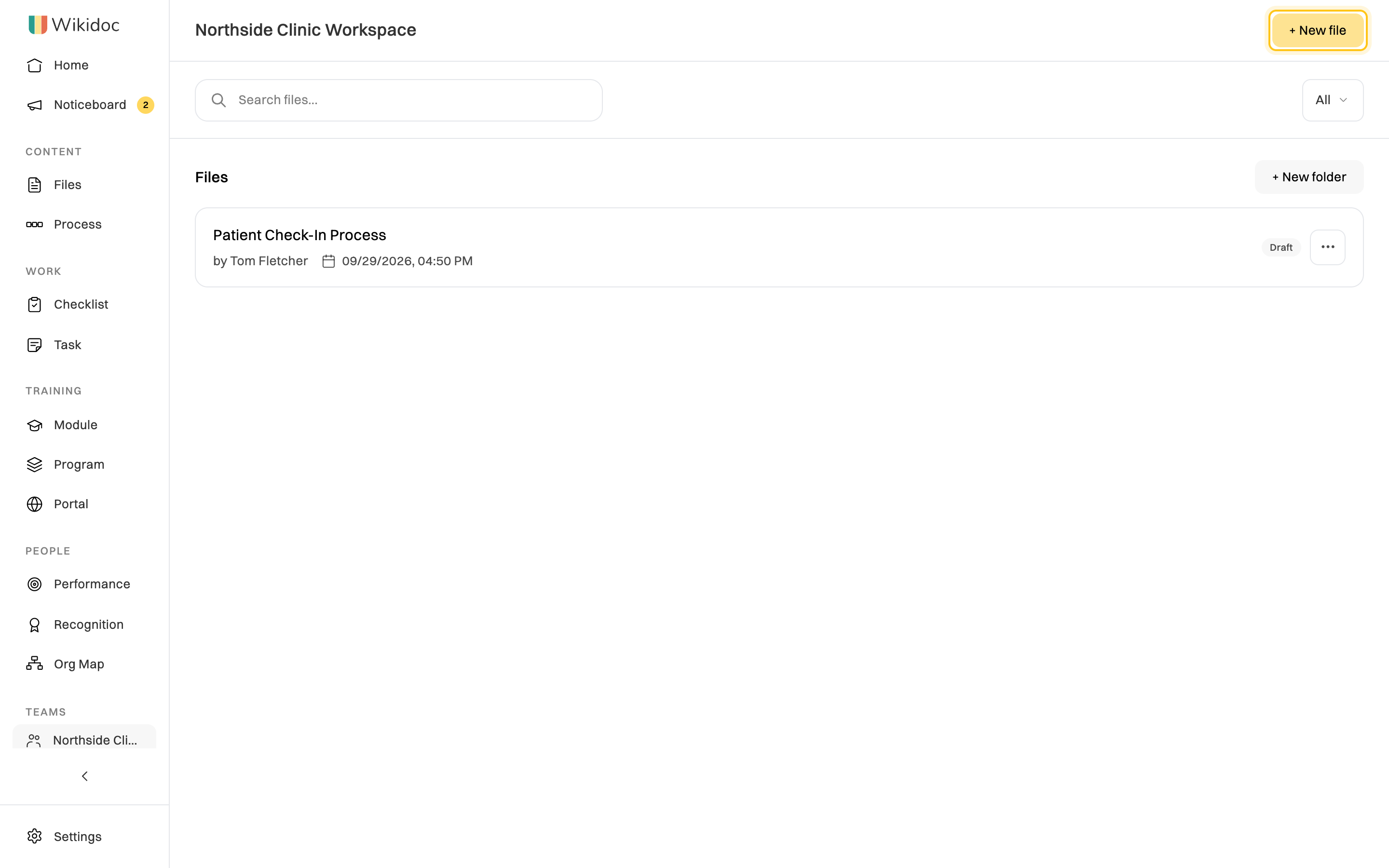
Add a file to a team workspace
Section titled “Add a file to a team workspace”Open the team’s workspace, then click + New file there. The file you create belongs to that team’s workspace instead of yours. See Create a document from a recording or video.
Who can do what
Section titled “Who can do what”- Team members and Admins can open every file in the team workspace.
- The person who created a file is the only one who can edit it. Other members open it Read-only.
- Team members who aren’t Viewers, and Admins, can create folders in the team workspace. Unlike your own folders, the whole team sees them.
Managers and Admins create teams and choose who’s in them. See Teams and team workspaces.