
Translate a document
Translate a document's text, slides, quiz or process map into another language, and which languages each plan has.
Translate a step-by-step guide for colleagues who work in another language. Wikidoc translates the text: the title, the instructions and the headings. Screenshots stay as they are.
-
Open the document and click Translate in the editor’s toolbar.
-
Choose the Target language, then click Translate.
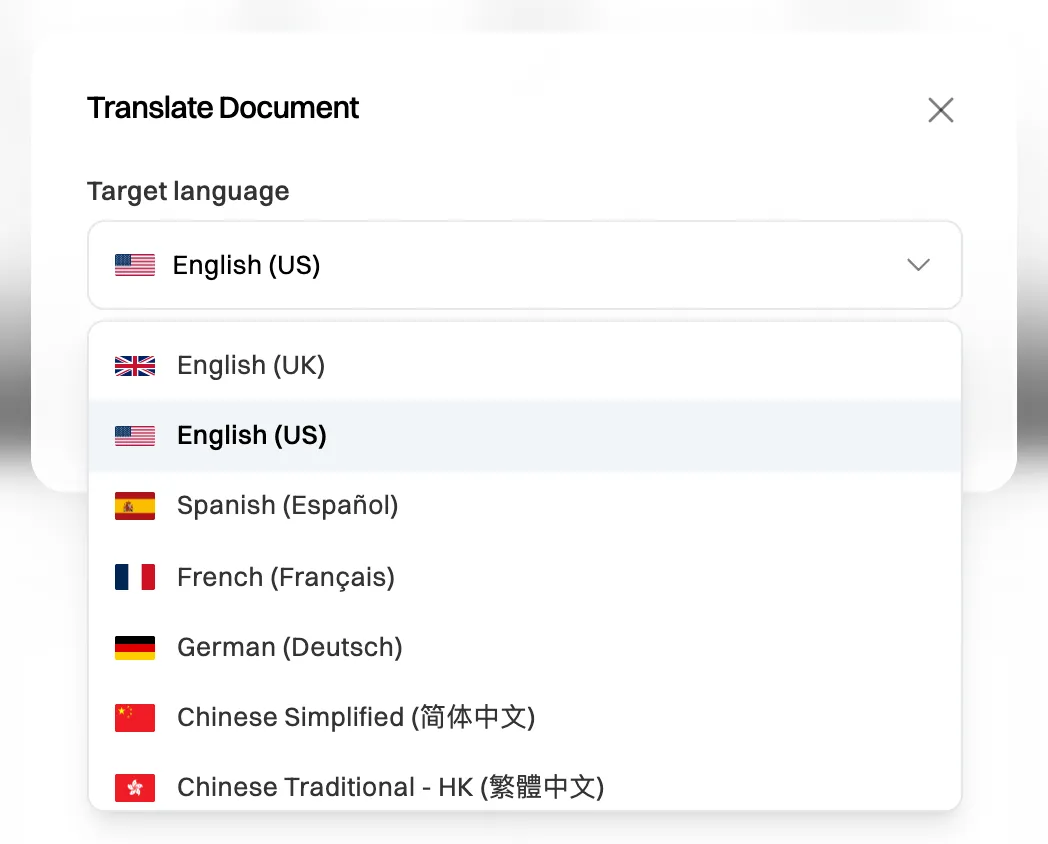
Choose the language to translate into. -
Read the translation. Wikidoc replaces the text in the editor, and you can correct anything as usual.
-
Click Save to keep it. If you leave without saving, the document stays in its original language.
Slides, quizzes and process maps
Section titled “Slides, quizzes and process maps”Slides, quizzes and process maps each have their own Translate button, with the same languages:
- Slides: click Open Slides, then Translate. The translated deck opens for editing: check it, then click Save Changes, or Cancel to keep the original.
- Quiz: click Open Quiz, then Translate. As with slides, click Save Changes to keep the translation.
- Process map: open the map and click Translate above the canvas, then save the map to keep it.
A narrated video isn’t translated from here. To narrate in another language, choose the Narration language when you create the video. See Create and edit an AI-narrated video.
Languages on each plan
Section titled “Languages on each plan”| Plan | Languages |
|---|---|
| Free | English (US), Spanish, Chinese Simplified, Japanese and Korean. |
| Pro and Team | All 17: English (UK and US), Spanish, French, German, Chinese Simplified, Chinese Traditional (Hong Kong and Taiwan), Japanese, Korean, Thai, Vietnamese, Indonesian, Malay, Hindi, Filipino and Bengali. |
On the Free plan, the other languages have a lock. Choosing one opens the upgrade options. See Plans compared.
If something goes wrong
Section titled “If something goes wrong”“Translation failed. Please try again.” Wikidoc couldn’t translate the document this time. Nothing has changed, so try again.
The Translate button is grayed out. The document is open read-only: someone else wrote it. Ask them to translate it.