
Roles and permissions
What Viewers, Editors, Managers and Admins can do.
Everyone in your organization has one of four roles. The role decides what they can do everywhere in Wikidoc. You can see and change roles on Settings›Access; only Admins can change them.
The four roles
Section titled “The four roles”- Viewer: reads and comments, completes their own training and reviews, and takes part in recognition and announcements.
- Editor: everything a Viewer can do, plus creating and editing content: files, process maps, training modules and checklists.
- Manager: everything an Editor can do, plus managing the org map and teams, setting KPIs and seeing analytics for the people they manage. See What Analytics shows.
- Admin: everything, including adding and removing members, running performance reviews, and managing billing.
Who can do what
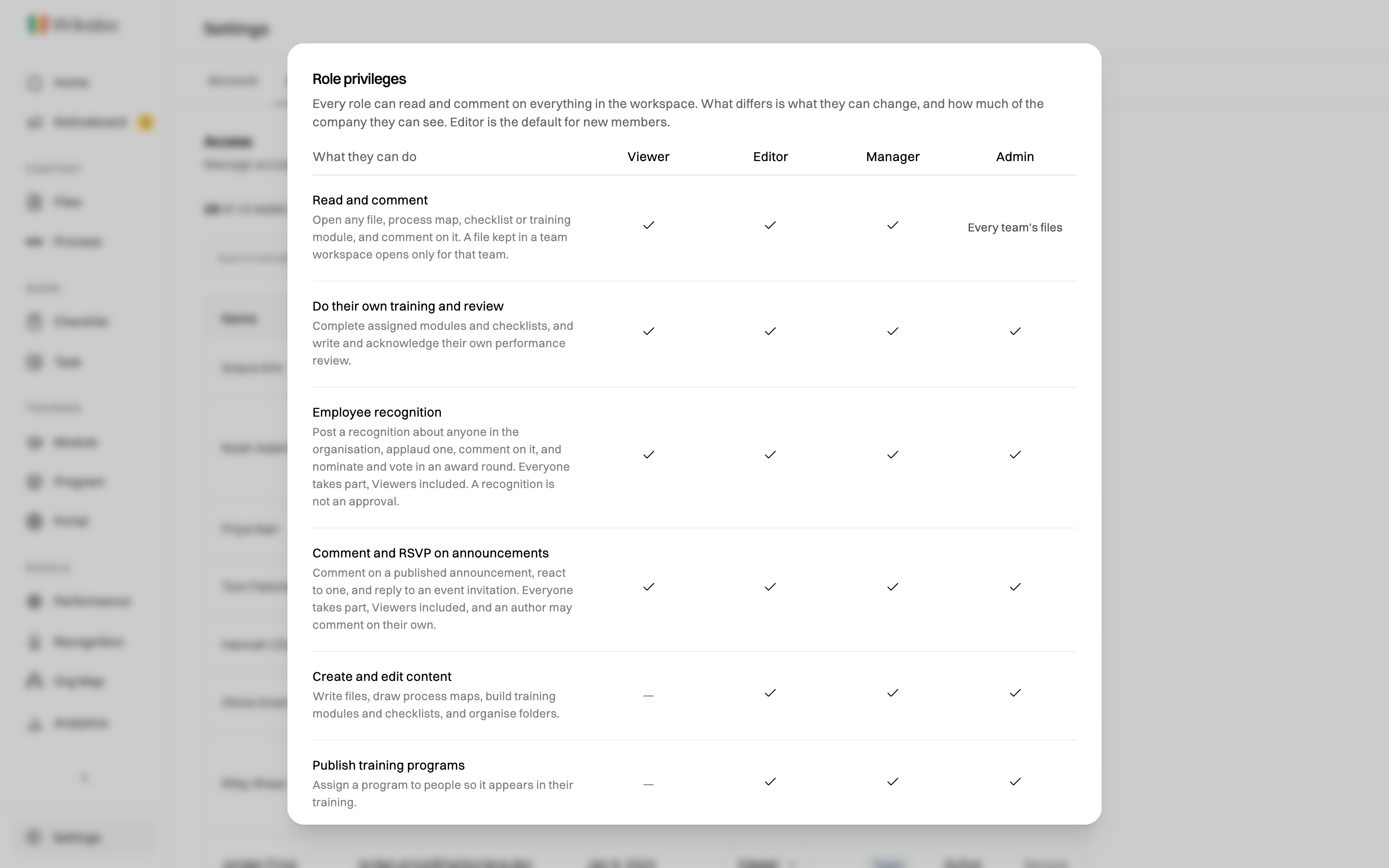
Section titled “Who can do what”| What they can do | Viewer | Editor | Manager | Admin |
|---|---|---|---|---|
| Read and commentOpen any file, process map, checklist or training module, and comment on it. A file kept in a team workspace opens only for that team. | Every team's files | |||
| Do their own training and reviewComplete assigned modules and checklists, and write and acknowledge their own performance review. | ||||
| Employee recognitionPost a recognition about anyone in the organization, applaud one, comment on it, and nominate and vote in an award round. Everyone takes part, Viewers included. A recognition is not an approval. | ||||
| Comment and RSVP on announcementsComment on a published announcement, react to one, and reply to an event invitation. Everyone takes part, Viewers included, and an author may comment on their own. | ||||
| Create and edit contentWrite files, draw process maps, build training modules and checklists, and organize folders. | — | |||
| Publish training programsAssign a program to people so it appears in their training. | — | |||
| Work on task boardsCreate a board, and write, move and comment on its cards. A board opens for its members only — being an Admin does not open someone else's personal board. | — | Personal, shared and team boards | Also org and department boards | Also org and department boards |
| Publish a client portalMake a portal public, or edit one that is already live. Anyone can build an unpublished one. | — | — | ||
| Post an announcementWrite and publish an official notice or event to the whole organization, then edit or archive it afterwards. | — | — | Their own, to edit or archive | Anyone's |
| Manage the org map and teamsChange the reporting structure, create teams, and move people who are already in the organization between them. A team decides who can see that team's files; it does not add anyone to the organization. | — | — | ||
| Open others' HR documentsRead and upload the resume, contract and certification slots on a member profile. | — | — | Everyone's | Everyone's |
| Set KPIsCreate and change the goals people are measured against. | — | — | Their department and reports | Anyone |
| Run an award roundOpen a nomination round, set its dates, confirm the winner and announce them. Anyone can nominate and vote in one. | — | — | ||
| See analyticsTraining completion, portal activity, performance reporting, and who recognition is missing. | — | — | Their reports and departments | Everyone |
| Run performance reviewsStart and close the review rounds everyone takes part in, and reassign a reviewer. | — | — | — | |
| Add and remove membersAdd someone to the organization by email, including someone who has not created a Wikidoc account yet, and choose the role they arrive with. Approve or decline requests to join, and remove a member to free their seat. | — | — | — | |
| Manage the accountBilling, seats and role changes. | — | — | — |
This is the same table the app shows when you click the ! icon next to Role on Settings›Access, so the two always match.
Things people often mix up
Section titled “Things people often mix up”- A team is not the organization. Adding someone to a team decides which team files they can see. It doesn’t add them to your organization or use a seat. Only an Admin can add or remove members of the organization. See Teams and team workspaces.
- Admins can’t open every task board. A task board opens for its members only. Being an Admin doesn’t open someone else’s personal board.
- Everyone can recognize colleagues. Recognition and comments on announcements are open to every role, Viewers included.
Which role should I give someone?
Section titled “Which role should I give someone?”A starting point:
| If they… | Give them |
|---|---|
| Follow procedures and complete training, but don’t write content | Viewer |
| Write or update procedures, process maps and training | Editor |
| Lead a team: organize people, set goals and track progress | Manager |
| Run the account: members, billing and review cycles | Admin |
Who starts with which role:
- Someone who signs up with your domain starts as an Editor.
- Someone you invite starts with the role you choose. The invite form starts on Viewer.
- Someone who asks to join is approved with the role shown on their row. For people outside your domain it starts on Viewer. Change it before you approve if you want a different one.
Only Admins can change roles. See Change a member’s role.