
Attach files, checklists, training and people
Link the documents, checklists, training, people and tools behind a process from its map's Attachments tab.
A process map shows the steps. Its attachments are everything someone needs to carry them out: the step-by-step guide, the checklist, the training, the people responsible and the tools they use. They’re all one click away from the map.
Attach something
Section titled “Attach something”-
Open the process map and click Panel at the top right, then the Attachments tab.
-
Click a section to open it, such as Files or Checklists.
-
Start typing in its search box, then click + Add next to what you want.
It’s attached straight away; there’s nothing to save. To remove it, click × next to it.
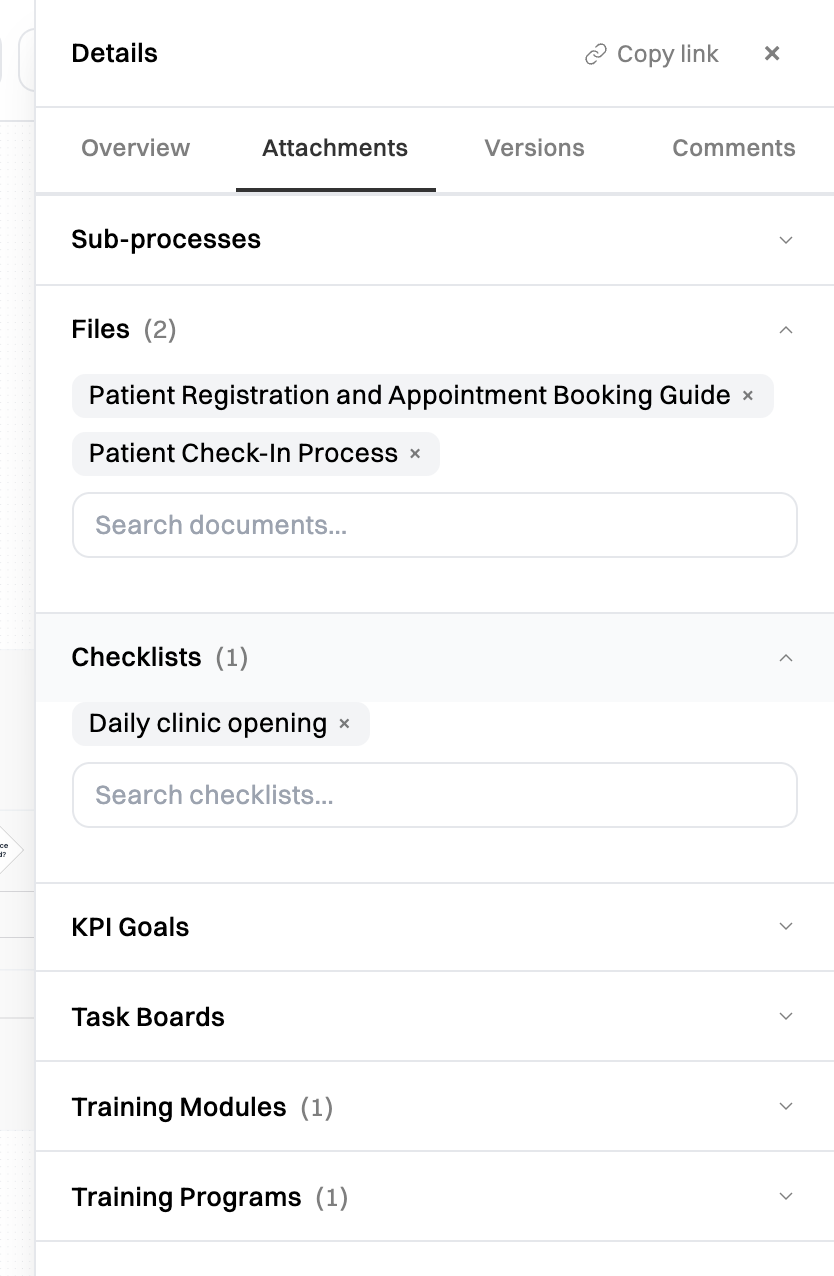
What you can attach
Section titled “What you can attach”| Section | What it holds |
|---|---|
| Sub-processes | Other process maps that are part of this one. |
| Files | Documents from Files. |
| Checklists | Checklist templates, such as the opening checklist for a process that starts the day. (Team) |
| KPI Goals | The goals this process contributes to. (Team) |
| Task Boards | Boards where the work around this process is tracked. (Team) |
| Training Modules | Modules that teach the process. |
| Training Programs | Programs that include it. (Team) |
| People | The members responsible for it. |
| Tools | Software and equipment it uses. Pick one documented on your org map, or type a name and a link and click + Add tool. |
| Policies, Assets and Providers | Policies, equipment and suppliers documented on your org map. |
Sections for Team features list nothing to attach on the Free and Pro plans. KPI goals list only the goals you’re allowed to see.
Open an attachment
Section titled “Open an attachment”Click the name of anything attached to preview it without leaving the map.
People who can’t change the map see the same sections, with what’s attached and no search boxes. An empty section says Nothing attached.