
Share a board and manage its members
Add people from your organization to a board, see who can open it, and remove people or leave a board.
Who can open a board depends first on its kind: a team board is open to the team, a department board to the department, and so on (see Task boards). On top of that, you can add anyone else in your organization to a board.
Add people to a board
Section titled “Add people to a board”-
Open the board and click Share at the top right.
-
Under Add people, start typing a name and pick the people to add.
-
Click Add 1 person, or however many you picked.
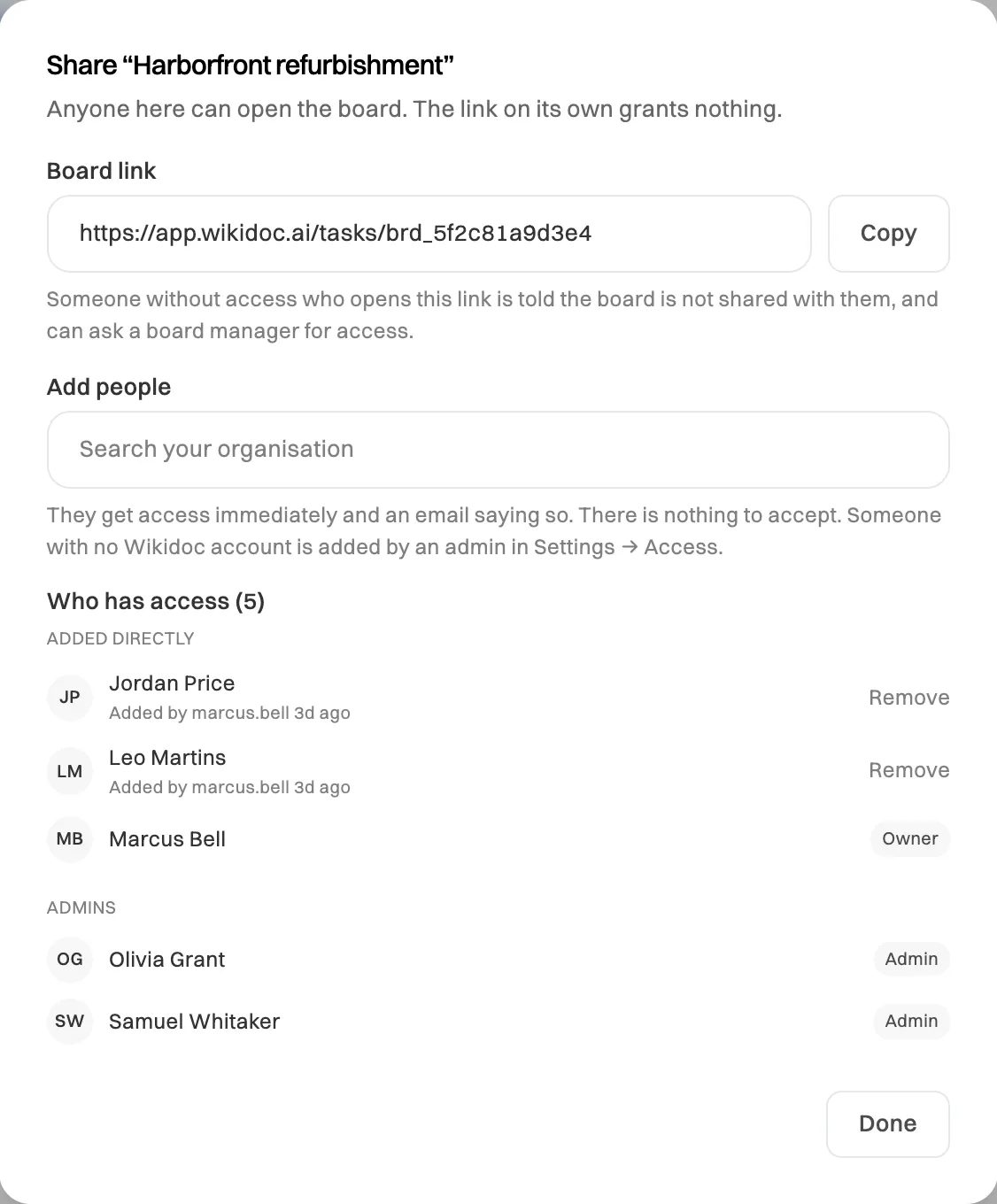
Who has access, and why: added directly, the owner, and Admins.
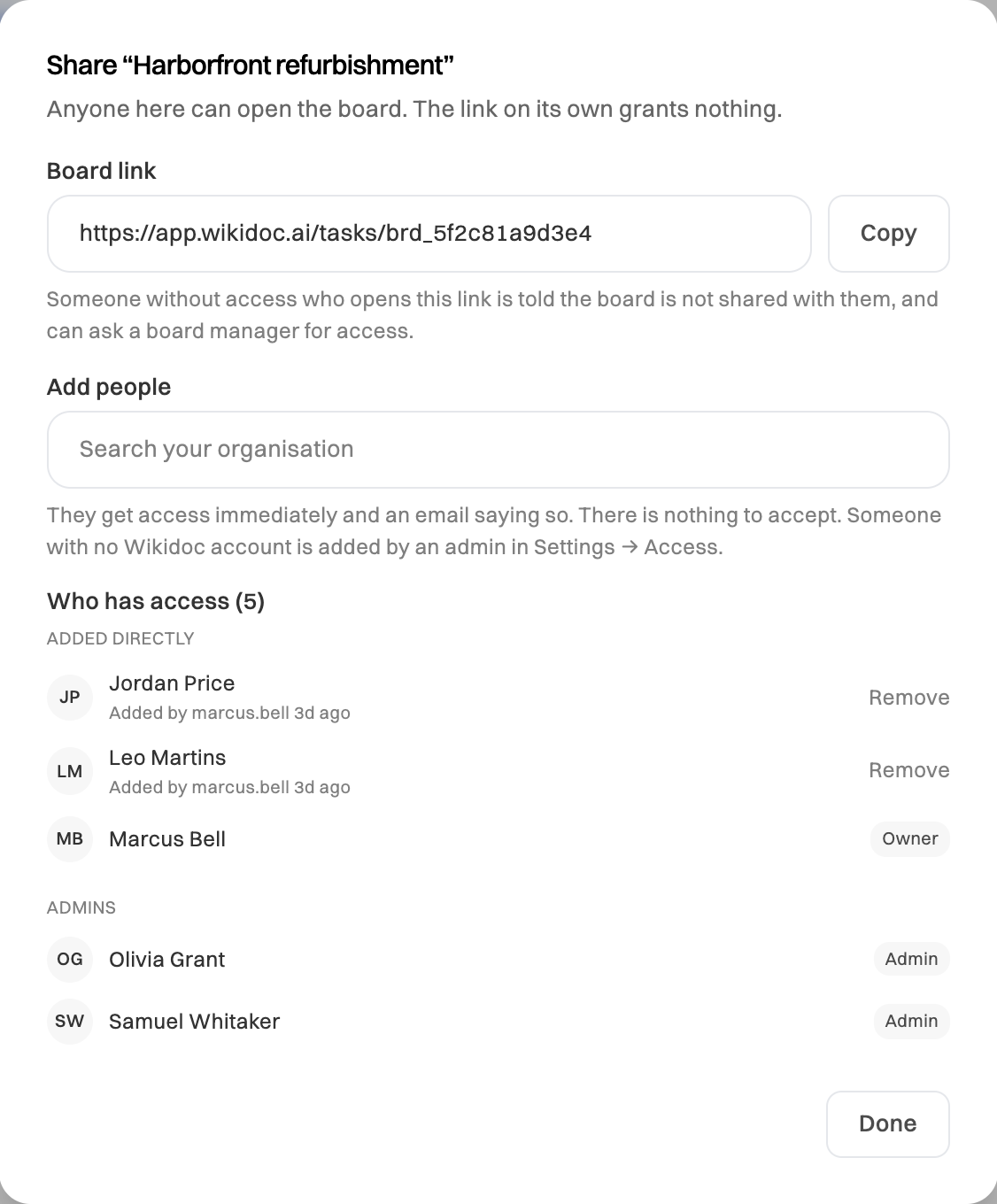
They can open the board straight away, and get an email saying they’ve been added. There’s nothing for them to accept.
You can only add people who are already in your organization. Someone new has to be invited to the organization first, by an Admin, in Settings›Access. See Invite a member.
See who can open a board
Section titled “See who can open a board”Who has access, in the Share window, lists everyone who can open the board, grouped by why:
- Added directly: people added to this board, with who added them and when.
- Team, Department or Everyone in the org: people who can open it because of the board’s kind.
- Admins: your organization’s Admins, who can open every board except personal ones.
The person who made the board is marked Owner.
The faces at the top of the board show the same people.
Send someone the link
Section titled “Send someone the link”Under Board link, click Copy. The link only opens the board for people who can already open it. Anyone else is told the board isn’t shared with them, and to ask a board manager to add them.
To send a link to one card, open the card and click Copy link.
Remove someone
Section titled “Remove someone”In the Share window, click Remove next to their name, then confirm. They can no longer open the board. Nobody is emailed.
You can only remove people who were added directly. Someone who can open the board because of its kind, such as a member of the team on a team board, can’t be removed from it, because a board’s kind can’t be changed.
Leave a board
Section titled “Leave a board”If you were added to a board directly, click ⋯ on the board, then Leave board.
If you can open the board because of its kind, you can’t leave it. To stop its emails, click ⋯, then Mute this board.