
Task boards
Personal, shared, team, department and organization-wide boards: who can open each, and how to make one.
A task board holds work as cards that move from column to column: To do, Doing, Blocked and Done to begin with. What sets a Wikidoc board apart is that a card can link to the document, process map, checklist or goal it’s about, so the work and the instructions for it sit together.
Kinds of board
Section titled “Kinds of board”Every board has one of five kinds, chosen when it’s made. The kind decides who can open it.
| Kind | Who can open it | Who can make one |
|---|---|---|
| Personal | Only you. Admins can’t see it either. | Editors, Managers and Admins |
| Shared | The people you add to it | Editors, Managers and Admins |
| Team | Everyone on one team, plus anyone you add | Editors, Managers and Admins, for a team they’re on (Admins: any team) |
| Department | Everyone in one department and its managers, plus anyone you add | Managers and Admins |
| Everyone | Your whole organization | Managers and Admins |
Admins can open every board except personal ones. Whoever makes a board manages it: they can change its columns and tags, add and remove people, and archive or delete it. Admins can do the same on any board they can open.
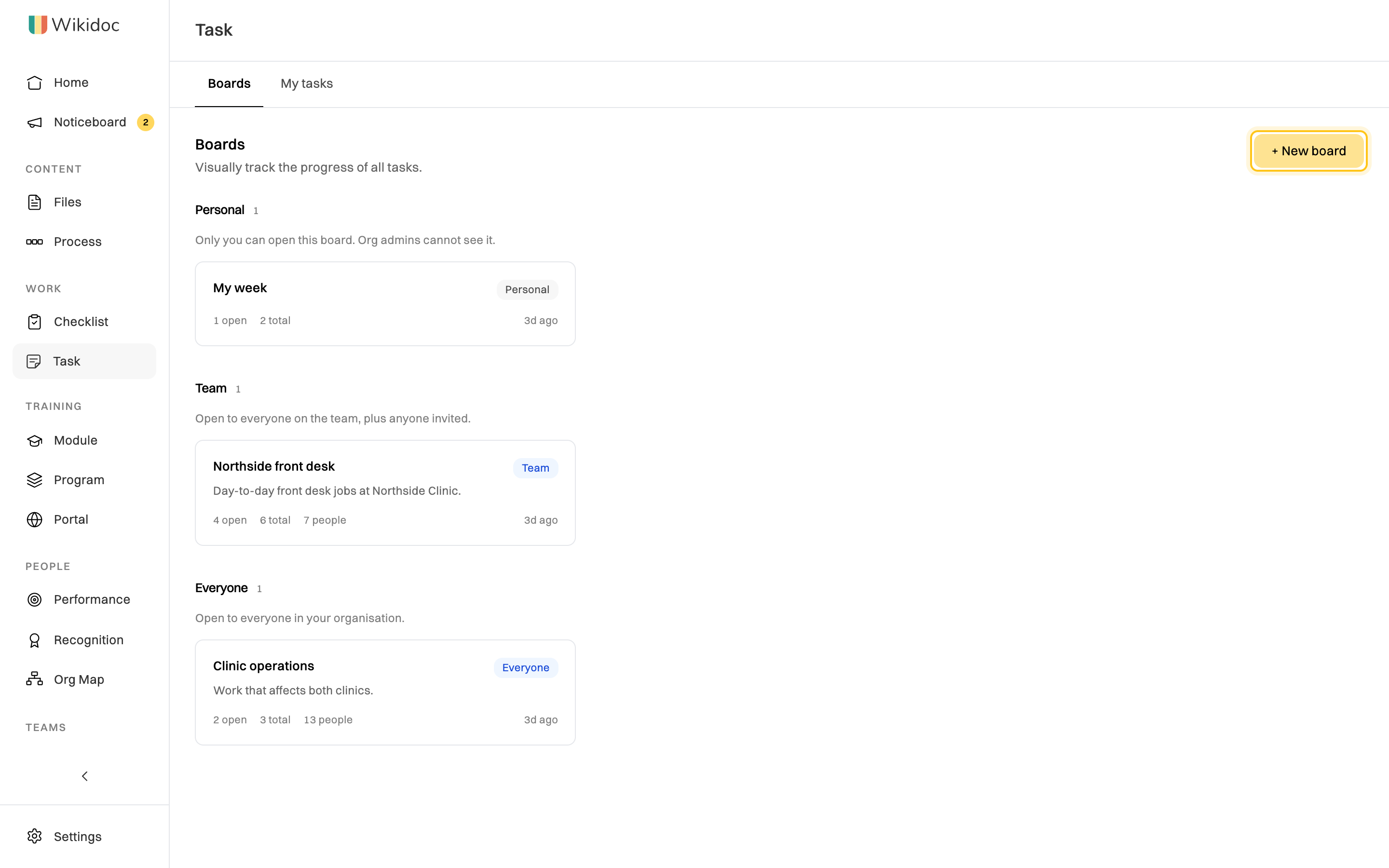
Click Task in the sidebar to see your boards, grouped by kind. Each shows how many cards are open and how many people can open it. A yellow number means cards have changed since you last looked.
Create a board
Section titled “Create a board”-
Click Task in the sidebar, then + New board.
-
Give it a Name and, if you like, a Description.
-
Under Who can see it, choose the kind of board. For a team or department board, pick which one.
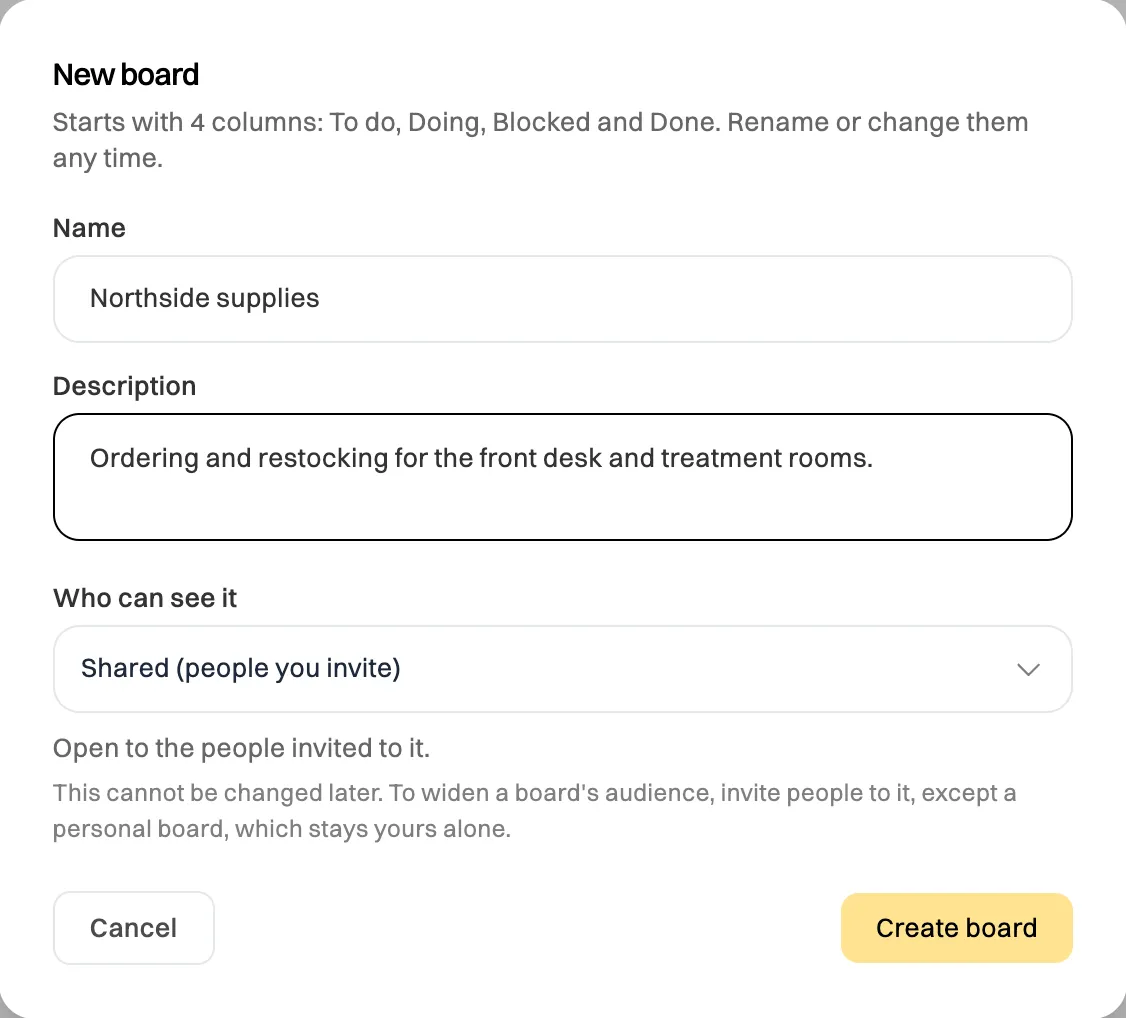
Choose carefully: a board's kind can't be changed later. -
Click Create board. It opens with four empty columns.
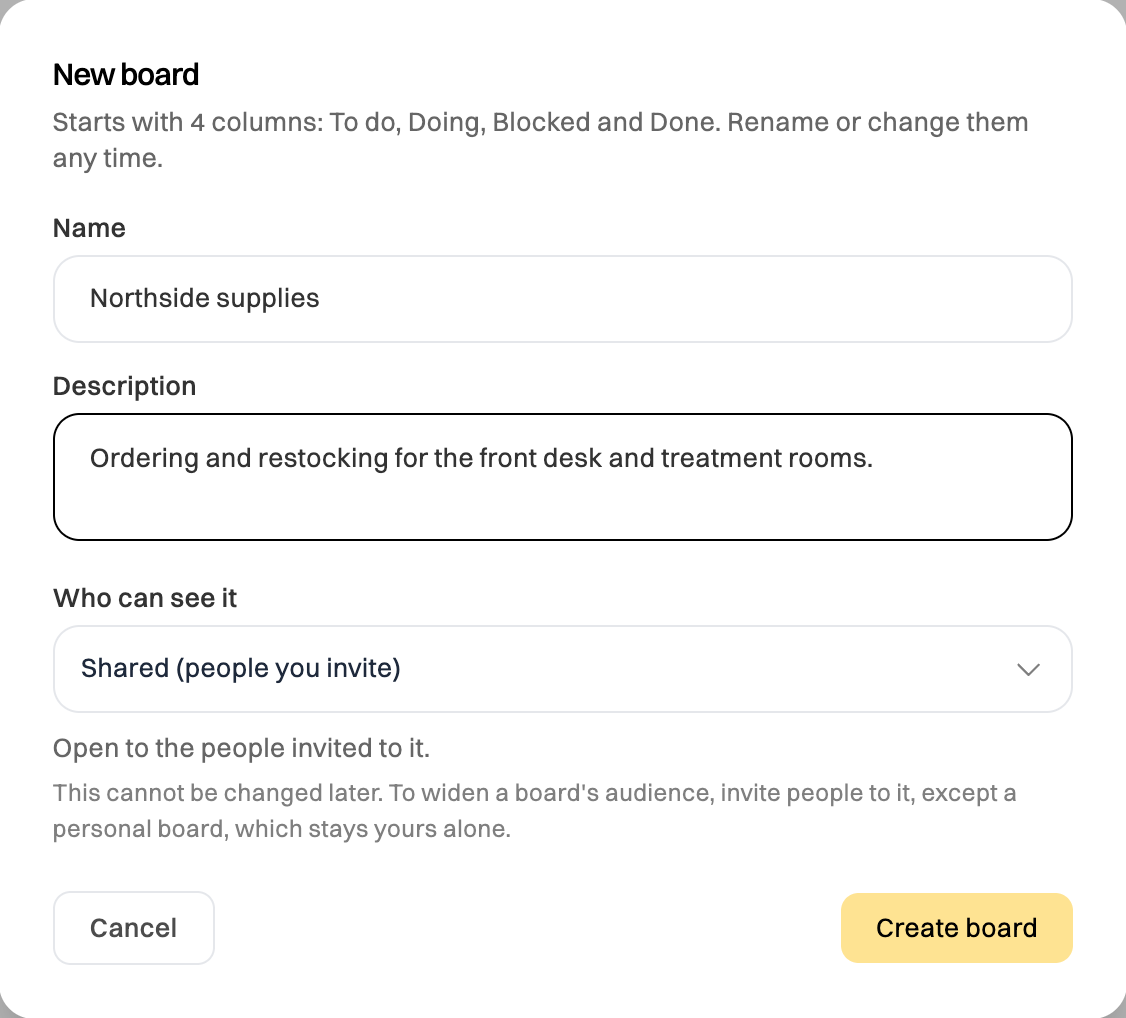
A board’s kind can’t be changed after it’s made. To let more people in, add them to it (see Share a board and manage its members). A personal board can’t take anyone else, but you can copy its cards onto a new shared board with Duplicate to a shared board.
Change a board’s columns and tags
Section titled “Change a board’s columns and tags”On the board, click ⋯, then Settings. You can:
- Rename, add, reorder and delete columns. Deleting a column asks where its cards should go.
- Choose Which column means finished. Cards there count as done.
- Choose which columns send an email when a card arrives in them (Email when a card arrives in). The email goes to the card’s assignees and watchers, not to whoever moved it. New boards email for Blocked and Done, and the finished column always does.
- Rename, recolor, add and delete tags. New boards start with Bug, Improvement, Admin, Customer and Compliance.
Click Save when you’re done.
Other things you can do with a board
Section titled “Other things you can do with a board”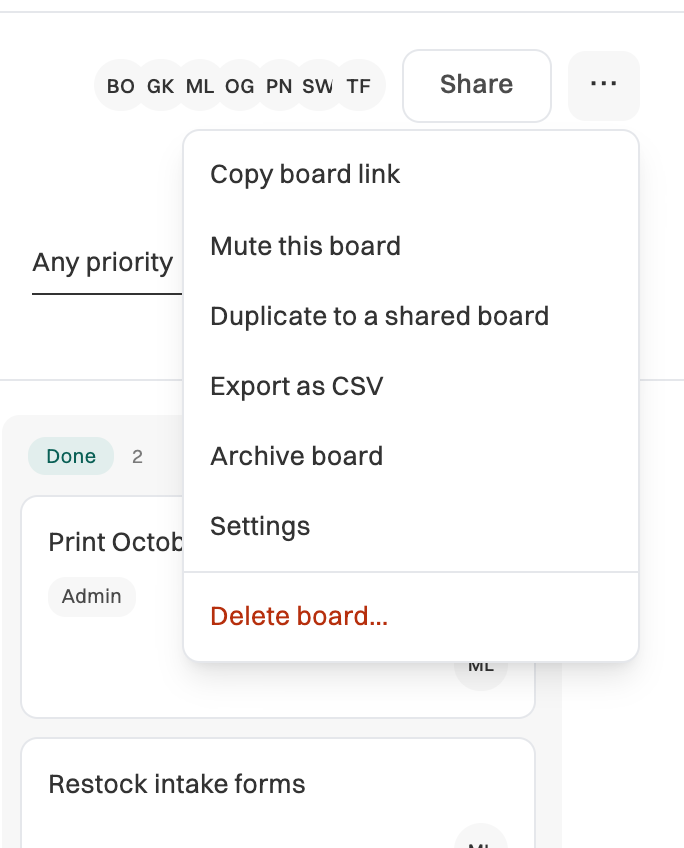
- Copy board link: a link to send someone who can already open the board. The link on its own lets nobody in.
- Mute this board: stop emails from this board without leaving it.
- Export as CSV: download every card, for a spreadsheet.
- Archive board: make it read-only and move it to Archived on the Task page. You can restore it later.
- Delete board: remove it and its cards for good. Only the person who made it, or an Admin, can delete a board. A personal board can only be deleted by its owner.