
Invite a member
Add someone to your organization by email and choose the role they start with.
Invite someone when you want them in your organization now, without waiting for them to sign up or ask. You can invite any email address, including a contractor at another company or someone with a personal address. You can invite people on any plan, so you can bring your team in before you upgrade. On the Team plan, each invitation uses a seat.
People who sign up with your organization’s email domain join automatically, so you only need to invite them when you want them to start with a particular role. See How organizations, members and seats work.
Invite someone
Section titled “Invite someone”-
Go to Settings›Access.
-
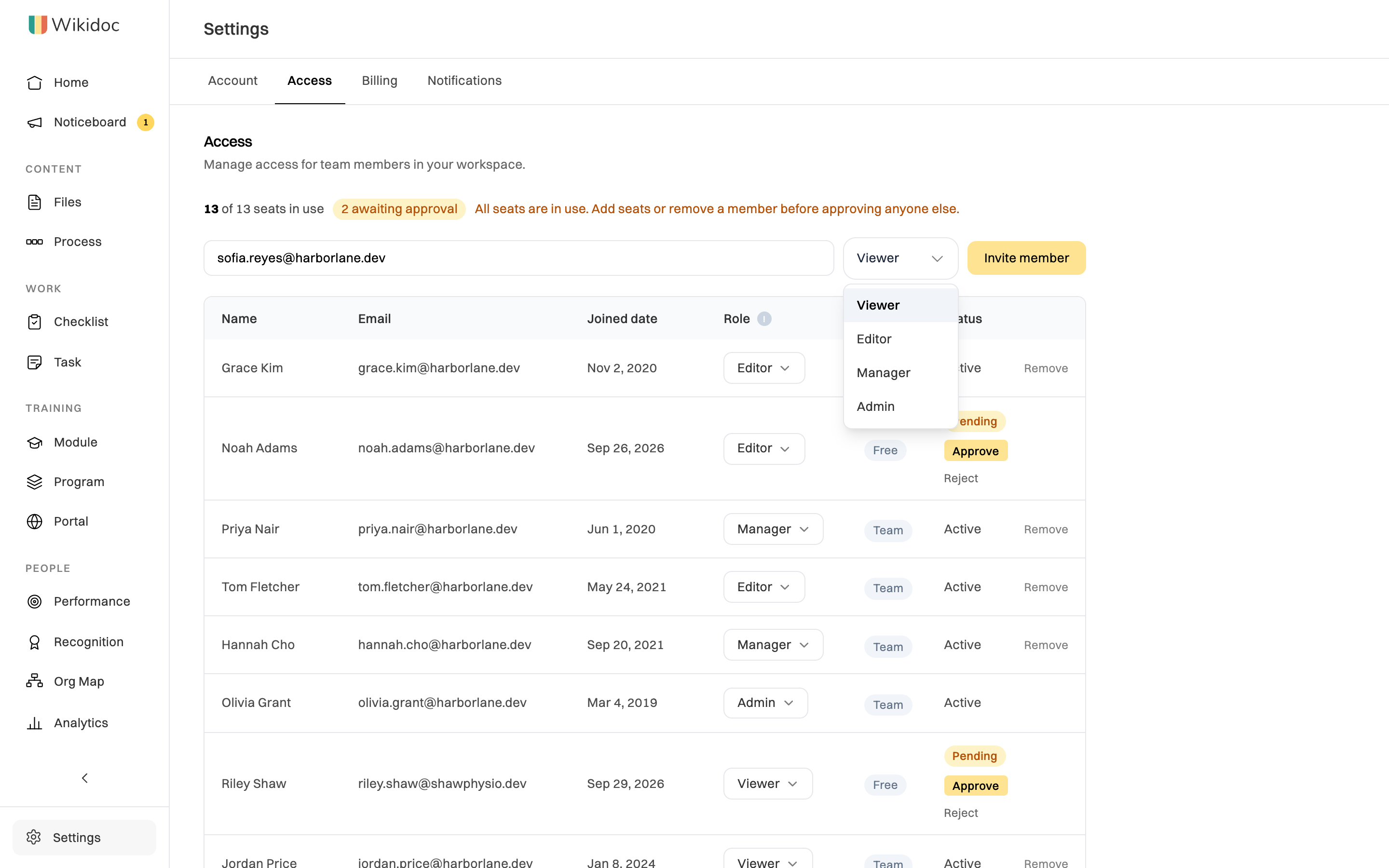
Type their email address in the box above the member list.

The invite form is at the top of the Access tab. -
Choose the role they start with. It starts on Viewer.
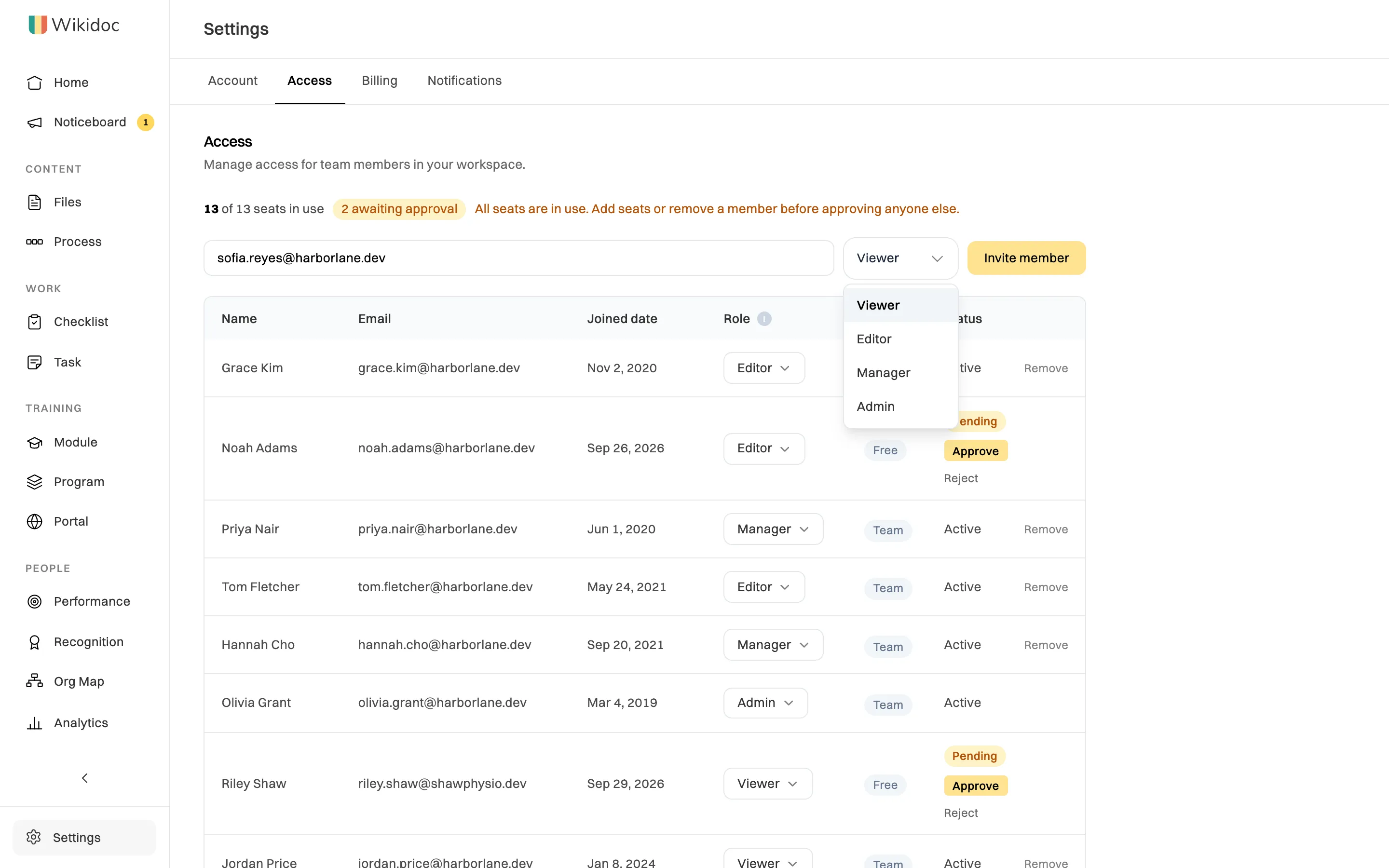
Pick Viewer, Editor, Manager or Admin. You can change it later. Not sure which? See Which role should I give someone?
-
Click Invite member.

What happens next
Section titled “What happens next”If they already have a Wikidoc account, they’re added straight away with the role you chose, and we email them to say they’ve been added. They show on the Access tab as Active.
If they don’t have an account yet, we email them an invitation, and the Access tab says so. Their row shows their email address and an Invited status. On the Team plan, their seat is held for them.

When they sign up with that exact address, they join your organization with the role you chose. Until then you can’t change their role. To give them a different one, remove them and invite them again.
The invitation lasts 30 days. To send it again, invite the same address again.
Inviting before you upgrade
Section titled “Inviting before you upgrade”On Free and Pro there’s no limit on invitations. When you upgrade to Team, you choose how many seats to buy. If you have more members than seats, you keep a seat first, then the other Admins, then everyone else in the order they joined. The rest become Pending until you add seats or remove someone.
If something goes wrong
Section titled “If something goes wrong”“All 13 seats are in use. Add seats or remove a member first” (with your own seat count). Every seat is taken. Add seats, or remove a member or an invitation you no longer need.
I don’t see the invite form. Only Admins see it. If you are an Admin, check that Settings›Account shows an Organisation: accounts with a personal email address don’t belong to one.
They didn’t get the email. Ask them to check their spam folder. Then invite the same address again to resend it.