
Run a checklist and review its history
Tick off a checklist when it's due, submit it for sign-off, and keep a timestamped record of every run.
Each time a checklist is due, everyone assigned to it gets their own copy, called a run, to tick off. When it’s done, they submit it, and an approver signs it off. Every run is kept with who ticked each task and when, so you can show that the work was done.
Fill in a checklist
Section titled “Fill in a checklist”-
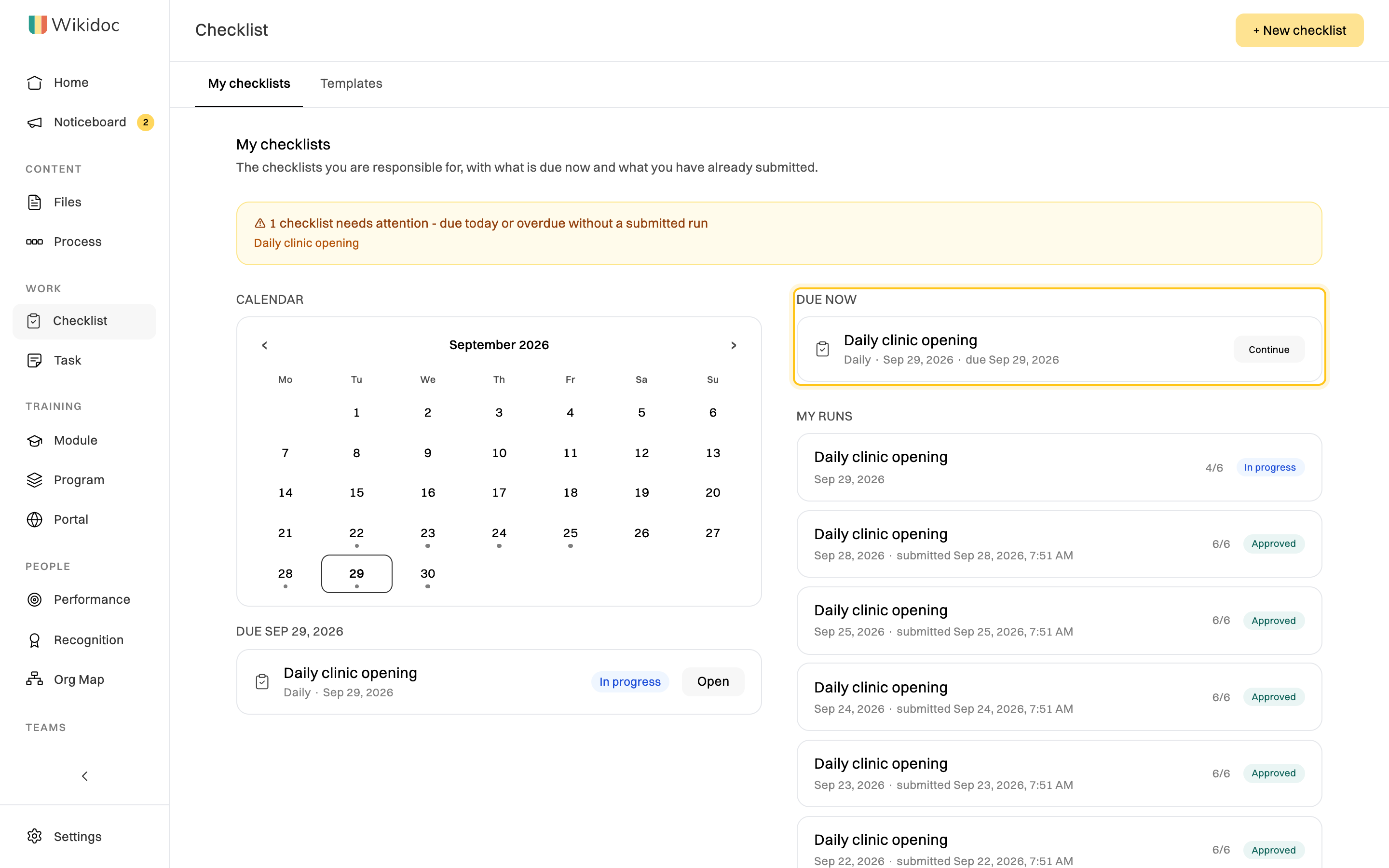
Click Checklist in the sidebar. My checklists shows what’s due:
- A yellow banner lists any checklist due today or overdue that you haven’t submitted.
- Due now has each checklist due in its current day, week or month.
- The calendar marks the days something is due. Click a day to see what was due, and start one you missed.
- My runs lists everything you’ve started or submitted.
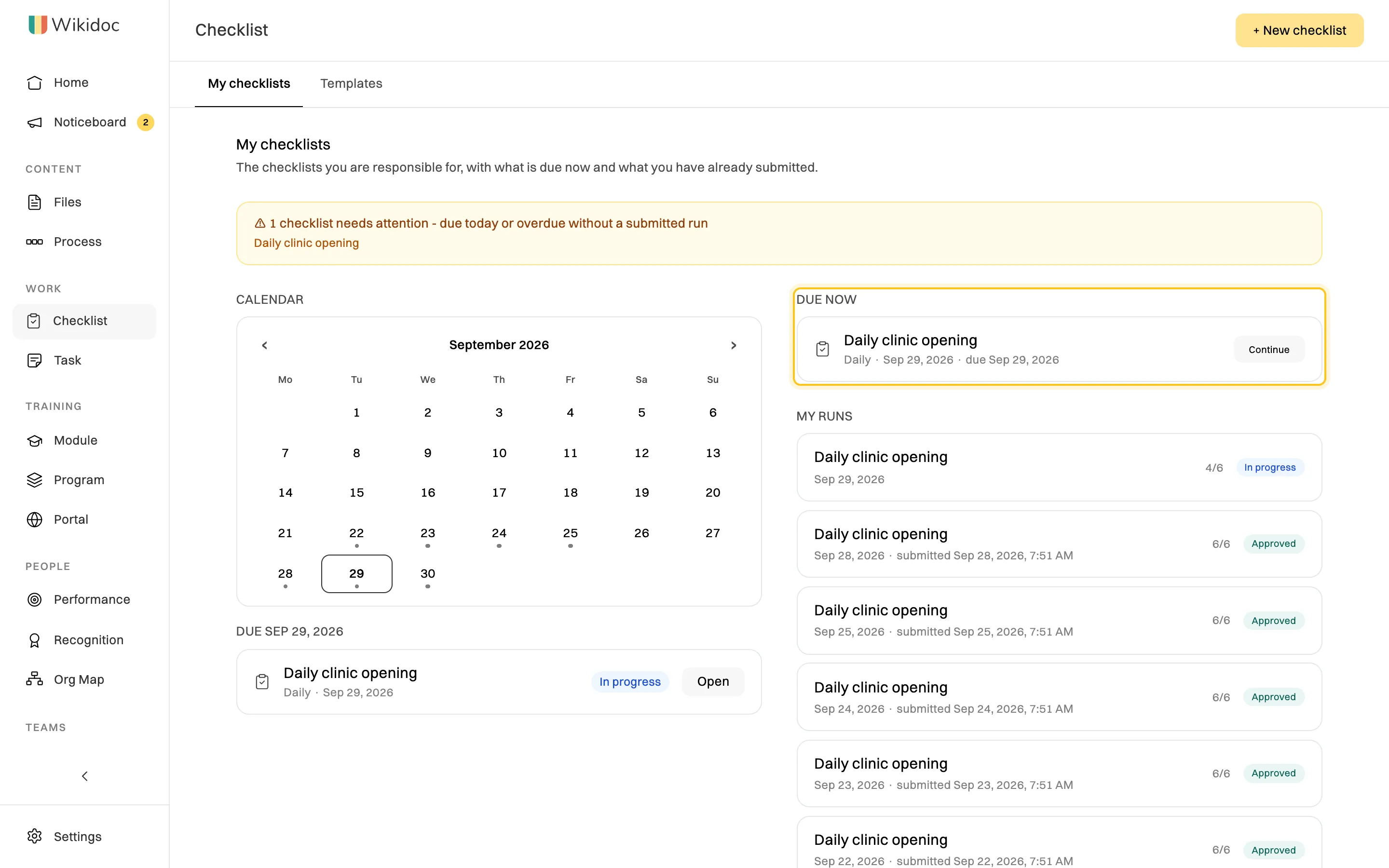
Due now is where you start today's checklist. -
Click Start next to the checklist, or Continue if you’ve already started it.
-
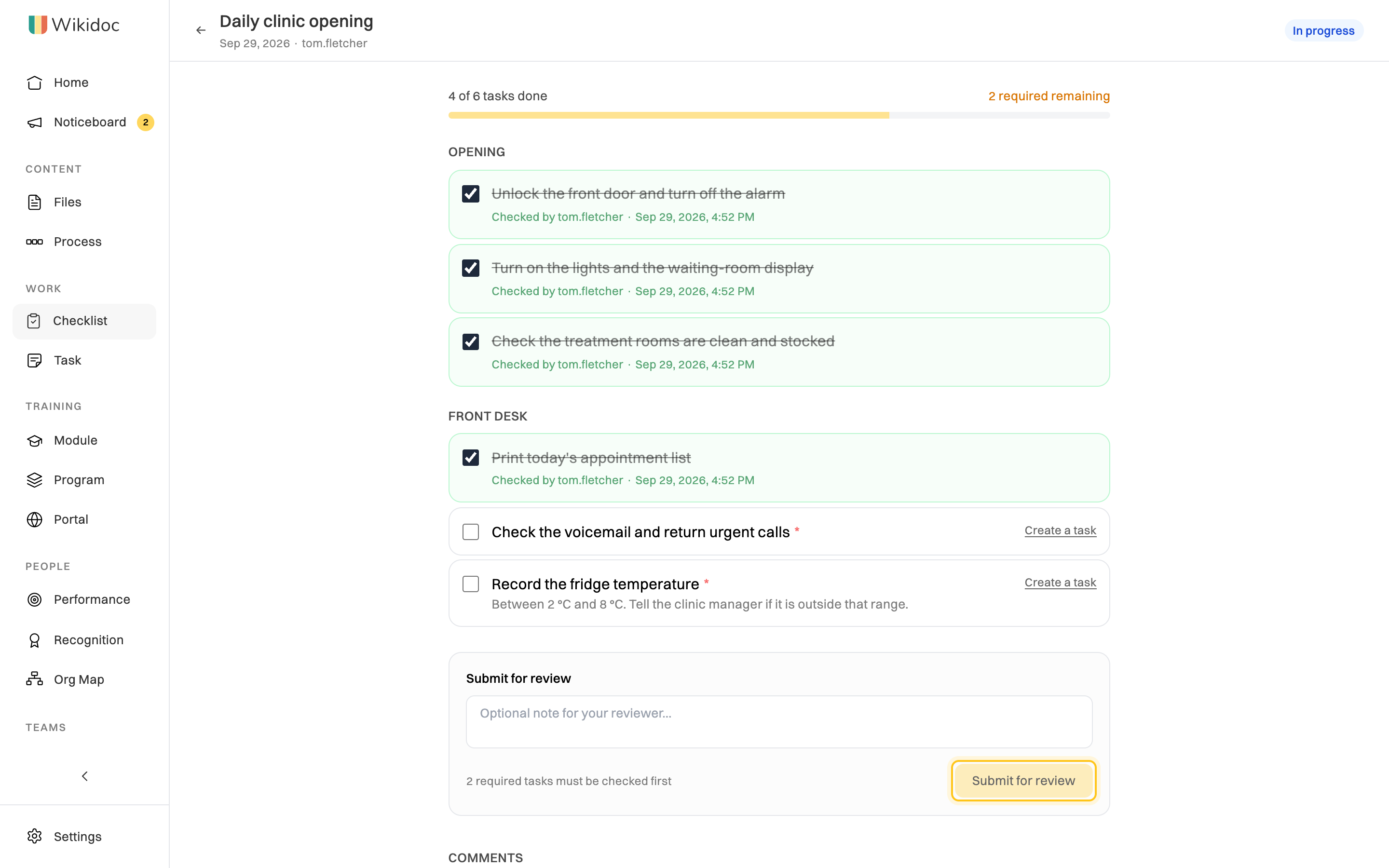
Tick each task as you do it. Wikidoc records who ticked it and when. Tasks marked * are required.
If something stops you finishing a task, such as broken equipment, click Create a task next to it to hand the problem on as a task.
-
When every required task is ticked, add a note for your reviewer if you want to, and click Submit for review.
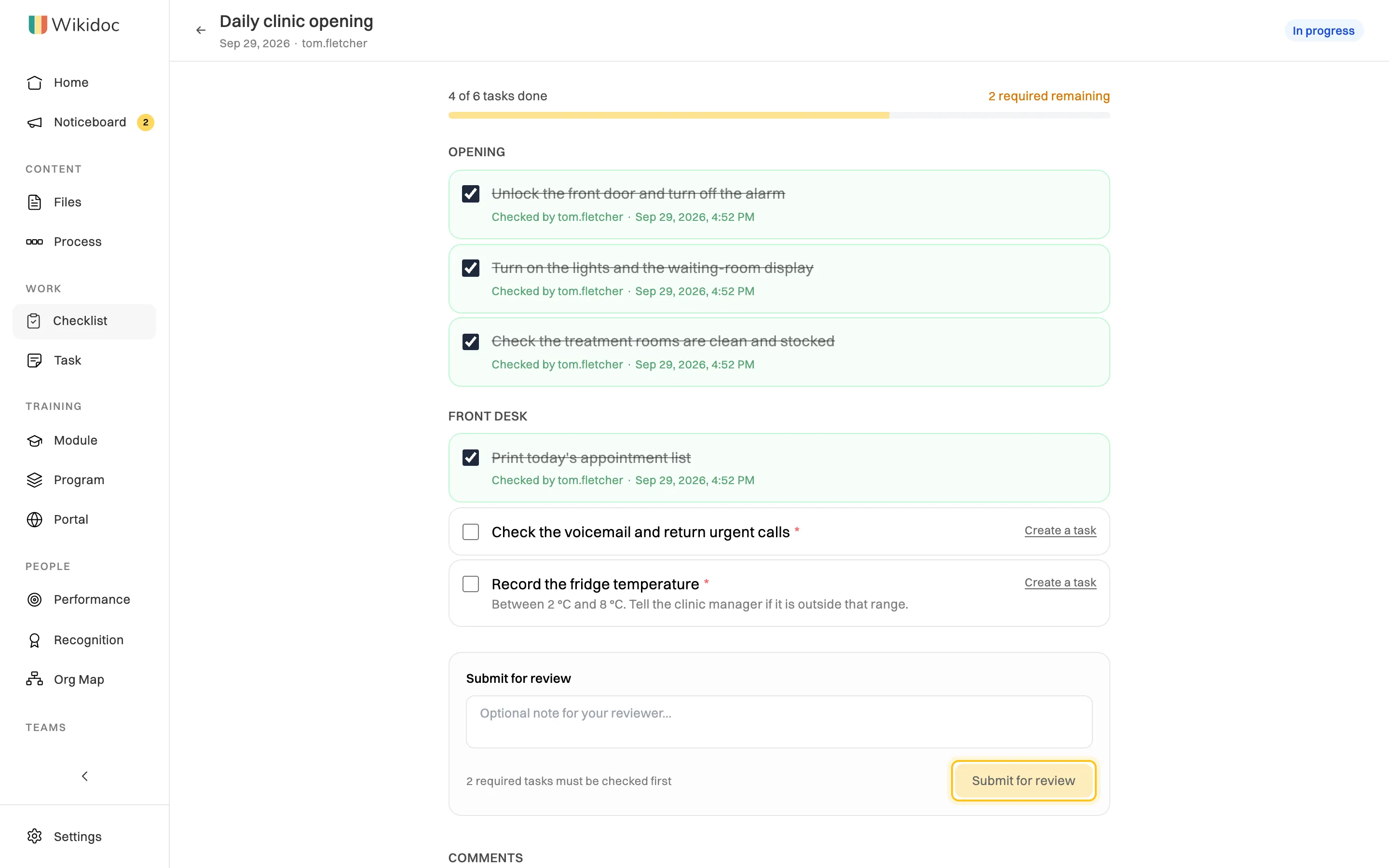
Submit for review turns on once every required task is ticked.
Your approvers get an email and a notification. The run shows Pending review until one of them decides, and you can’t change it in the meantime.
You can leave a run and come back to it. Ticks save as you go, so there’s nothing else to save.
Review a checklist
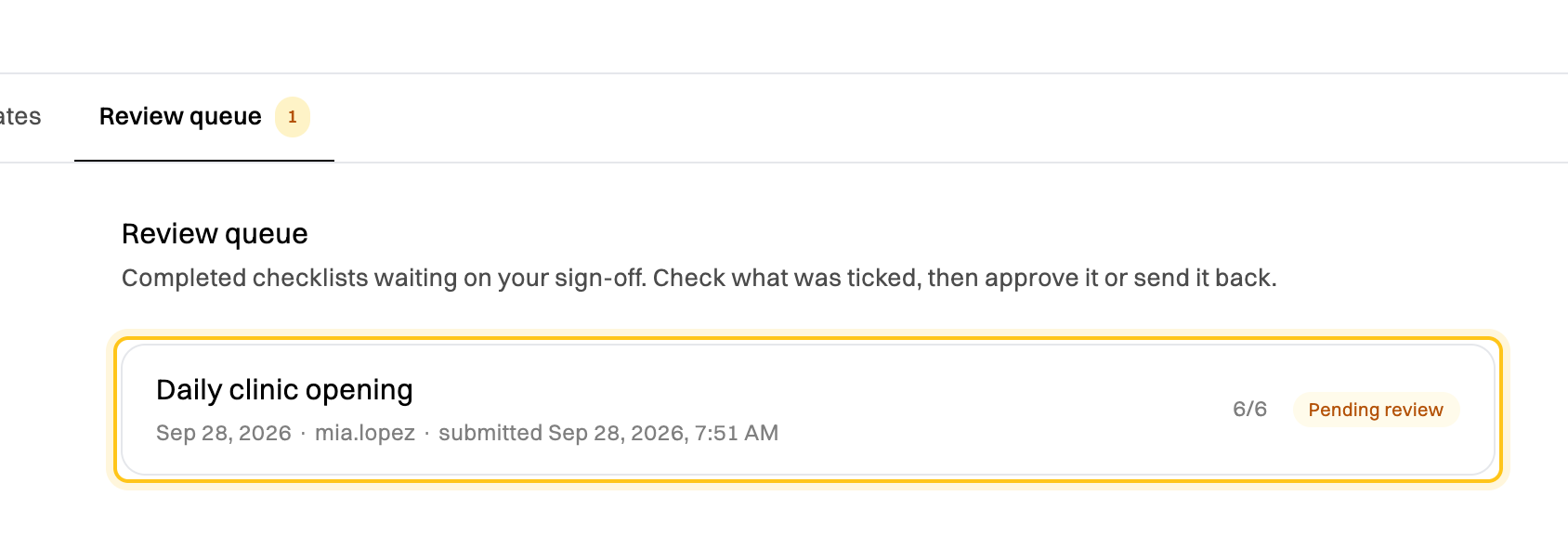
Section titled “Review a checklist”If you’re an approver, submitted checklists wait for you in the Review queue tab, with a count next to it.
-
Click a run to open it, and check what was ticked and when.
-
Under Review this checklist, add a note if you want to, then click Approve or Reject. When you reject a run, say in the note what needs fixing.
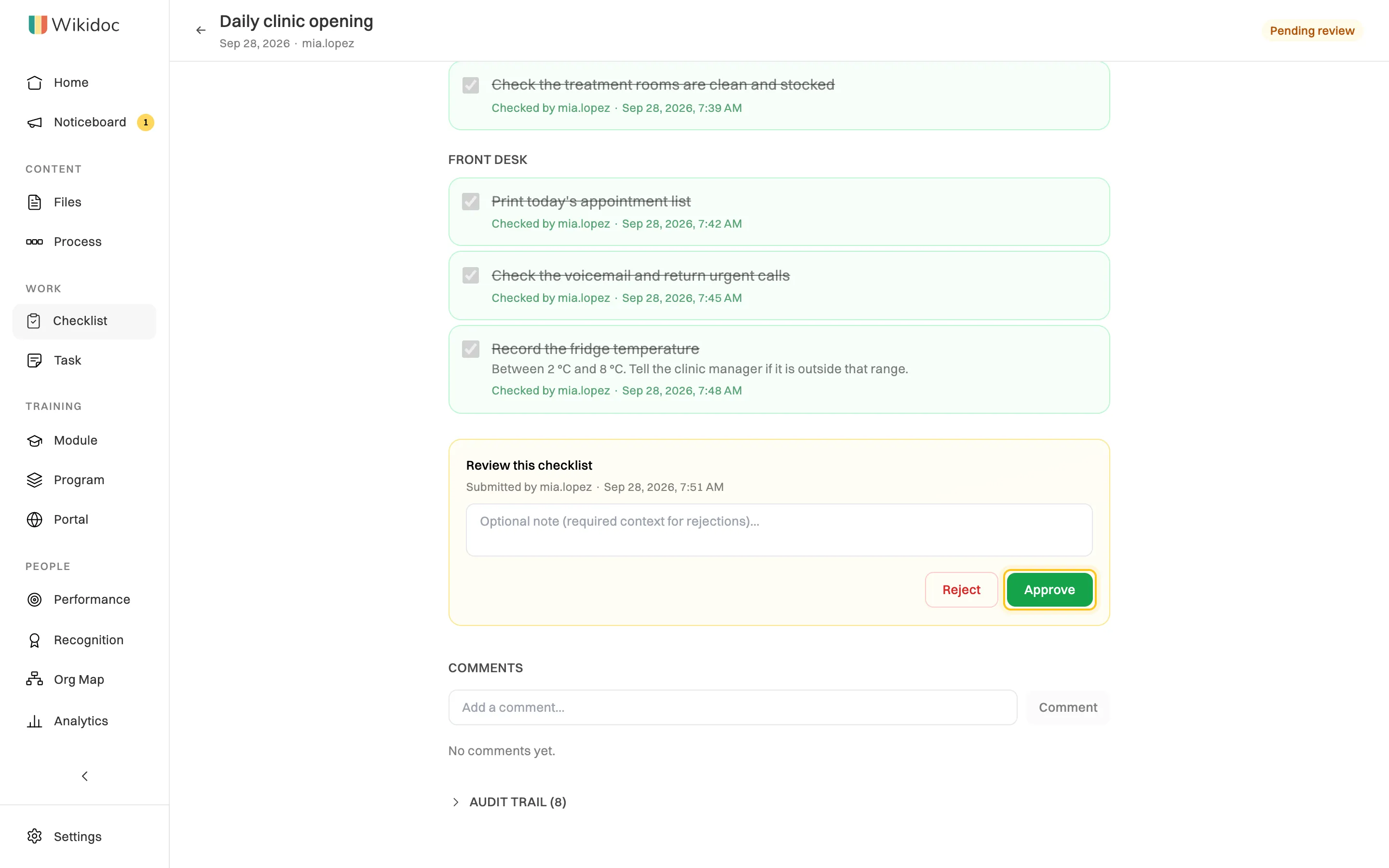
Approve signs the run off; Reject sends it back.
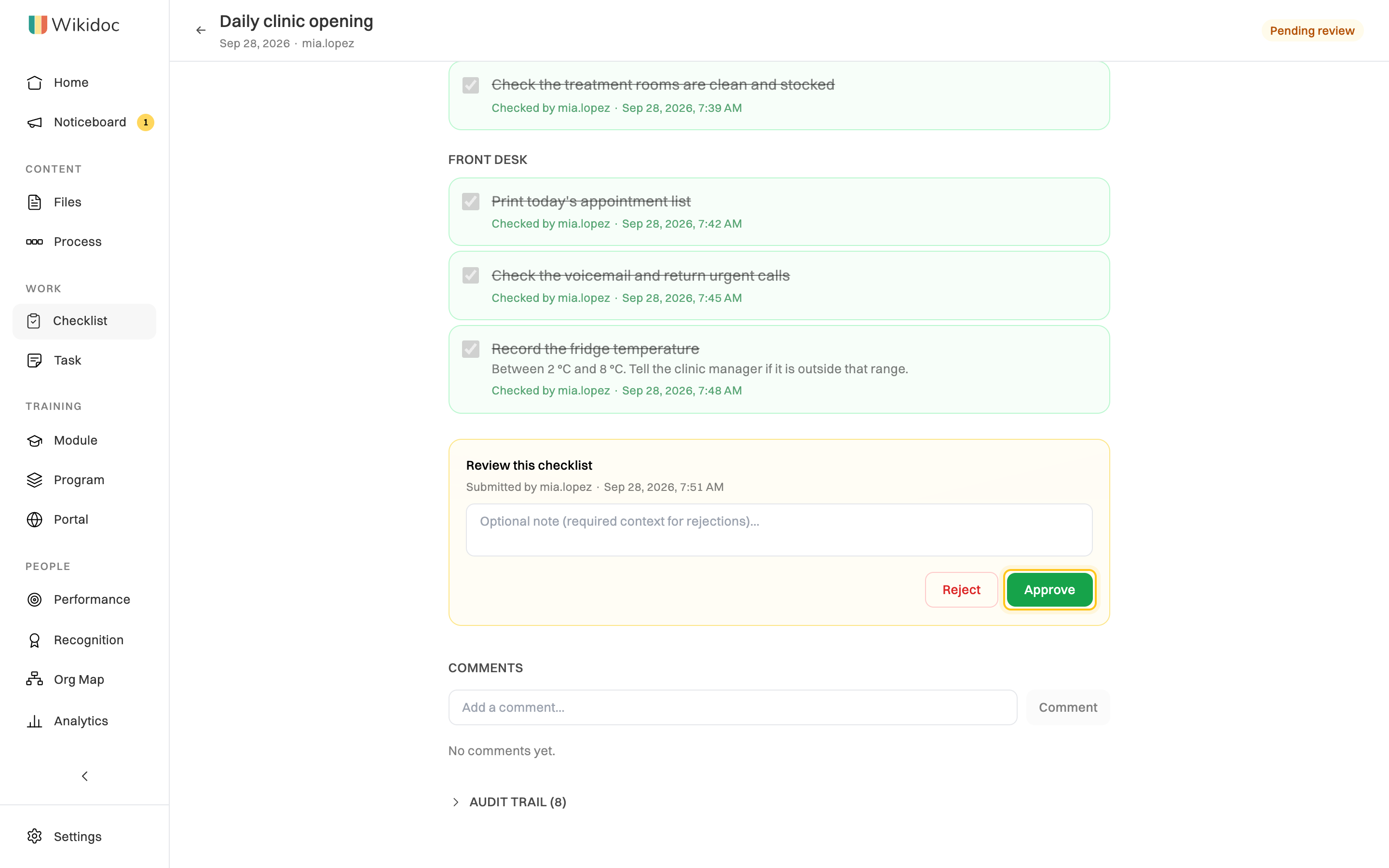
The person who filled it in is told either way. A rejected run goes back to them with your note, to fix and click Resubmit for review. You can’t approve a run you filled in yourself.
Talk about a run
Section titled “Talk about a run”A run can be opened by the person who filled it in, the checklist’s approvers, owners and creator, and Managers and Admins. Any of them can add a comment under Comments, or reply to one. Click Resolve when a comment has been dealt with.
Audit trail, at the bottom of every run, lists everything that happened to it, in order: when it was started, each tick, the submission, the decision and the notes.
See every run of a checklist
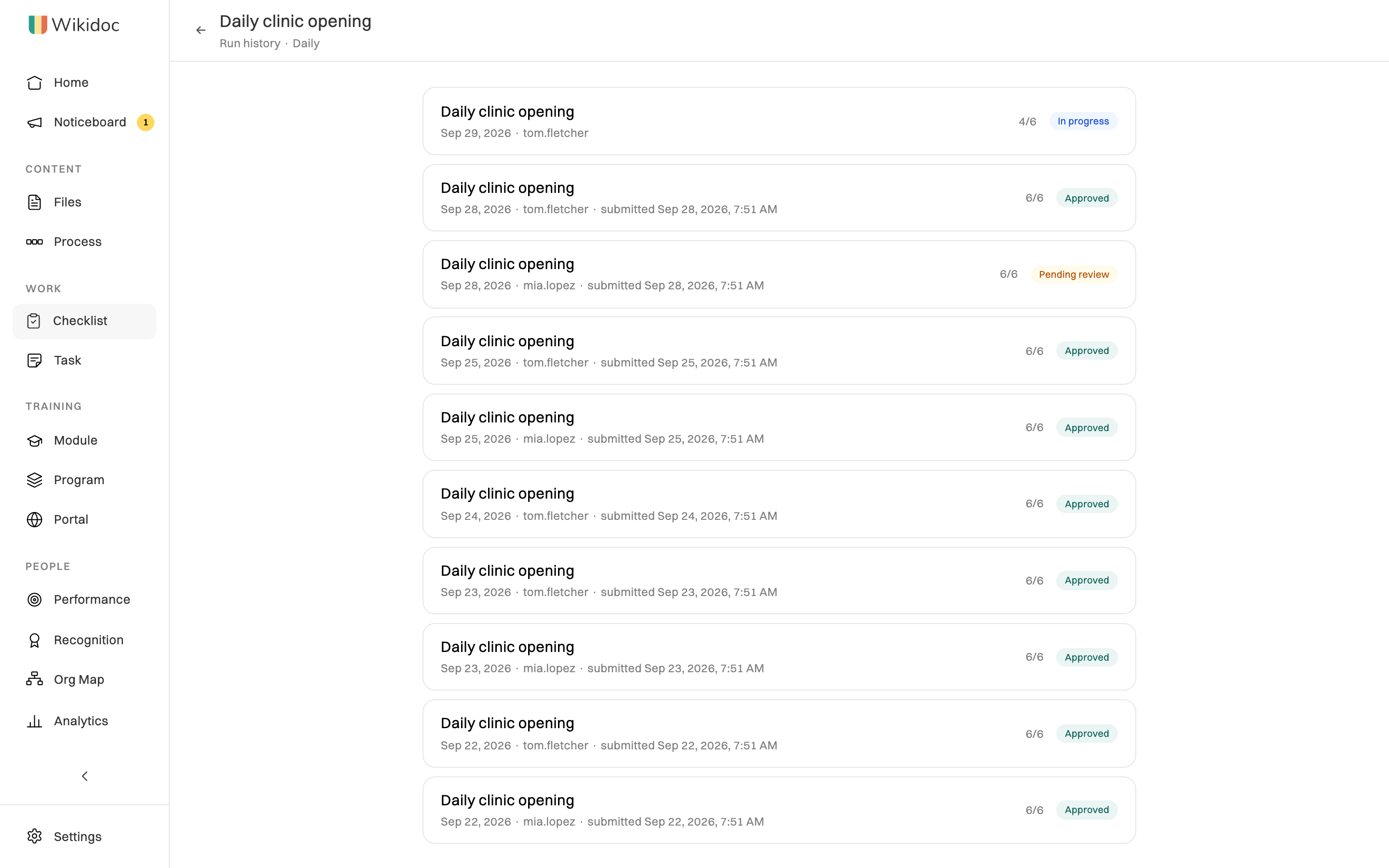
Section titled “See every run of a checklist”On the Templates tab, click ⋯ next to a checklist, then History. Every run is listed, newest first, with who filled it in, when it was submitted and its status. Click one to open it.
If something goes wrong
Section titled “If something goes wrong”Submit for review is grayed out. Some required tasks aren’t ticked. The number left is shown next to the button.
I can’t untick a task. A run can’t change while it’s waiting for review or after it’s approved. If it’s rejected, you can change it again.
Nobody reviewed my checklist. It may have no approvers. Ask whoever manages the template to add one. See Build a checklist template.