
Create, assign and move tasks
Add cards to a board, give them owners and due dates, move them as the work progresses, and mention teammates.
Each piece of work on a board is a card. A card has a title and whatever else helps get it done: notes, steps to tick off, files, links to documents in Wikidoc, people, a due date and comments.
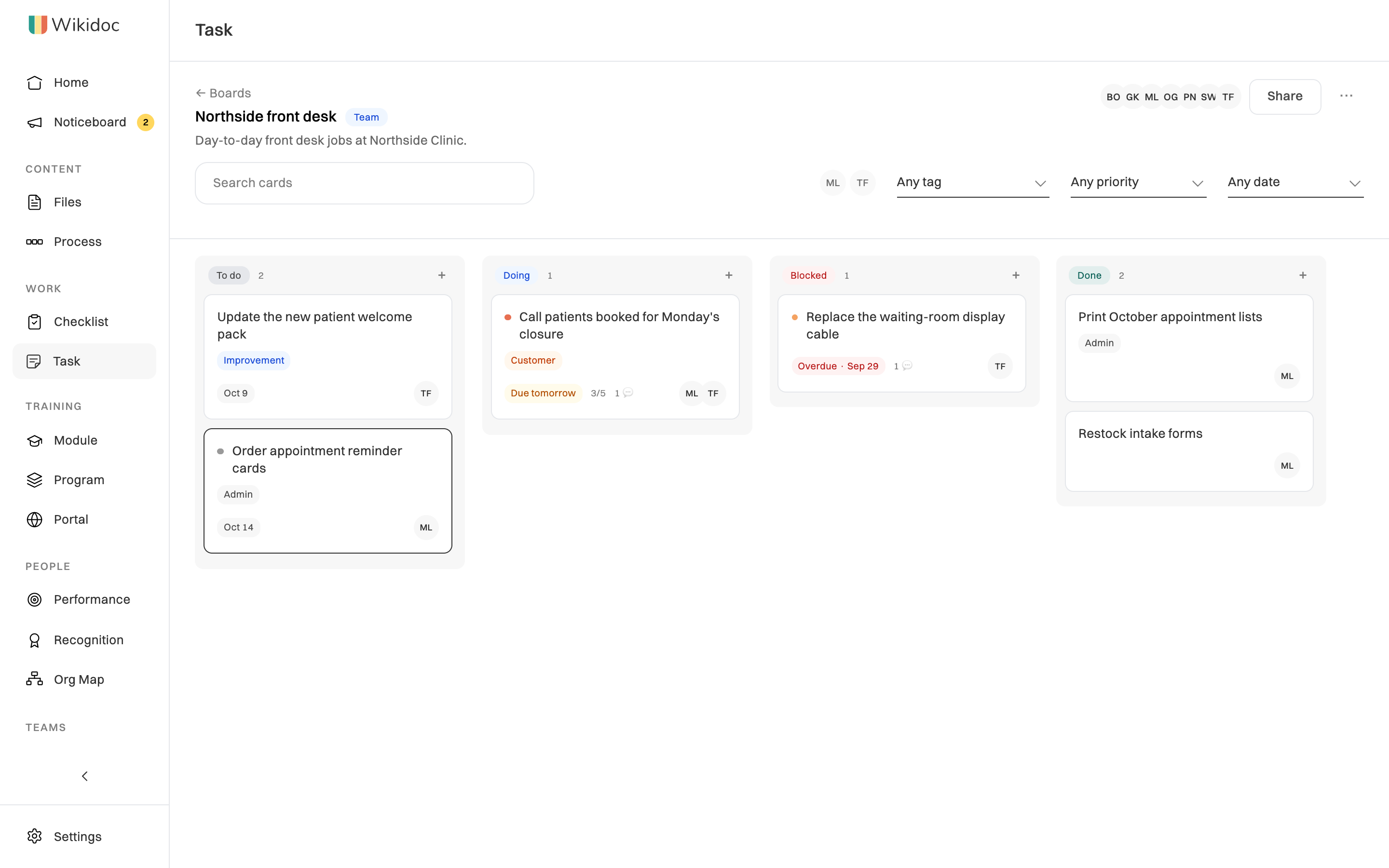
Add a card
Section titled “Add a card”-
Open the board: click Task in the sidebar, then the board.
-
Click + at the top of the column the card belongs in.
-
Type what needs doing and press Enter. Press Escape to cancel.
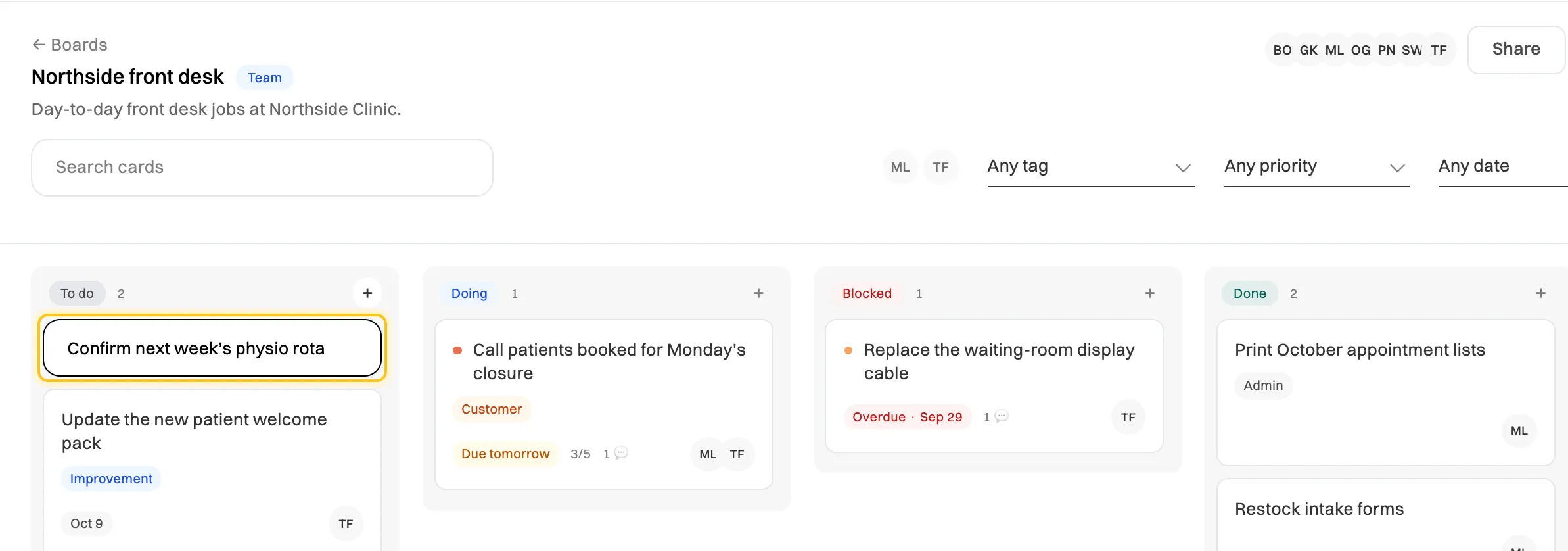
Type the card's title, then press Enter.
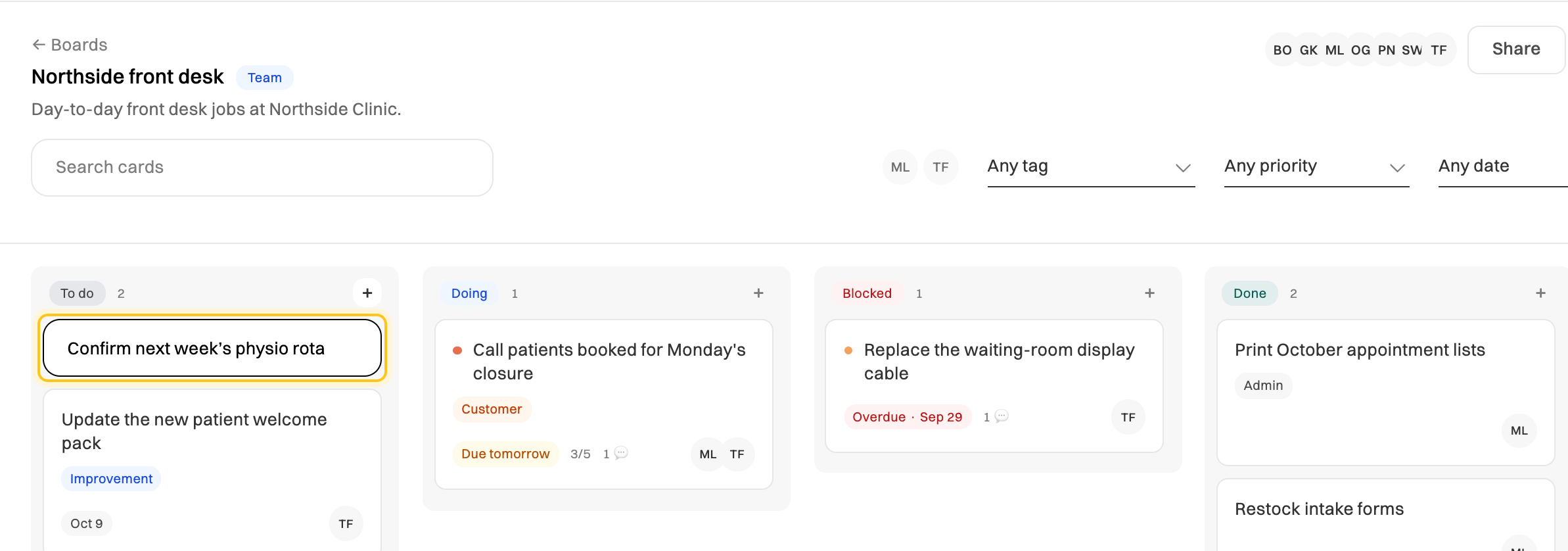
The card is added to the end of the column. Click it to add the rest.
You can also make a card from elsewhere in Wikidoc: Create a task next to a checklist task, Create a task for the rework when a document is sent back, and Create a follow-up task on a performance review. You pick the board, and the card links back to where it came from.
Fill in a card
Section titled “Fill in a card”Click a card to open it. Changes save as you make them.
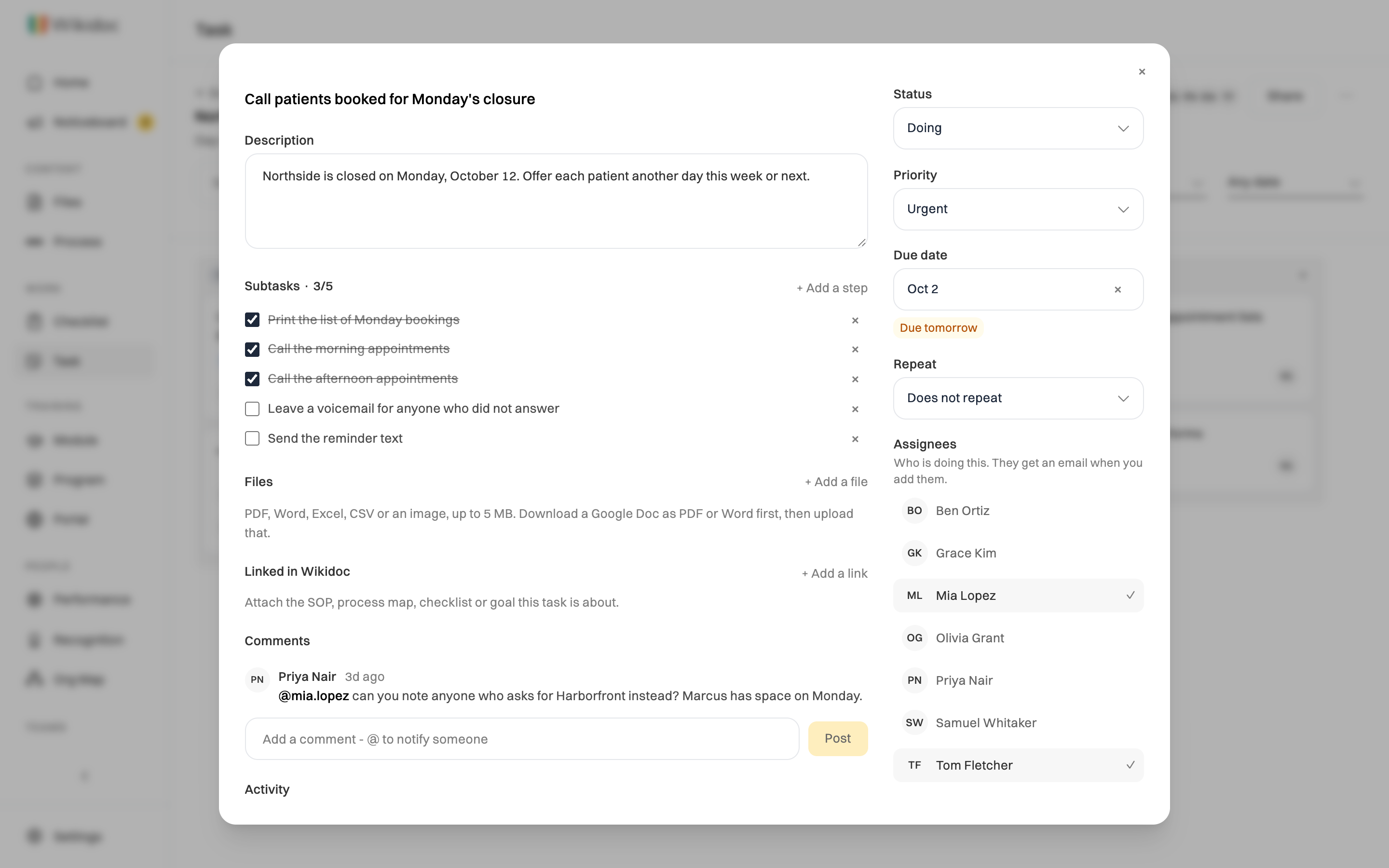
- Description: what needs doing, and what done looks like.
- Subtasks: click + Add a step to break the work down, then tick steps off.
- Files: click + Add a file to attach a PDF, Word or Excel file, a CSV or an image, up to 5 MB each and 10 per card. For a Google Doc, download it as PDF or Word first.
- Linked in Wikidoc: click + Add a link to attach the document, process map, training module or program, checklist or goal (KPI) the card is about. Anyone who opens the card can go straight to it.
- Status: the column the card is in.
- Priority: Urgent, High, Normal or Low. Every priority except Normal shows a colored dot on the board.
- Due date: the board shows Due tomorrow, Due today or Overdue as the date comes up.
- Repeat: once a card has a due date, it can repeat every day, week, two weeks, month or three months. When you finish it, a new card appears, due from the old due date rather than from the day you finished.
- Assignees: who’s doing it. Pick anyone who can open the board. A personal board has no assignees.
- Watching: people to keep informed without making them responsible.
- Tags: labels such as Compliance or Customer. Board managers can also type a new tag and press Enter to add it to the board.
Activity, at the bottom, records every change: who made it and when.
Move a card
Section titled “Move a card”- Drag the card to another column, or up and down within one.
- In the card, change Status.
- With the keyboard: tab to the card, press Space to pick it up, use the arrow keys to move it, and press Space again to put it down. Escape cancels.
- On a phone: tap ⋯ on the card, then the column under Move to.
Talk about a card
Section titled “Talk about a card”Type in Add a comment under Comments and click Post. Type @ and pick a name to notify someone: they get an email with your comment. You can only mention people who can open the board.
Anyone who can open the board can comment, Viewers included.
Who gets emailed
Section titled “Who gets emailed”Wikidoc emails people about a card when:
- You assign them. They get an email, unless they assigned themselves.
- Someone mentions them in a comment.
- The card arrives in a column that sends email. By default that’s Blocked and Done. The card’s assignees and watchers are told, but not the person who moved it. The email waits 10 minutes, so a card that’s moved again only sends one, about where it ended up.
- Someone else moves a card assigned to them.
- The card is due. Assignees get one email a day listing their cards due tomorrow, due today, or overdue since yesterday.
People can turn these emails off under Tasks assigned to you in their notification settings, or mute one board from its ⋯ menu. See How notifications work.
See everything assigned to you
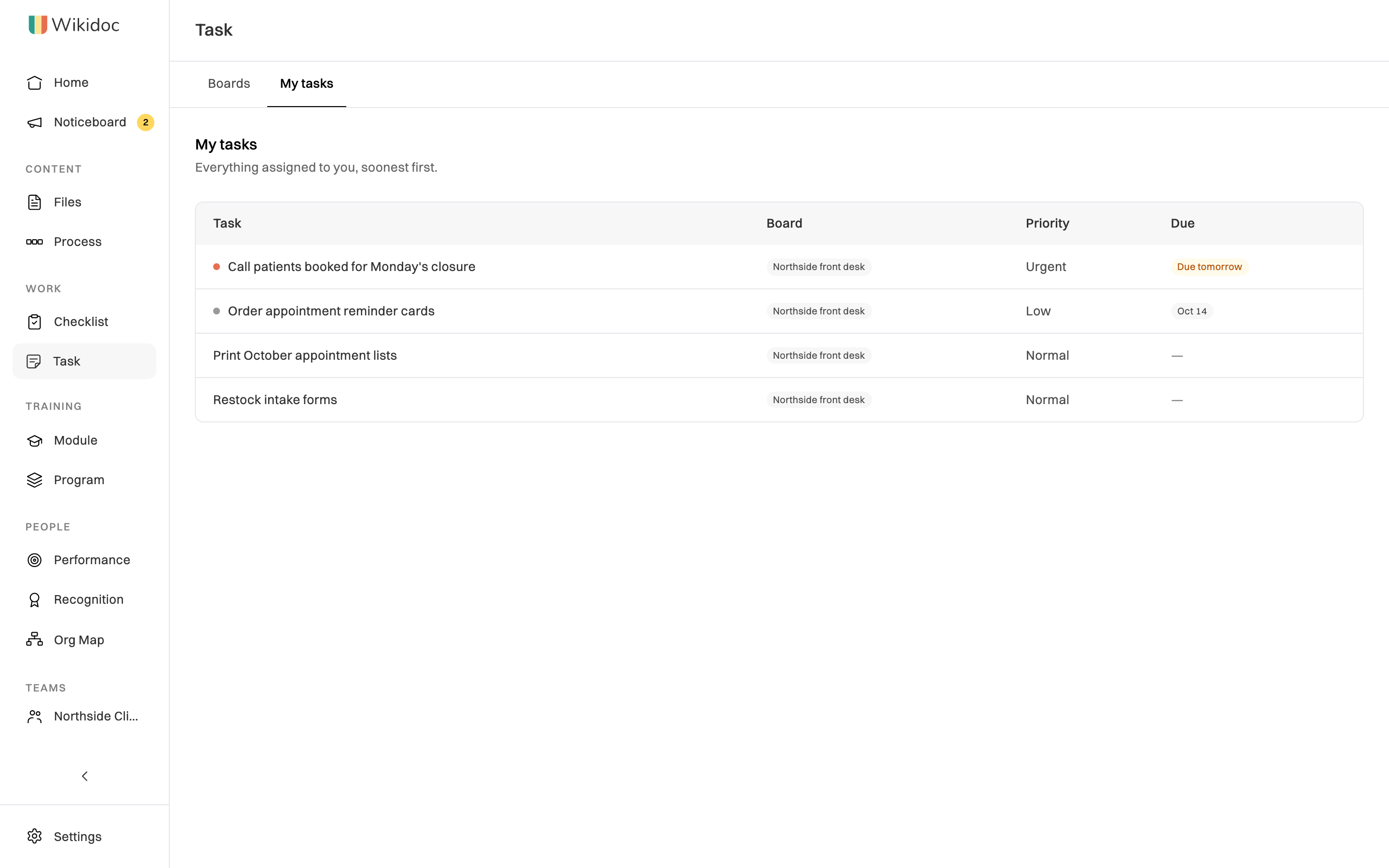
Section titled “See everything assigned to you”On the Task page, click My tasks. It lists the cards assigned to you across all your boards, with the soonest due first. Click one to open it.
Archive a card
Section titled “Archive a card”When a card is no longer needed, open it and click Archive at the bottom. It comes off the board and out of My tasks.
If something goes wrong
Section titled “If something goes wrong”I can’t move or edit a card. You may be a Viewer, who can only read and comment, or the board may be archived. Ask an Admin about your role, or the board’s manager about the board.
I can’t assign someone. Only people who can open the board can be assigned. Ask the board’s manager to add them. See Share a board and manage its members.
The board says it’s at its limit. A board holds a fixed number of open cards. Archive finished cards to make room.