
Export training as SCORM 1.2
Download a document with its video, slides and quiz as a SCORM 1.2 package, and run it in another learning management system.
If your organization already runs training in a learning management system (LMS), such as Moodle, TalentLMS or Cornerstone, you can take a Wikidoc guide there. A SCORM 1.2 package is a single file most LMSs can import, and it reports each learner’s result back to the LMS.
Download the package
Section titled “Download the package”-
Open the document and click Export above it.
-
Next to Download as SCORM 1.2, click Download. You get a .zip file named after the document, ending in
_scorm.zip.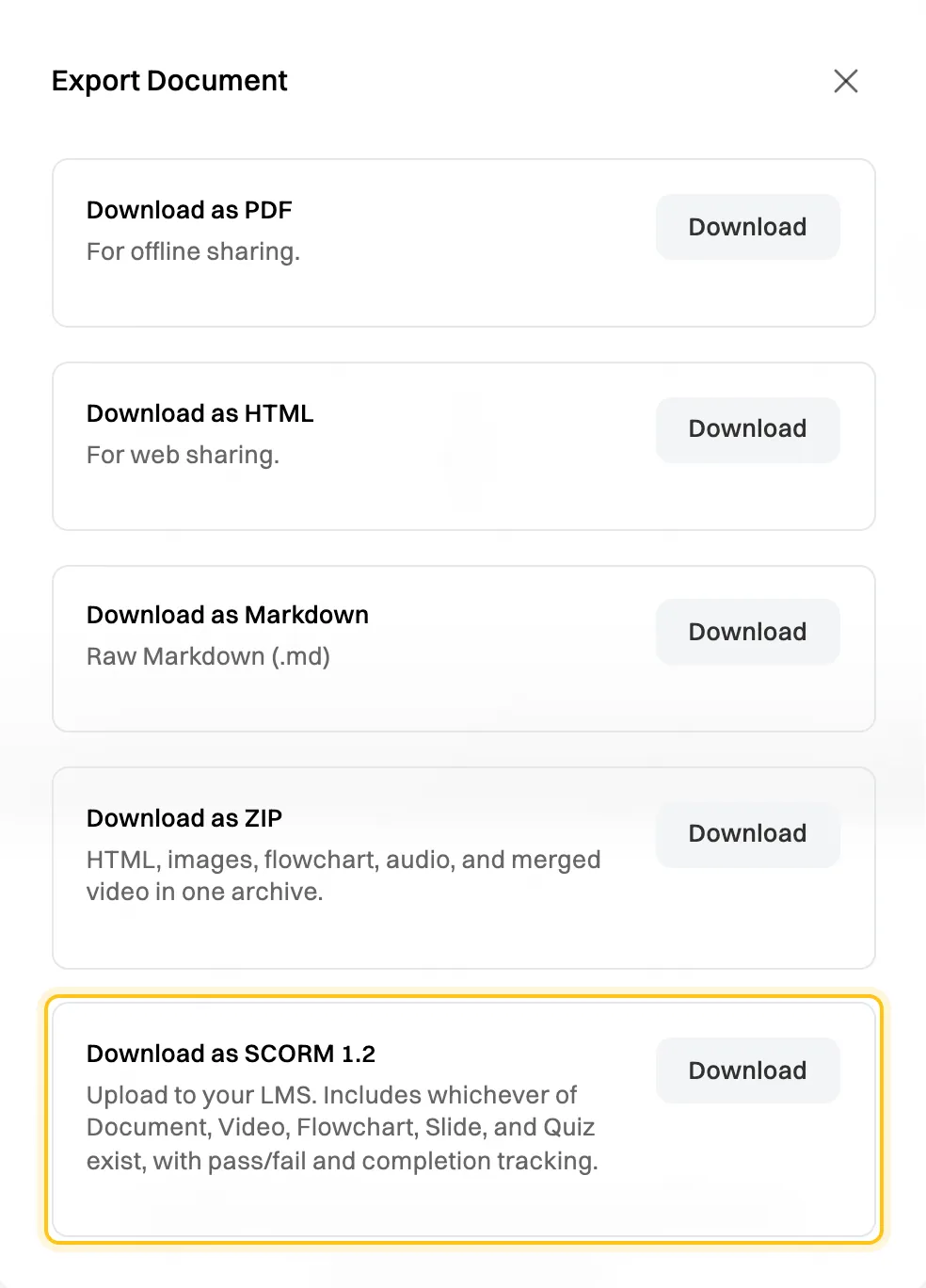
On the Free plan, this option shows Upgrade.
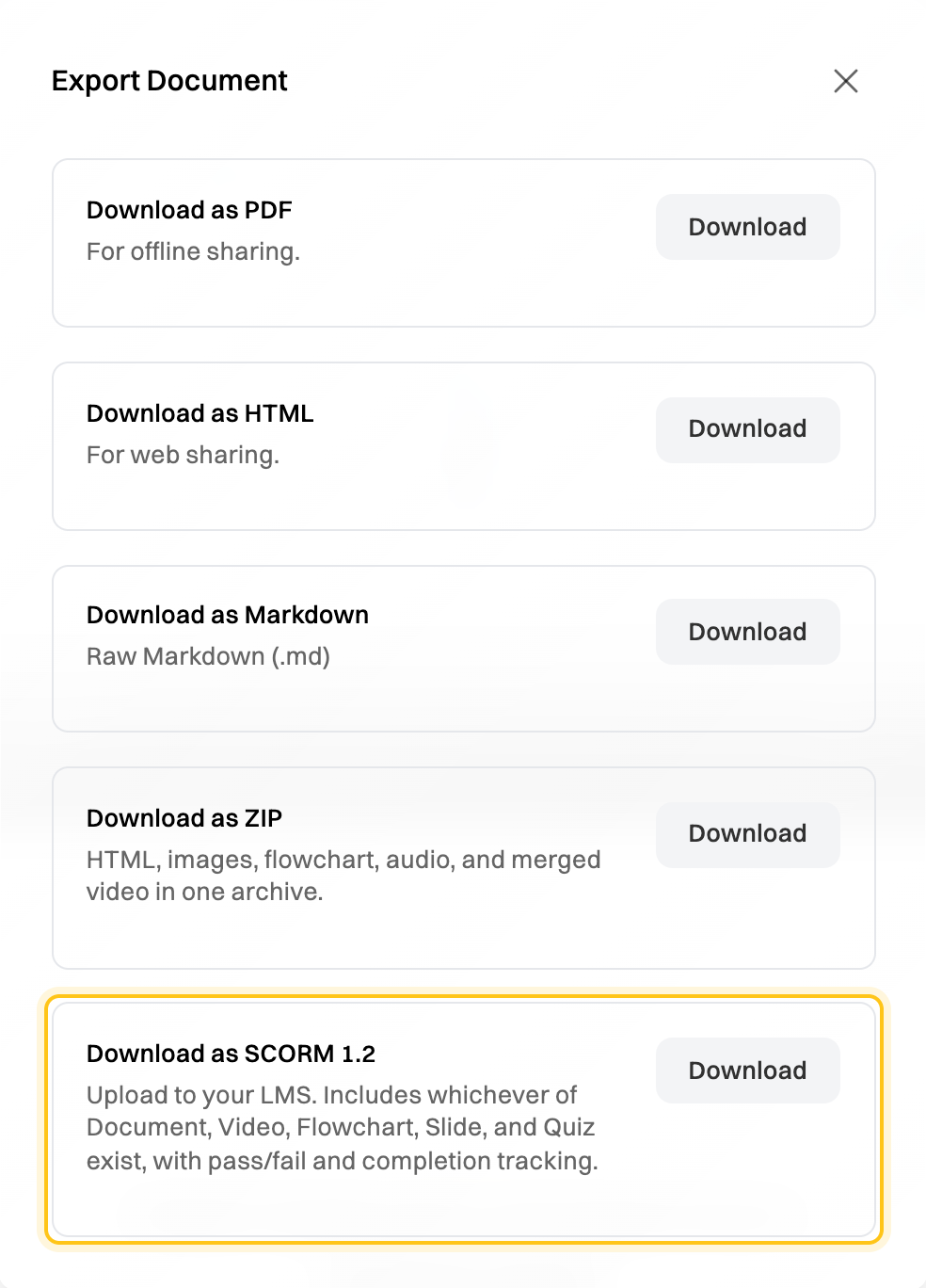
The package holds whichever of these the document has: the step-by-step guide, the narrated video, the process map, the slides and the quiz. Learners see each one on its own tab.
Upload it to your LMS
Section titled “Upload it to your LMS”Add the .zip file as a new SCORM 1.2 course or activity, and don’t unzip it first. The exact steps depend on your LMS: look for SCORM package when you add content.
What your LMS records
Section titled “What your LMS records”| The package has | The LMS records |
|---|---|
| A quiz | Passed or Failed, and the score out of 100. The pass mark is the quiz’s passing score. |
| No quiz | Completed once the learner has scrolled to the end of the guide (or had it open for 30 seconds), seen every slide and watched the video to the end. |
| Only a process map | Completed as soon as it’s opened. |
It also records how long the learner spent. A learner who leaves before finishing starts again from the beginning next time.
Keep it up to date
Section titled “Keep it up to date”The package is a copy: changes you make in Wikidoc afterwards don’t reach your LMS. When you update the document, download the package again and replace it in your LMS.
Results recorded in your LMS stay there. To track completion in Wikidoc instead, turn the document into a training module. See Build a training module.