
Approve or decline a request to join
Let someone into your organization with the right role, or turn the request down.
Some people need an Admin’s approval before they join your organization. Their requests wait on the Access tab until an Admin approves or rejects them. A request doesn’t use a seat, and the person can’t see your organization’s content, until you approve it.
You’ll see a request when:
- someone from outside your email domain asks to join, such as a contractor, or someone who signed up with a personal address. See Request to join an organization;
- someone at your domain signs up after every seat is taken. On the Team plan, people at your domain normally join automatically. When the seats run out, they wait instead;
- someone you removed asks to come back.
Every Admin gets an email when someone asks to join, with a link to the Access tab.
Approve or reject a request
Section titled “Approve or reject a request”-
Go to Settings›Access.
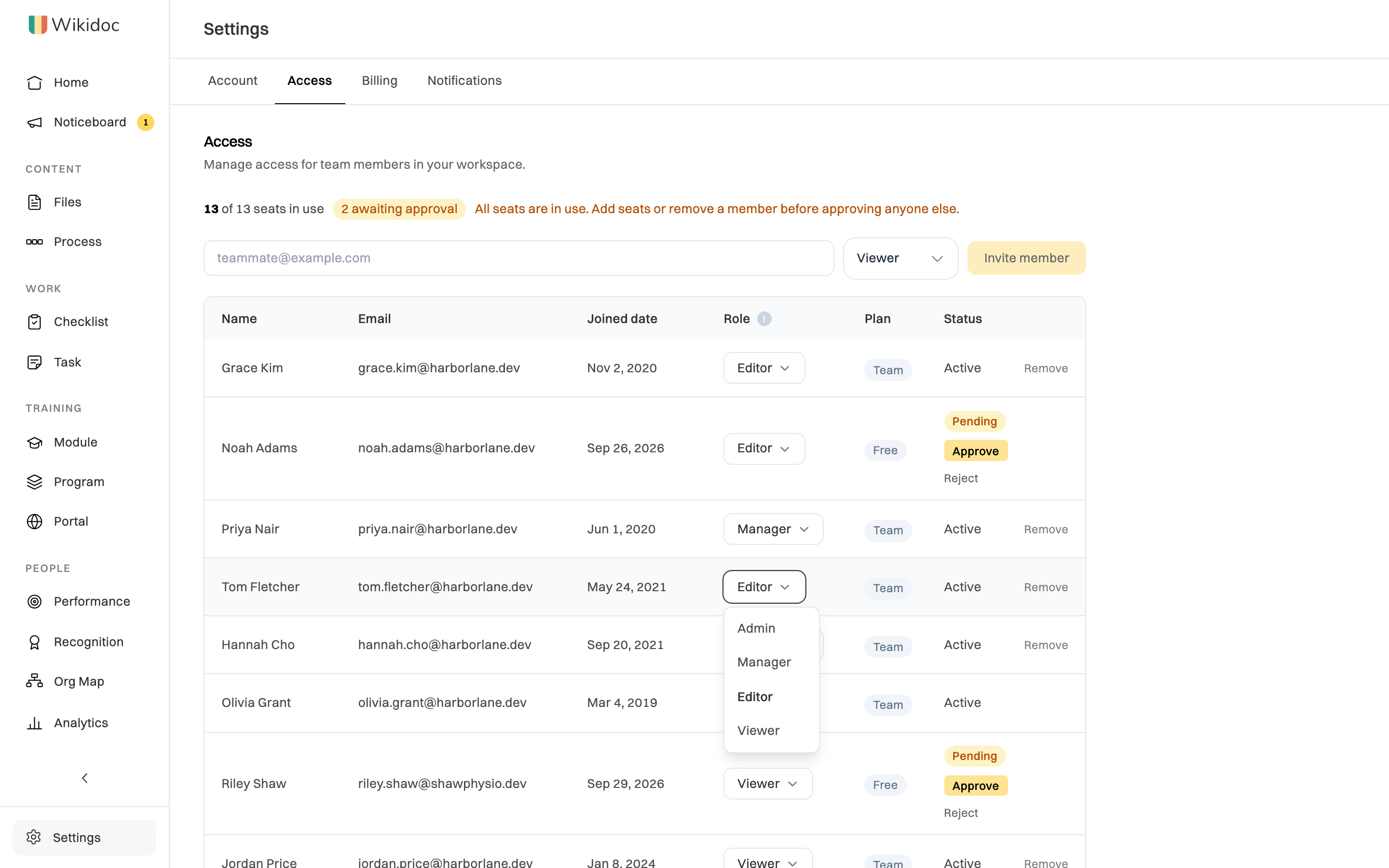
The line at the top shows how many requests are waiting, for example 2 awaiting approval. Each request has a row with a Pending status and two buttons: Approve and Reject.

A request from someone at another company. Their plan stays Free until you approve them. -
Check the role on their row. Approving gives them that role.
For someone from outside your domain it starts on Viewer. For someone at your domain it’s their current role, usually Editor. To give them a different role, click the role on their row and choose another one before you approve. Nothing changes for them until you approve.
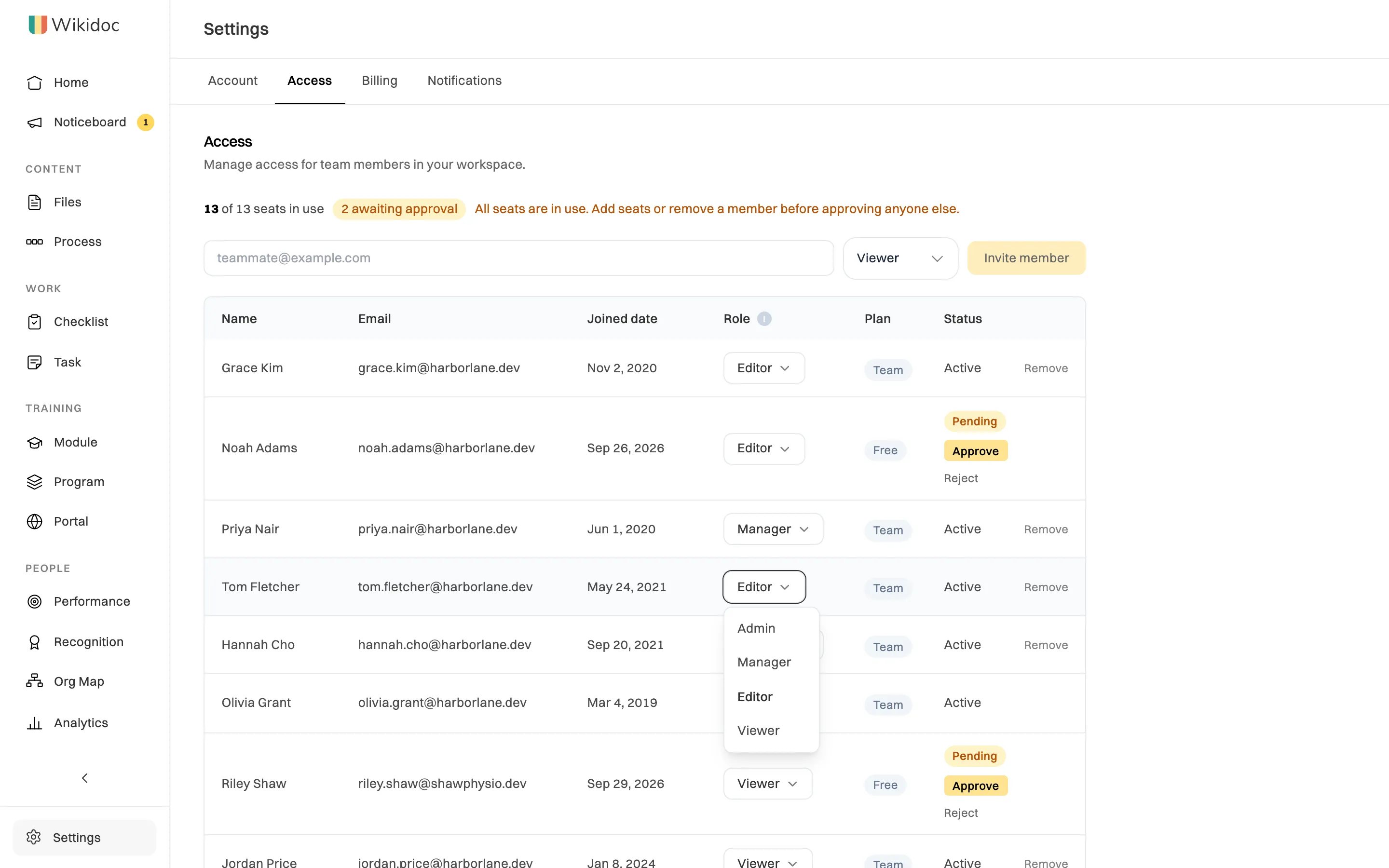
Click the role on the row to choose a different one. -
Click Approve to let them in, or Reject to turn the request down.

What happens next
Section titled “What happens next”Approved: they become an Active member with the role on their row, and they use a seat. They join your organization’s plan, and we email them to say they’ve been approved.
Rejected: they leave the list and don’t join. We email them to say the request was declined. They can ask again later, and a new request appears on your Access tab as before.
When every seat is taken
Section titled “When every seat is taken”If the Access tab says All seats are in use. Add seats or remove a member before approving anyone else., Approve won’t work. You’ll see “All 13 seats are in use. Add seats or remove a member first”, with your own seat count.

To make room, either:
- add seats, or
- remove a member, or an invitation that’s no longer needed.
Then approve the request.