
Export a process map
Download a process map as an image, a PDF, Mermaid text or JSON, to use outside Wikidoc.
Export a process map to put it in a presentation, a printed manual or a wiki, or to move it into another diagram tool. Every plan can export.
Anyone who can open a process map can export it, whatever their role, including Viewers.
-
Open the process map and click Export at the top right.
-
Click Download next to a format.
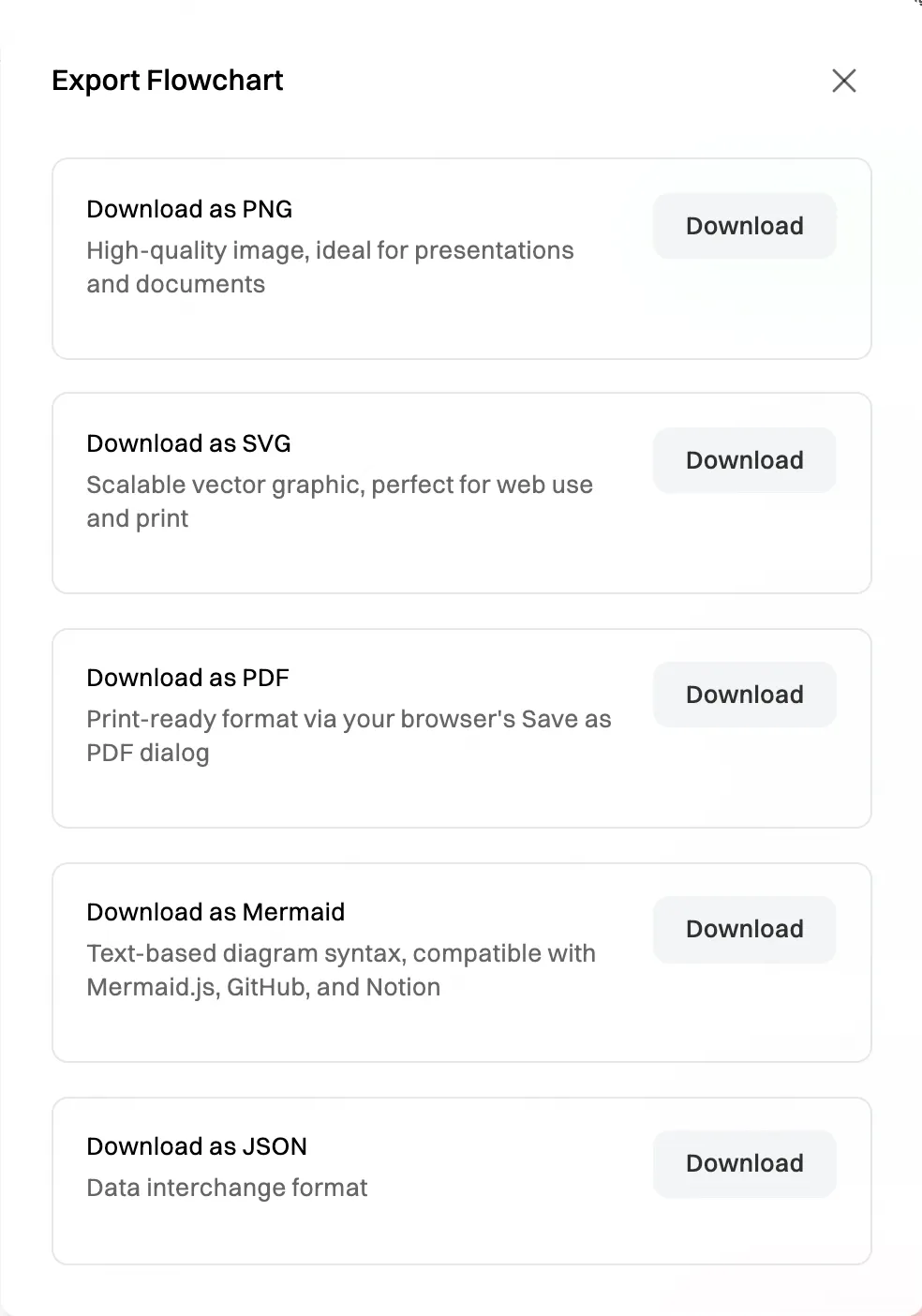
Choose a format to download.
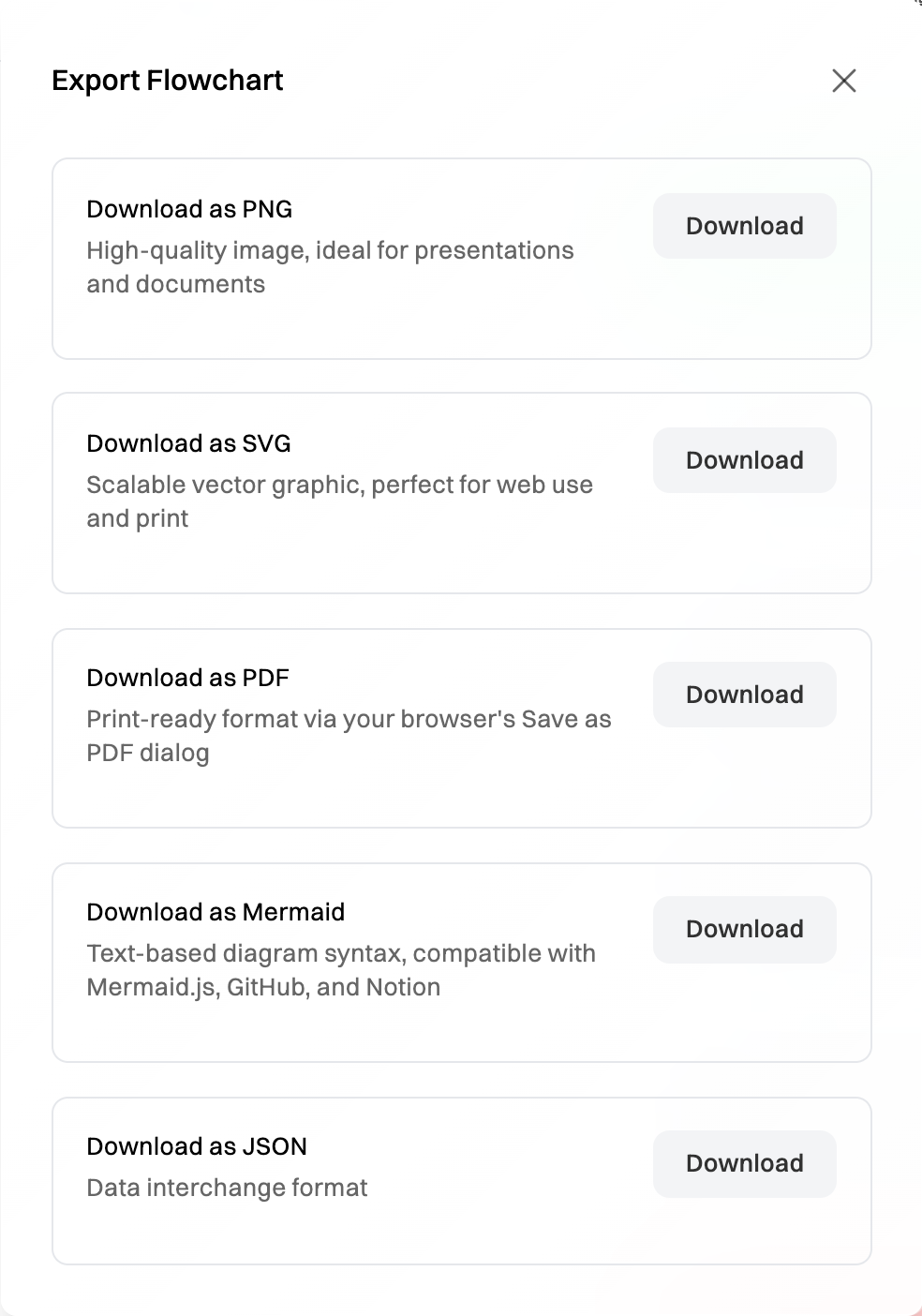
The export is the whole map, however far you’ve zoomed in. If you’re editing the map, it includes changes you haven’t saved yet.
Which format to choose
Section titled “Which format to choose”| Format | What you get | Use it to |
|---|---|---|
| PNG | A high-resolution image. | Put it in slides or a document. |
| SVG | A vector image that stays sharp at any size. | Put it on a web page, or print it large. |
| Your browser’s print window opens: choose Save as PDF as the destination. | Print it, or send it as a PDF. | |
| Mermaid | The map as Mermaid text (.mmd), with its steps, decisions and line labels. |
Paste it into anything that draws Mermaid diagrams, such as GitHub, Notion or a Markdown page. |
| JSON | The map as data, in Lucidchart’s import format. | Move the map into another diagram tool. |
Mermaid keeps the steps and how they connect, not the look: swimlanes, sticky notes and colors are left out. JSON leaves out swimlanes. For a copy that looks exactly like the map, use PNG, SVG or PDF.