
Performance reviews
How review cycles, review cards and acknowledgements work, from both sides of the review.
A performance review in Wikidoc is a card with the same questions for everyone in a round, and the person’s own goals (KPIs). The person rates themselves first. Their reviewer then adds their own rating and approves it, and the person reads the result and acknowledges it. Everything is kept, so you can look back at how someone was rated over time.
How a review works
Section titled “How a review works”- An Admin opens a review cycle. Everyone in it gets a review card and an email.
- Each person fills in their card and submits it.
- Their reviewer rates it and approves it, or sends it back with changes to make.
- The person reads the review and acknowledges it, with a reply if they want to add one.
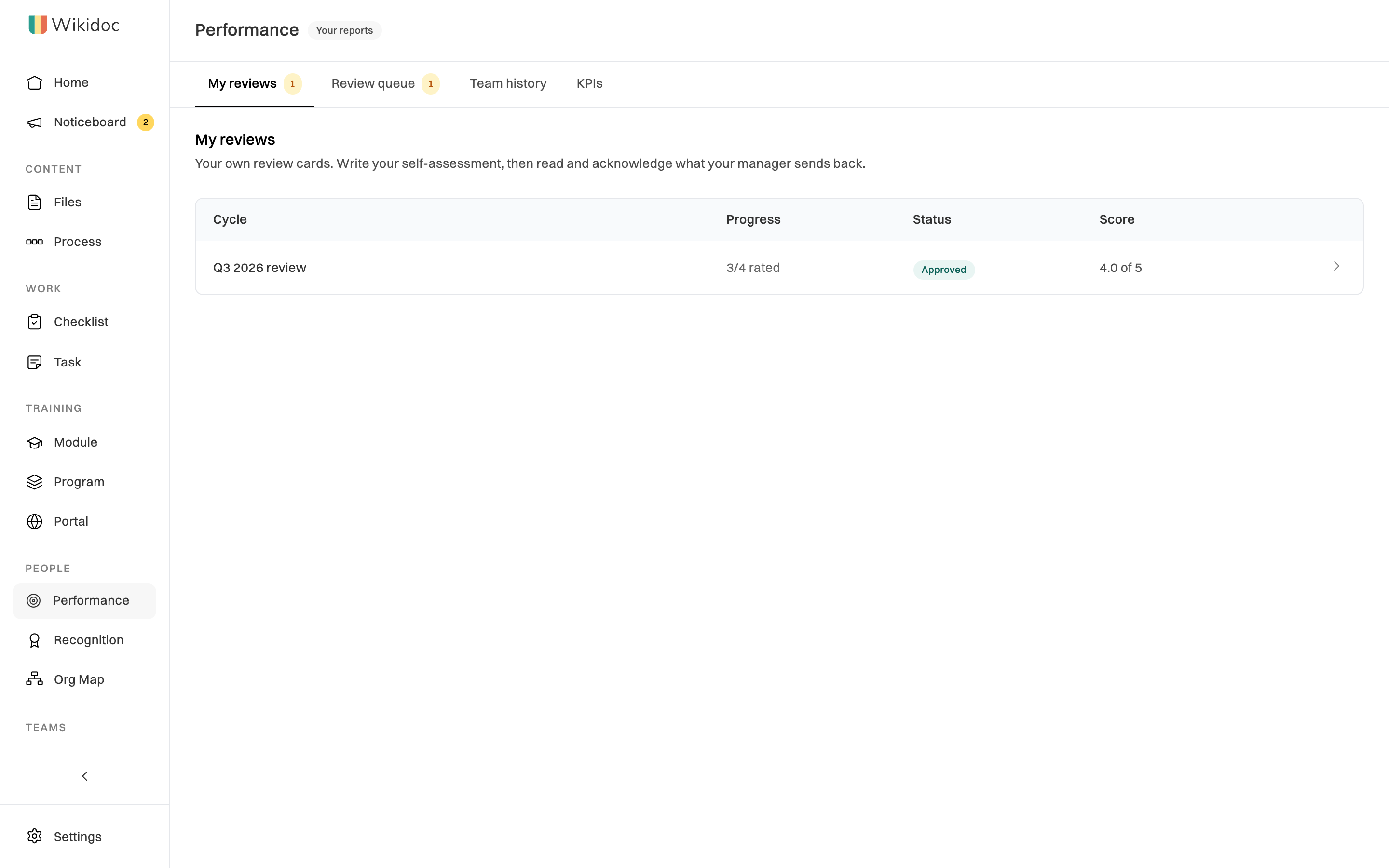
Click Performance in the sidebar to see your reviews. The tabs you see depend on what you do:
- My reviews: your own review cards. Everyone has this.
- Review queue: reviews waiting for you to rate them. Shown when there’s one waiting, and always to Managers and Admins.
- Team history: finished reviews for the people you manage, so you can see how someone has been rated over time.
- KPIs: the goals people are measured against. See Set and track KPIs.
- Cycles: the review rounds themselves. Admins only.
Fill in your review
Section titled “Fill in your review”-
Click Performance in the sidebar, then the review under My reviews.
-
For each question, choose the rating that fits, from Strongly dissatisfied to Strongly satisfied, and add a comment if it helps. Questions from your KPIs appear first, with their target.
-
Under Overall, write Your summary: how the period went, in your words.
-
Click Submit for review. Every question must be rated, except those that aren’t rated at all, such as your goals for next time.
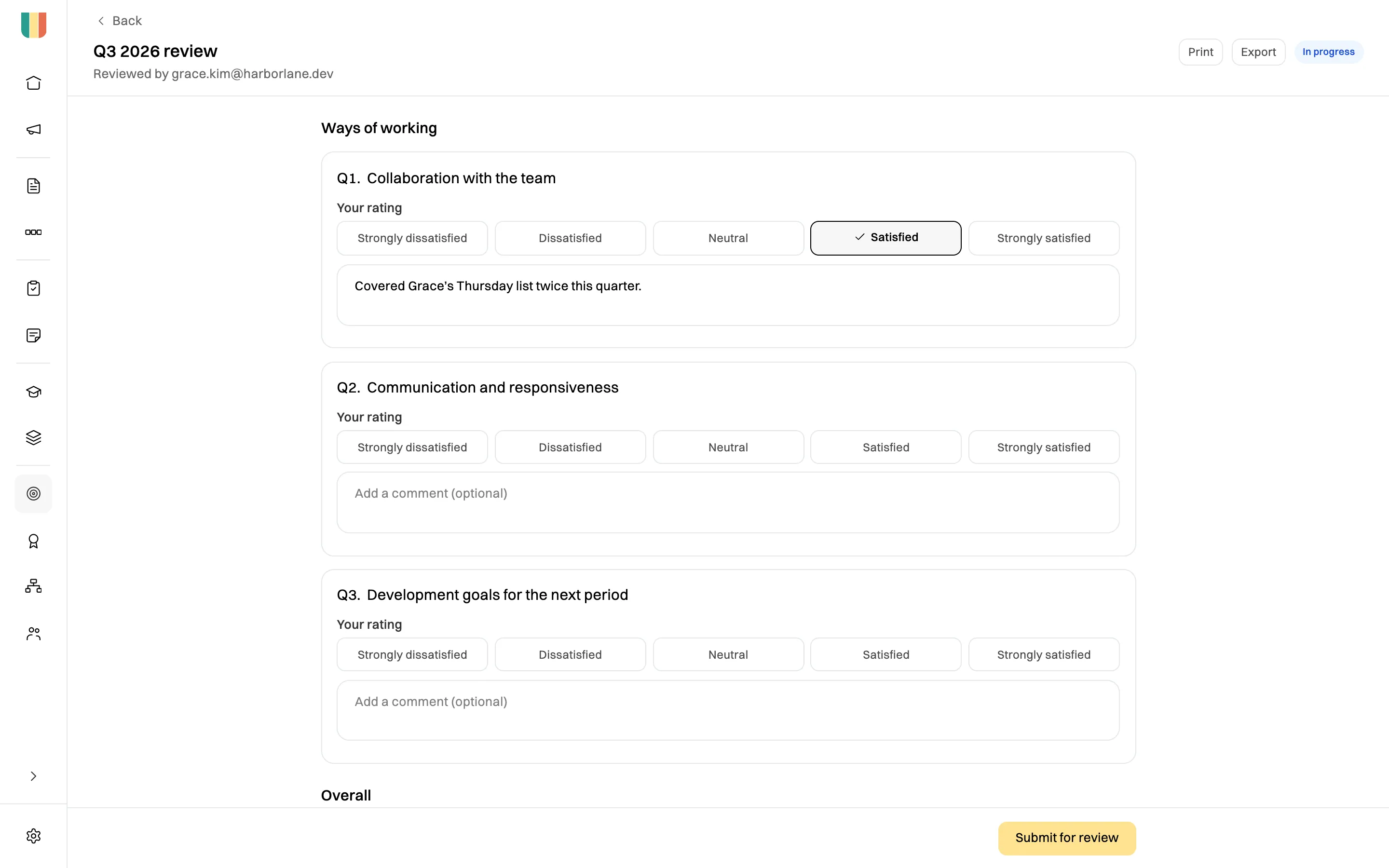
Your answers save as you go. Submit when every rated question has a rating.
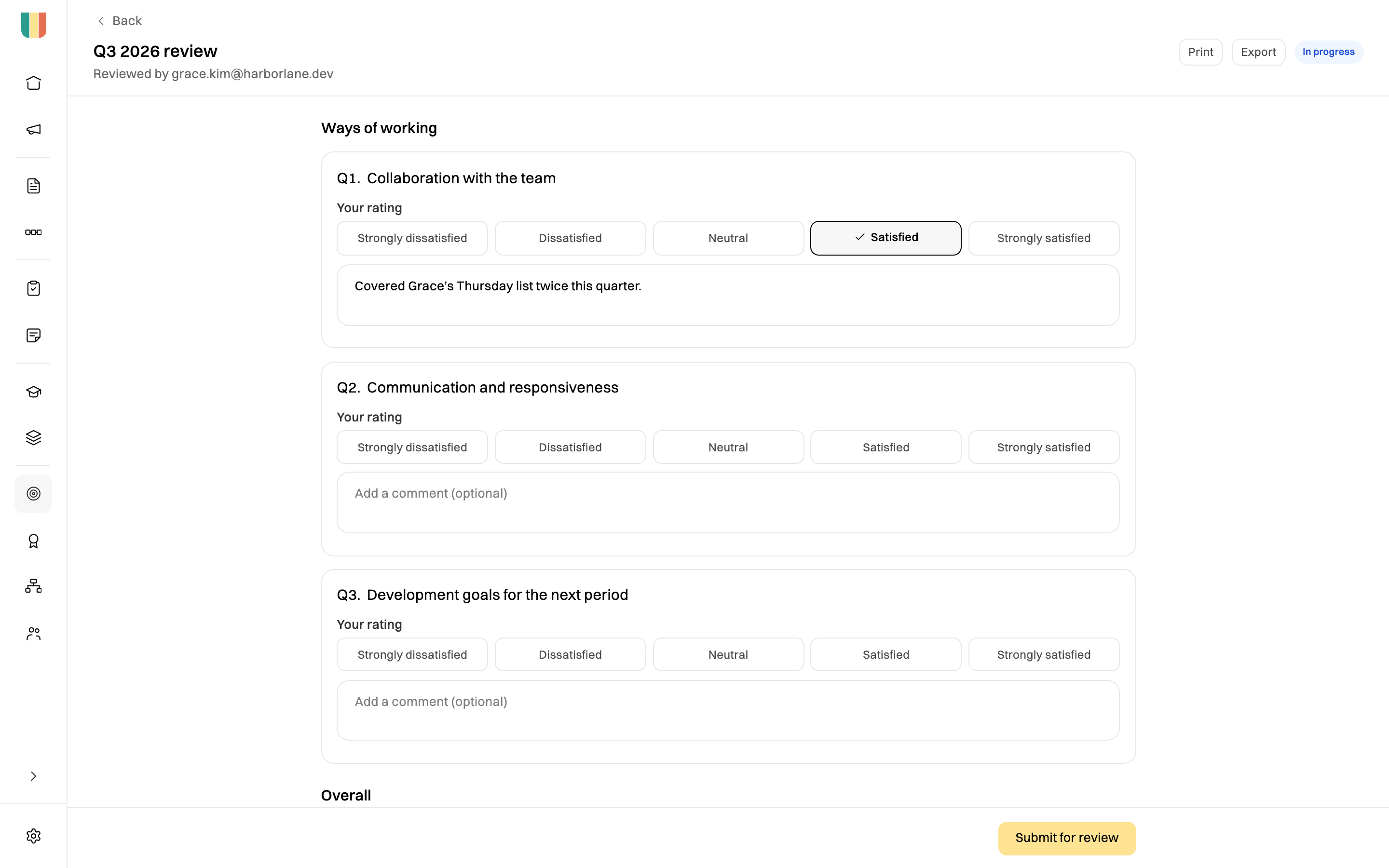
Your answers save as you go, so you can come back to it. Once you submit, the card is locked. If you need to change something, ask your reviewer to send it back.
Review someone’s card
Section titled “Review someone’s card”Reviews waiting for you are on the Review queue tab, with a count next to it.
-
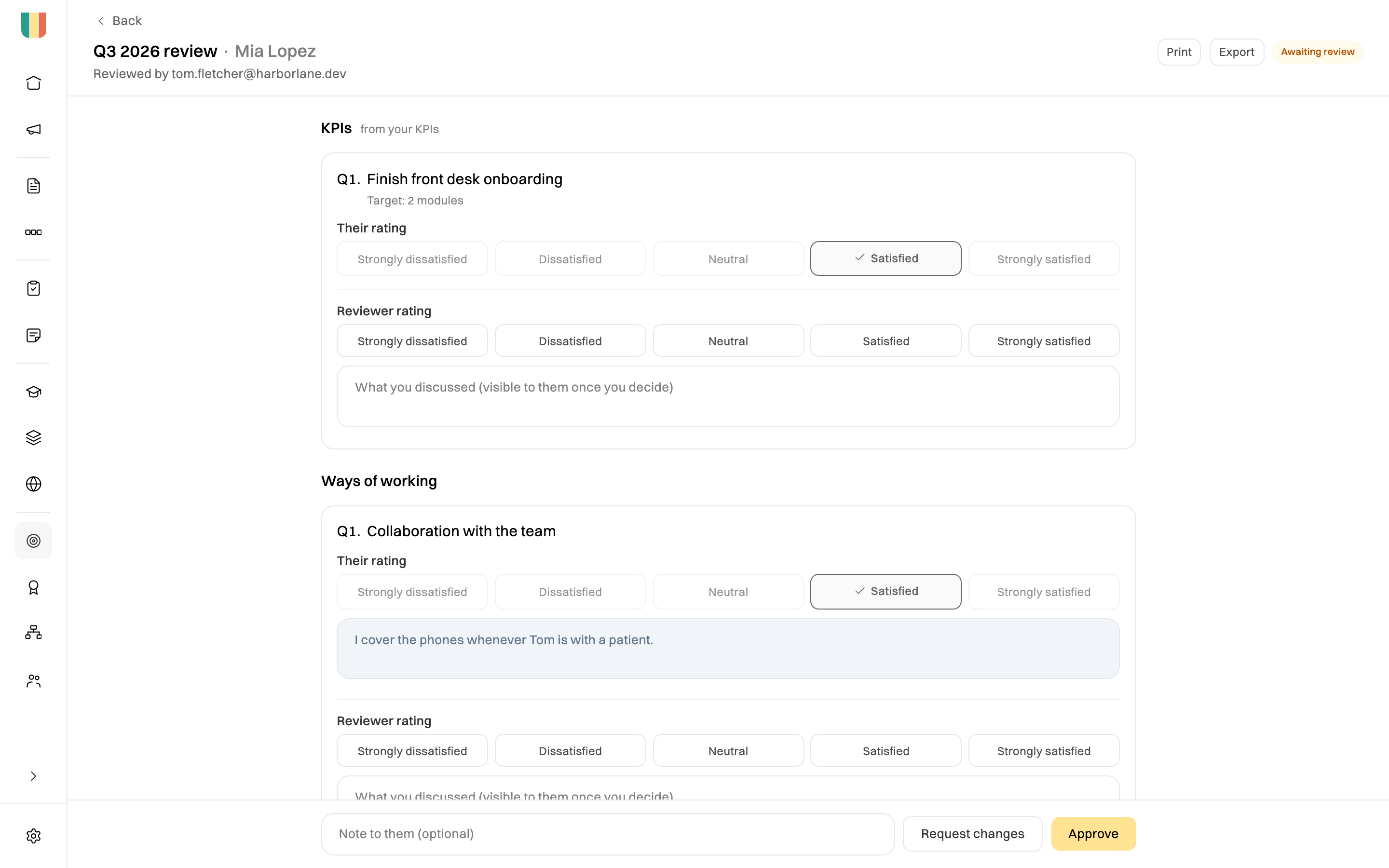
Open the review. You see the person’s rating and comment on each question.
-
Choose your own Reviewer rating for each question, and note what you discussed. Your notes are only shown to them once you decide.
-
Under Overall, write a Reviewer summary. To start from your notes, click Draft from my notes. It never suggests a rating.
-
Add a note to them if you want to, then click Approve, or Request changes to send it back.
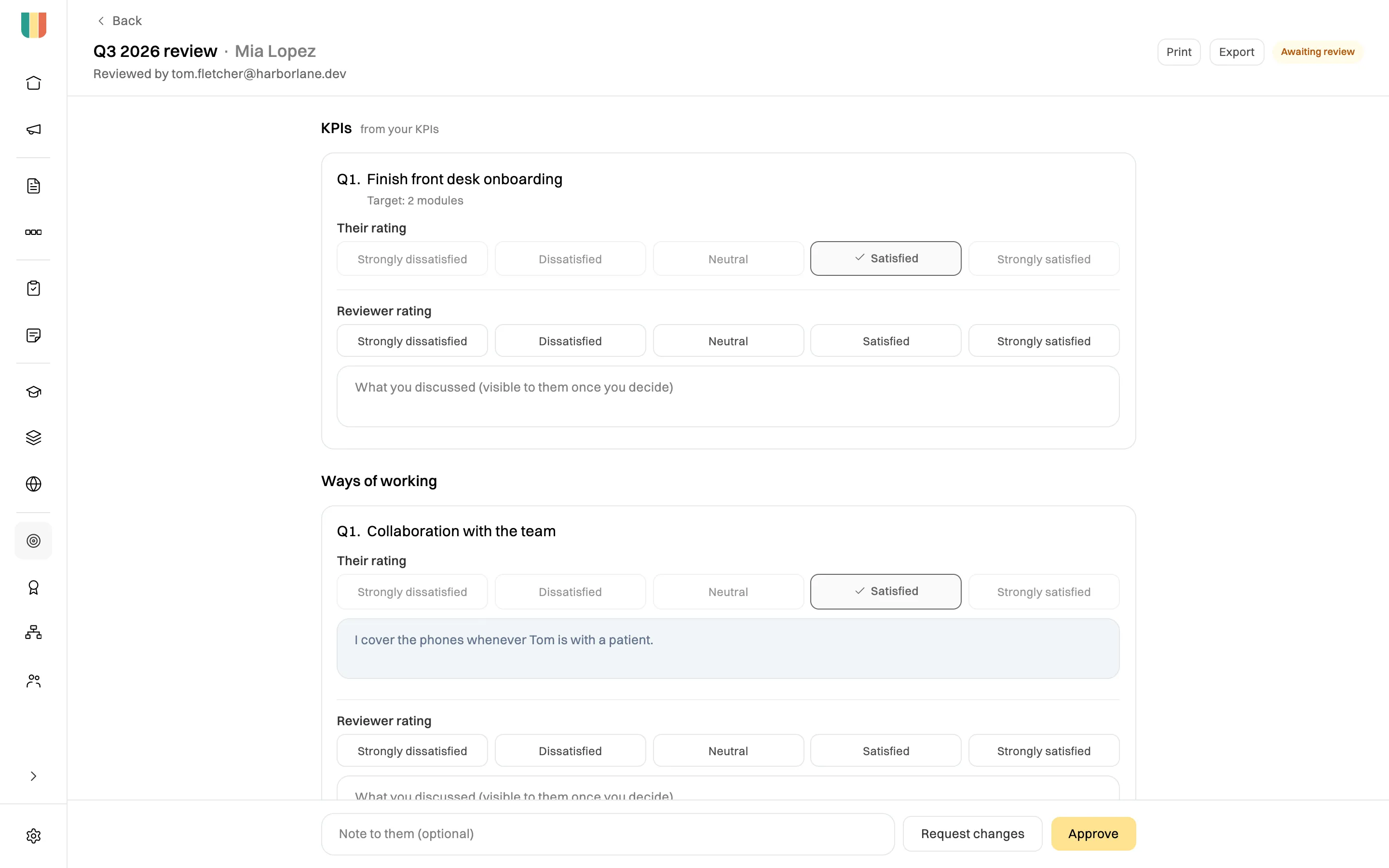
Their rating on top, yours below. Approve or Request changes when you're done.
What the record shows, on the card, lists what the person did in the review period: the training they finished, the checklists they did on time, what they wrote in Wikidoc, and the recognition they got. It’s there for context, not as a score, and the person sees exactly what you see.
You can’t approve a review you filled in yourself.
Read and acknowledge your review
Section titled “Read and acknowledge your review”When your reviewer approves your review, you get an email. Open it from My reviews to read their rating and summary next to yours.
Under Your response, add anything you’d like kept with the review, then click Acknowledge. You can also click Create a follow-up task to put an action from the review on a task board.
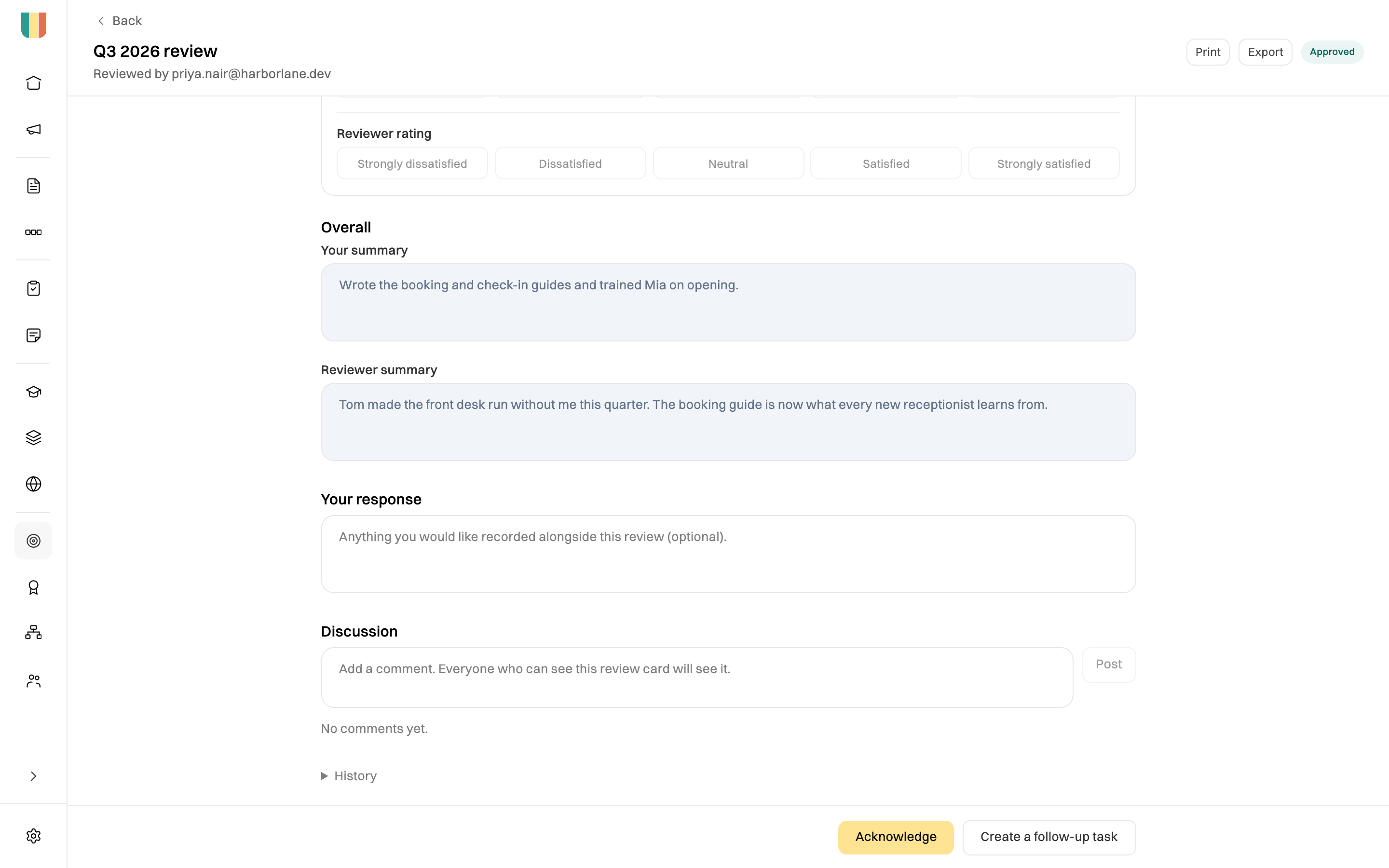
Once you acknowledge it, the review is complete and can’t change.
Talk about a review
Section titled “Talk about a review”Under Discussion, anyone who can see the review card can comment on it. That’s the person, their reviewer, the people above them, and Admins.
History, at the bottom, records each step: submitted, sent back, approved and acknowledged.
Who reviews whom
Section titled “Who reviews whom”When a cycle opens, each person’s reviewer is:
- the person they report to, as set on their profile (Reports to), or if there isn’t one,
- the managers of their department, or if there are none,
- your organization’s Admins.
An Admin can send a review to a different reviewer: open the card and click Reassign. To get reviewers right before a cycle, check everyone’s Reports to on the org map first.
Run a review cycle
Section titled “Run a review cycle”Only Admins can run cycles.
-
Click Performance in the sidebar, then Cycles, then Start a review cycle.
-
Choose the Cadence (Quarterly, Half-yearly or Annual) and the Period it covers, and give it a Name.
-
Set when self-reviews open and are due, and when manager reviews are due.
-
Under Department, choose who takes part. Leave them all unticked to include everyone.
-
Under Questions, change the questions if you like. Untick Rated for a question people answer in words only.
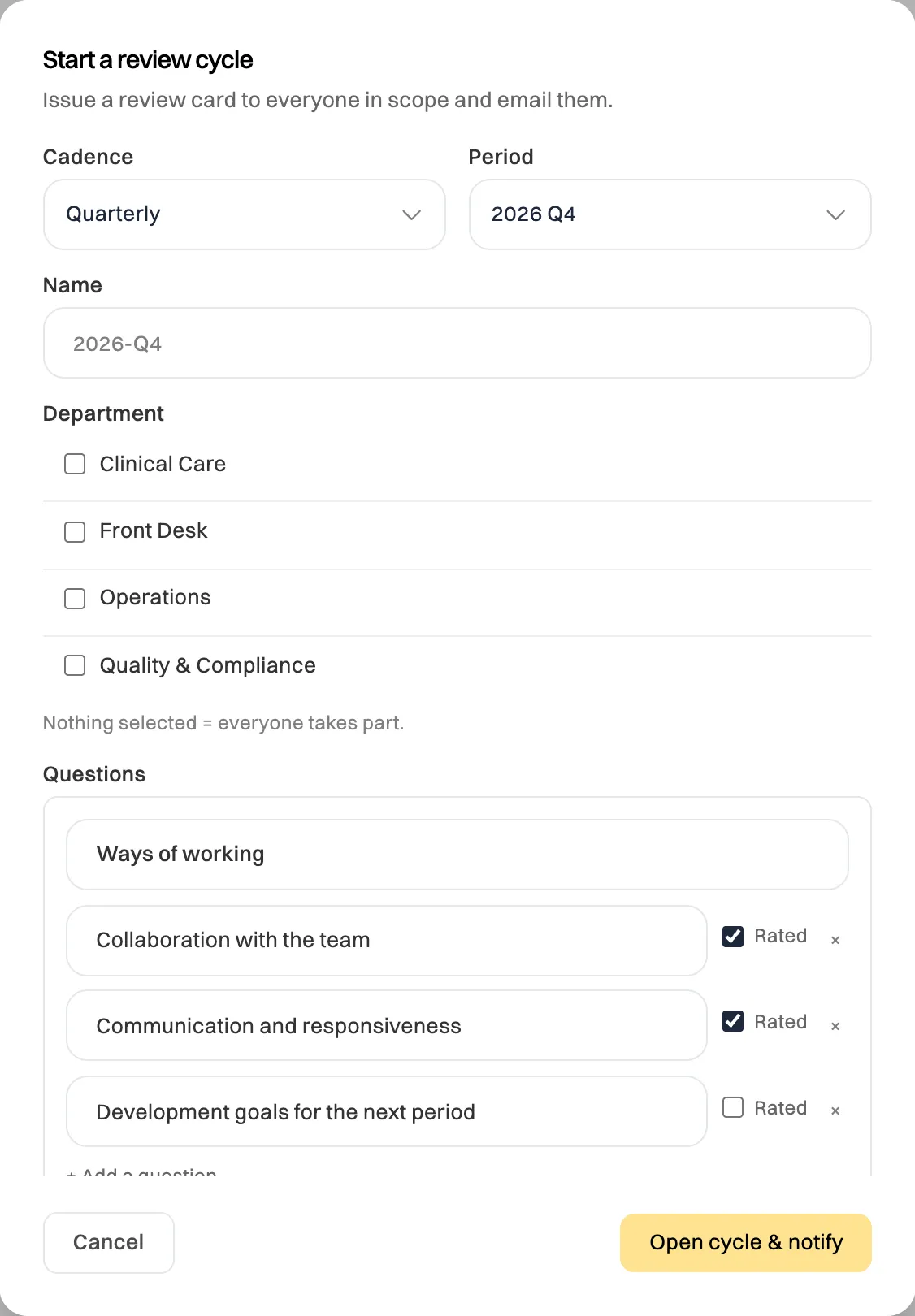
Nothing ticked under Department means everyone takes part. -
Click Open cycle & notify. Everyone in it gets a review card and an email, and their reviewers are told too.
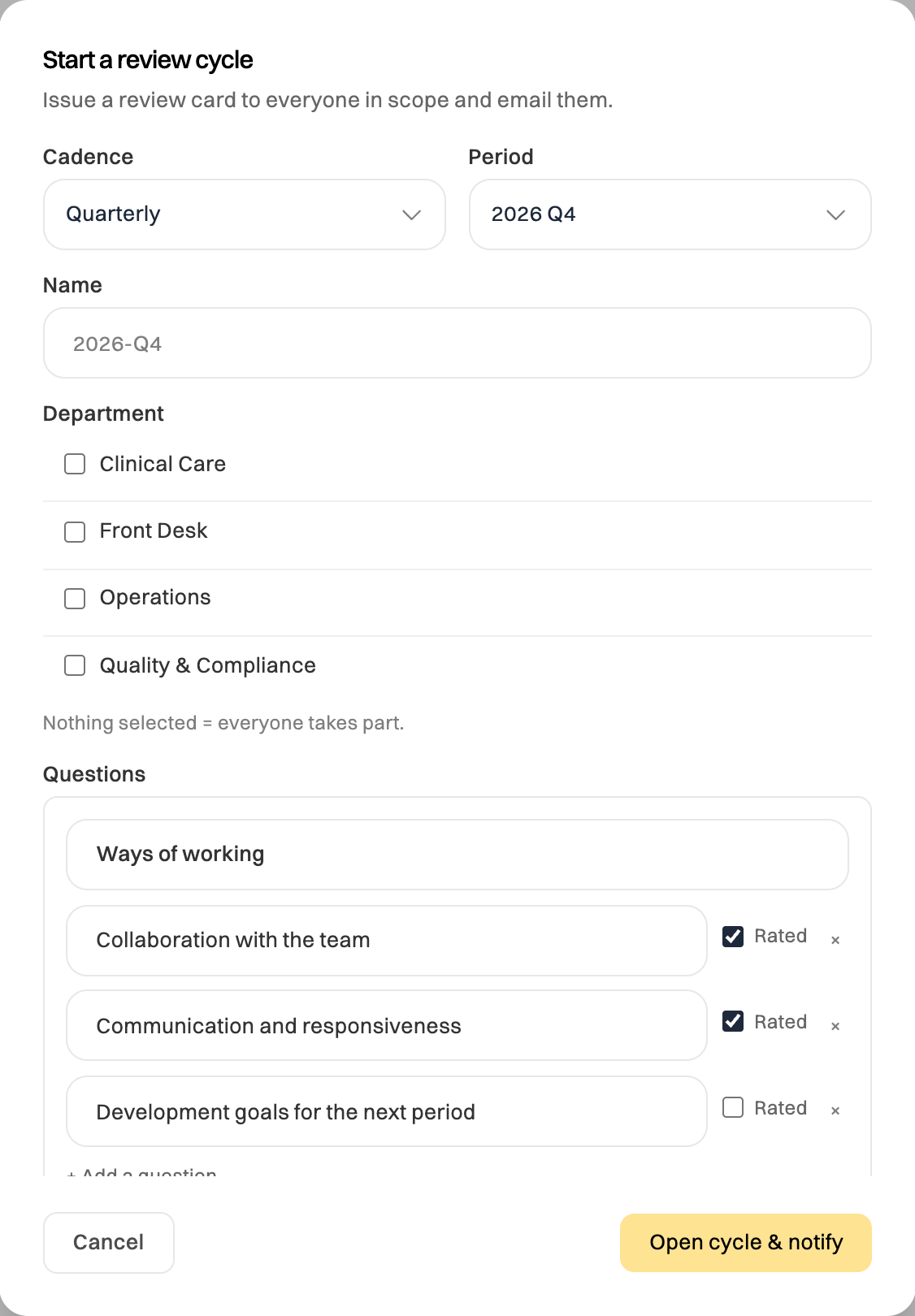
Each person’s individual KPIs are added to their card as extra questions. The questions can’t change once the cycle is open, but the dates can.
On the Cycles tab, click ⋯ next to a cycle to:
- Sync people: give a card to anyone who joined the organization or a department after the cycle opened.
- Roll forward: create the next period’s cycle from this one. KPIs marked Carry forward if unmet that weren’t met come with it.
To close a cycle, click it, then Close cycle. Every card in it is frozen.
Print or export a review
Section titled “Print or export a review”On a review card, click Print to print it or save it as a PDF, or Export to download it as a data file, with the answers and history.