
Export a document
Download a document as PDF, HTML, Markdown, ZIP or SCORM, and its video, slides and quiz.
Export a document to share it outside Wikidoc: print it, post it on your intranet, or load it into another learning system. You can export from the editor, or from Files without opening the document.
Export from the editor
Section titled “Export from the editor”-
Open the document, then click Export above it, next to Translate.
-
Click Download next to the format you want.
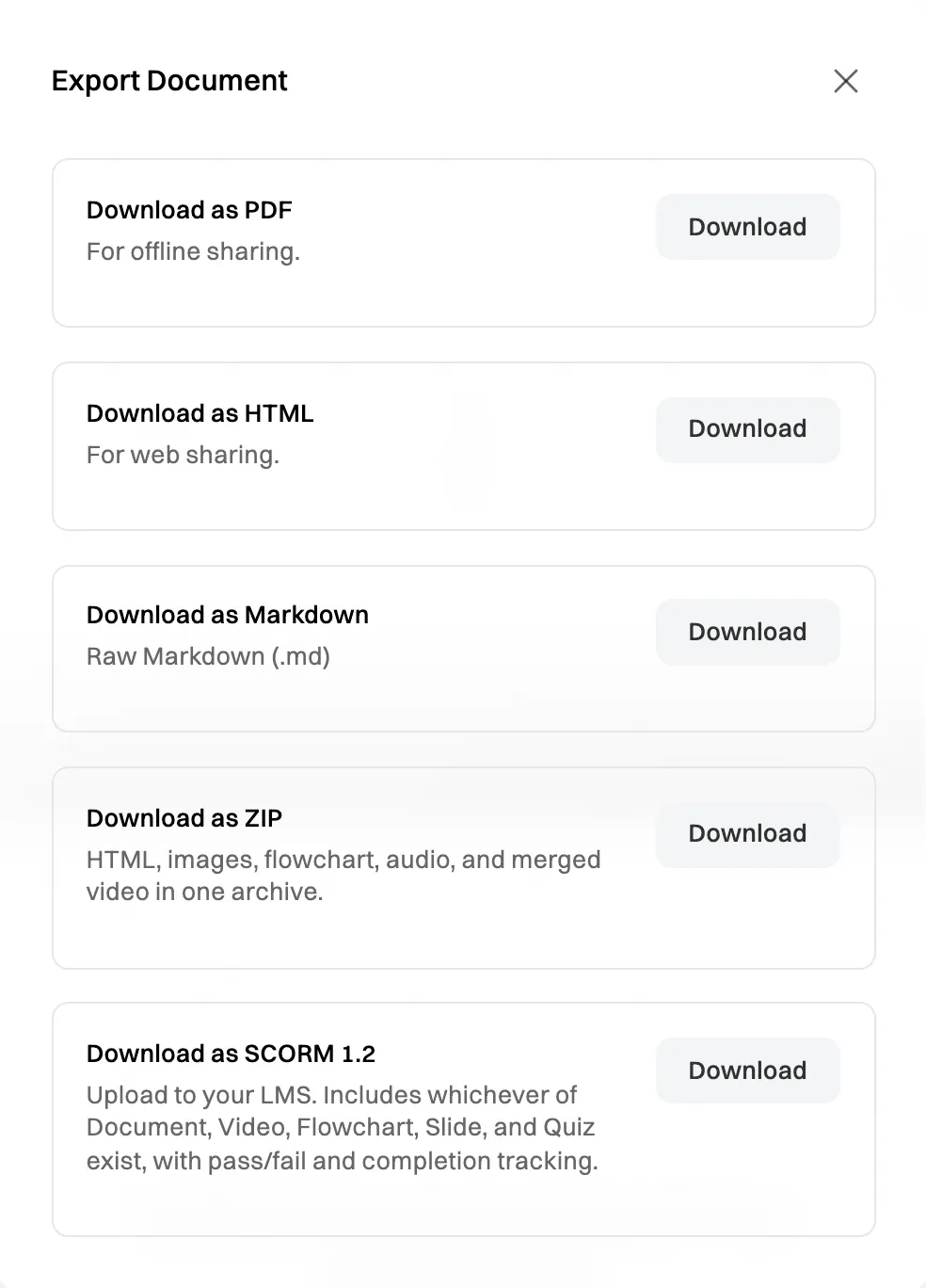
Choose a format and click Download.
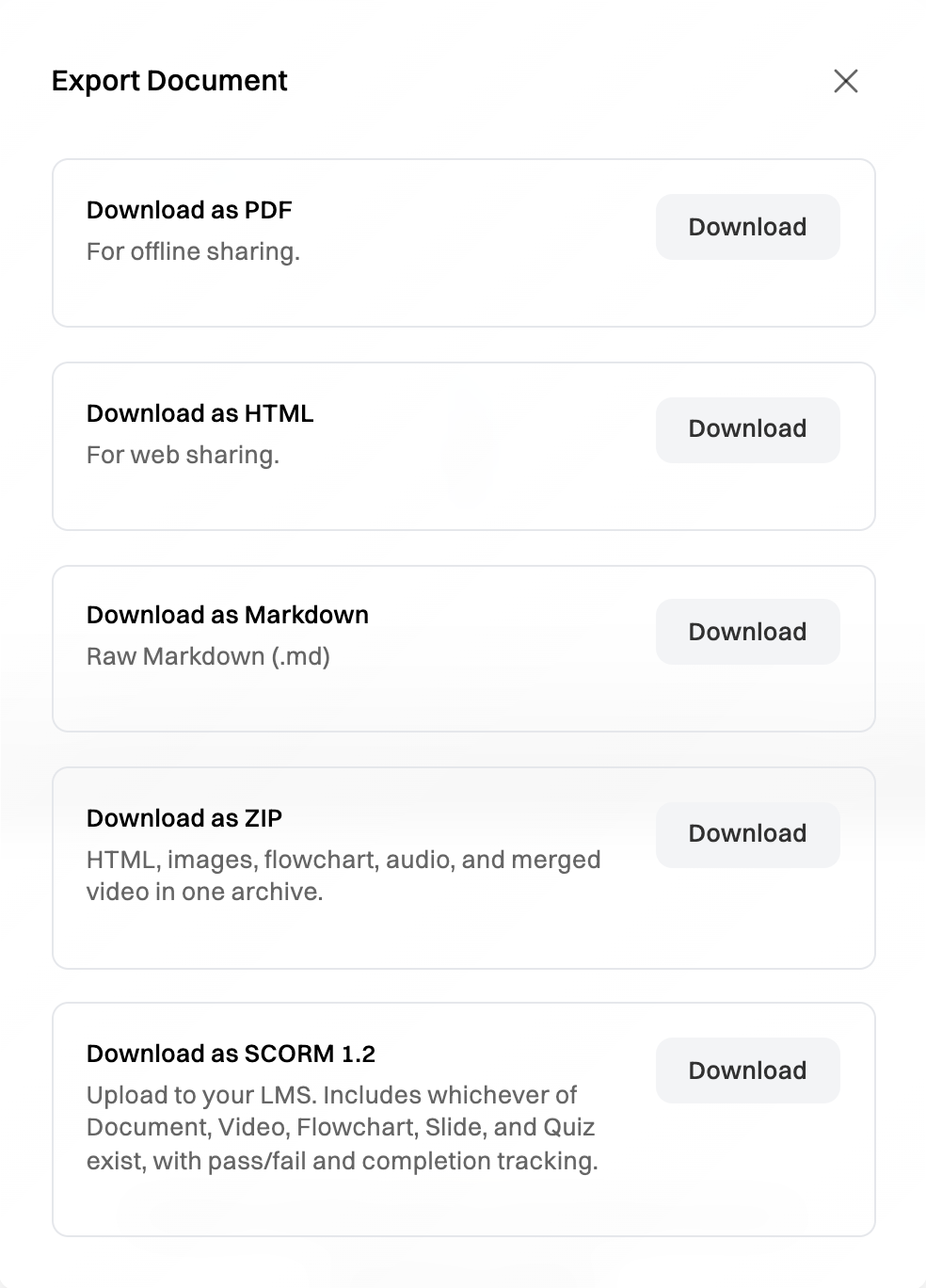
| Format | What you get | Use it to |
|---|---|---|
| The document with its screenshots, ready to print. | Print it, or attach it to an email. | |
| HTML | A web page with the screenshots inside it. | Post it on an intranet or a website. |
| Markdown | The text, as a .md file. |
Paste it into a wiki or another editor. |
| ZIP | The HTML and its images, plus the process map, narration audio and finished video, if the document has them. | Keep a full copy, or hand everything to someone else. |
| SCORM 1.2 | A package for a learning management system (LMS), with the document and whichever of the video, process map, slides and quiz it has. It records completion, and a pass or fail on the quiz. | Run the training in another LMS. See Export training as SCORM 1.2. |
ZIP and SCORM 1.2 are on the Pro and Team plans. On Free, they show Upgrade instead of Download.
Export from Files
Section titled “Export from Files”-
In Files, click ⋯ next to the document, then Preview.
-
Choose a tab (Document, Video, Slides or Quiz), then click Export at the top right.
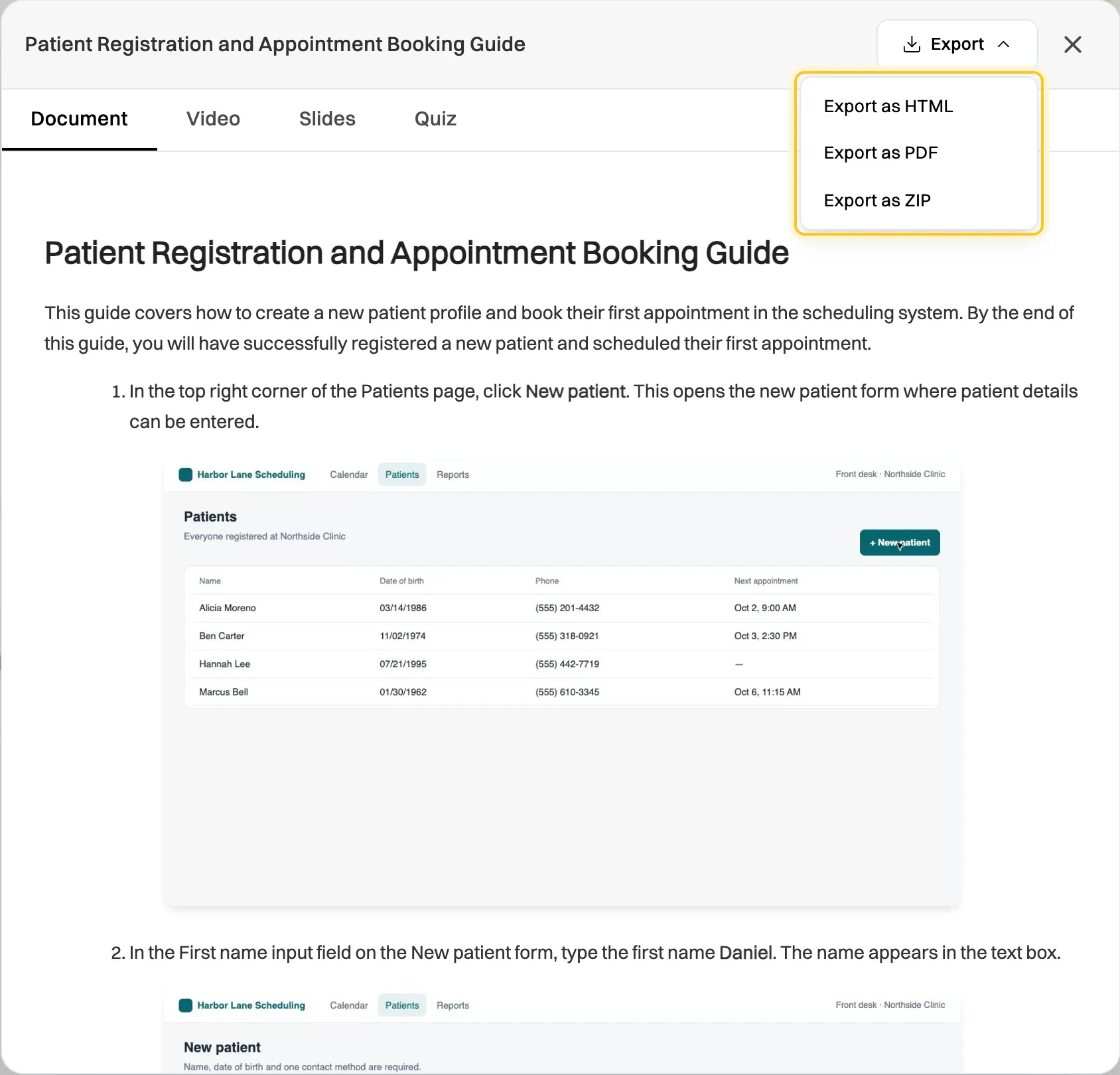
Each tab has its own export options.
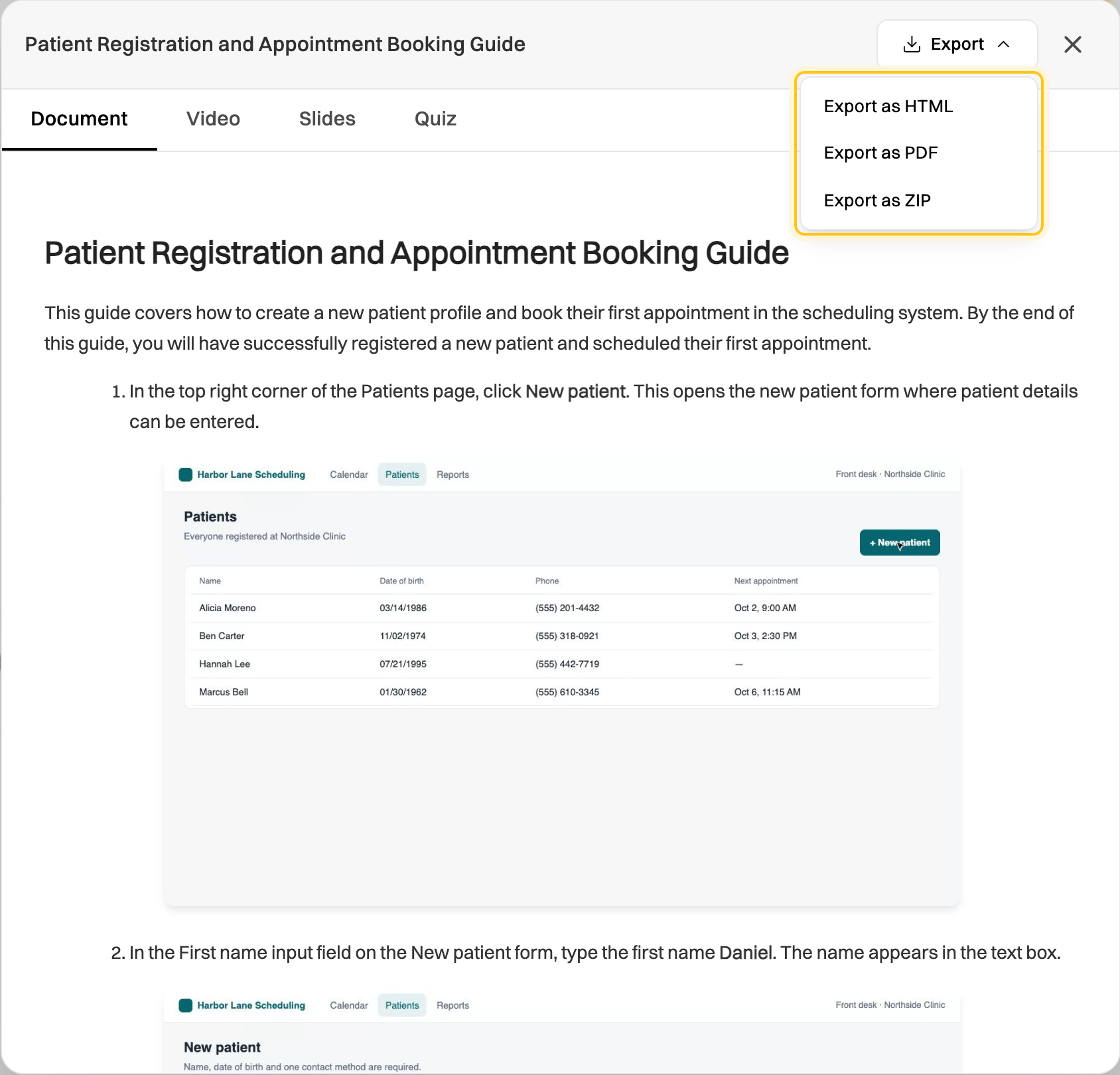
What each tab offers:
- Document: Export as HTML, Export as PDF or Export as ZIP. On Free, Export as ZIP has a lock and opens the upgrade options.
- Video: Download MP4, the finished narrated video. To choose MOV or a different quality, export from the video editor instead. See Create and edit an AI-narrated video.
- Slides: Export as PDF, or Export as PNG for a ZIP with one image per slide.
- Quiz: Export as QTI or Export as GIFT, on the Pro and Team plans. QTI works with most learning management systems, and GIFT is the format Moodle imports.
Before you share it
Section titled “Before you share it”Screenshots show exactly what was on screen when you recorded. Blur customer names, email addresses and account numbers before you send a document outside your organization.