
Create a process map
Generate a flowchart from a recording or a written description, or draw one yourself.
A process map shows a whole process as a flowchart: each step, who does it, and where the process branches. The quickest way to make one is to describe the process out loud or in writing, and let Wikidoc draw it.
Start a new map
Section titled “Start a new map”-
Click Process in the sidebar, then + New process map.
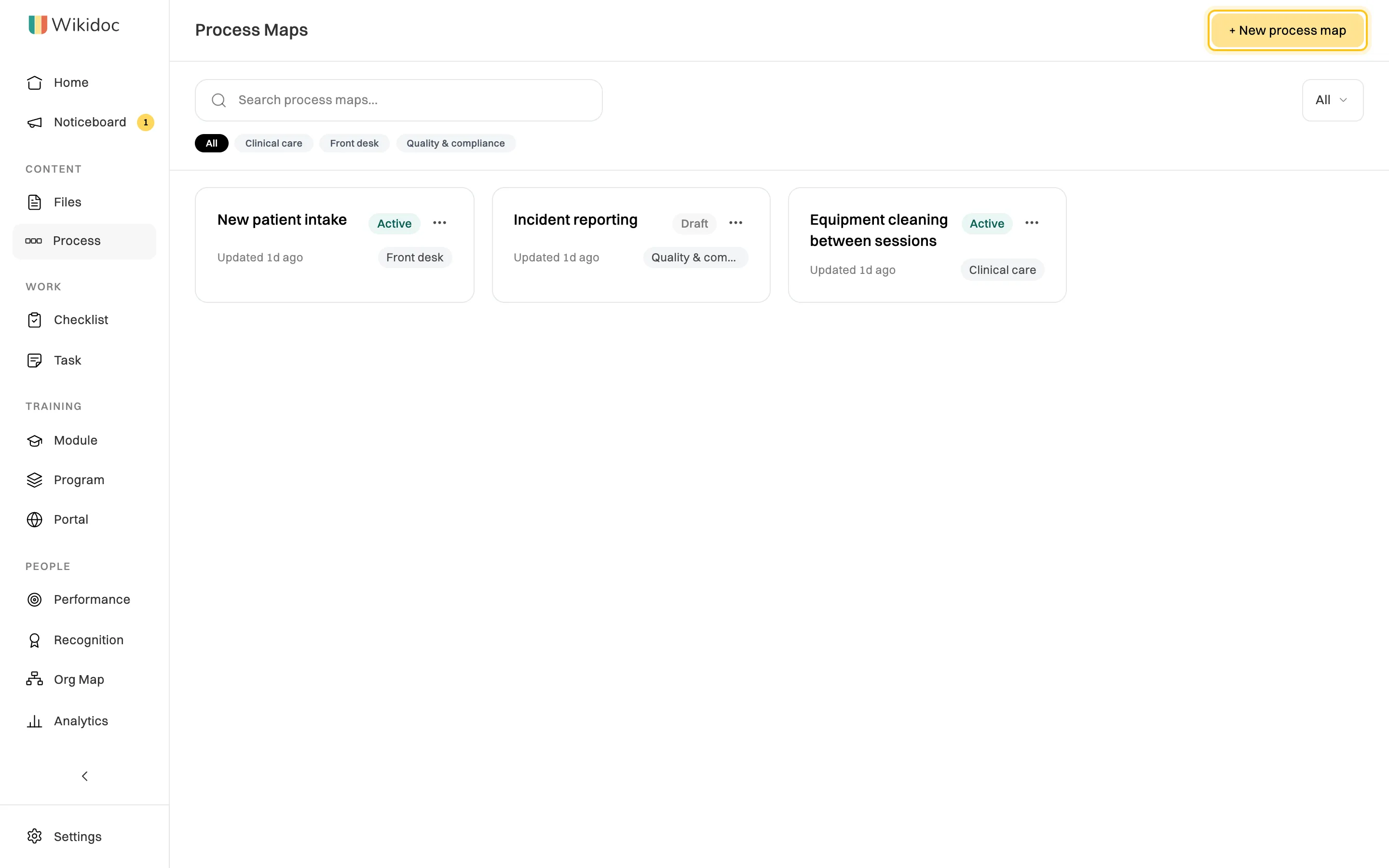
Your organization's process maps, with their status and category. A new map called Untitled Process Map opens. Click the name at the top to rename it.
-
Choose where the process comes from, in the Source panel on the left:
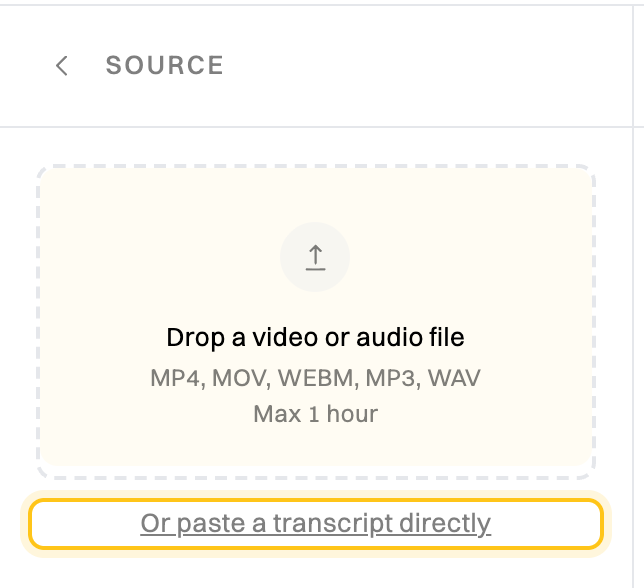
- A recording. Drop a video or audio file of someone explaining the process on the panel, or click it to choose one: MP4, MOV, WEBM, MP3 or WAV, up to an hour long. Wikidoc transcribes it. This can take up to 30 minutes for a long recording, and carries on if you leave the page.
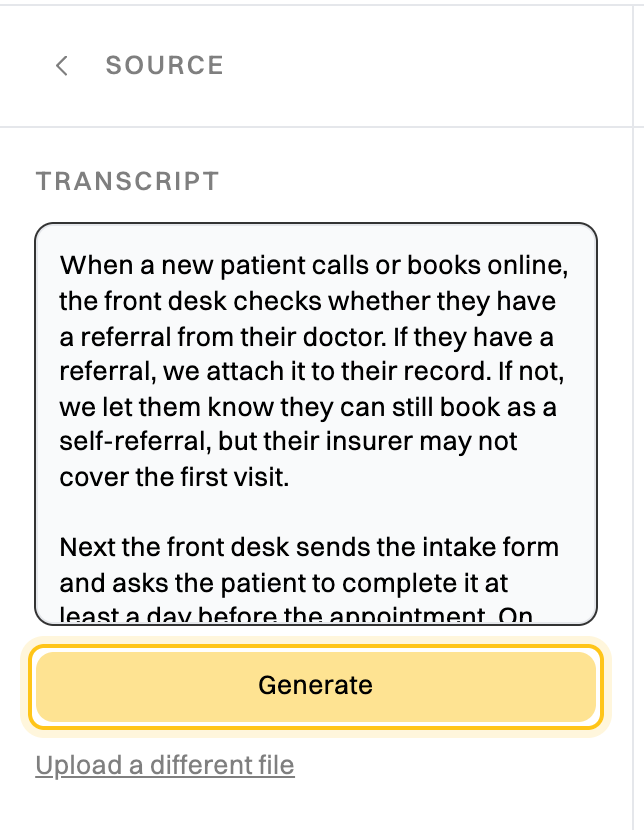
- A description. Click Or paste a transcript directly, and paste or type how the process works.
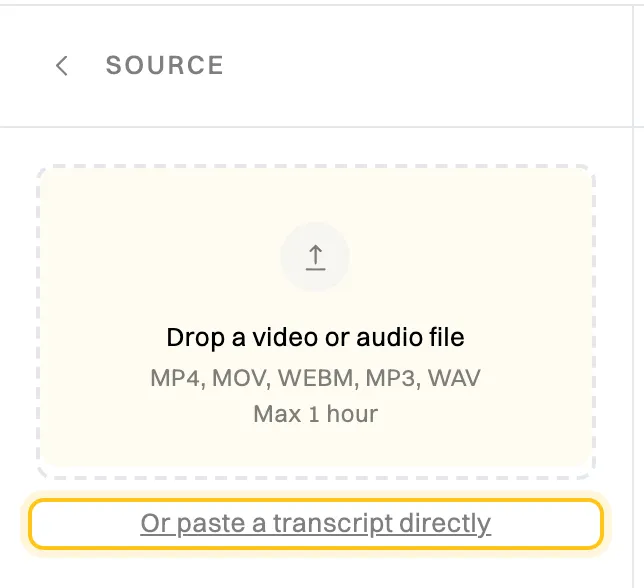
Record the process, or write it down. -
Check the transcript, correct anything that’s wrong, and click Generate.
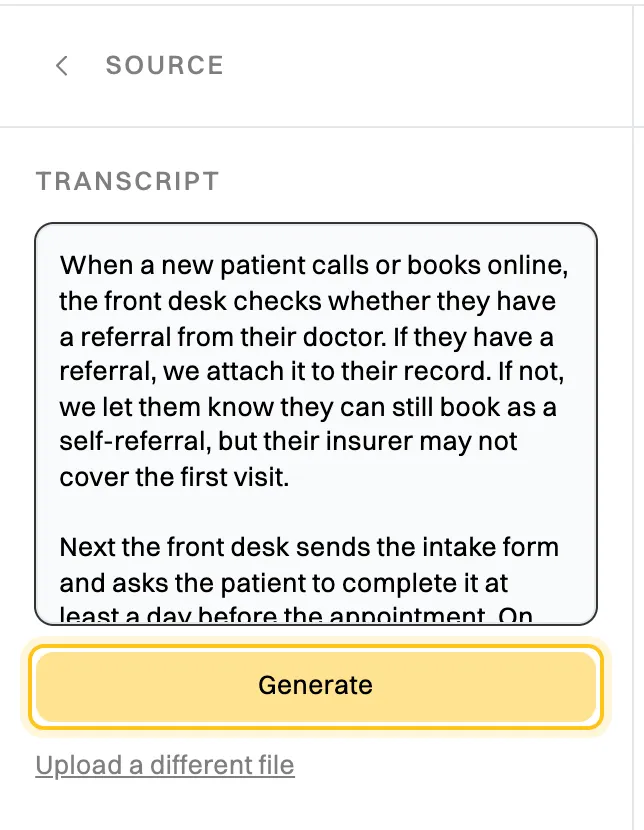
Generating usually takes under a minute.
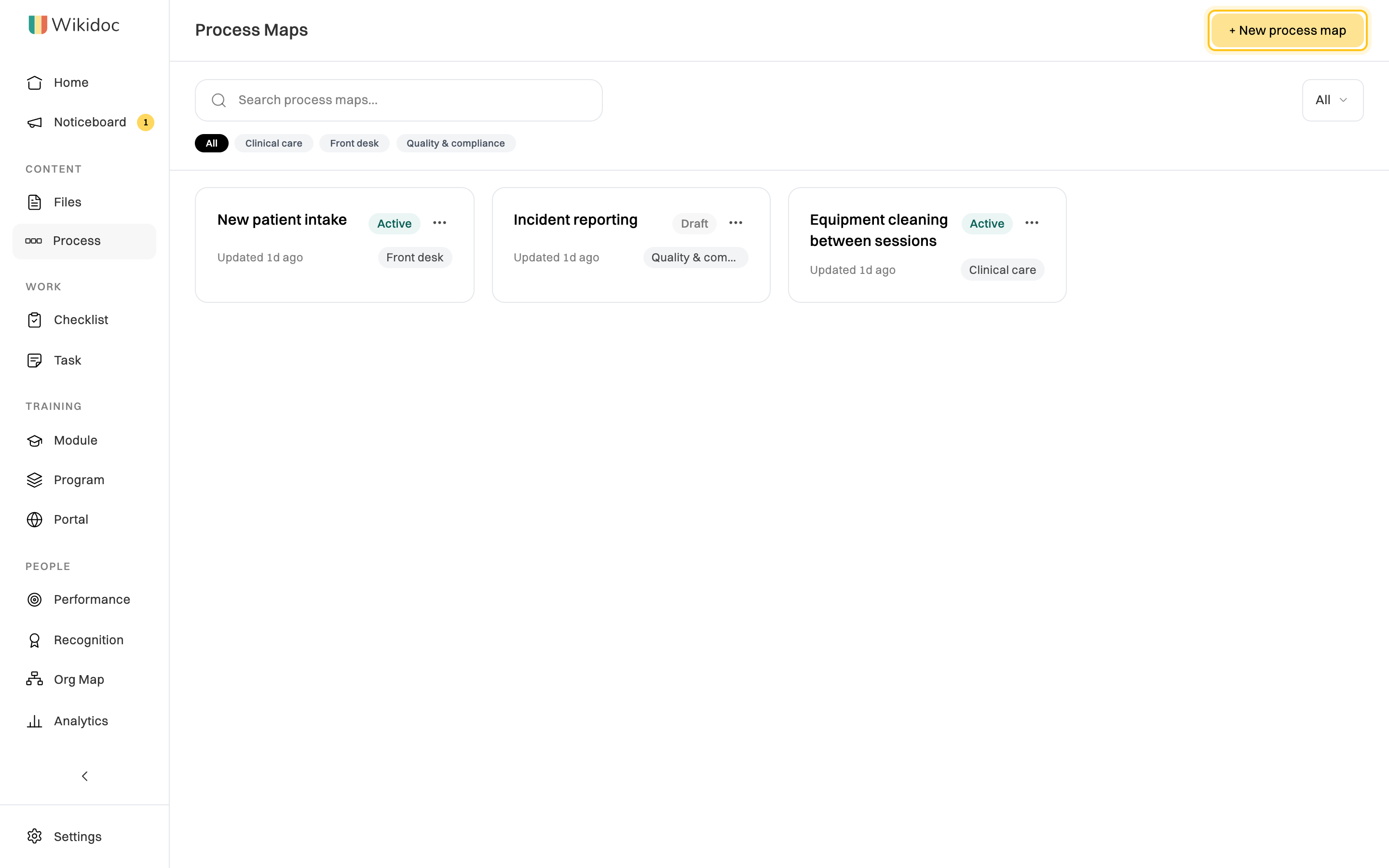
Wikidoc draws the map. When more than one role is involved, each role gets its own lane, and every decision (“Has referral?”) becomes a diamond with a labeled branch for each answer.
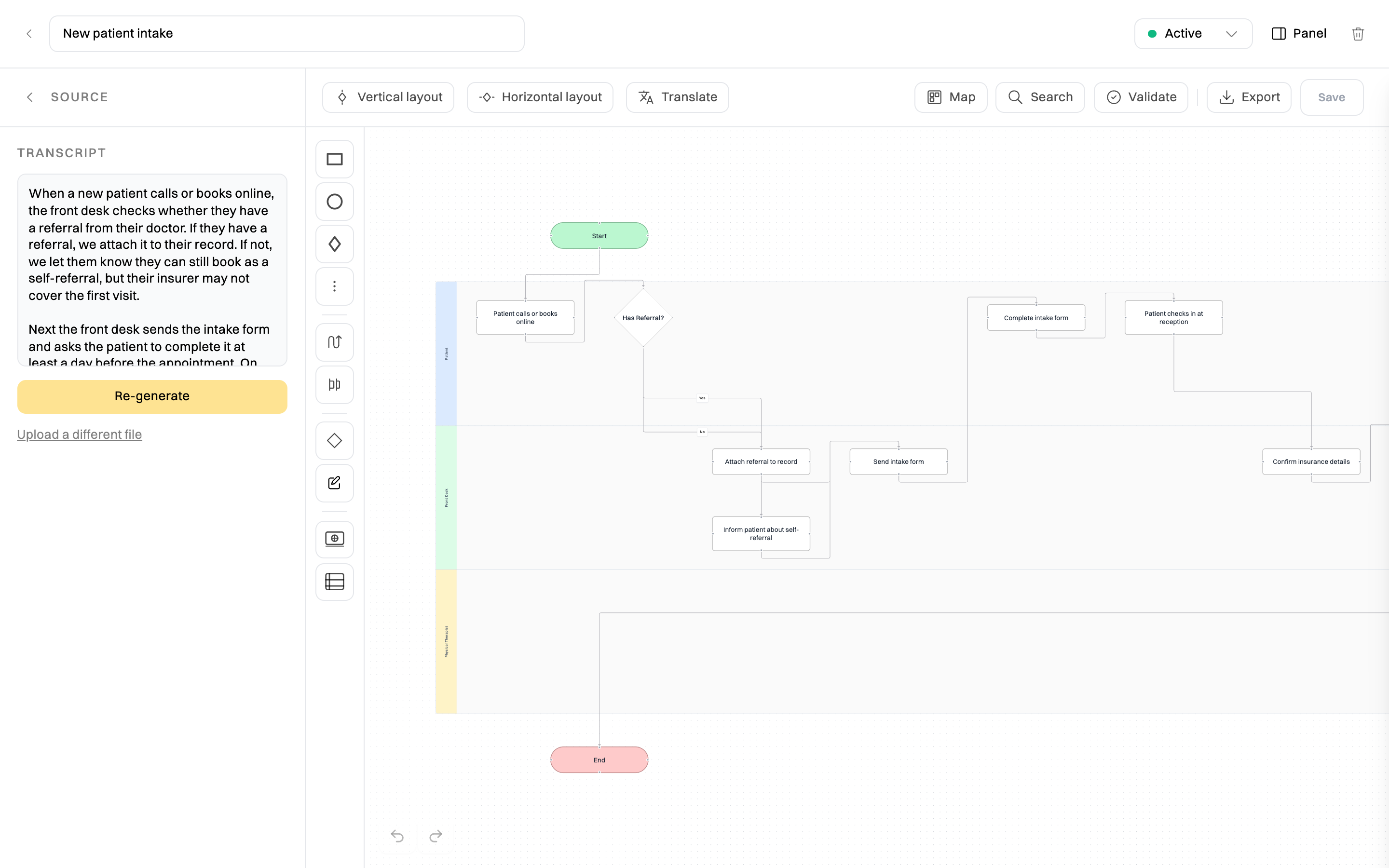
The new map is saved as a Draft. When it’s ready for your team, change its status to Active with the menu next to its name.
Write a description that maps well
Section titled “Write a description that maps well”- Say who does each step: “the front desk sends the form”, not “the form is sent”.
- Say what happens at each decision, for every answer: “If they have a referral, we attach it. If not, we tell them…”
- Keep to the order it happens in, from the first thing to the last.
- One process per map. If a step is a whole process of its own, map it separately.
Draw a map yourself
Section titled “Draw a map yourself”You don’t have to generate a map. On a new map, drag shapes from the toolbar onto the canvas: steps, decisions, sticky notes, subprocesses and swimlanes. Drag from the edge of one shape to another to connect them.
Save your changes
Section titled “Save your changes”A generated map is saved as soon as it appears. After that, your edits are saved when you click Save, or press ⌘S (Ctrl+S on Windows). If you try to leave with unsaved changes, Wikidoc asks whether to save them.
To start again from the transcript, click Re-generate. This replaces the map on the canvas.
Who can see and edit it
Section titled “Who can see and edit it”Everyone in your organization can open a process map. Only the person who created it, and Admins, can edit it.
If you signed up with a personal email address and haven’t joined an organization, your process maps are in your own private space, and only you can see them.
If something goes wrong
Section titled “If something goes wrong”“Process map quota reached (3 on free plan)…” You have three process maps on the Free plan. Delete one you no longer need, or upgrade to Pro.
“No speech detected”. The recording has no speech Wikidoc can hear. Try another file, or type the description instead.
“Transcription failed”. Click Try again and upload the file again.
“Editor role or above required”. Viewers can open process maps but can’t create them. Ask an Admin for the Editor role.