
Change a member's role
Give someone more or less access, and what to do if you're the only Admin.
A member’s role decides what they can do everywhere in Wikidoc: Viewer, Editor, Manager or Admin. Change it when someone’s job changes, for example when an Editor becomes a team lead. For what each role can do, see Roles and permissions.
Change a role
Section titled “Change a role”-
Go to Settings›Access.
-
Find the member, then click their current role, for example Editor.
-
Choose the new role.
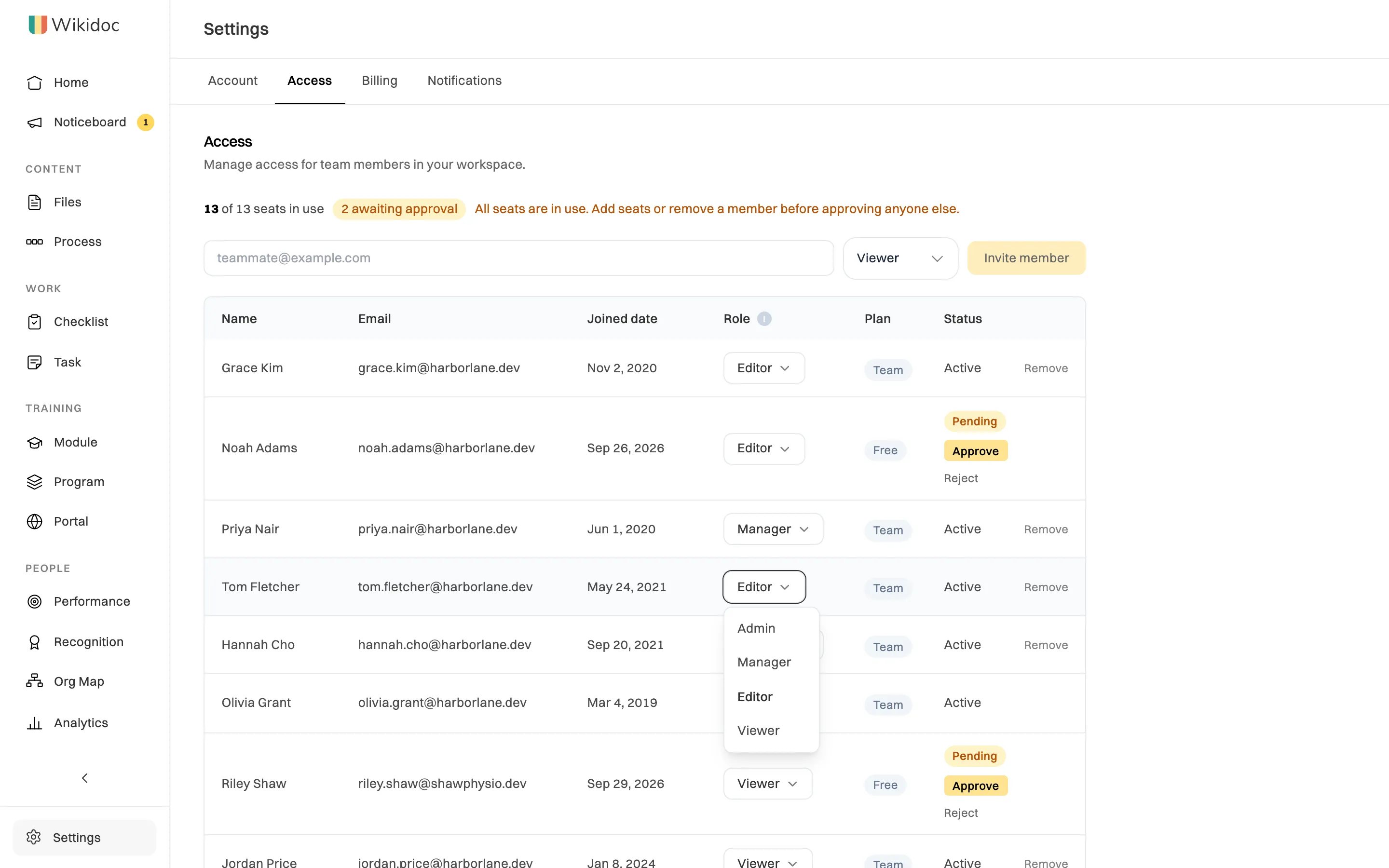
Click the role on a member's row to change it.
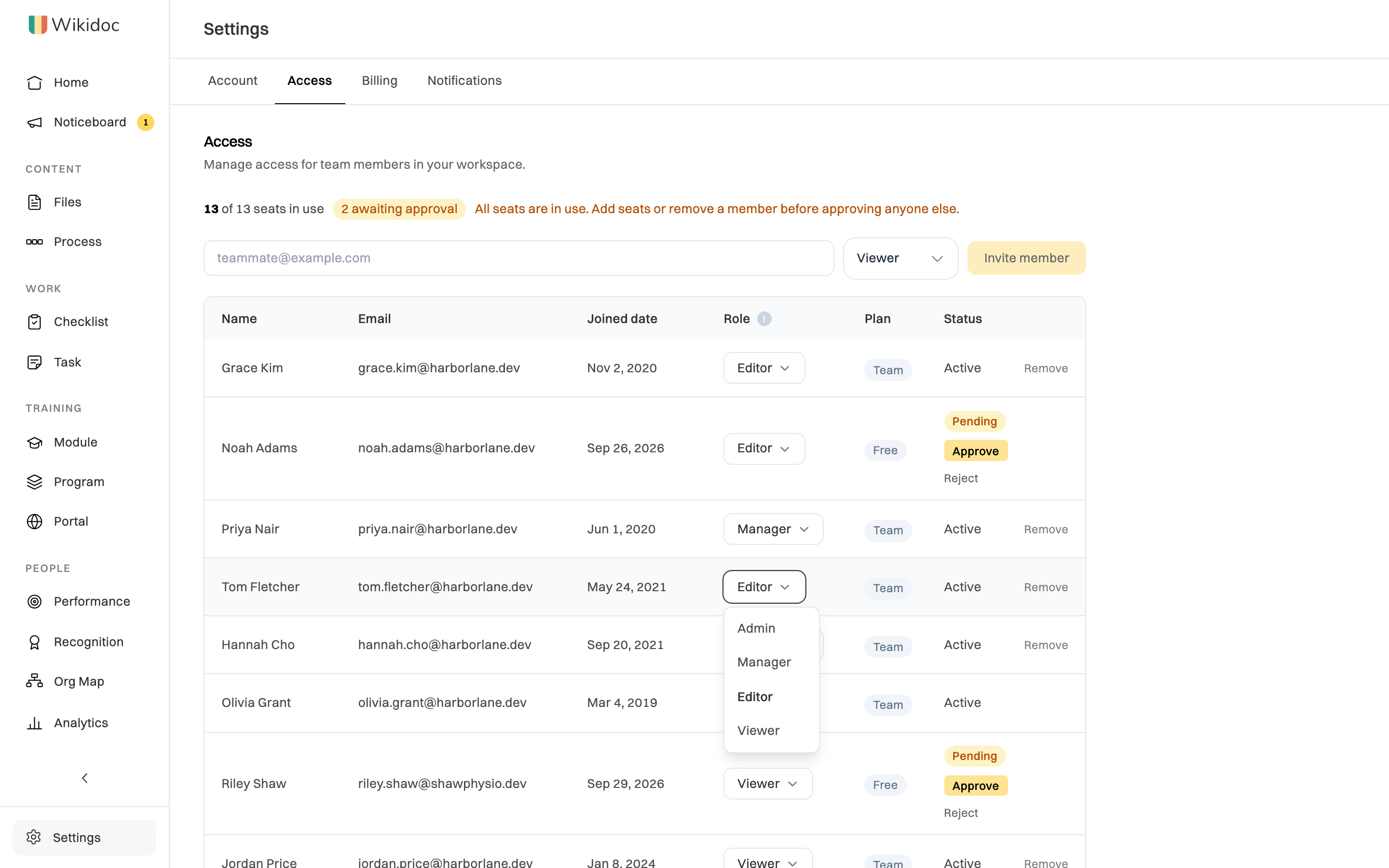
The change saves straight away. You’ll see Saving… next to the role for a moment. There’s no separate save button.
What happens next
Section titled “What happens next”- The new role applies straight away, on every page the member opens from now on.
- We email them to tell them their new role. They won’t get an email if nothing changed, or if you changed your own role.
- If you changed your own role, the app updates for you right away. For example, if you’re no longer an Admin, the invite form disappears.
You can’t change your own role if you’re the only Admin
Section titled “You can’t change your own role if you’re the only Admin”An organization always needs at least one Admin, or nobody could approve requests or manage members. If you’re the only one, your own role is grayed out. Hover over it to see why: You are the only Admin. Promote another member to Admin before changing your own role.
To step down:
- Change another member’s role to Admin.
- Then change your own role.
Members from other domains
Section titled “Members from other domains”You can change the role of anyone in your organization, including contractors and others whose email address is at a different domain.
Invited and pending members
Section titled “Invited and pending members”- Invited members haven’t signed up yet, so their role is shown as text. They’ll join with that role. To give them a different one, remove them and invite them again.
- Pending requests: changing the role on their row sets the role they’ll get when you approve them. It doesn’t change anything for them yet, and we don’t email them. See Approve or decline a request to join.