
Generate slides and quizzes
Make a slide deck and a quiz from the same recording as a document, then edit, present and export them.
From one recording, Wikidoc can make a step-by-step document, a slide deck to train people with, and a quiz to check they’ve understood. The slides and the quiz follow the same steps as the document.
Choose slides and a quiz when you create the document
Section titled “Choose slides and a quiz when you create the document”When you create a document, switch on Slide and Quiz under Content Type before you click Generate.
- The slide deck has a title slide, an agenda, a divider for each part of the task, and a slide for each step, with its instructions as bullet points, its screenshot and speaker notes.
- The quiz has multiple-choice questions about the steps: 3 for a recording under two minutes, up to 10 for one over seven minutes. The passing score starts at 80%.
Choose them at the start. Once a document is created, what it includes is fixed: the Content Type switches are grayed out, with Content types are chosen when a document is created. You can edit what this document has, but not add to it. You can still edit its slides and quiz. To add them to a document that doesn’t have them, create the document again from the same recording, with Slide or Quiz switched on.
On the Free plan you can make three slide decks and three quizzes. Pro and Team have no limit.
View and present the slides
Section titled “View and present the slides”Open the document and click Open Slides. Click a thumbnail at the bottom to go to that slide.
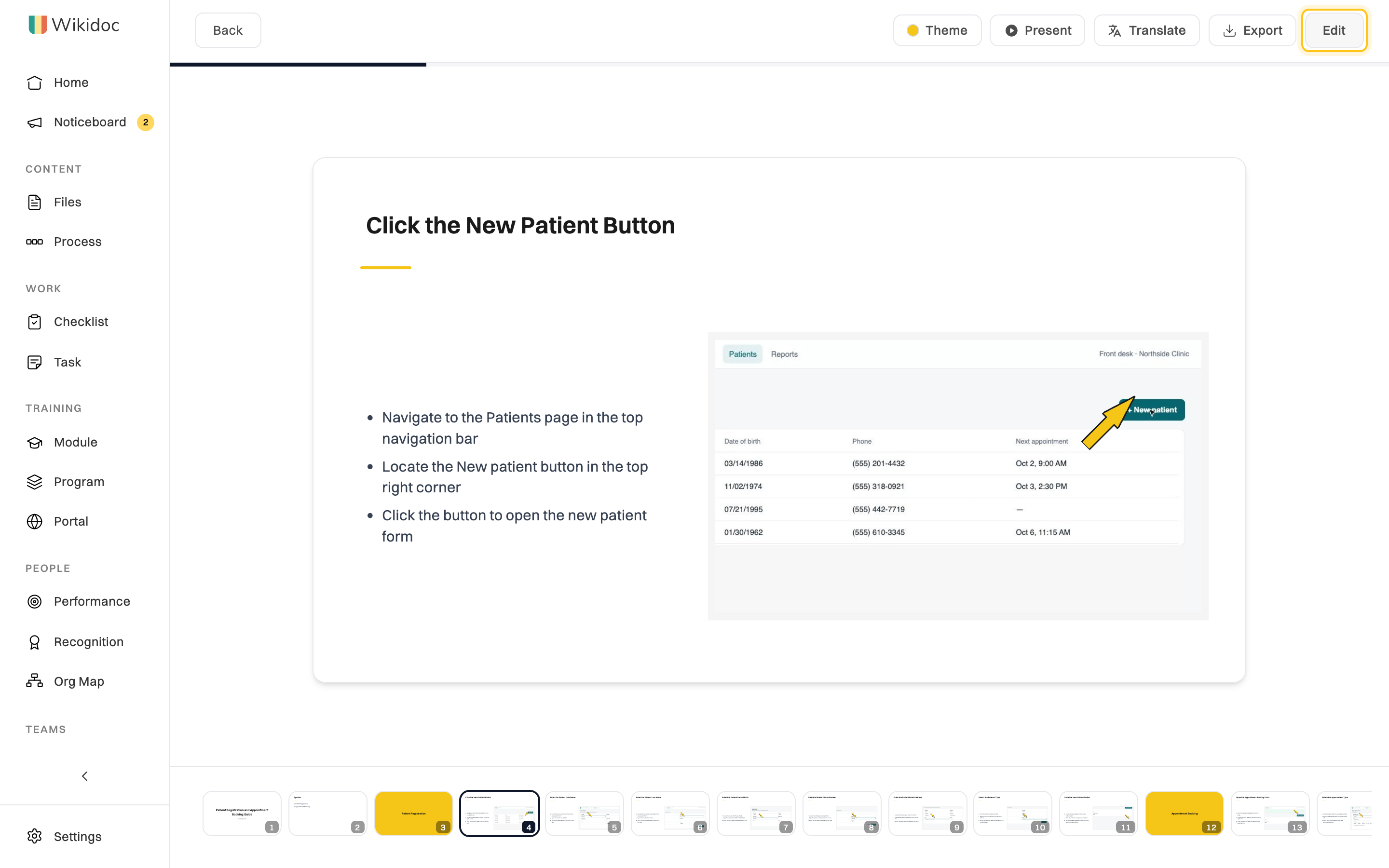
- Present shows the deck full screen. Press N to see your speaker notes, and Esc to stop.
- Theme changes the colors and fonts, and the slide size: Widescreen (16:9), Standard (4:3) or A4 landscape for printing.
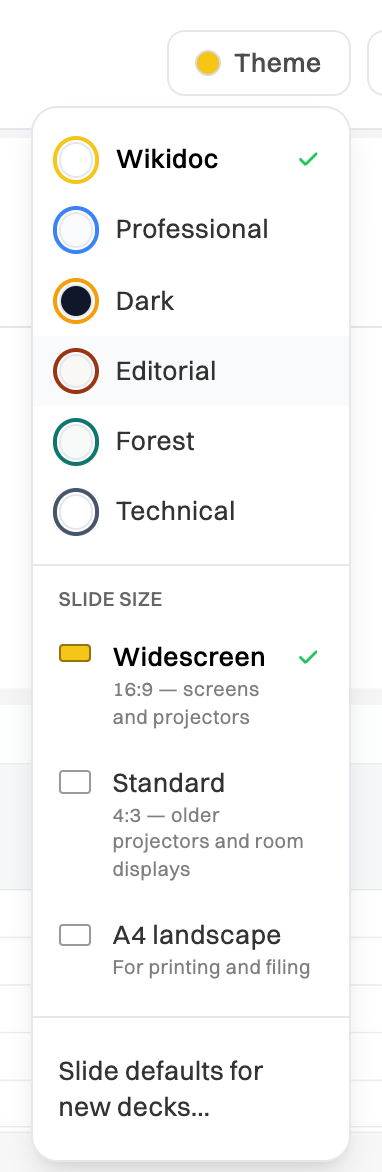
Admins can set the theme and other defaults every new deck in the organization starts with, from Slide defaults for new decks… at the bottom of the menu.
Edit the slides
Section titled “Edit the slides”-
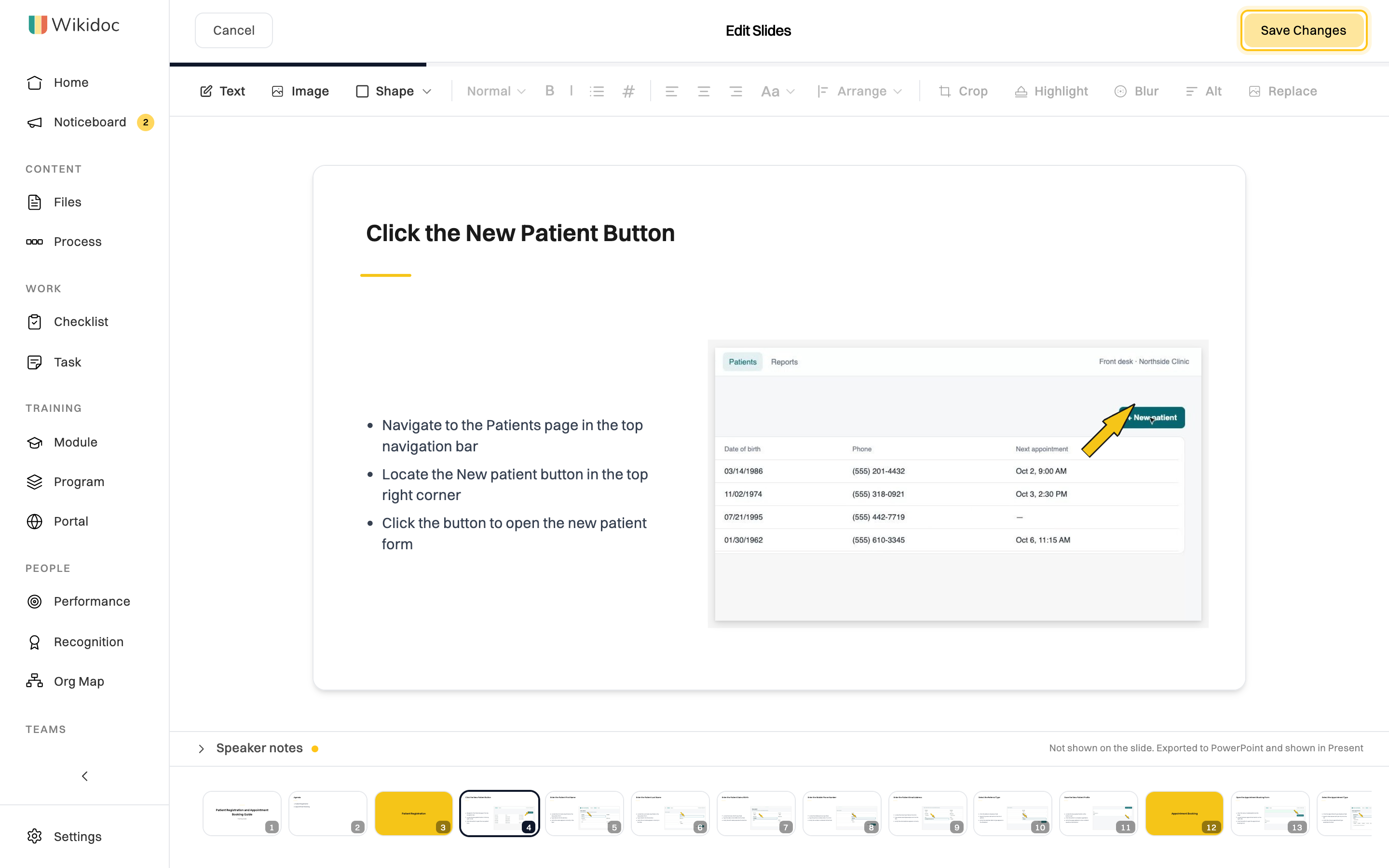
Click Edit.
-
Click any text on a slide to change it. The toolbar adds Text, an Image (including a frame from the recording) or a Shape, formats text, and arranges what’s on the slide. For a screenshot, you can Crop, Highlight or Blur part of it, give it Alt text for screen readers, or Replace it.
-
Write what the presenter should say under Speaker notes.
-
To add a slide, use the button at the end of the thumbnails. Each thumbnail has buttons to duplicate or delete its slide.
-
Click Save Changes, or Cancel to throw away your changes.
Export the slides
Section titled “Export the slides”Click Export:
- PowerPoint (.pptx): opens in PowerPoint or Keynote, with the text, screenshots, speaker notes, alt text and theme colors.
- PDF: the slides with real, searchable text. Choose Notes pages or Handout, 3 per page to print them with notes or as a handout.
- Download as PNG (ZIP): each slide as an image.
The quiz
Section titled “The quiz”Click Open Quiz to take it the way a learner would, one question at a time.
To change it, click Edit:
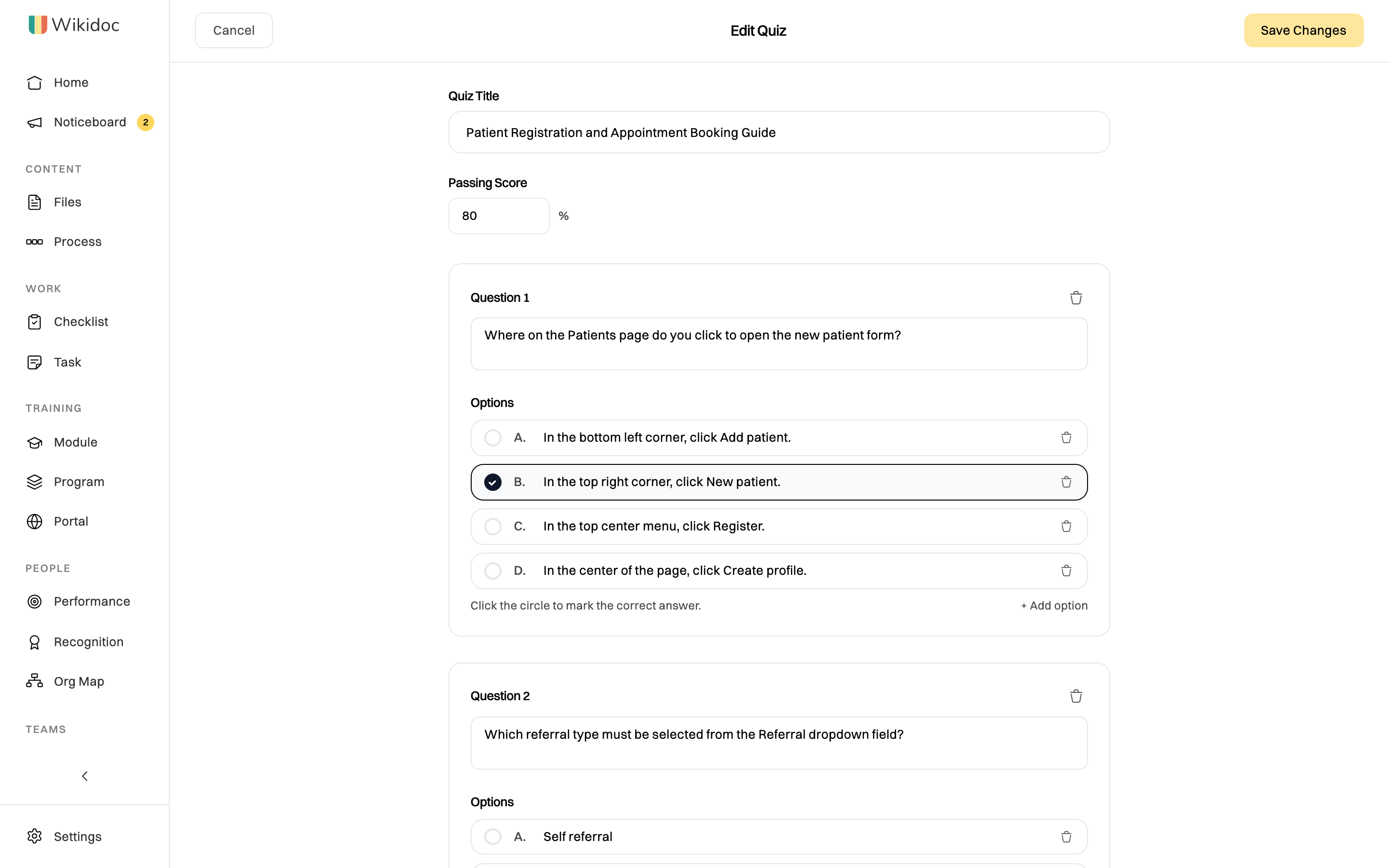
- Change the Quiz Title and the Passing Score.
- Change a question or its answers. Click the circle next to an answer to make it the correct one.
- + Add option adds an answer to a question, and + Add Question adds a question. The bin icons delete them.
Click Save Changes when you’re done.
On the Pro and Team plans, Export downloads the quiz as QTI, which most learning management systems import, or GIFT, for Moodle.
Use them in training
Section titled “Use them in training”To assign the slides and quiz to people and see who passes, turn the document into a training module. See Build a training module.