
Request and give approval on a document
Send a document for approval, and approve or reject one you've been asked to review.
An approval is a sign-off that a document is correct: a manager confirms that a procedure is the way your team should work. Wikidoc records who approved it, when, and any note they left.
How approval works
Section titled “How approval works”- An Admin chooses the document’s approvers: Managers or Admins.
- The author clicks Request Approval. The approvers are notified.
- An approver clicks Approve or Reject, and can add a note. The author and the document’s owners are notified.
Nobody can approve a document they created, even an Admin. That keeps every sign-off independent.
A document’s approval is one of Not submitted, Pending review, Approved or Rejected. It shows next to the document in Files, and at the top of the editor.
Choose the approvers
Section titled “Choose the approvers”Admins do this once for each document that needs approval.
-
Open the document’s governance details: in Files, click ⋯ next to it, then Governance. Or open the document and click Panel.
-
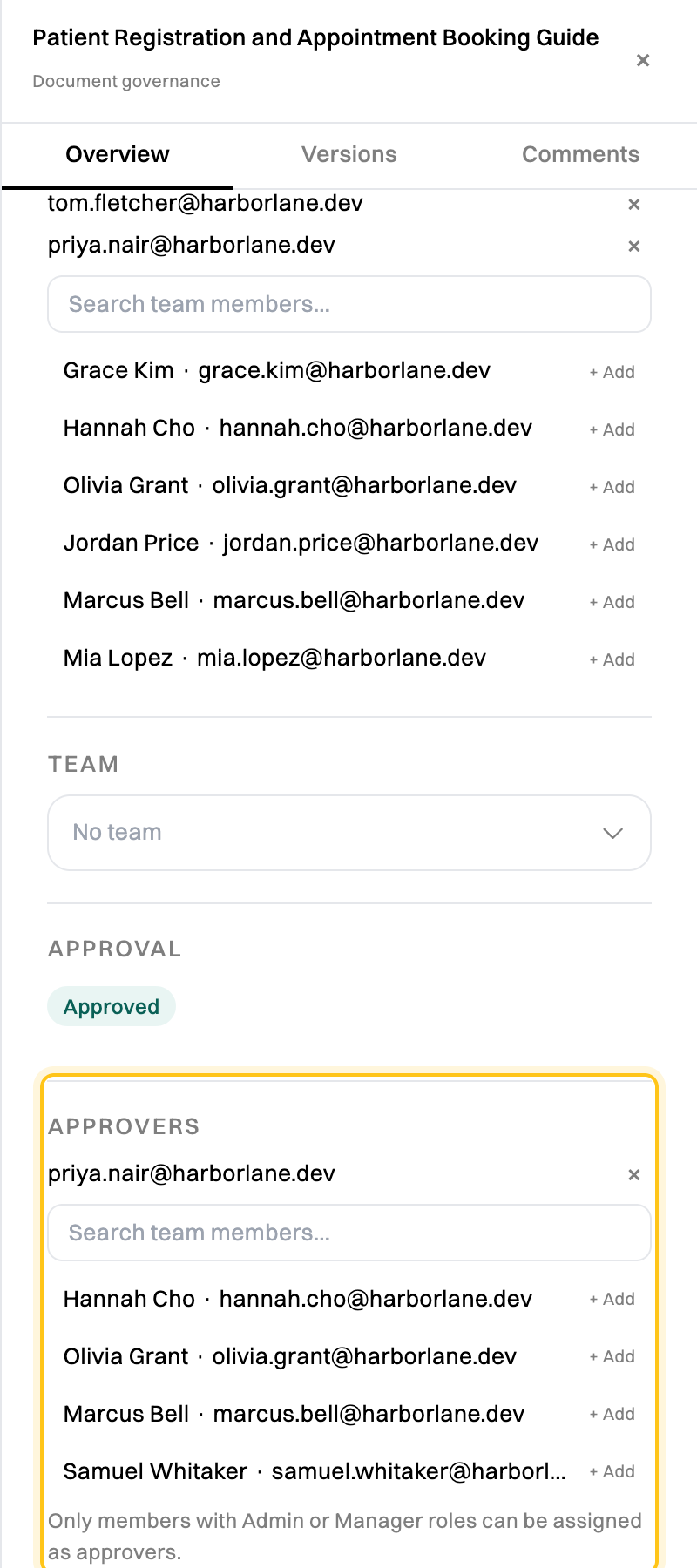
Under Approvers, search for a Manager or Admin and click + Add.
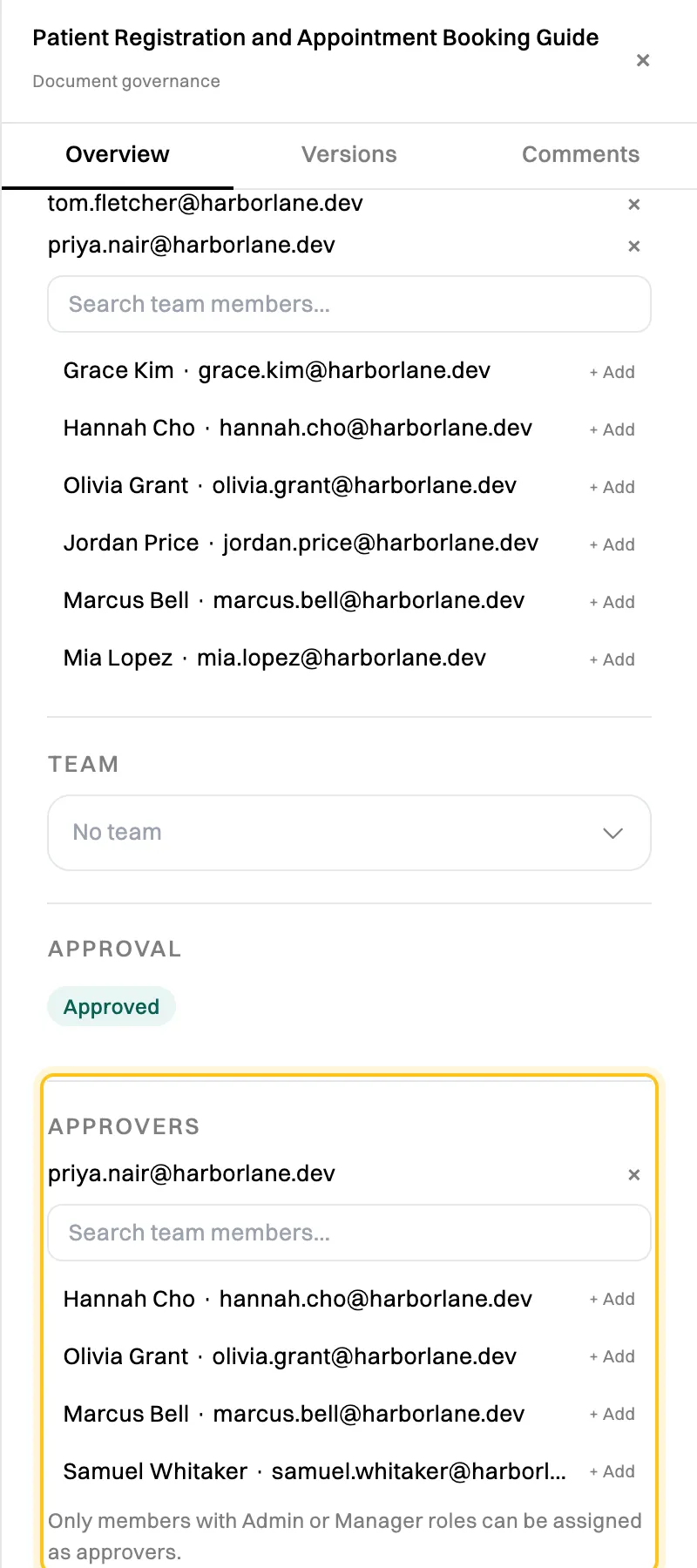
Only Managers and Admins can be approvers.
Request approval
Section titled “Request approval”-
Open the document and click Panel at the top right. Or, in Files, click ⋯ next to it, then Governance.
-
Under Approval, click Request Approval.
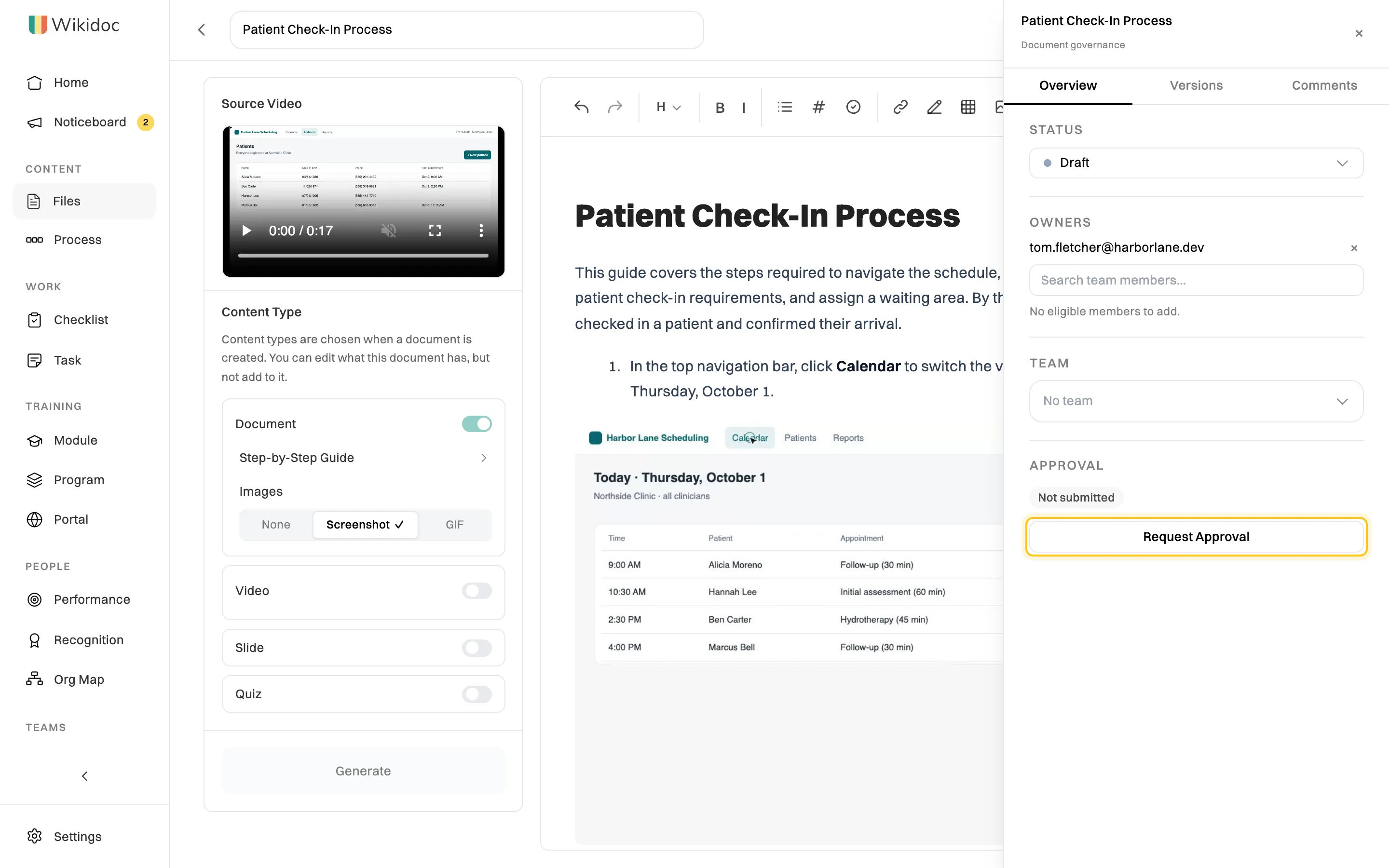
Request Approval sends the document to its approvers.
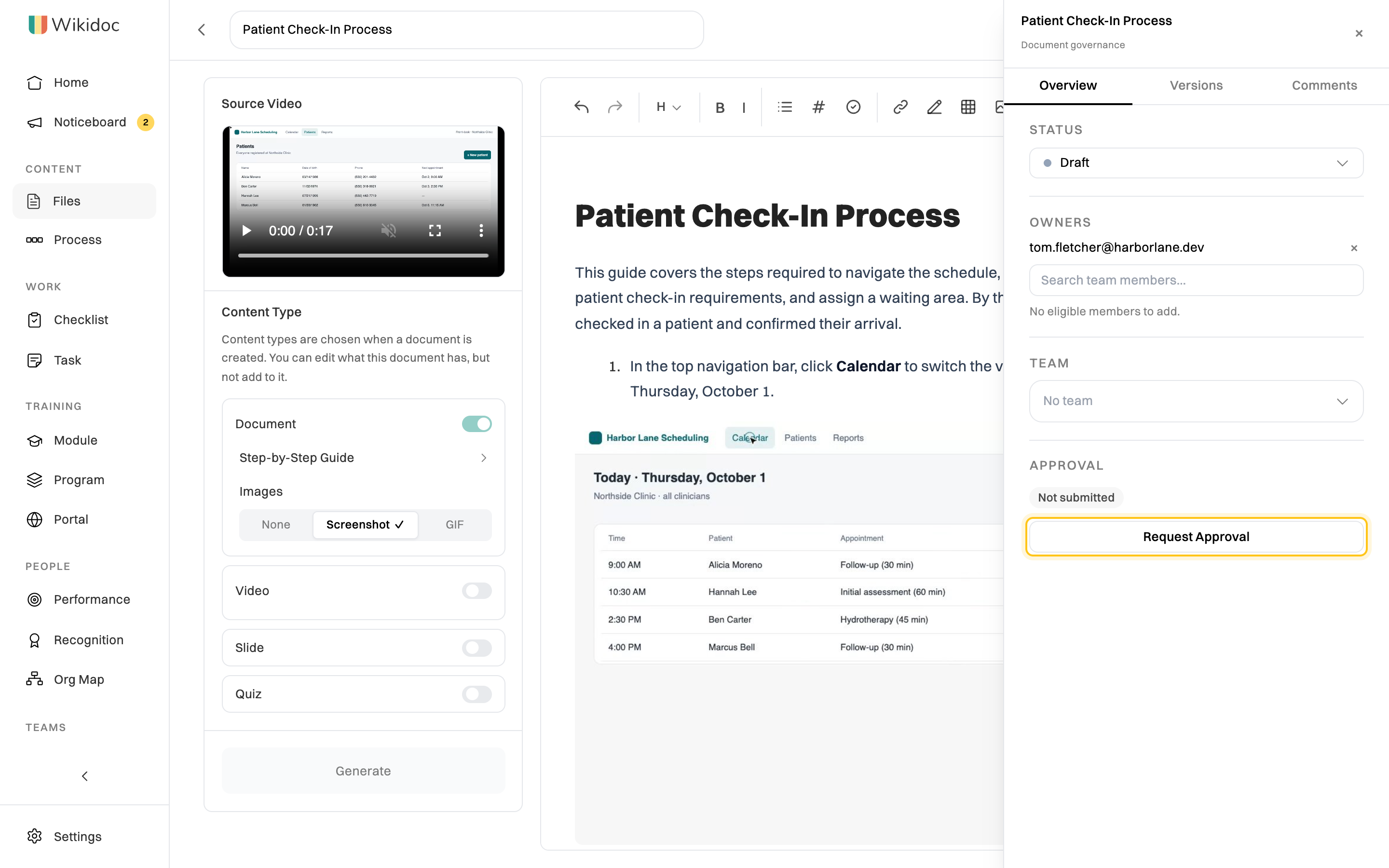
The approval changes to Pending review, and each approver gets an email and a notification.
If Request Approval is grayed out with No approvers are assigned yet, ask an Admin to choose approvers first.
Approve or reject a document
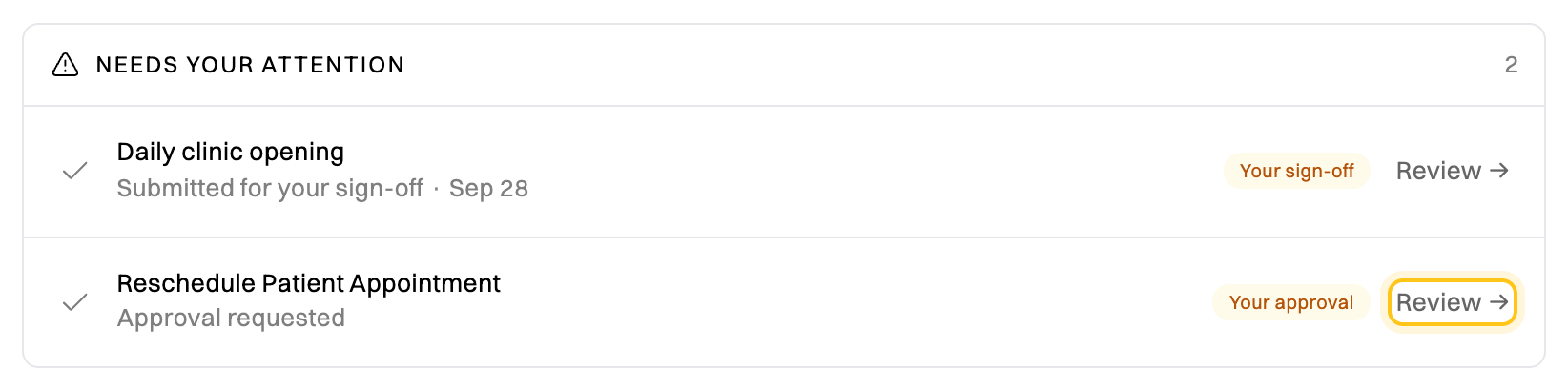
Section titled “Approve or reject a document”When you’re asked to approve a document, it appears on your Home under Needs your attention.
-
Click Review, or the link in your email, to open the document. Then click Panel at the top right.
-
Read the document. Then, under Approval, click Approve or Reject.
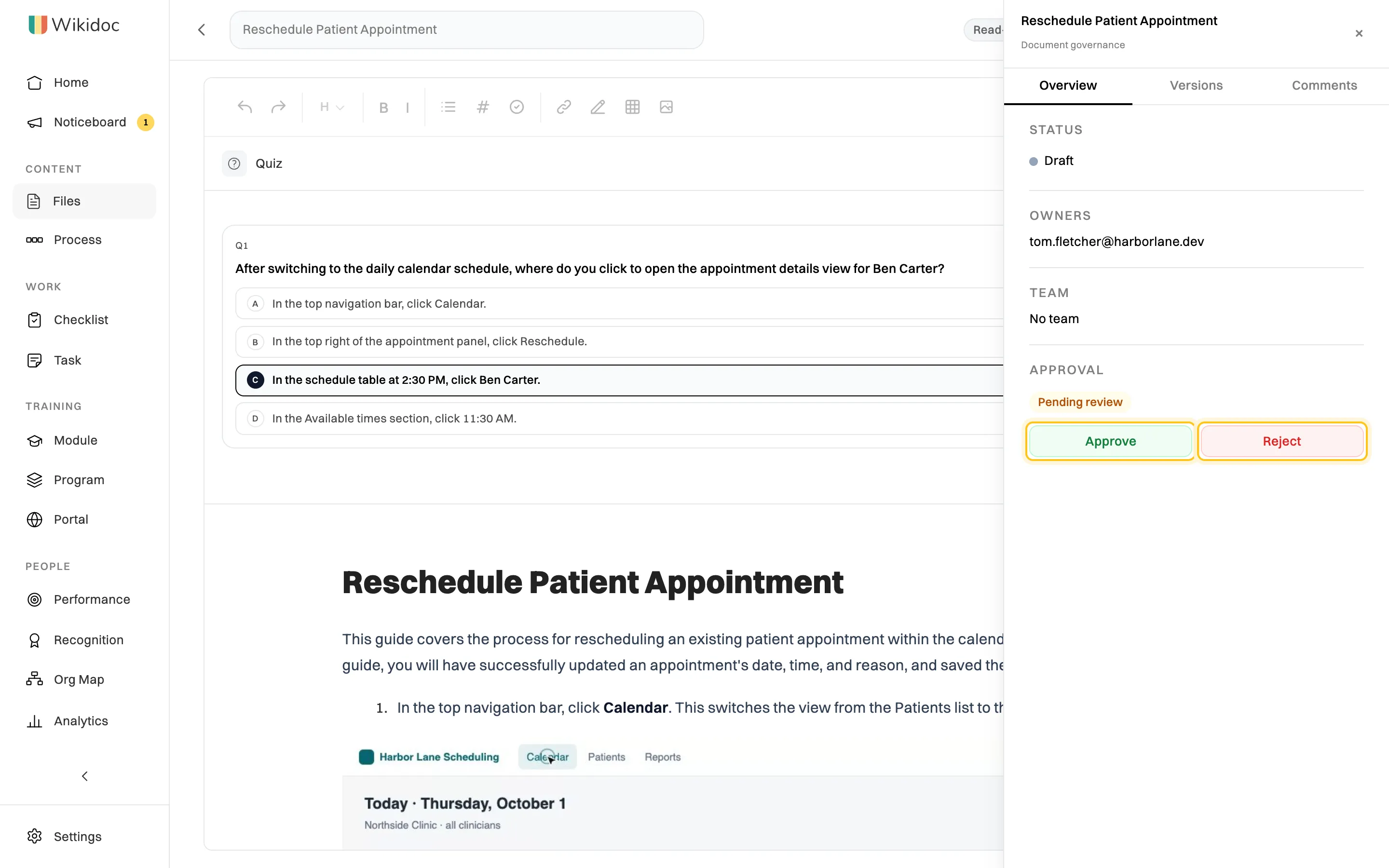
Approve if it's right; reject it to send it back. -
Add a note if you like: what’s good, or what needs changing. Then click Confirm Approve or Confirm Reject.
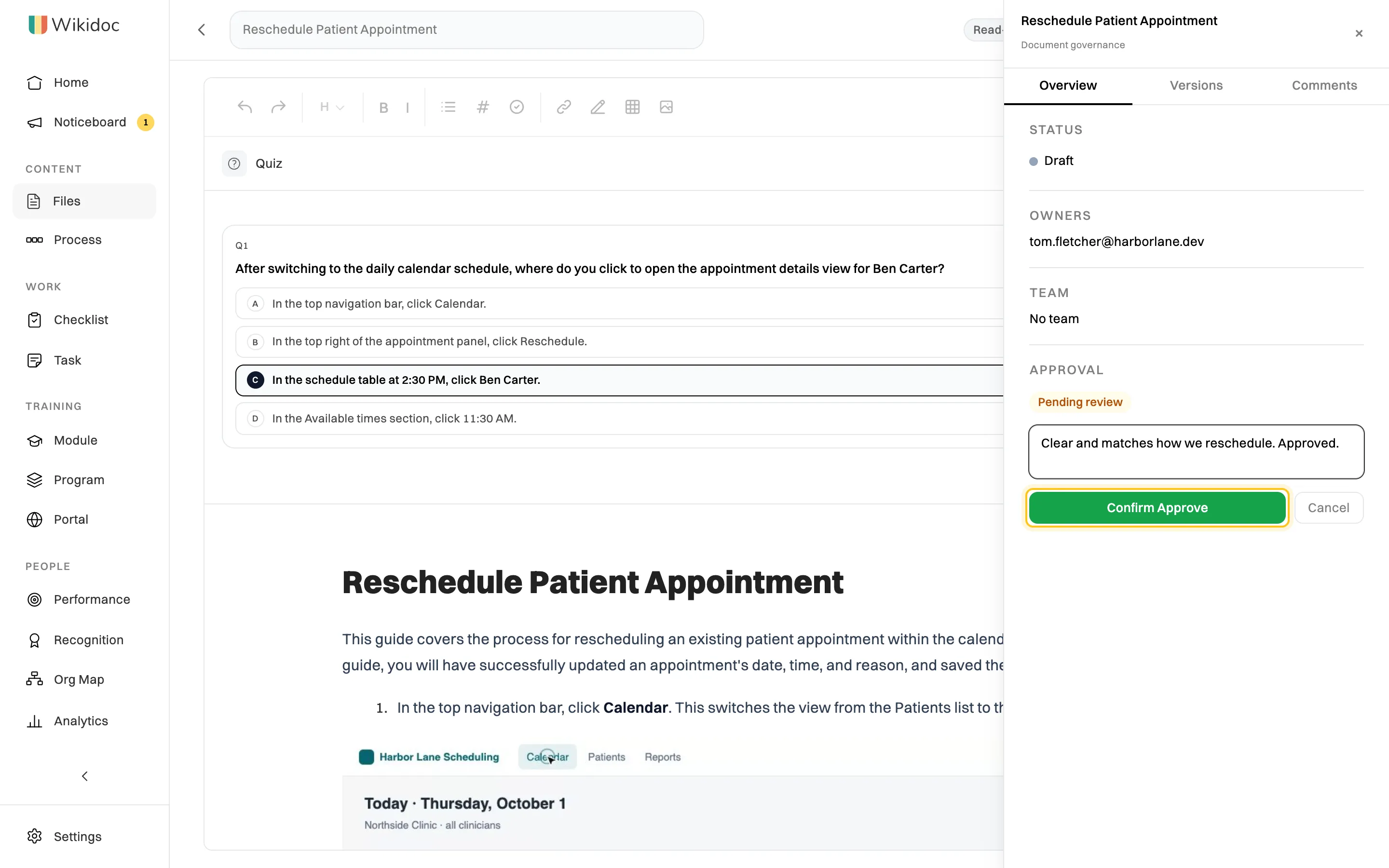
Your note is sent to the author and kept in the approval history.
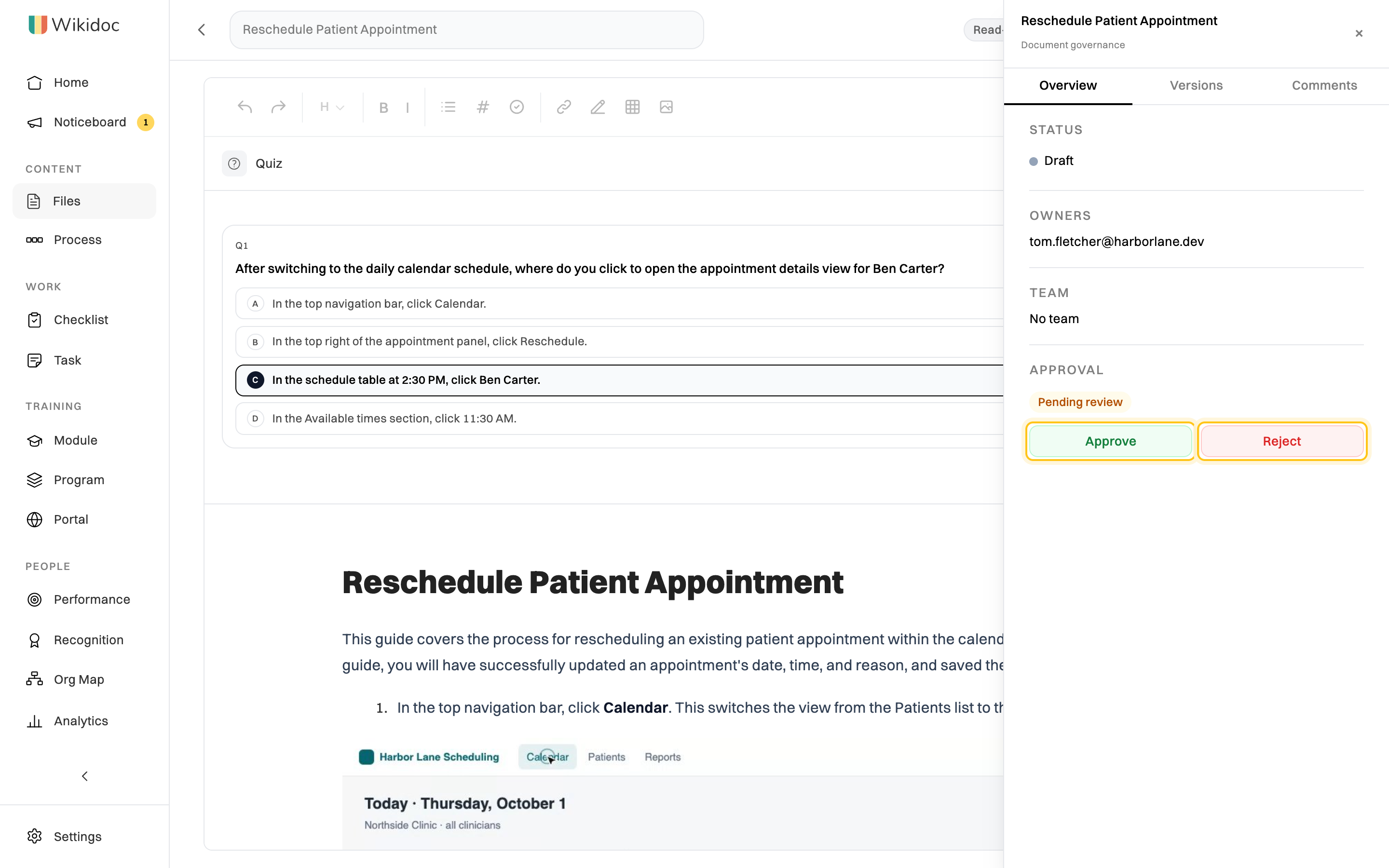
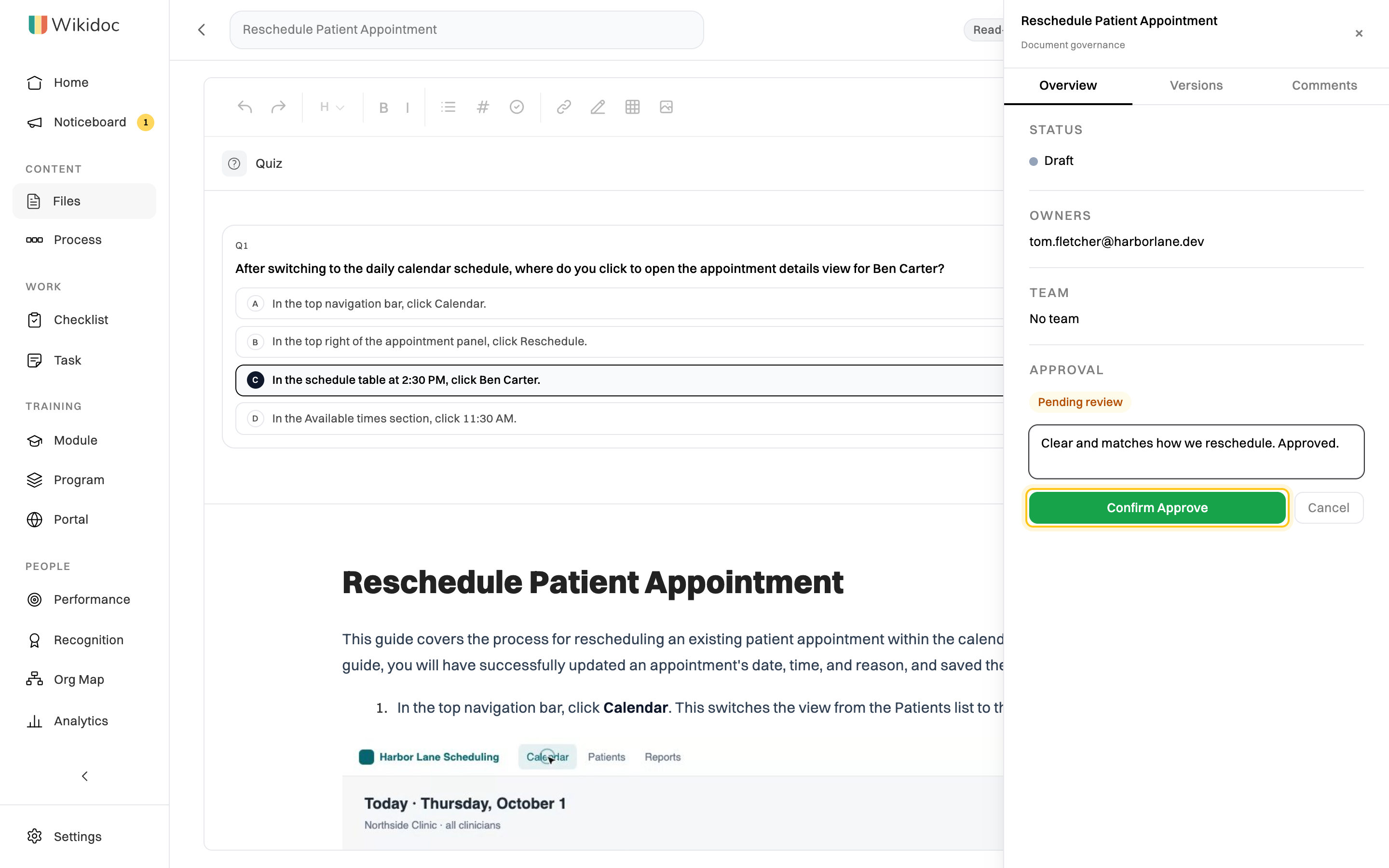
The document’s author and owners are notified of your decision, with your note.
After a decision
Section titled “After a decision”- Approved: the document stays approved until someone saves a change to it. Saving changes the content that was signed off, so the approval goes back to Not submitted and needs requesting again. Wikidoc marks the badge clears on save while there are unsaved changes.
- Rejected: fix what the approver asked for, save, and click Request Approval again. The author can click Create a task for the rework to track the changes on a task board.
Every request and decision is listed, with notes, under Approval History on the Versions tab. See Document governance.
If something goes wrong
Section titled “If something goes wrong”I don’t see Approve or Reject. You’re not one of the document’s approvers, or you created it. Ask an Admin to add you as an approver, or ask another approver to review it.
“You created this document - approval must come from another approver”. You wrote the document, so someone else has to approve it.
“Approval workflows require a Team plan”. Approvals are on the Team plan. See Upgrade your organization to Team.