
Set and track KPIs
Create the goals people are measured against, from the whole organization down to one person, and record how they went.
A KPI is a goal with a target, such as “Calls answered within three rings: 95%”. Set one for the whole organization, a department, a team or one person, and record how it’s going. A person’s own KPIs are added to their performance review automatically.
Who can set which KPIs
Section titled “Who can set which KPIs”| Level | Who can set it |
|---|---|
| Organisation | Admins |
| Department | Managers of that department, and Admins |
| Team | Managers on that team, and Admins |
| Individual | Managers, for the people who report to them or are in their departments, and Admins |
Nobody sets their own individual KPI, Admins included. You can record your own result, though.
See your KPIs
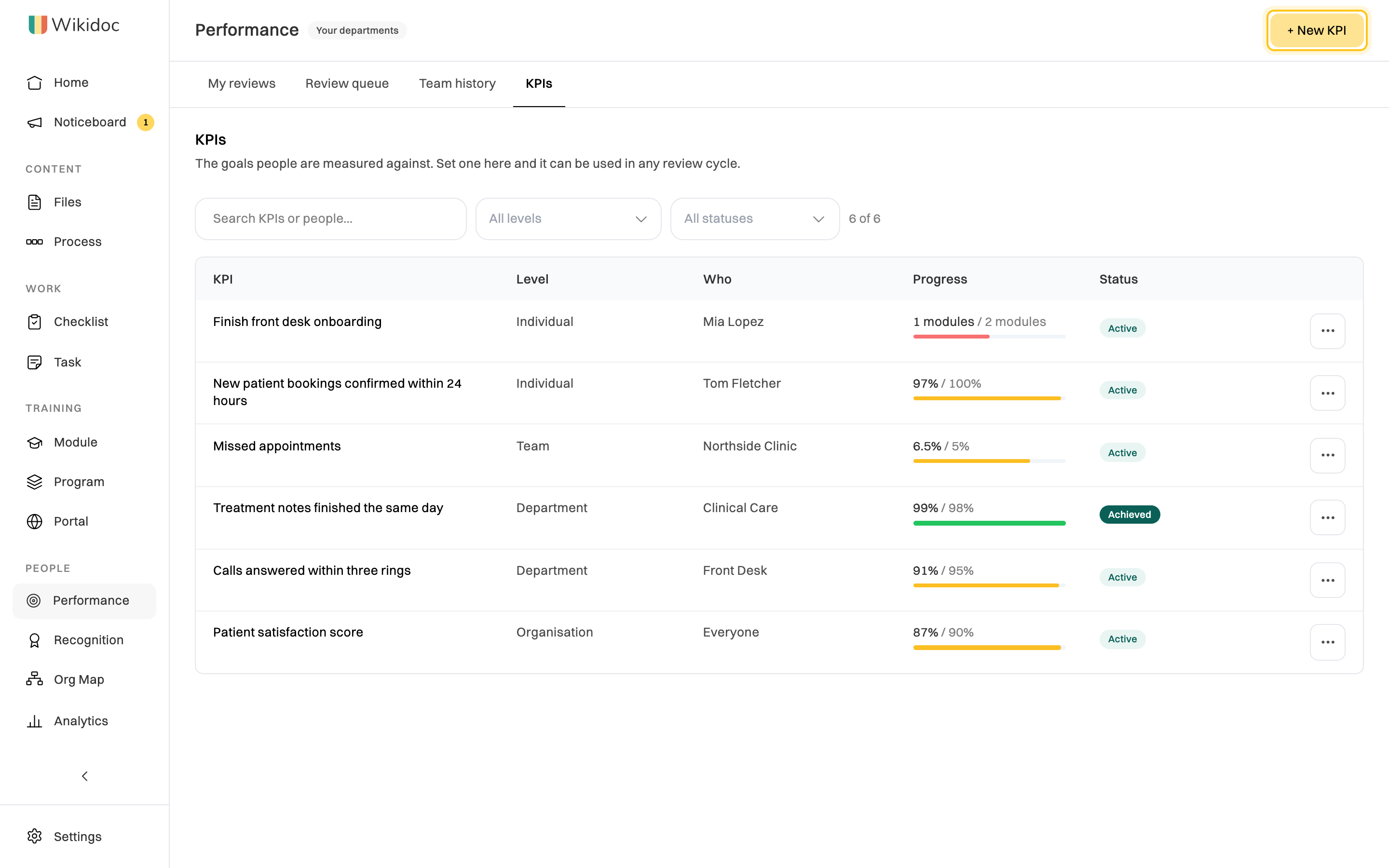
Section titled “See your KPIs”Click Performance in the sidebar, then KPIs. Each KPI shows its level, who it’s for, progress against the target and its status. The progress bar is green once the target is met, amber from three-quarters of the way, and red below that.
Create a KPI
Section titled “Create a KPI”-
On the KPIs tab, click + New KPI.
-
Give it a Title and a Description of what good looks like and how it’s measured. To check the wording, click Is this measurable?
-
Choose the Level, then the department, team or person it’s for.
-
Under How it is measured, choose Qualitative, Number, Percentage, Currency or Count. For anything but qualitative, enter the Target, the Unit, and whether it’s better when the number is higher or lower.
-
Set its Weight: how much it counts toward a review’s overall score. 1 is normal, 2 counts double. Leave Status as Active.
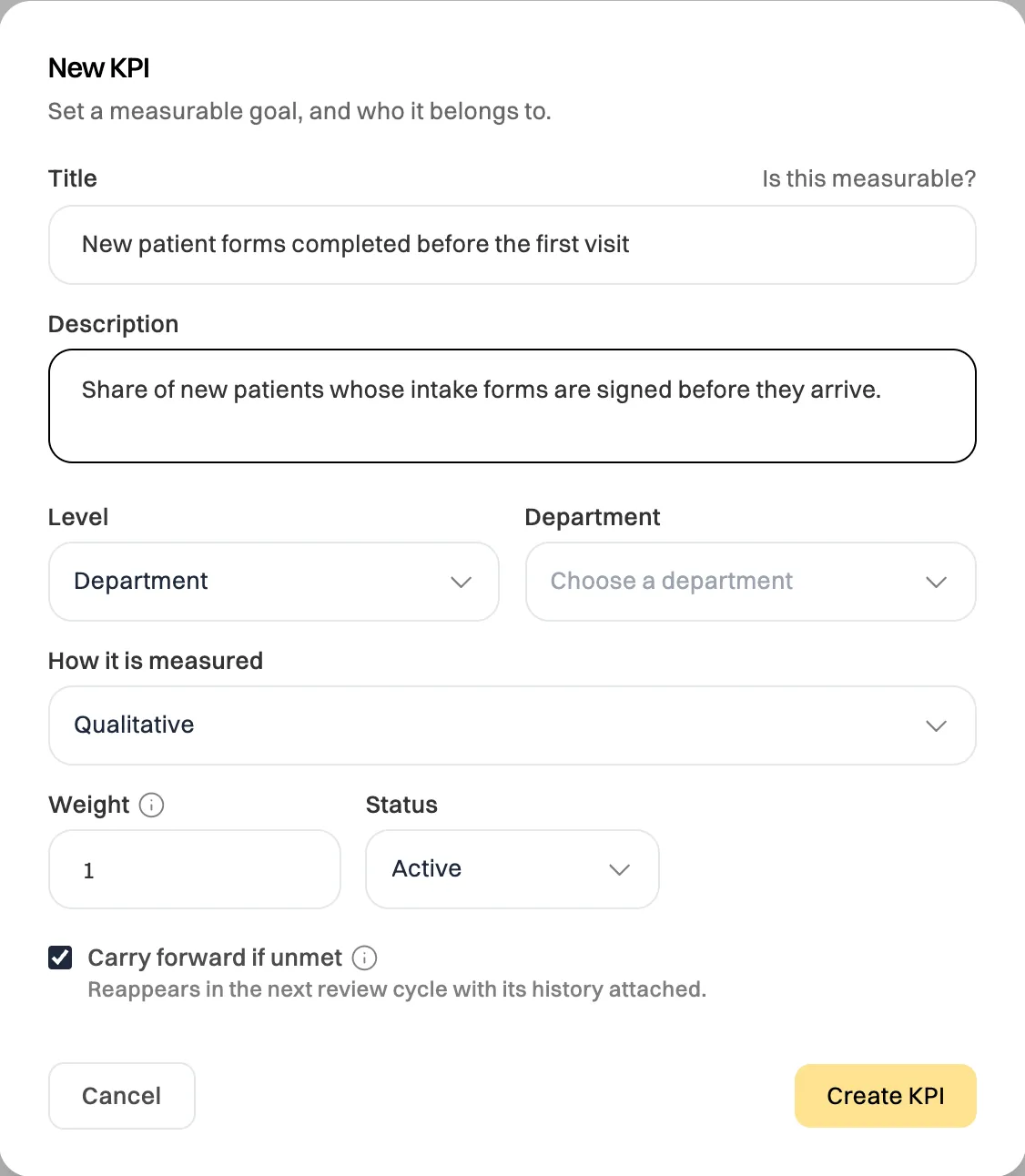
Set a measurable goal, and who it belongs to. -
Leave Carry forward if unmet ticked to bring the goal into the next review cycle if it isn’t met. Then click Create KPI.
Record progress
Section titled “Record progress”Click ⋯ next to a KPI, then Edit, and enter the Actual value. When the period’s over, change Status to Achieved, Missed or Cancelled.
If a KPI is yours, you can record its result yourself. Everything else about it is read-only for you: the target is set by whoever gave it to you.
Give every department or person their own copy
Section titled “Give every department or person their own copy”To turn one goal into a goal for each department, team or person, click ⋯ next to it, then Cascade. Pick who gets a copy and the target for each, then create them. Each copy rolls up to the original, which shows how many were cascaded from it.
See the work behind a goal
Section titled “See the work behind a goal”If your organization uses task boards, click ⋯ next to a KPI, then Work against this goal, to see the task cards linked to it. To link a card, add the KPI to it under Linked in Wikidoc. See Create, assign and move tasks.
Archive a KPI
Section titled “Archive a KPI”Click ⋯, then Archive. It disappears from the KPIs list and from new review cards. Review cards already issued keep it.