
Set up your organization
What happens the first time you sign in: your organization, your profile, and inviting your first teammates.
The first time you sign in, Wikidoc works out which organization you belong to from your email address, then asks you to set up your profile. It takes about two minutes, and only your name is required.
How your organization is decided
Section titled “How your organization is decided”Your email domain decides it. Wikidoc shows one of four welcomes:
| You signed up with | What you see | What it means |
|---|---|---|
| A work address, and you’re the first from your domain | You’re setting up Wikidoc for your domain | You’ve created your organization, and you’re its Admin |
| A work address, and colleagues are already here | … people from your domain are already here | You’ve joined their organization. You start as an Editor |
| A work address, but every Team plan seat is taken | Your access … is awaiting approval | An Admin has to let you in. See Request to join an organization |
| A personal address, such as Gmail | Welcome to Wikidoc | You work on your own, with no organization |
If an Admin invited you, you join their organization with the role they chose.
Set up your profile
Section titled “Set up your profile”-
On the welcome screen, check Your name. Click Photo to add a picture of yourself.
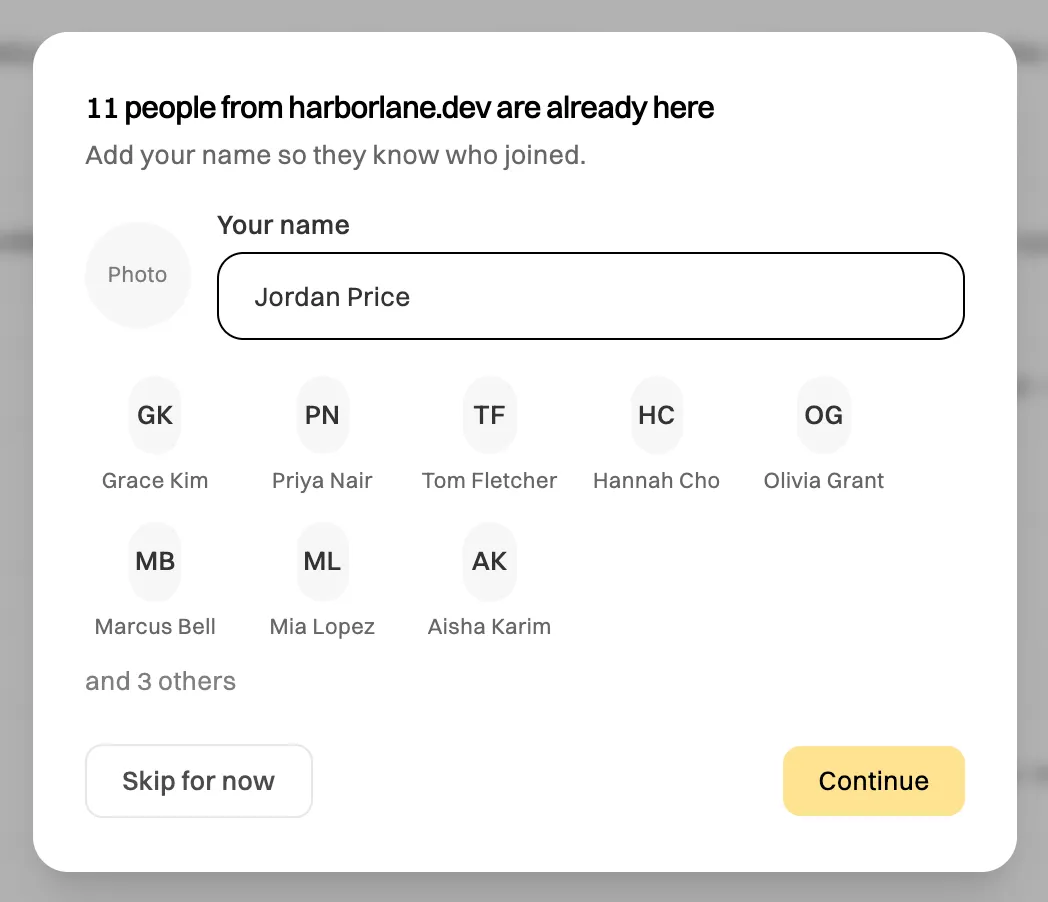
Joining an organization that's already here: you see who's there. -
If you’re the first from your domain, you’ll also see Invite your team (optional). Type up to five colleagues’ email addresses. Each one is invited as an Editor, and we email them.
-
Click Continue.
-
Fill in as much of the profile as you like, clicking Next after each step. A bar shows how complete your profile is.
- You: your name.
- Your work: job title, start date, location and timezone. Your department is shown but not editable: an Admin sets it, along with who you report to.
- About you: LinkedIn, phone number and skills.
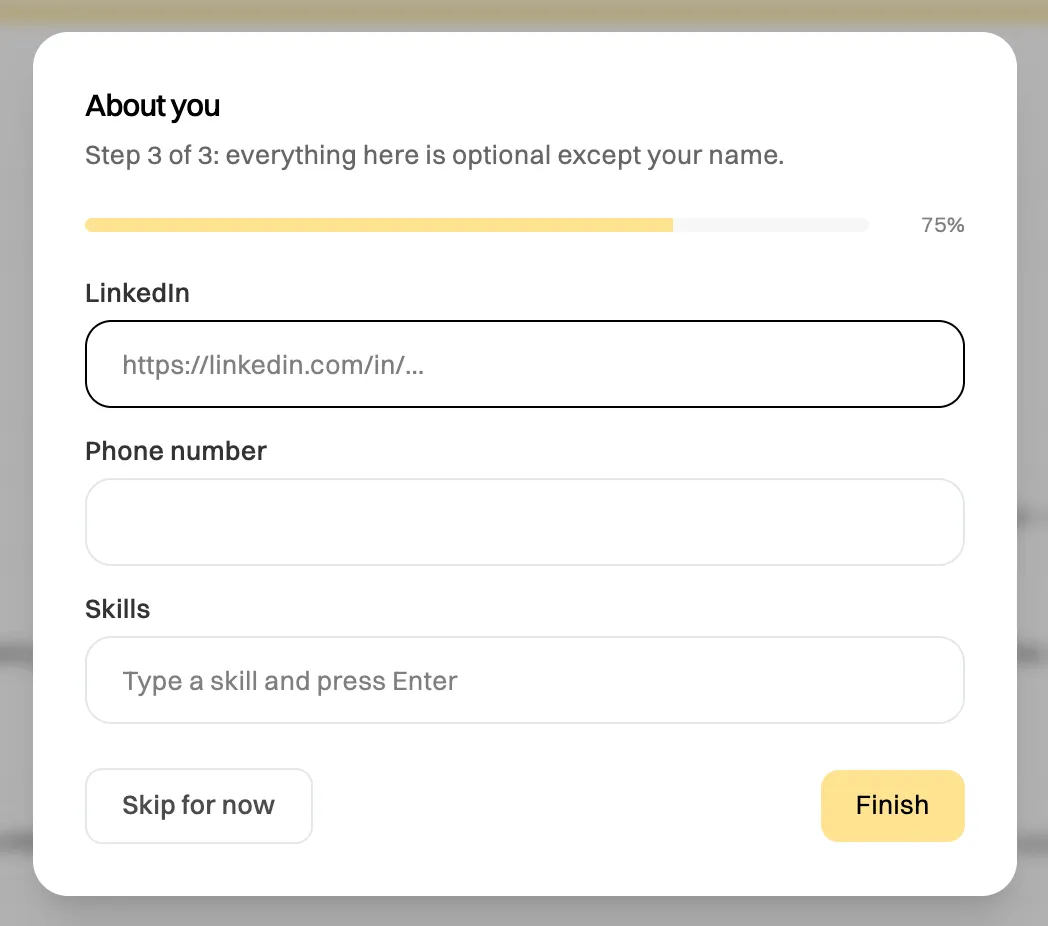
Every step saves when you click Next, so you never lose what you've entered. With a personal address, you skip Your work, so there are two steps.
-
Click Finish. Wikidoc offers three places to start: Documentation, Process map and Training module. Pick one, or click Go to Home.
Skipped it?
Section titled “Skipped it?”Click Skip for now at any step. Nothing you entered is lost. Home shows a Finish setting up card with the fields still missing:
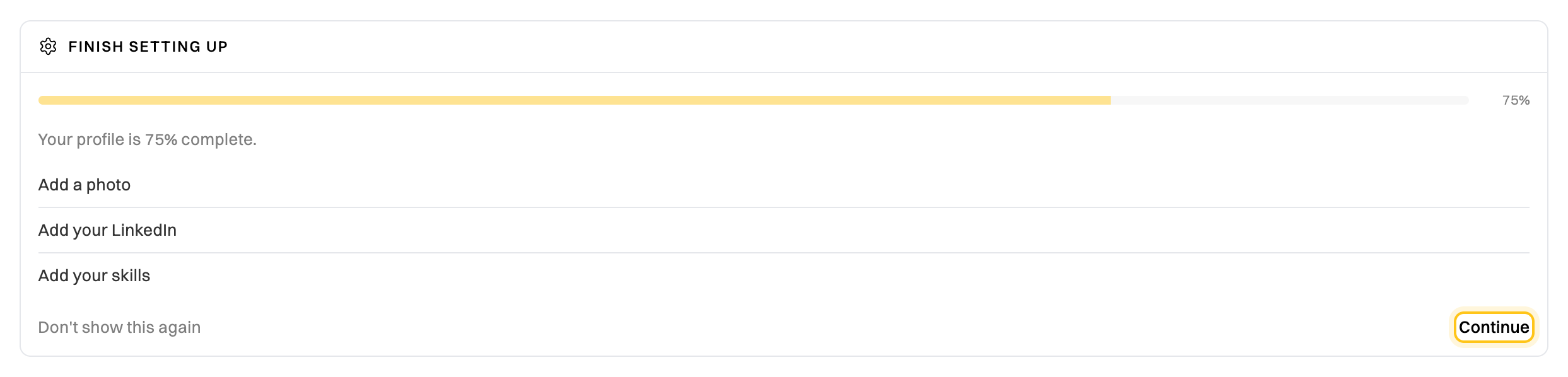
- Click Continue to reopen the setup where you left it.
- Click Don’t show this again to hide the card for good.
You can change any of it later in Settings›Account.
Bring in your team
Section titled “Bring in your team”If you’re the Admin of a new organization, the rest of your team can join in two ways:
- They sign up themselves with their work email. Anyone from your domain joins automatically.
- You invite them from Settings›Access, and choose their role. You can also invite people from other domains, such as contractors. See Invite a member.
Then give each person the right role. See Roles and permissions.