
Invite portal guests
Give clients and partners access to an invite-only portal by email. Guests never take a seat.
For a portal only certain people should open, such as one client’s onboarding or a package for an auditor, make it invite-only and invite them by email. Guests are free on the Team plan, with no limit on how many, and they never take a seat.
Invite people
Section titled “Invite people”-
Click Portal in the sidebar, click ⋯ next to the portal, then Edit.
-
Under Access, set Who can access to Invite only - specific people.
-
Under Invitations, type the email addresses, separated by commas. You can invite up to 50 people at a time.
-
Choose when the invitations expire: No expiry, or in 7, 30 or 90 days.
-
Click Send invites.
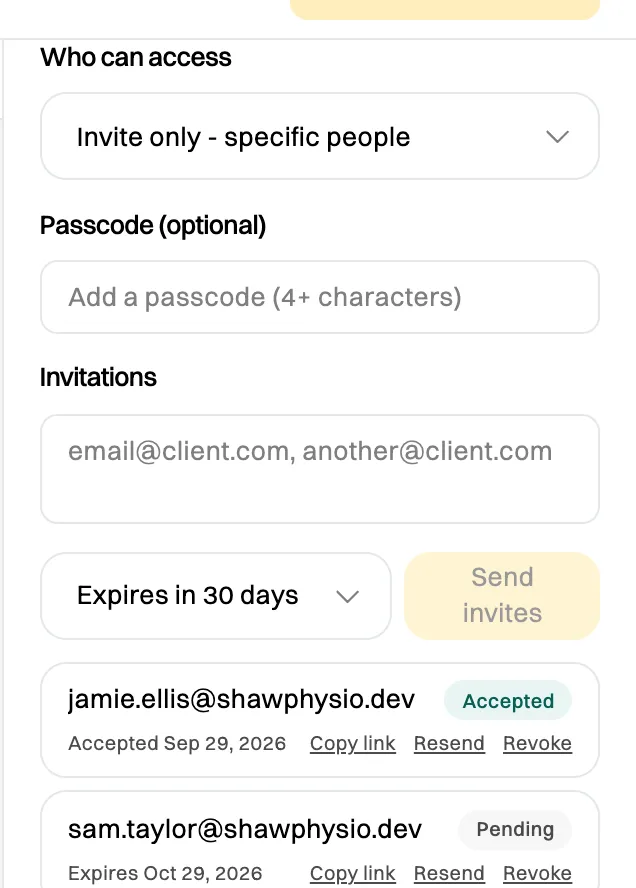
Each invitation shows whether it's been accepted. -
If you’ve just switched the portal to invite-only, click Save changes (live) or Save draft to apply it. The invitations themselves work straight away.
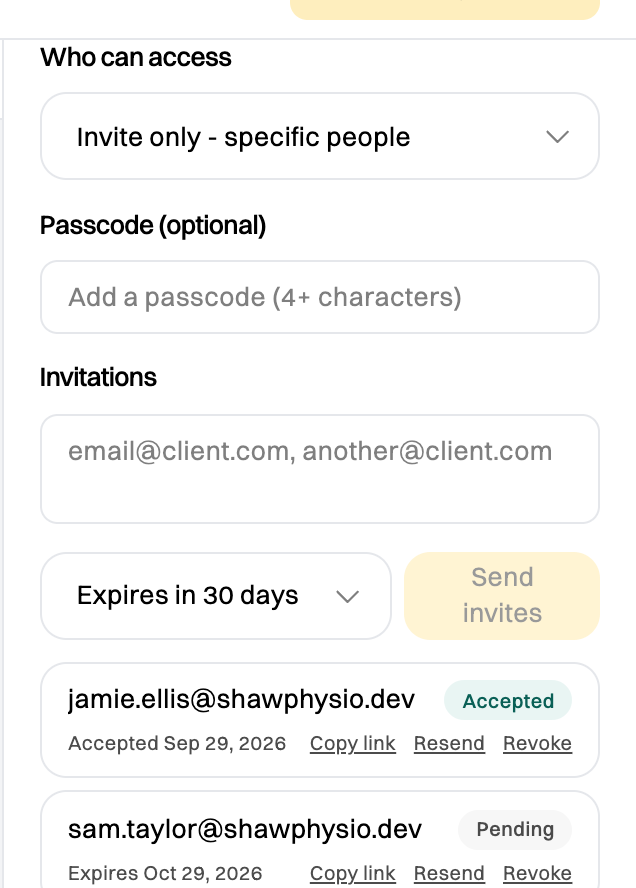
Each person gets an email with their own link. A link only works for the address it was sent to, so a forwarded invitation doesn’t let anyone else in.
You can’t invite people with an email address at your own organization’s domain. They’re colleagues, so add them as members instead. See Invite a member.
Manage invitations
Section titled “Manage invitations”Next to each invitation:
- Copy link: copy the invitation link, to send it yourself.
- Resend: send the email again. An expired invitation starts again from today.
- Revoke: take away access. It takes effect straight away.
An invitation shows Pending until the person signs in, then Accepted. An Expired invitation no longer works; resend it to renew it. Once someone has accepted, the expiry no longer applies to them.
What guests see
Section titled “What guests see”The guest clicks the link in their email and signs in, either with a link emailed to them or with a password. The first time, they give their full name, which goes on any certificate they earn. Then they see your portal: your name, your colors, and only the content you added.
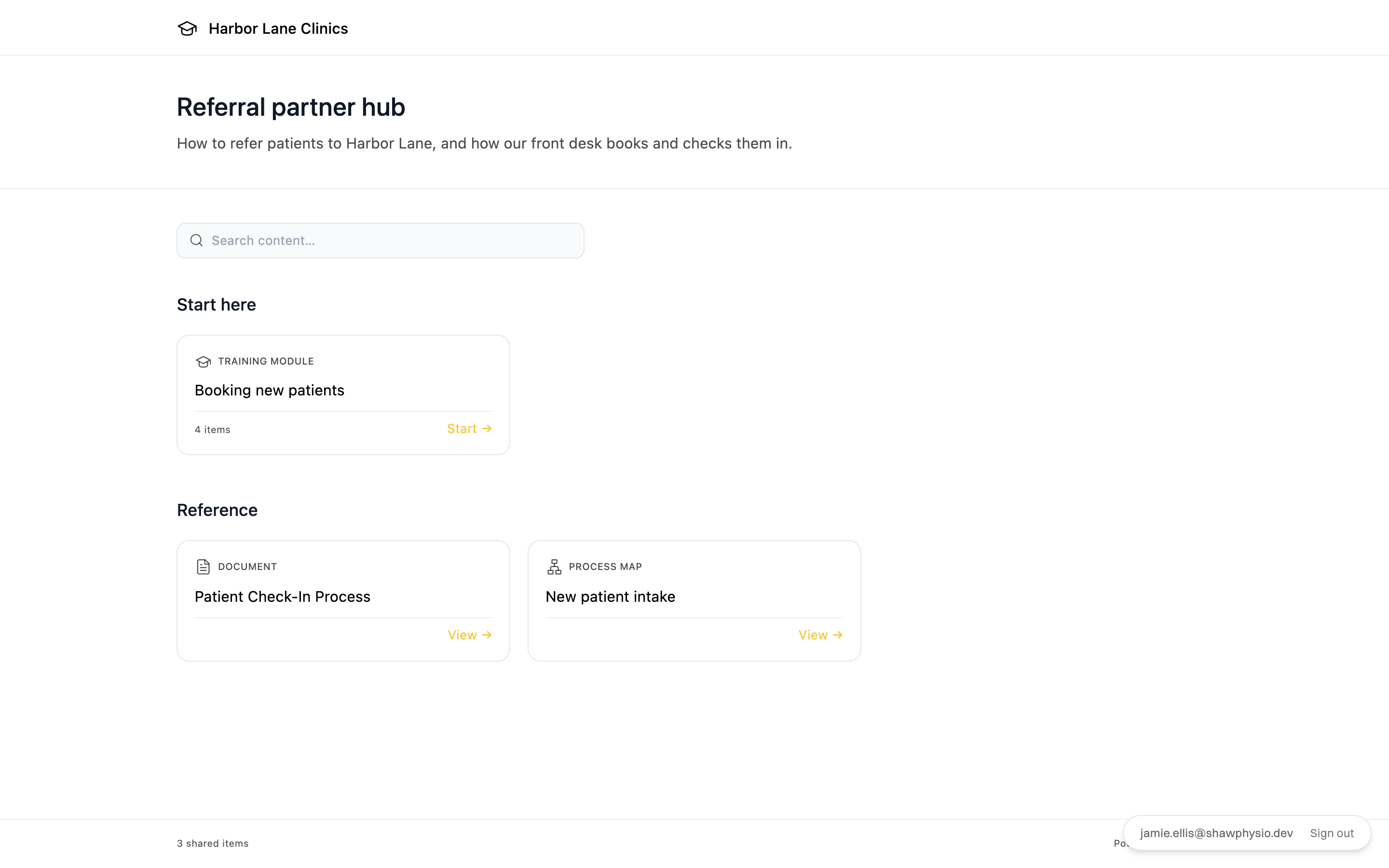
Someone who already has a Wikidoc account, at another organization, uses the portal with that account.
Other ways to share a portal
Section titled “Other ways to share a portal”Instead of invitations, Who can access can be:
- Public - anyone with the link: anyone can open the portal; they sign in when they open something, so their progress is kept. Add a Passcode (4 characters or more) to ask for one before the portal opens.
- Org members - same org login required: only members of your organization, signed in to Wikidoc.