
Create your account and sign in
Sign up with your work email and a password, or with Google, then verify your address.
A Wikidoc account is free, and needs no card. You can sign up with an email address and a password, or with your Google account.
Work or personal email?
Section titled “Work or personal email?”Use your work email if you’ll use Wikidoc with colleagues. Everyone who signs up with the same company domain, such as @yourclinic.com, joins the same organization and shares its content. The first person to sign up from a domain becomes its Admin.
If you sign up with a personal address, such as Gmail or Outlook, you don’t belong to an organization. You work in a private space of your own, where you can create documents, process maps and training modules: three of each on the Free plan, and as many as you like on Pro. Checklists, training programs and the org map are for organizations on the Team plan.
To join an organization later, see Request to join an organization. Once you’ve joined, you work in the organization’s space. Process maps and training modules you made on your own don’t move across.
Sign up with email and a password
Section titled “Sign up with email and a password”-
Go to app.wikidoc.ai/signup.
-
Enter your Email Address, then choose a Password and type it again under Confirm Password.
The password needs 10 to 30 characters, with an uppercase letter, a lowercase letter and a number.
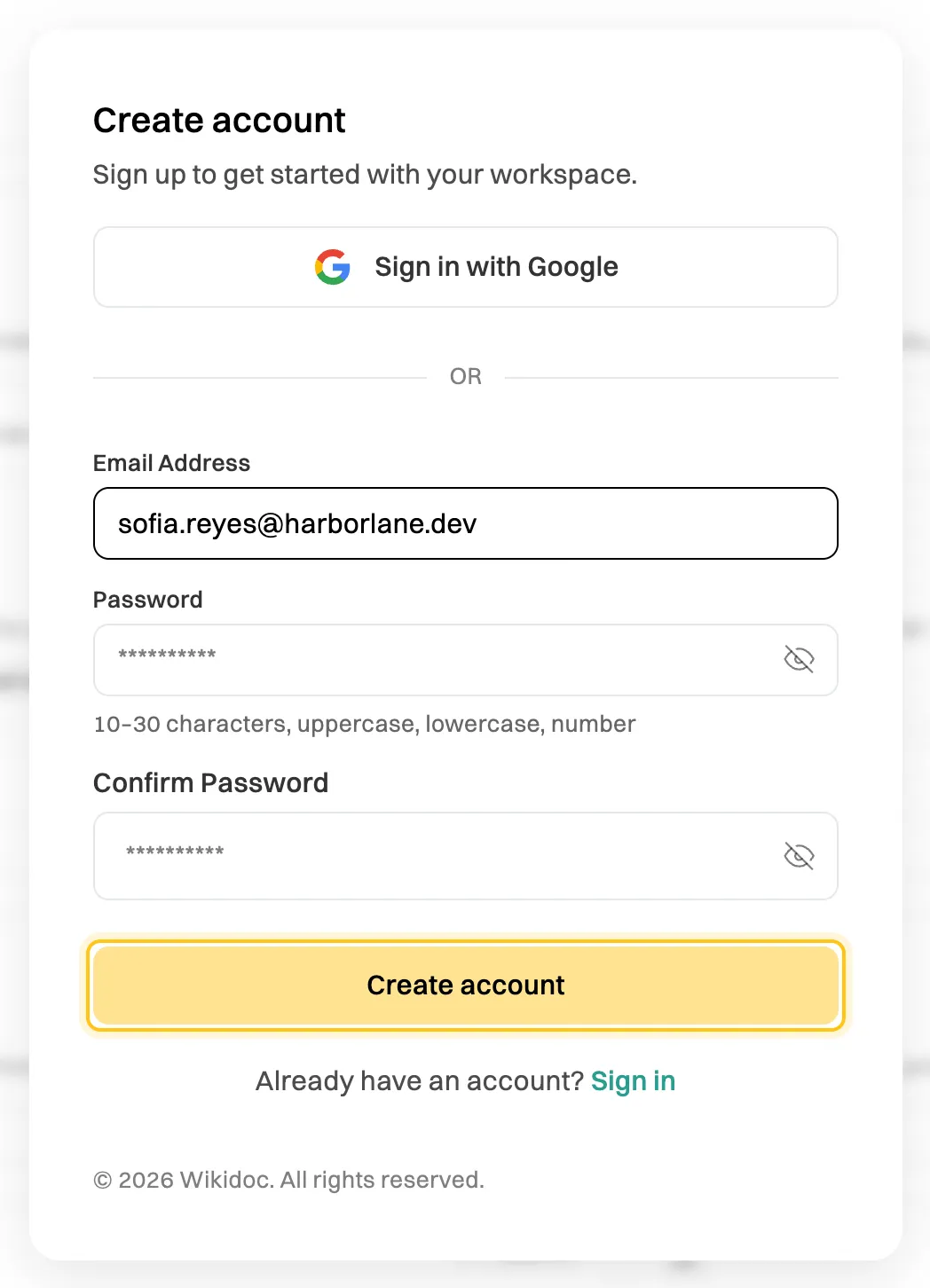
The password rule is shown under the Password box. -
Click Create account.
-
Open the email we send you and click the link in it. It opens Wikidoc and says Email verified! Sign in to continue. Sign in.
If you still have Wikidoc open in the tab you signed up in, you can click I’ve verified my email there instead.

Until you verify your address, Wikidoc shows a Verify your email screen instead of the app.
- No email? Check your spam folder, then click Resend verification email. You can resend once the countdown on the button ends.
- Wrong address? Click Sign out and sign up again with the right one.
Sign up with Google
Section titled “Sign up with Google”On the sign-up screen, click Sign in with Google and choose your Google account. There’s no password to set and no email to verify: Google has already confirmed your address.
Signing in with Google later works the same way. Your Wikidoc account has no password of its own, so to change it or recover your account, use Google. See Reset or change your password.
After you sign up
Section titled “After you sign up”Wikidoc welcomes you and asks for your name, then offers a short profile setup. See Set up your organization.
Sign in next time
Section titled “Sign in next time”Go to app.wikidoc.ai. Enter your email address and password and click Sign In, or click Sign in with Google.

Use the same method you signed up with. If you signed up with Google, a password won’t work, and the other way around.
If something goes wrong
Section titled “If something goes wrong”“An account already exists with this email. Try signing in instead.” You’ve signed up before. Sign in, or reset your password.
“Password must contain: …” The password is missing what’s listed. It needs 10 to 30 characters, with an uppercase letter, a lowercase letter and a number.
“Too many attempts. Please try again later.” Wait a few minutes before trying again.
The verification link doesn’t work. It may have expired, or been replaced by a newer one. Sign in and click Resend verification email, then use the link in the newest email.